How to Update Forge: A Practical Guide for Minecraft Mods
Learn how to update Forge safely for Minecraft mods. This guide covers backups, version compatibility, and a clear upgrade workflow to minimize crashes and preserve worlds.


Learn how to update Forge to the latest compatible version for your Minecraft mod setup. This guide covers safe backups, version alignment, and a clean upgrade path that minimizes mod conflicts and crashes. By following these steps, you’ll keep your mods running smoothly and preserve your world data.
What Forge update means for your modded Minecraft setup
If you're learning how to update forge, you first need to understand what Forge updates typically fix or change: new Minecraft version compatibility, loader improvements, and sometimes changes to mod APIs. A Forge update can affect how mods load, their runtime behavior, and world data handling. By anticipating these shifts, you can plan a smoother upgrade without surprises. In this guide, we break down practical steps to update Forge while preserving your existing worlds and mod configurations.
Prerequisites and safety precautions
Before making changes, back up everything that matters: worlds, saves, mod jars, and configs. Ensure you are running a stable Minecraft Java Edition launcher, and that your internet connection is reliable to avoid partial downloads. Check your system meets the Forge version requirements, and gather the essential tools listed in the Tools & Materials section. This preparation reduces the risk of data loss and makes the upgrade traceable.
Choosing the right Forge version
Forge releases come in different channels: stable releases, recommended builds, and occasional betas. When you ask how to update forge in practice, the first decision is choosing the Forge version that matches your Minecraft core version and your mods' compatibility. Read the official patch notes, confirm mod authors' recommendations, and ensure your target Forge version supports your mod lineup. If in doubt, lean toward the recommended build for stability and compatibility.
Backup strategies and preparation
Backups should cover three layers: the world data, your mod jars and configs, and your launcher profiles. Create a full copy of the world folder, then export a mods folder snapshot (list of all mod names and versions) and a separate configs backup. Label backups with date and Forge version to keep history straight. This organized approach makes it easy to revert if anything goes wrong during the upgrade.
Step-by-step upgrade workflow
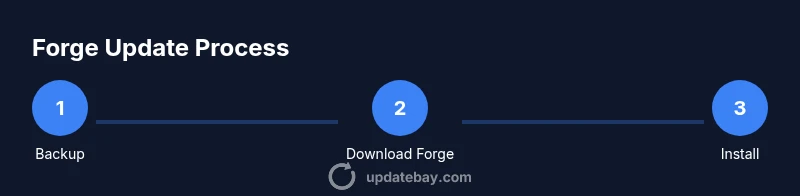
To update Forge, follow a clear workflow that minimizes risk: verify compatibility, download the Forge installer from the official site, run the installer with a fresh profile, and install Forge into a dedicated Minecraft directory to avoid altering your existing setup. Launch Minecraft with the new Forge profile, create a small test world, and confirm it loads without errors. If issues arise, consult the logs and compare mod versions to Forge requirements.
Verifying the update and troubleshooting
After launching with the new Forge, test core functionality: load a world, run a basic test, and check common mod interactions. Review the launcher output and game log for errors related to mod loading or API changes. If a problem appears, try updating or temporarily removing problematic mods, then re-test. Keeping notes on each change helps pinpoint compatibility gaps.
Common pitfalls and how to avoid them
Common pitfalls include skipping backups, mixing Forge versions with incompatible mods, and forgetting to update dependent libraries. Avoid these by maintaining a clean backup policy, validating mod compatibility before upgrading, and using a separate launcher profile for testing. Documentation and version logs are your best friends during this process.
How to roll back if something goes wrong
If the upgrade breaks your setup, revert to the previous Forge version using your saved backups. Restore world data and mods from the backup, then re-run Minecraft with the old Forge profile to ensure world integrity before attempting another update. A staged rollback approach minimizes downtime and data loss.
Tools & Materials
- Personal computer or workstation(Windows/macOS/Linux compatible; ensure sufficient disk space)
- Stable internet connection(Reliable download and update process)
- Minecraft launcher(Same account used for current world access)
- Forge installer (.jar)(Download from the official Forge site matching Minecraft version)
- Backup drive or cloud storage(Store world, mods, and configs safely)
- Mod inventory snapshot(List of mods and versions before updating)
- Optional: conflict tester(Tools to pre-check mod compatibility)
Steps
Estimated time: Total time: 25-40 minutes
- 1
Prepare backups
Create a full backup of your Minecraft worlds, mods, and configs. Store copies in a separate drive or cloud storage. Document current Forge version and mod list to simplify rollback if needed.
Tip: Label backups with date and Forge version for easy reference. - 2
Download the correct Forge installer
Go to the official Forge website and select the Forge version that matches your Minecraft core version. Save the installer to a known location.
Tip: Verify the source URL to avoid spoof sites. - 3
Run the Forge installer
Launch the installer and choose 'Install client' to create a Forge profile. Use a fresh or existing Minecraft directory to avoid overwriting current setups.
Tip: If prompted, select a new profile name to keep things separate. - 4
Update mods for compatibility
Check each mod for Forge compatibility with the target version. Update mods if newer compatible builds exist, or temporarily remove incompatible ones for testing.
Tip: Keep a mod compatibility list handy during the upgrade. - 5
Test in a controlled environment
Launch Minecraft with the new Forge profile and load a small test world. Confirm basic features work and watch for crash logs.
Tip: Avoid using your primary world during initial testing. - 6
Evaluate results and rollback if needed
If issues arise, compare logs to Forge and mod notes. Revert to the previous Forge version using backups if necessary and plan a staged retry.
Tip: Document any changes made during the upgrade for future reference.
Frequently Asked Questions
What is Forge and why update it?
Forge is a modding platform for Minecraft that loads mods with a shared API. Updating Forge ensures compatibility with the latest Minecraft releases and mod updates, reduces crashes, and adds improved stability.
Forge is Minecraft's mod loader; updating helps keep mods compatible and stable.
Do I need to update Minecraft to update Forge?
Forge updates are version-specific. You typically update Forge to match the Minecraft version you’re playing. Ensure the target Forge supports your Minecraft version before upgrading.
Forge updates usually align with a specific Minecraft version.
What if mods are incompatible with the new Forge version?
Identify incompatible mods by checking release notes and compatibility lists. Update mods where possible or temporarily disable conflicting ones during the upgrade.
Check mod compatibility; update or disable conflicting mods if needed.
How do I back up a Minecraft world?
Close Minecraft, locate your world folder, and copy it to a secure location. Include related configs and the mods folder in your backup package.
Back up the world folder and mod data before upgrading.
Where can I download Forge safely?
Download Forge from the official Forge website. Verify the URL to avoid phishing sites and ensure you select the correct version for your Minecraft install.
Use the official Forge site to download the installer.
Watch Video
What to Remember
- Back up your world and mods before upgrading
- Match Forge version to your Minecraft version
- Test in a separate profile to catch issues
- Be ready to roll back if needed