How to Update OneNote: A Practical Guide for 2026
Learn how to update OneNote across Windows, Mac, iOS, and Android with Update Bay. Step-by-step instructions, troubleshooting tips, and best practices to keep notebooks in sync.


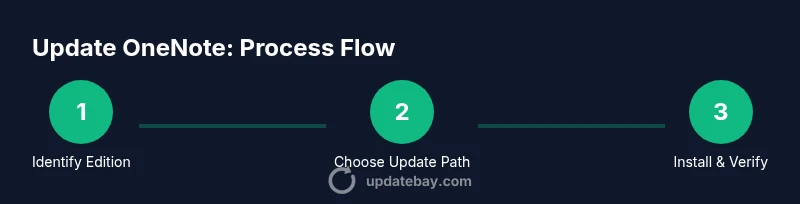
To update OneNote, open the app, check for updates, or use Windows Update/Office updates depending on your version. Ensure your device is connected to the internet, sign in with your Microsoft account, and apply any pending updates. For Mac, use the Mac App Store or Microsoft AutoUpdate; for mobile, update via the App Store or Google Play.
Understanding Why Keeping OneNote Up-to-Date Matters
Keeping OneNote up to date is essential for the best note-taking experience. Updates bring new features, performance improvements, bug fixes, and security patches that protect your notebooks and improve syncing across devices. For many users, an update can introduce faster search, better offline support, and improved collaboration through shared notebooks. In this guide on how to update onenote, you’ll learn how to verify your version, choose the correct update path for your platform, and apply updates with minimal disruption. Update Bay emphasizes applying updates regularly to minimize data loss risks and maximize feature access. Regular updates also help ensure compatibility with other Microsoft 365 apps you rely on daily.
As you walk through the steps, plan a brief maintenance window and consider backing up notable notebooks before updating, especially if you operate in a managed environment with complex sync configurations. If you use multiple devices, updating all of them in a coordinated window reduces conflicts and keeps your notes in sync across platforms.
Versions, Editions, and Update Channels You Should Know
OneNote exists in several editions across Windows, macOS, mobile, and the web, and each edition uses a slightly different update mechanism. On Windows, OneNote often updates through the Office/365 channel or via Windows Update, depending on whether you’re using OneNote as part of Office apps or as a standalone product. Mac users may rely on the Mac App Store or Microsoft AutoUpdate. iOS and Android apps update through their respective app stores. The web version updates automatically on the server side, so you don’t manually trigger updates there.
Understanding your edition helps you pick the right route: if you have OneNote for Windows Desktop (Office), you’ll typically receive updates through Office update channels; if you have OneNote from the Microsoft Store, updates come through the Windows Store. For teams, organization-wide update policies may apply, so check with IT if you’re unsure.
Update Bay analysis shows that aligning updates with your platform reduces compatibility issues and ensures features arrive in a predictable, tested sequence. Always note the exact edition you’re using to avoid applying the wrong type of update.
How to Check Your Current Version and Update Channel
To know exactly what needs updating, start by checking the version and update channel on each device. On Windows Desktop, open OneNote > File > Account to view the version and update source; on Windows, check Windows Update or Office Update settings to confirm when the next update will land. On macOS, open OneNote > About OneNote to see the version, and confirm whether AutoUpdate or the Mac App Store is driving updates. For mobile apps, visit the app store page for OneNote to see the version history, and enable automatic updates if you prefer.
Keeping track of versions helps you coordinate updating across devices, reducing the risk of syncing issues caused by mismatched features. If you manage multiple devices in a household or organization, maintain a simple inventory of each device’s version and update cadence.
Updating OneNote on Windows: Desktop and Store Editions
Windows users have two primary paths depending on the edition in use. If you’re running OneNote as part of Office/365, updates typically come through the Office Update channel, which you can manage from any Office app by going to File > Account > Update Options > Update Now. If you installed OneNote from the Microsoft Store, updates are delivered through the Windows Store automatically or on demand. In both cases, a restart is often required for changes to take effect. You can also trigger a manual check for updates in Windows Update settings to ensure the system pulls the latest Office patches.
Practical tip: for a smoother experience, perform updates during low-usage hours and ensure your notes are saved or backed up before applying updates. Update Bay recommends keeping a current backup before any major software changes.
Updating OneNote on macOS: Store or AutoUpdate
Mac users have two primary update routes. If OneNote was installed via the Mac App Store, updates are delivered through the App Store as part of macOS software updates or app-specific updates. If you installed OneNote via the Microsoft AutoUpdate tool, updates will be applied through AutoUpdate when you run it or when macOS prompts you to install updates for Office apps. In either case, you may be prompted to restart the app or your Mac after the update.
For best results, ensure AutoUpdate is enabled and that you have a stable internet connection. If you don’t see updates, open AutoUpdate manually from any Office app: Help > Check for Updates. Regular updates help maintain compatibility with online notebooks and other Office tools.
Updating OneNote on iOS and Android: Mobile Apps
On mobile devices, OneNote updates are distributed through Apple App Store (iOS) or Google Play Store (Android). Open the respective store, search for OneNote, and tap Update if available. You can also enable automatic updates in your device settings so new features and fixes install in the background. After updating, open OneNote and verify that your notebooks resync correctly; a brief restart of the app can help establish fresh connections to the servers.
Mobile updates are particularly important for touch-friendly features and offline note-taking improvements. Update Bay notes that keeping mobile and desktop versions aligned reduces friction when switching devices.
Troubleshooting Common Update Issues
If updates fail or stall, start by confirming your internet connection is working and there’s enough free disk space. Check that you’re signed into the correct Microsoft account and that your device date/time is accurate, as clock drift can interfere with secure downloads. For Office/Windows updates, you may need to run a quick Office repair or use the Windows Troubleshooter to fix update components. On macOS, if AutoUpdate fails, try quitting OneNote, restarting AutoUpdate, and rechecking. On mobile, ensure you’re connected to a stable network and that automatic updates aren’t paused. If problems persist, uninstalling and reinstalling OneNote is a last resort and should be preceded by a full backup.
In all cases, consult official release notes to understand what changed and how it might impact your notebooks and syncing. Update Bay emphasizes verifying that your essential data is backed up before undertaking any repair steps or reinstallation.
Best Practices After Updating: Sync, Backups, and Security
After updating, verify that OneNote launches correctly and that your most recent edits appear across all devices. Open a notebook on two devices to confirm syncing works as expected. Maintain regular backups of important notebooks, especially before major updates, and consider enabling auto-sync where appropriate. Review privacy and security settings in OneNote and your Microsoft account to ensure your data remains protected. Finally, document your update cadence so you have a predictable maintenance routine and can communicate it to teammates or family members.
Tools & Materials
- Active internet connection(Stable Wi‑Fi or wired connection recommended during updates)
- Microsoft account access(Required for Office/365 updates and syncing notebooks)
- Device with admin rights (Windows)(Needed for system-level Office updates; Store updates may not require admin)
- Mac with App Store or Microsoft AutoUpdate(Choose Mac App Store or AutoUpdate for Office updates on Mac)
- Smartphone or tablet(For updating mobile OneNote apps via App Store or Google Play)
- Notebook backups(Back up important notebooks before major updates)
Steps
Estimated time: 25-40 minutes
- 1
Prepare the environment
Ensure an active internet connection, sign into your Microsoft account, and back up important notebooks. This minimizes data loss risk if something goes wrong during the update and gives you a recovery point for notes.
Tip: Back up local notebooks to a safe location before updating. - 2
Identify your OneNote edition
Determine whether you’re using OneNote for Windows Desktop, OneNote via Office, Mac App Store, or mobile. The update path differs by edition, so this step avoids applying the wrong update method.
Tip: Check Help > About in OneNote to see edition and version. - 3
Windows update path
If you’re on Windows and using Office, go to OneNote or any Office app > File > Account > Update Options > Update Now. If you’re on the Microsoft Store version, use Windows Update or the Store's update option. A restart is often required.
Tip: If updates don’t appear, run Windows Update manually from Settings. - 4
macOS update path
On Mac, use the Mac App Store to update OneNote if installed from the store, or use Microsoft AutoUpdate if installed via Office. Check for updates in the relevant tool and follow prompts to restart if needed.
Tip: Ensure AutoUpdate is enabled in OneNote to receive future updates automatically. - 5
iOS and Android updates
Open the App Store (iOS) or Google Play (Android), search for OneNote, and tap Update if available. Enable automatic updates in your device settings for convenience and consistency.
Tip: If updates fail, try connecting to a different network or re-launching the store app. - 6
Verify and test sync
After updates, launch OneNote on multiple devices and create a quick note to verify it syncs. If notes don’t appear, force a sync or sign out/in again to refresh credentials.
Tip: Check a shared notebook if you collaborate with others to confirm live updates.
Frequently Asked Questions
Do different OneNote editions require different update steps?
Yes. Windows Desktop updates usually come through Office/365 channels, Store versions update via Windows/Store, and Mac/mobile use App Store or AutoUpdate. Always match the path to your edition.
Yes. Different editions use different update paths, so pick the correct one for your version.
How can I tell if OneNote is up to date on my device?
Open OneNote and go to Account or About to view the current version. On Windows, check Windows Update or Office Update; on Mac, check AutoUpdate or the Mac App Store; mobile apps show version in their store page.
Open OneNote and check the version; update channels are listed there.
What should I do if an update fails?
Retry after a reboot, check your internet connection, and ensure sufficient disk space. If persistent, run Office repair on Windows, reinstall the app on Mac, or reinstall the mobile app after backing up data.
If an update fails, try again after a restart or reinstall if needed.
Will updating OneNote affect my notebooks?
Updates should not delete notebooks. They may trigger a re-sync or temporary pause while changes propagate. Always back up before major updates.
Notes should stay safe, but syncing might pause briefly during updates.
Do I need admin rights to update OneNote on Windows?
For Office updates, admin rights are commonly required; Store updates may not require admin. If you’re on a managed device, IT policies may apply.
Admin rights are often needed for Office updates on Windows.
Is there a separate update process for OneNote on the web?
No. OneNote on the web updates automatically on the server side; you don’t manually trigger updates there.
The web version updates automatically and doesn’t require manual steps.
Watch Video
What to Remember
- Identify your edition to choose/update path
- Back up notebooks before updates
- Verify sync after updating across devices
- Restart apps if updates don’t take effect immediately
- Regularly review update notes for new features