How to Update OneDrive: Step-by-Step Guide 2026
Learn how to update OneDrive across Windows, macOS, iOS, and Android. This comprehensive guide covers auto-updates, manual downloads, and troubleshooting with practical tips from Update Bay.


In this guide you’ll learn how to update OneDrive across Windows, macOS, iOS, and Android, including auto-update settings, manual download options, and troubleshooting tips. By following these steps, you’ll ensure the latest security patches, performance improvements, and reliable syncing. According to Update Bay, keeping cloud storage apps current reduces common sync issues and improves overall reliability.
How to update onedrive across platforms
If you’re wondering how to update onedrive, you’ll find practical steps for Windows, macOS, iOS, and Android. Keeping OneDrive current helps protect your files, speeds up syncing, and provides new features as soon as they’re released. The Update Bay team emphasizes checking for updates regularly and enabling automatic updates where possible to minimize manual effort. This section explains the why and the high-level how-to, so you can decide the best path for your devices and usage patterns.
Across all platforms, updates are designed to be user-friendly, but certain environments (like corporate devices or restricted networks) may require extra steps or permissions. By understanding the update flow, you can reduce downtime and keep file integrity intact. If you rely on OneDrive for critical work, consider setting up a regular update habit—confirming you’re on the latest version at the start of each week can save you from last-minute surprises during collaboration.
The Takeaway: updates aren’t just about new icons or features; they fix bugs, improve security, and optimize syncing. The Update Bay analysis shows that users who stay current experience fewer issues and smoother file transfers.
Where to find update options across platforms
Finding update options for OneDrive is straightforward, but the exact path depends on your device:
- Windows: Click the OneDrive icon in the system tray, choose Help & Settings, select Settings, then go to the About tab to see the current version. If available, click Check for updates.
- macOS: Click the OneDrive icon in the menu bar, choose Help & Settings, then About to view the version and check for updates.
- iOS/Android: Open the App Store (iOS) or Google Play Store (Android) and check for updates for OneDrive. If an update is shown, install it. If you can’t find an update, download the latest installer from the official OneDrive download page and install over the existing app. Always use official sources to avoid tampering.
- Enterprise devices: IT admins may control update channels or require approval before updates install. Check with your admin if updates don’t appear as expected.
Auto-updates vs manual downloads
Most platforms support automatic updates for OneDrive, which install newer versions in the background when you have internet access. Automatic updates are convenient but can be blocked by device policy or network settings in some environments. If automatic updates are disabled or fail, you can perform a manual download from the official OneDrive site and install the new version yourself. After installation, restart the app to ensure changes take effect.
Tip: On laptops with limited bandwidth, consider scheduling updates for off-peak hours to avoid affecting work during the day.
Remember: regardless of path, confirm you’re on the latest build by re-checking the version in the app’s About dialog.
Cross-platform step-by-step overview
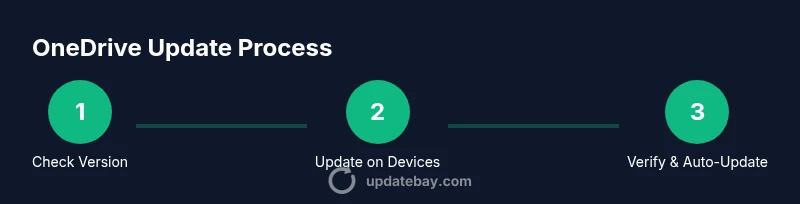
This section provides a concise cross-platform checklist. For detailed per-device actions, see the dedicated Step-by-Step block below. The intent is to give you a single mental model: verify current version, update where possible, and verify after installation. If you’re in a managed environment, align with your IT policies before making changes to avoid compliance issues. A successful update will show the new version in the About screen and maintain ongoing file synchronization as expected.
Troubleshooting common update issues
If an update won’t install, start with the basics: ensure a stable internet connection, verify the device clock is correct (time skew can block updates), and check storage space. Some networks block certain update domains; try a different network if possible. If the updater reports an error code, search the code on the official support site to identify recommended fixes. For persistent problems, downloading the standalone installer from the official site often resolves issues without needing the app store path.
If updates seem to install but OneDrive still behaves oddly, sign out and back in, or reset the app from Settings > Reset. Note that resetting won’t remove your files from OneDrive, but it will reconfigure the app on the device.
Finally, verify after updating that your files sync correctly by comparing a few local changes across devices. If discrepancies persist, visit the official support resources for deeper troubleshooting.
Best practices for ongoing maintenance
To minimize disruption, adopt a simple maintenance routine: enable automatic updates where appropriate, set aside time for periodic manual checks, and keep your OS and security software current. Regularly review OneDrive’s settings to confirm that sync is enabled for the folders you need, and use Version History to recover files if a mis-sync or accidental deletion occurs. For teams, document the update process and require a quick post-update test to ensure collaboration continues smoothly. The goal is a reliable, secure cloud-storage experience that scales with your needs.
As a reminder from Update Bay, staying current is a key defense against known issues and compatibility gaps across platforms. The team’s verdict: automatic updates should be your default unless policy constraints require manual control, and always verify post-update performance.
Authority sources
- https://support.microsoft.com
- https://support.apple.com
- https://support.google.com
Tools & Materials
- Device with internet access(Stable connection recommended; avoid metered networks if possible.)
- Official OneDrive app installer or access to app store(Install from official sources only to avoid tampering.)
- Administrative privileges (Windows/macOS)(Needed on managed devices to install updates.)
- Backup plan for critical files(Optional but recommended before major updates.)
Steps
Estimated time: Total time: 30-60 minutes
- 1
Check current OneDrive version
Open OneDrive, access Settings (Help & Settings) and select About to see the installed version. If an update is available, note the version number and prepare to install. This gives you a baseline before updating.
Tip: Having a browser open to official OneDrive support can help you verify the latest version. - 2
Update on Windows
From the system tray, open OneDrive > Help & Settings > Settings > About. Click Check for updates if available, or download the latest installer from the official site and run it. Restart OneDrive after the install completes.
Tip: Save any active work before starting the update to avoid data loss. - 3
Update on macOS
Click the OneDrive icon in the menu bar, choose Help & Settings > About, and select Check for updates. If no update appears, download the latest OneDrive installer from the official site and install over the existing app.
Tip: Close other apps to ensure a smooth installation. - 4
Update on mobile devices
Open the App Store (iOS) or Google Play Store (Android), search for OneDrive, and tap Update if available. Ensure auto-update is enabled in your device settings to simplify future updates.
Tip: Keep your device plugged into power during updates on mobile. - 5
Manual installer fallback
If auto-update fails on any platform, download the latest OneDrive installer from the official page and install it manually. This guarantees you’re on the newest build even without auto-update support.
Tip: Verify the installer is the official version before running. - 6
Verify and enable automatic updates
Open OneDrive again and verify the new version is active. Enable automatic updates where possible to streamline future maintenance.
Tip: Test syncing on a small set of files to confirm everything works as expected.
Frequently Asked Questions
How do I know if OneDrive is up to date?
Open OneDrive, go to Settings or About, and look for the version number. Compare with the latest version listed on the official OneDrive download page or support site. If the numbers differ, update using the available method for your platform.
Open OneDrive, check the About section for the version, and compare it to the latest on the official site. If it’s older, update now.
Can I update OneDrive without internet?
No. An internet connection is required for updates because the installer downloads newer files from Microsoft’s servers. Without a connection, updates cannot install.
No internet means updates can’t download, so connect and try again.
Will updating OneDrive affect my files?
Updating OneDrive does not delete your files. It refreshes the app and syncing engine. However, it’s wise to ensure your files are backed up before major updates.
No, your files aren’t erased, but it’s best to back up just in case.
Why isn’t OneDrive updating on Windows?
There could be network restrictions, group policy settings, or a stalled update. Check your internet, restart the OneDrive process, and verify your system clock is correct. If needed, use the manual installer from the official site.
If Windows won’t update, check network settings and try the manual installer.
Where can I download the latest OneDrive installer?
Go to the official OneDrive download page on Microsoft’s site and download the latest installer for your OS. Run the installer and follow the prompts to complete the update.
Visit the official OneDrive download page and install the latest version.
Does the mobile OneDrive app update automatically?
On most devices, mobile apps update automatically if you have enable automatic updates in the App Store or Google Play. You can also update manually from the store anytime.
Yes, mobile updates usually auto-install, but you can update manually from the store if needed.
Watch Video
What to Remember
- Verify current version before updating
- Choose auto-update when possible for simplicity
- Update via official sources to avoid tampering
- Post-update verification is essential for reliable syncing