How to Update Roblox on Mac
Discover how to update Roblox on Mac with a clear, step-by-step guide. Troubleshoot common update issues and ensure Roblox runs smoothly after each patch, with tips from Update Bay.


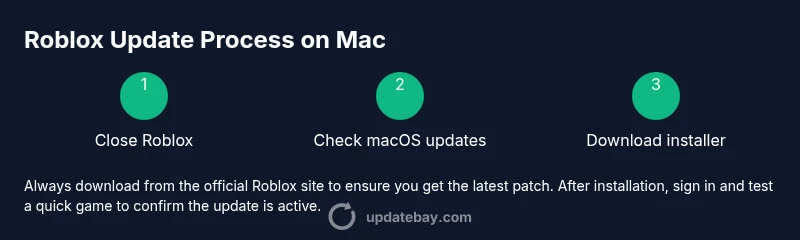
By following these steps, you will update Roblox on a Mac successfully. It requires a Mac with a supported macOS version, an active Roblox account, and an internet connection. Start by closing Roblox, checking for macOS updates, then reinstalling the Roblox Player from the official site if needed, and finally launching Roblox to confirm the update.
Why updating Roblox on Mac matters
Keeping Roblox up to date on macOS isn’t just about new features; updates improve stability, security, and performance. For Mac users, patches fix compatibility issues with system updates and address bugs that cause crashes or lag. According to Update Bay, timely updates correlate with smoother experiences on laptops and desktops running Roblox. Regular maintenance helps players avoid interruptions during sessions and ensures access to the latest security fixes and optimizations.
Prerequisites before updating
Before updating Roblox on Mac, make sure you have a reliable internet connection, sufficient disk space, and an active Roblox account. Close other resource-intensive apps to prevent conflicts during installation. It’s wise to back up important files in case the installer needs to modify system data. If you encounter prompts, have your admin password ready to authorize changes.
Official update method: reinstalling or patching
On macOS, Roblox updates often happen automatically, but some patches require a manual reinstall of the Roblox Player. The official route is to download the latest installer from Roblox’s site, which ensures you obtain the most current patch. After installation, launch Roblox and sign in to verify the update is active.
Troubleshooting common update issues on macOS
If the update stalls or fails, start by confirming your internet connection is stable and retry the download. Clear Roblox caches and restart the installer if needed. Some users encounter Gatekeeper or permission prompts; granting the necessary permissions allows the installer to complete. If problems persist, consider reinstalling Roblox entirely and removing old files from the Library/Application Support path.
Verifying the update and what to do next
Once the installer completes, open Roblox and run a quick test game to confirm the new patch is in effect. Check the Roblox settings and ensure you’re using the latest version shown in the launcher. If you notice performance issues, review macOS energy settings and background processes that could affect game performance.
Best practices for future Roblox updates on Mac
Set a routine to check for updates weekly, especially after major macOS patches. Keep macOS itself current to maintain compatibility. Use only official Roblox installers to avoid malware risks, and consider backing up Roblox save data before major updates for added safety.
Tools & Materials
- Mac computer(Any Mac capable of running Roblox (post-2012 models recommended))
- Stable internet connection(Wired Ethernet or reliable Wi‑Fi; avoid public networks during install)
- Official Roblox installer(Download from the official Roblox site to ensure the latest patch)
- Admin password / authentication method(Needed to authorize installer changes on macOS)
- Backup storage(External drive or cloud backup for Roblox data)
Steps
Estimated time: 15-25 minutes
- 1
Close Roblox and quit related processes
Fully exit Roblox and any launcher processes to prevent file locks during the update. This ensures the installer can replace all necessary files without interference.
Tip: Use Cmd+Option+Esc to force quit if the app is unresponsive. - 2
Check for macOS updates
Open System Settings/Preferences > Software Update and install any available macOS patches. System updates can improve compatibility with Roblox and prevent post-update issues.
Tip: Back up important data before applying major OS updates. - 3
Download the latest Roblox installer
Visit the official Roblox site and download the most recent Roblox Player installer for macOS. Using the official source guarantees you get the latest patch and avoids malware.
Tip: Verify the download comes from roblox.com before opening. - 4
Run the Roblox installer to update
Launch the downloaded installer and follow on-screen prompts to update Roblox. Allow any required permissions so the installer can modify application files.
Tip: If prompted, grant access in System Preferences > Security & Privacy. - 5
Sign in to Roblox
After installation, open Roblox and sign in with your account to verify the update is active and your progress is preserved.
Tip: If you forget your password, reset it before testing the update. - 6
Launch Roblox to verify the update
Play a quick game or load a scene to confirm the patch is applied. Check in-game settings for performance improvements and confirm the version shown in the launcher.
Tip: Watch for reduced loading times and fewer crashes. - 7
Troubleshoot update issues
If the update stalls, clear Roblox caches and retry the installer. If problems persist, reinstall Roblox entirely and remove old files from Library paths.
Tip: Keep a note of any error codes to look up exact fixes. - 8
Reboot if necessary
If updates still fail, reboot your Mac to clear locked files and apply pending changes. Do this only after other steps have been attempted.
Tip: Save any open work before reboot.
Frequently Asked Questions
Do I need to reinstall Roblox to update on Mac?
Often Roblox updates can be applied by updating the launcher, but some patches require reinstalling the Roblox Player to finish the update. Always use the official installer.
Sometimes you need to reinstall the Roblox Player to complete the update.
Can Roblox update automatically on macOS?
Roblox updates may install automatically when you launch the app, but manual steps are sometimes required after major patches. Always verify the update after installation.
Updates can install automatically, but you should verify after installing.
What if the update won’t install or keeps failing?
Check your internet connection, retry the download, clear Roblox caches, and if needed, reinstall Roblox. Note any error codes and consult Roblox support if persistent.
If it fails, retry and clear caches, then reinstall if needed.
Is it safe to update Roblox on Mac from the official site?
Yes. Always download from the official Roblox site to avoid malware, and ensure your macOS is up to date for best compatibility.
Yes—stick to the official site for safety.
Will updating Roblox affect my saved games or progress?
Updating Roblox should not delete or alter saved progress, but it’s wise to back up data before major updates as a precaution.
Progress is usually preserved, but backups are a good safety net.
How long does updating Roblox on Mac typically take?
Update duration varies with patch size and connection speed, but it usually takes only a few minutes.
It usually takes a few minutes to update.
Watch Video
What to Remember
- Update Roblox on Mac using the official installer to ensure the latest patch.
- Close Roblox and verify macOS compatibility before installing.
- If updates fail, use caches clear and re-install as needed.
- Regularly check for macOS updates to maintain compatibility with Roblox.