How to Update Roblox: A Comprehensive Step-by-Step Guide
Learn how to update Roblox across PC, Mac, and mobile with a comprehensive, practical guide. Stay current with auto-updates, troubleshooting, and best practices from Update Bay.


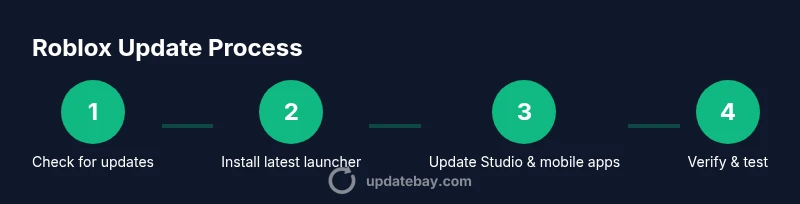
You can update Roblox by refreshing the launcher, enabling auto-updates, and installing the latest Roblox Player, Studio, and mobile apps. This guide covers PC, Mac, and mobile methods, plus troubleshooting steps and best practices to keep Roblox running smoothly. Follow the steps to ensure you are always on the newest Roblox experience.
How Roblox Update Mechanics Work
Roblox updates are released by the platform to fix bugs, add features, and improve security. When you launch Roblox on PC or Mac, the launcher checks for new files and downloads them in the background. Roblox Studio updates follow the same principle for developers who publish games. Understanding update cadence helps you plan maintenance windows and avoid disrupted play sessions. According to Update Bay, staying current with Roblox updates reduces compatibility issues and improves security. Most updates install automatically, but you can force a check if required. In mobile, the Roblox app prompts for updates when a network connection is available. By understanding these mechanics, you can minimize downtime and keep your games running smoothly.
- Update cadence often includes minor patches weekly and major releases on a monthly cycle.
- Patch notes detail what changed and why, helping you prepare for breaking changes.
- Data usage during updates can vary; ensure you’re on Wi‑Fi if you have data limits.
Keeping informed about the update process helps you avoid surprise downtime and plan when to test new features with your players.
Platform Coverage: PC, Mac, and Mobile
Roblox updates span several platforms, and each path has its own nuances. On Windows, updates typically install through the Roblox Launcher, while macOS users receive updates via the same launcher integrated into Roblox.app. Mobile devices rely on the iOS App Store or Google Play Store for app updates, which can be governed by OS-level settings. In all cases, updates aim to improve stability, performance, and security. If you manage a family device or a classroom computer, centralized management may apply similar update policies across users. Staying current reduces compatibility issues with new game assets and user-generated content, and helps ensure you don’t miss critical security fixes. Update Bay’s guidance emphasizes checking for updates across all devices you use for Roblox to maintain a uniform experience for players and developers alike.
Prerequisites and Safety Best Practices
Before you begin updating Roblox, set yourself up for success with a few safety steps. Ensure you have a reliable internet connection and enough free disk space for the new files. Back up important settings or game data if you’ve configured customized scripts or assets in Studio, so you don’t lose work if something goes wrong. Use a power source on laptops during updates to avoid interruptions that could corrupt installs. Disable antivirus temporarily only if you encounter a known false positive during the update, and re-enable protection immediately after the install completes. By preparing properly, you minimize the risk of partial installs that can leave Roblox in an unusable state. The Update Bay team recommends keeping a small rollback plan in case an update introduces instability on your hardware.
Automatic Updates vs Manual Updates
Automatic updates simplify maintenance by ensuring you always run the latest version without manual checks. They are especially helpful for families or classrooms with multiple devices. Manual updates give you control over when updates occur, which can be valuable during peak gaming sessions or live events. A hybrid approach—automatic for minor patches and manual for major releases—offers a balance between security and control. If you frequently run custom plugins or assets, testing updates in a controlled environment before a full rollout can prevent compatibility issues. Update Bay’s analysis shows that a well-configured auto-update policy reduces disruptive downtimes while keeping features current.
Updating on Windows and macOS
On Windows, start by opening the Roblox Launcher and checking for updates in the settings gear icon. If an update is available, the launcher will download and install it automatically; you may need to restart the launcher to finish. On macOS, follow a similar path via Roblox.app and the launcher’s update options. If you notice ongoing issues, try restarting your computer and clearing the Roblox cache. Always verify you’re running the latest build by checking the version number in the launcher’s About section. Ensure your system time is correct, as incorrect time settings can interfere with certificate checks needed for updates. The steps are largely identical across platforms, with minor UI differences.
Updating Roblox Studio (For Developers)
Roblox Studio updates primarily target developers who publish and test experiences. Open Roblox Studio and go to File > About to check the current version; if there’s an update, follow the on-screen prompts to install it. You can also download the latest Studio installer from Roblox’s official developer hub if automatic updates are unavailable. After updating, re-open your projects to test scripts and assets for compatibility with the new runtime. Regular Studio updates help you stay aligned with the platform’s newest features, reducing the chance of breaking changes mid‑production. Update Bay notes that keeping Studio current improves tool stability and asset compatibility.
Updating Roblox Mobile Apps (iOS and Android)
Mobile updates occur through the App Store on iOS devices and Google Play on Android devices. Ensure you have automatic updates enabled in the device settings, or manually check for updates in the respective store. After installing, launch Roblox to confirm the update installed correctly and that you can access your saved games and accounts. Some updates may require device reboots or temporary storage clearance. Keeping mobile apps current ensures compatibility with new game experiences and avoids login or performance problems during play sessions.
Verifying the Update and First Launch
After updating, it’s important to verify that Roblox is functioning correctly. Launch the launcher, Studio, or mobile app and observe the splash screen for the updated version. Load a favorite game or project to check performance and asset loading times. If you notice anomalies, recheck the update status, clear caches, and consider a reboot of the device. For developers, run a quick test of your most complex scripts and assets to ensure they operate as expected after the update. Regular verification helps catch issues early and preserves a smooth user experience.
Common Update Issues and Fixes
If an update stalls, try a forced check or a reinstall of the Roblox Launcher. Network restrictions, firewall rules, or antivirus settings can impede downloads; temporarily loosen restrictions or add Roblox to the allowed apps list. For Studio, missing plugin compatibility or script errors after an update may require reinstalling specific plugins or updating dependent assets. If a game won’t launch after an update, verify that your graphics drivers are current and that the Roblox runtime is enabled in your system’s privacy settings. These steps cover the most frequent update blockers and getting back to gameplay quickly.
Security and Privacy Considerations
Keeping Roblox updated is not only about features; it also reduces exposure to known vulnerabilities. Updates often fix security gaps that could affect both players and developers. Ensure you download updates from official Roblox sources and verify cryptographic signatures when available. On devices with multiple profiles or family sharing, apply updates consistently to avoid outdated runtimes on one account. Review app permissions after an update to ensure only necessary access is granted, reducing risk while preserving a high‑quality user experience. Update Bay emphasizes aligning security best practices with routine updates.
Best Practices for Keeping Roblox Updated
Establish a regular update routine that includes checking for updates on all devices used for Roblox, enabling auto-updates where appropriate, and testing major releases before live events. Maintain consistent backup of important assets and scripts, especially for Studio projects. Monitor patch notes to anticipate breaking changes and plan compatibility tests. Use a single source of truth for patch notes and version history to avoid confusion among players and developers. Update Bay’s guidance suggests establishing a lightweight governance process for when and how updates are applied across systems.
Common Pitfalls and How to Avoid Them
Don’t assume updates will complete without rebooting; always restart the launcher or device if you encounter partial installations. Avoid disabling security software permanently; instead, whitelist Roblox components during updates if false positives occur. Do not skip cache clearing on repeated failures, as stale data can prevent new content from loading. Finally, avoid delaying updates for long periods, since older versions may lose compatibility with new assets and online features. By following these best practices, you minimize downtime and keep Roblox stable across devices.
Tools & Materials
- Computer with internet access(Windows or macOS; ensure admin privileges if installing software updates)
- Administrative rights on the device(Needed for installing or updating Roblox components)
- Roblox account(Needed to sign in and manage updates)
- Stable Wi-Fi or data connection(Avoid interrupted downloads)
- Smartphone with Roblox installed (optional)(For mobile update verification and cross‑device testing)
- Backup method (cloud or local)(Back up assets or scripts before major Studio updates)
Steps
Estimated time: 25-35 minutes
- 1
Check prerequisites
Before you start, confirm you have a stable connection and enough disk space. Close other bandwidth-heavy applications to prevent slow downloads. If you’re on a shared network, check that Roblox isn’t blocked by a firewall.
Tip: Having a clean startup helps the update install without interference. - 2
Open Roblox launcher
Launch the Roblox Launcher on your PC or Mac. Go to the settings gear icon to check for updates and to enable auto-update if available. If an update prompt appears, accept and let the launcher download the latest files.
Tip: If the launcher doesn’t show a patch, use the “Check for updates” option manually. - 3
Update Roblox on PC/Mac
Download and install the latest Roblox Player. Restart the launcher to complete the installation. For Studio, repeat the same process if you develop or test games. Verify the version after installation by opening About or the patch notes page.
Tip: Restart the system if updates don’t appear to take effect after installation. - 4
Enable auto-updates
In the launcher or settings, turn on auto-updates for both the Roblox Player and Studio. This reduces future manual checks and ensures you stay current with security patches and new features.
Tip: Automated updates are especially useful for multi-device setups. - 5
Update Roblox Mobile Apps
On iOS, open the App Store and update Roblox; on Android, open Google Play and update Roblox. Confirm the update installed successfully and launch the app to verify the update is active on mobile devices.
Tip: Enable auto-updates in your device settings to simplify mobile maintenance. - 6
Verify the update
Launch Roblox on each device and test a known game or project. Check load times and asset rendering. If you’re a developer, run a quick Studio test to confirm scripts run as expected with the new runtime.
Tip: If issues appear, consult patch notes for any breaking changes. - 7
Handle common issues
If an update stalls, restart the launcher and recheck for updates. Check firewall rules, antivirus exclusions, and ensure the download path isn’t blocked. If problems persist, reinstall the affected component from official sources.
Tip: Avoid altering security settings permanently; revert changes after updates complete. - 8
Clear caches (if needed)
If you experience strange visuals or loading errors, clear Roblox caches on PC/Mac and mobile. This helps remove corrupted files that could block new content from loading properly.
Tip: Back up saved assets before clearing caches if you’ve customized content. - 9
Check for dependent updates
Some updates require platform drivers or device OS updates to perform correctly. Verify you’re on a supported OS version and update drivers if you notice graphic glitches or performance issues.
Tip: Keep track of driver versions and compare with Roblox compatibility notes. - 10
Document the process
Note the update version, date, and any issues encountered. This helps track progress and makes troubleshooting easier if future updates introduce similar changes.
Tip: A simple changelog entry reduces confusion for teammates and players. - 11
Schedule periodic checks
Set a recurring reminder to verify Roblox updates every 1–2 weeks, especially before events or game launches. A consistent cadence minimizes last-minute compatibility surprises.
Tip: Combine checks with routine system maintenance for efficiency.
Frequently Asked Questions
Why won't Roblox update automatically on my device?
Auto-update may be blocked by network restrictions, antivirus settings, or storage space. Check the launcher settings and ensure automatic updates are enabled. If problems persist, verify your internet connection and retry after freeing disk space.
Auto-update can fail due to network or space issues. Check settings, confirm you’re online, and retry after freeing space.
Do I need admin rights to update Roblox?
Yes. Installing or updating Roblox components typically requires administrator privileges on the device. If you’re on a managed system, contact your IT admin to grant the necessary permissions for updates.
Administrator rights are usually required to install Roblox updates.
Can I update Roblox on mobile without Wi-Fi?
It’s possible with cellular data, but updates can consume a lot of data. If you’re on a limited mobile plan, connect to Wi-Fi when you can and monitor data usage.
You can use mobile data, but watch data limits; Wi‑Fi is preferred when possible.
What should I do if the update fails?
First, restart the launcher or device, then reattempt the update. If it still fails, check for platform-specific issues in patch notes and consider reinstalling the affected Roblox component from the official site.
If updates fail, restart and try again; check patch notes and reinstall if needed.
Is it safe to reinstall Roblox to fix updates?
Reinstalling from official sources is generally safe and can fix corrupted files. Back up custom scripts or assets if you have them. After reinstall, verify that the latest version is running.
Reinstall from official sources can fix issues; back up data first.
How often does Roblox release updates?
Roblox releases patches and features on a cadence that varies by platform. Regular minor updates are common, with larger releases tied to platform milestones. Check patch notes for exact timing and content.
Updates come irregularly, but patch notes show timing and changes.
Watch Video
What to Remember
- Update Roblox across all devices to avoid compatibility issues.
- Auto-updates reduce downtime and ensure security patches.
- Verify updates by testing a favorite game or project.
- Use a structured plan to troubleshoot update failures.