How to Update Teams in 2026: A Complete Guide
Learn how to update Teams across Windows, macOS, and mobile with a practical, step-by-step approach. This guide covers auto-updates, manual checks, troubleshooting, and best practices for 2026.


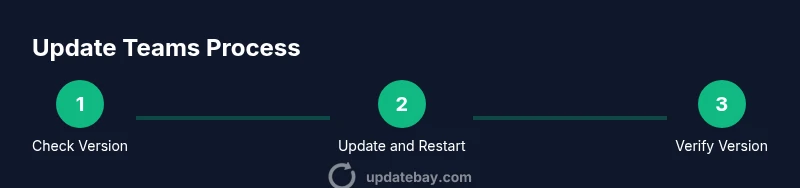
To update Teams, follow a structured, 4-step process that covers both auto-updates and manual checks. Ensure you have an internet connection, admin rights on Windows or macOS, and backup of any ongoing chats or files. This guide explains how to verify your current version, apply the latest update, and troubleshoot common issues.
What updating Teams means in 2026
Keeping Microsoft Teams up to date is about more than new features; it strengthens security, fixes bugs, and improves reliability across Windows, macOS, and mobile platforms. The Update Bay team emphasizes that a current Teams client reduces vulnerability exposure and ensures compatibility with evolving operating systems. In practice, you’ll see minor and major releases that deliver performance improvements and sometimes user-facing enhancements. When you ask, “how to update teams,” you’re engaging in a proactive maintenance habit that pays off with smoother meetings, faster chat delivery, and better integration with other Microsoft 365 services.
Prerequisites for updating Teams
Before you begin, confirm you have a stable connection and sufficient device storage, and understand who can update when you’re on a managed device. If you’re in an organization, IT policies may govern when and how updates roll out. You should also verify you’re signed into the correct account and that your Teams client is not in an error state. By setting expectations upfront, you reduce surprises during the update, such as feature changes or temporary sign-out requirements. According to Update Bay, preparing your environment is half the battle for a successful update.
Locate your current Teams version
Knowing your current version helps decide whether you are up to date. On Windows, open Teams, click your profile picture, then choose Help > About and Version. On macOS, select Teams from the menu bar, go to About, and review the version number. On iOS or Android, visit the app’s info screen in Settings (iOS) or the app store page (Android) to see the version. Tracking this makes it easier to compare against the latest release notes and avoid unnecessary updates. Keeping a note of your version also supports IT audits in a corporate environment.
Enabling auto-updates and what to expect
Most Teams installations update automatically in the background, but you can verify or adjust preferences where available. In many cases, the simplest path is to ensure automatic updates are enabled so Teams pulls the latest build as soon as it’s released. Expect occasional prompts to restart the app after an update, especially for major releases. If you’re supporting a mixed fleet, communicate update windows to users so activity isn’t disrupted during critical meetings. This approach aligns with best practices for ongoing software health and security.
Updating on Windows
To update Teams on Windows, start the app and open your profile picture. Choose Check for updates, and allow the client to download and install the latest build. If prompted, restart Teams or your device to complete the installation. After updating, revisit the profile > Help > About to confirm the new version. If updates don’t appear, consider signing out and signing back in, restarting the computer, or temporarily disabling security software that could block updates. Consistency across devices helps minimize compatibility issues.
Updating on macOS
Mac users update Teams similarly by accessing the profile menu and selecting Check for updates. If a new version is available, the client downloads it in the background. After the update completes, restart Teams to finalize installation. For administrators managing Macs in an organization, ensure that the deployment method mirrors Windows steps or uses a central software management tool. Keeping macOS and Teams aligned reduces the risk of feature gaps or login hiccups.
Updating on mobile devices
On iOS, update Teams via the App Store by tapping Update (or enable automatic app updates in iOS Settings > App Store). On Android, update through the Google Play Store or enable auto-updates for the Teams app. Mobile updates often include performance tweaks and security patches tailored to on-the-go use. Remember to test critical mobile workflows after updating, such as joining meetings or sharing screens, to catch any device-specific quirks early.
Troubleshooting common update issues
If an update stalls or fails, start with a quick reset: close Teams completely, restart the device, and try updating again. Clear the app cache where applicable, and ensure sufficient storage is available. If problems persist, consider reinstalling Teams from the official source and signing back in. For managed devices, check with IT for policy conflicts or blocked update channels. Document any error codes and consult Microsoft’s update notes for known issues and workarounds.
When IT policies block updates
In corporate environments, IT teams control how and when updates are applied. If updates are blocked, request access to the appropriate update channel or plan a maintenance window to accommodate a staged rollout. Communicate the intended version, compatibility requirements, and any required reboots. Understanding policy boundaries helps prevent failed updates and supports a smoother user experience across the organization.
Best practices and maintenance cadence
Adopt a regular cadence for checking and applying updates—monthly or aligned with your organization’s update policy. Communicate changes to users with release notes, especially if there are feature or UI changes. Consider running a quick pilot on a small group before a full deployment and maintain a changelog to track version history. Finally, reinforce security hygiene by pairing Teams updates with operating system patches and other security updates for a layered defense.
Tools & Materials
- Device with Microsoft Teams installed(Ensure you have the latest Teams version as a baseline before updating)
- Stable internet connection(Prefer a reliable network to avoid partial updates)
- Account with appropriate permissions(Admin or sufficient privileges may be needed on managed devices)
- Backup plan for ongoing work(Backup chats or files if updates interrupt workflows)
- Access to IT policies or admin center (enterprise)(Useful for understanding update channels and rollout status)
Steps
Estimated time: 15-25 minutes
- 1
Verify readiness
Confirm you have a stable internet connection, enough device storage, and the correct account logged in. If you’re on an enterprise device, check with IT that there are no pending policy changes that could block updates.
Tip: Document your current Teams version before starting. - 2
Open Teams and check for updates
Launch Teams, open your profile picture, and select Check for updates. Allow the client to download any available update and install it automatically.
Tip: If you see no update, move to the next step and verify no pending restarts are required. - 3
Restart Teams after update
If prompted, restart Teams to complete installation. A full restart ensures all new components are loaded correctly.
Tip: Close all teams-related processes in the background to avoid partial installs. - 4
Verify the installed version
Return to Profile > Help > About to confirm the new version number. Take note of the release notes attached to the update for any feature changes.
Tip: If the version hasn’t changed, try a manual reinstall from the official source. - 5
Windows-specific checks
On Windows, ensure the Microsoft Teams update service is running and that Windows Update isn’t blocking installation. Check event logs if a failure code appears.
Tip: Temporarily disable conflicting security software if updates stall. - 6
macOS-specific checks
For macOS, ensure the App Store or deployment tool isn’t withholding the update due to policy. Confirm that the macOS user account has permission to install apps.
Tip: If the installer fails, try a fresh download from the official Microsoft site. - 7
Mobile update path
On iOS/Android, update via App Store or Google Play. Turn on automatic app updates to simplify future updates.
Tip: Test essential mobile functions after updating to catch device-specific issues. - 8
If updates still fail, reinstall
Uninstall and reinstall Teams from the official source, then sign back in. This clean install eliminates corrupted files that prevent updates.
Tip: Keep a copy of your credentials and ensure you can re-authenticate after reinstall.
Frequently Asked Questions
What is the quickest way to update Teams on Windows?
Open Teams, click your profile picture, and choose Check for updates. If offered, restart Teams to complete installation. This is usually the fastest way to apply the latest build on Windows.
Open Teams, check for updates, and restart if prompted. This gets you the latest build quickly.
Will updating Teams affect my chats or meetings?
Updates do not delete chats or meeting history. They may temporarily restart the app or require a re-login, but data remains intact.
Updates don’t erase chats or meetings; you may need to re-log in briefly.
What should I do if I can’t find the update option?
Make sure you’re using an active internet connection and that you’re signed in. Try restarting Teams, or perform a manual reinstall from the official source if updates remain elusive.
If you can't find updates, restart Teams or reinstall from the official site.
Is auto-update sufficient for enterprise devices?
Auto-update is helpful, but enterprise environments often require policy-driven rollouts. Check with IT for approved channels and maintenance windows.
Auto-update helps, but enterprise devices may need IT-approved rollout plans.
How often does Teams release updates?
Teams releases occur regularly, including security patches and feature updates. The cadence varies by channel and organization policy.
Expect regular updates; cadence depends on the channel and policy.
Watch Video
What to Remember
- Verify your current Teams version before updating
- Use auto-update when available, and perform manual checks as needed
- Follow a device-specific update path for Windows, macOS, and mobile
- Troubleshoot with restart, cache clear, or reinstall if necessary
- Coordinate enterprise updates with IT for a smooth rollout