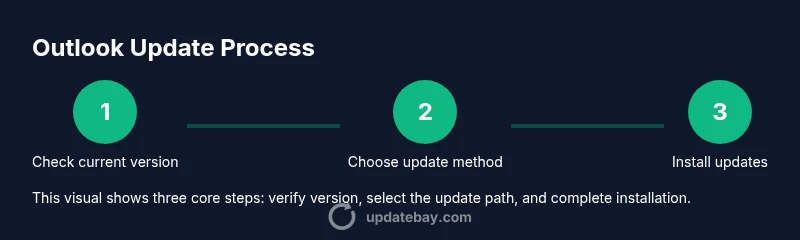
How to Update Outlook in 2026: A Complete Guide
Learn how to update Outlook across Windows, Mac, and mobile with a clear, step-by-step approach. Verify success, troubleshoot issues, and stay secure in 2026.


Learn how to update Outlook across Windows, Mac, and mobile. This quick guide covers automatic vs manual updates, how to verify success, and troubleshooting common issues, with practical steps and best practices to keep Outlook secure and compatible with the rest of Office.
Understanding Why Outlook Updates Matter
According to Update Bay, keeping Outlook up to date reduces compatibility issues and strengthens security by patching known vulnerabilities. Updates also bring performance improvements, improved integration with other Office apps, and new features that streamline your workflow. If you rely on Outlook for email, calendar, and collaboration, regular updates help ensure that your add-ins, rules, and syncing work consistently across devices. This section explains why updates matter for both personal use and business environments, and how making this a routine habit can prevent last-minute outages that disrupt communication.
Key factors explained:
- Security fixes: Patches address zero-day vulnerabilities and strengthen encryption, helping protect sensitive mail data.
- Compatibility: New features in Outlook often require updated dependencies, which can otherwise cause synchronization problems.
- Reliability: Cumulative updates reduce bugs and improve stability during peak usage times.
In practice, plan to update whenever your organization pushes patches or when you see a notification from Microsoft. The Update Bay team emphasizes that timely updates are part of a proactive maintenance routine, not a reactive fix. By keeping Outlook updated, you reduce the chance of failing add-ins and ensure smoother cross-device experiences.
Quick Overview: Major vs Minor Outlook Updates
Outlook updates come in different shapes. Major updates deliver new features, redesigned interfaces, or structural changes that may require you to restart your device or adjust settings. Minor updates focus on security patches, bug fixes, and performance tweaks. Understanding the difference helps you decide when to install immediately or schedule during a maintenance window. Automatic updates typically handle both types, while manual updates give you control over when changes occur. For most users, enabling automatic updates keeps you current with minimal effort, while critical security patches can be installed promptly to reduce risk.
To manage expectations, consider your environment: home users may prefer automatic updates for convenience, while business environments might schedule updates during off-peak hours to minimize disruption. Update Bay recommends testing updates in a controlled environment if you manage a large fleet of devices, then rolling out broadly once validated.
How to Update Outlook on Windows (Desktop)
Windows users have two main pathways: update through the Office update mechanism or rely on Windows Update for Office components. The Office path tends to be the most direct way to update Outlook itself, since it’s part of the Office suite. Start by opening Outlook, then go to File > Office Account (or Account) > Update Options > Update Now. If prompted, allow the process to complete and restart Outlook when finished. If you don’t see Update Now, try Office’s built-in repair or ensure you’re signed in with an account that has update permissions. After updating, verify by checking Help > About Outlook to confirm the latest build is active, and open a test email to confirm send/receive works as expected.
Tips: Keep a backup of any rules, signatures, or add-ins that could be affected by a major update. If your organization uses centralized deployment, coordinate with IT for the update window. Update Bay notes that automatic updates frequently minimize downtime when patch cycles begin.
How to Update Outlook on macOS (Desktop)
On macOS, Outlook updates are often delivered via the Microsoft AutoUpdate tool, or through the Mac App Store if you installed Office from the App Store. Open any Office app, choose Help > Check for Updates, and select the appropriate channel (typically Office Update). If an update is available, follow the on-screen prompts to install and restart the application. After installation, launch Outlook and perform a quick test of sending a calendar invite and syncing mail across devices. If you encounter issues, running AutoUpdate again or reinstalling Office from the official site can resolve many conflicts.
Note: macOS users should ensure System Integrity Protection and Gatekeeper settings allow updates from Microsoft’s updater to run smoothly.
How to Update Outlook on Mobile (iOS & Android)
For mobile devices, update Outlook from the respective app store. On iOS, open the App Store, tap your profile, and look for Outlook updates; on Android, open Google Play, search for Outlook, and select Update. After updating, open the app and verify basic functions—email delivery, calendar sync, and notification delivery. If you rely on push notifications for essential messages, confirm that the app has the necessary permissions and that background refresh is enabled. Regular mobile updates help maintain secure connections when syncing mail on the go.
Troubleshooting Common Update Issues
If updates fail, start with basic checks: confirm internet connectivity, restart the device, and temporarily disable VPNs or firewalls that could block the update traffic. Check disk space and ensure you have at least a few gigabytes free for the update package and temporary files. If the update stalls, run a repair of the Office installation (Windows: Programs and Features → Microsoft 365 → Change → Repair; Mac: reinstall Office from the official site). For add-ins causing conflicts post-update, disable them temporarily to verify if Outlook’s behavior improves. When issues persist, consult official support resources or your IT department.
Best Practices for Security and Maintenance After Updating
Post-update maintenance is as important as the update itself. Enable automatic updates where feasible to stay current with security patches. Regularly back up your mailbox data, especially before major upgrades or migration tasks. Review your security settings in Outlook (emails from unknown domains, phishing protection, and link handling) to ensure they align with your organization’s policy. Periodically test add-ins and integrations to catch compatibility issues early. The goal is to maintain a stable, secure email environment across devices.
Tools & Materials
- Computer or device with internet access(Needed to download and install updates; ensure a stable connection)
- Outlook installed (Office suite or standalone app)(Updates apply to the Outlook app itself and related Office components)
- Data backup (export PST or mailbox archive)(Backups protect emails, calendars, and rules during updates)
- Administrator or IT permissions(Helpful for enterprise environments or centralized deployments)
- Sufficient disk space (at least 5 GB free)(Large updates may require extra space for temporary files)
Steps
Estimated time: 30-60 minutes
- 1
Prepare and verify current version
Open Outlook and navigate to the Help/About section to confirm your current version. Note any add-ins or rules that might be affected by updates. Back up essential data before starting to avoid data loss. This step ensures you know what you’re updating and what to recover if something goes wrong.
Tip: Take a screenshot of the version page for quick reference during support. - 2
Choose your update method
Decide between automatic updates (recommended for most users) or manual updates if you need control over timing. For organizations, confirm the update channel (monthly, semi-annual) used by your IT policy.
Tip: If your organization uses a centralized deployment, coordinate with IT before changing channels. - 3
Update Outlook on Windows (Desktop)
In Outlook, go to File > Office Account > Update Options > Update Now. Let the updater download and install; restart Outlook when prompted. If Update Now is unavailable, run a repair from Windows Settings or Office setup.
Tip: Ensure you’re connected to a reliable network to avoid partial installs. - 4
Update Outlook on macOS (Desktop)
Open any Office app, choose Help > Check for Updates, and select Office Update. Follow prompts to install, then restart the app. Verify by opening Outlook and testing mail/calendar sync.
Tip: If updates stall, run a fresh install from the official Office site. - 5
Update Outlook on Mobile (iOS & Android)
Visit the App Store (iOS) or Google Play (Android), search for Outlook, and tap Update. Open the app after installation and perform a quick send/receive test.
Tip: Enable background app refresh and push notifications for timely sync. - 6
Verify post-update success
Check the version number again and ensure mail, calendar, and contacts sync across devices. Run a quick calendar invite and test sending a test email to confirm end-to-end functionality.
Tip: If issues persist, review add-ins and extensions for compatibility. - 7
Troubleshoot common issues
If an update fails, verify internet access, disable VPNs temporarily, and free up disk space. Re-run the update or repair the Office installation. Check official support resources for known issues with your build.
Tip: Document any error codes to speed up support. - 8
Set up automatic updates and backups
Enable automatic updates where possible and schedule periodic mailbox backups. Review security settings and confirm add-ins work across devices after updates.
Tip: Establish a routine to check for updates monthly and after major releases. - 9
Create a rollback plan
If a critical issue occurs post-update, have a rollback plan ready: restore from the backup, revert to a previous build if available, and document the remediation steps for future updates.
Tip: Keep a current backup until a new update is proven stable.
Frequently Asked Questions
Do I need to update Outlook if Office updates are enabled?
If Outlook is part of the Office suite, updating Office typically updates Outlook as well. However, some environments use separate update channels; always verify Outlook version after any Office update.
If Office updates are enabled, Outlook usually updates too. Always confirm the version after updating to be sure.
Can I update Outlook without an internet connection?
Outlook updates require an internet connection to download the update package. After download, you can install offline if the installer is provided, but a connection is typically needed for the download phase.
No—updates need the internet to download. Installation can happen with the downloaded file offline if supported.
What should I do if an update breaks an add-in?
Disable problematic add-ins, then update or repair Office. Check for updated versions of add-ins compatible with the new Outlook build, and re-enable them one by one.
Disable the faulty add-ins, update them, and re-enable one by one to identify the culprit.
Is it possible to revert to a previous Outlook version after an update?
Rollback options depend on your environment. If available, use system backups or Office version history. In many cases, you may need to wait for the next update to fix issues, or contact IT for rollback.
You may be able to roll back via backups or version history if your setup allows it; otherwise, consult IT.
Why is updating Outlook important for security?
Security updates fix vulnerabilities that could be exploited by attackers, protecting mail data and reducing phishing risk. Keeping Outlook current is a key layer in defense-in-depth.
Security updates fix vulnerabilities and protect your mail. Keeping Outlook current is crucial for security.
How often should I check for updates?
Set a monthly habit to check for updates, and enable automatic updates if feasible. For critical environments, coordinate with IT to align with patch cycles.
Check monthly and prefer automatic updates when possible, especially in business settings.
Watch Video
What to Remember
- Update Outlook regularly across all devices
- Choose automatic updates for convenience and security
- Verify success with quick function tests afterward
- Backup data before major updates
- Use vendor support resources for troubleshooting