Netflix Update Payment: Update Your Billing Details
Learn how to update Netflix payment details, troubleshoot failed charges, and keep your streaming uninterrupted. This comprehensive guide from Update Bay covers web and mobile steps, security tips, and common issues to prevent billing hiccups.


Learn how to handle netflix update payment details quickly and securely. This steps-based guide covers changing your card on file, adding a new payment method, and what to do if a payment fails. Follow these actions across web and mobile apps for uninterrupted streaming. The guidance reflects practical tips from Update Bay.
Why Netflix Update Payment Matters
Netflix update payment details matter because your subscription relies on valid billing information. When payment details are outdated, Netflix may pause streaming, prompt you to update, or block access until you reauthorize. The Update Bay team notes that many service interruptions stem from expired cards, billing address mismatches, or payment-method limitations by region. Keeping payment data current reduces surprises, helps you maintain the plan you want, and ensures gifts or promotions renew smoothly. This section explains what data Netflix uses, how to verify your current method, and how to prepare for changes like card expiration or switching providers. For households with multiple members, it’s also smart to designate a primary payment method and a fallback option so a single late payment doesn’t disrupt everyone. Regular checks every few months can prevent last-minute billing errors.
Supported Payment Methods Netflix Accepts
Netflix accepts major payment methods depending on region. In many countries, customers can pay with credit and debit cards from Visa, Mastercard, or American Express, plus PayPal where supported. Some regions also offer Netflix gift cards or digital wallet options. Gift cards are often redeemable for monthly subscriptions in select markets, and regional promotions may apply. Always confirm which methods Netflix currently accepts in your country by visiting the Payments page in your account. As a general principle, updating billing data ahead of a planned upgrade or change helps ensure a smooth transition. Update Bay notes that regional availability can vary, so check your locale to avoid surprises.
Where to Find Payment Settings (Web)
To update Netflix payment on the web, sign in to your account, hover over your profile, and go to Account. Under Membership & Billing, select Payment Details. Here you can edit your primary method, add a new card or PayPal, and set a default method. If you’re managing shared accounts, verify who has access to the billing details and adjust accordingly. After making changes, confirm by saving and logging out, then re-signing in to ensure the new settings have taken effect. For security, avoid saving passwords in browsers on shared devices and use a trusted connection.
Step-by-Step Quick Start (Web)
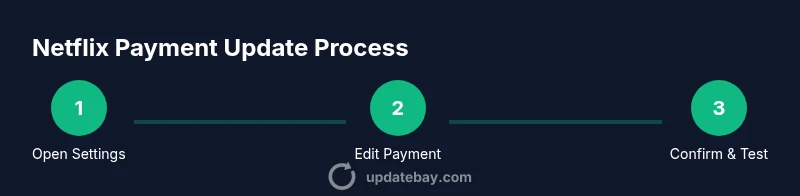
- Sign in to Netflix on a browser and open Account settings.
- Click Payment Details under Membership & Billing.
- Edit the current method or choose Add a new payment method.
- Enter the card or PayPal details and verify the information.
- Set the desired default method and remove old ones if appropriate.
- Save changes and sign out. Re-sign in to verify the update.
- Monitor your next bill to confirm the correct method was charged. If you see a mismatch, revisit the Payment Details page and adjust.
- If you use gift cards, redeem any new cards before the renewal date.
- Check your email for a receipt and confirmation from Netflix.
- Enable alerts if available to stay informed about charges.
- Review account activity for any unfamiliar attempts.
- If issues persist, contact Netflix support and reference the updated method.
Step-by-Step Quick Start (Mobile)
- Open the Netflix app and tap your profile in the top-right corner.
- Go to Account from the menu.
- Select Payment Details and choose Edit or Add a new method.
- Enter or scan card details and verify the information.
- Set a default payment method and remove outdated ones.
- Save changes and restart the app to ensure updates apply.
- Check your upcoming bill in the app’s billing section or via email receipts.
- If PayPal or digital wallets are available in your region, link them and test a payment.
- Keep a backup payment method on file to avoid streaming interruptions.
- Log out and back in to confirm changes on mobile as well.
- If you receive an error, retry after a few minutes or switch networks.
- Contact support if updates don’t reflect after a full device restart.
Troubleshooting Common Payment Issues
Payment problems typically fall into a few categories: expired cards, insufficient funds, misentered billing details, or regional restrictions on accepted methods. Start by confirming the card’s expiry date and CVV, matching the billing address with your bank records, and ensuring the method is enabled for online or international transactions. If PayPal is used, verify the PayPal account status and linked funding source. In some cases, Netflix may temporarily suspend charges due to a security review or a regional outage. Always check Netflix’s service status pages and your bank’s alerts. If the issue persists, try a different method to isolate whether the problem is the card, PayPal, or Netflix’s side.
Security and Privacy Tips for Netflix Payments
Keep payment data secure by using devices you trust and networks you control. Avoid saving payment details on shared or public devices, and enable two-factor authentication if your bank or Netflix supports it. When entering card data, look for HTTPS in the address bar and verify you’re on Netflix’s official site or app. Regularly review recent activity and receipts to spot unauthorized charges early. Use strong, unique passwords for Netflix and your email, and consider a dedicated payment method just for streaming services to minimize risk across accounts.
What to Do If Your Payment Remains Rejected
If Netflix rejects a payment, first check the card’s expiration date, available balance, and whether the billing address matches the issuer’s records. If PayPal is used, confirm the linked funding source is current and that PayPal isn’t blocked for Netflix purchases. Ensure you’re not hitting regional blocks or daily transaction limits. Try updating or replacing the payment method, then perform a small test charge if supported by your region. If the problem continues, contact your bank or PayPal support, and contact Netflix billing for guidance. Keep a record of any error codes or messages to help resolve quickly.
Gift Cards and Regional Availability
Gift cards provide a flexible alternative in regions where available, but their applicability can vary by country and plan type. Redeeming a gift card typically adds credit to your account, which is then used toward future bills until the balance is exhausted. Be aware that some plans or regional policies may restrict how gift card credits are applied, especially when a promotional offer is active. If you’re unsure whether a gift card will work for your Netflix subscription, review the terms on Netflix’s gift card page for your locale and test a small purchase.
Understanding Billing Cycles and Proration
Netflix charges on a recurring cycle, usually monthly, but changes to your plan or payment method may affect the upcoming billing period. If you upgrade mid-cycle, you may receive a prorated charge or credit depending on the timing and region. It’s important to review your next billing date after updating payment details to confirm how the change affects the cycle. If you see unexpected charges, check the billing history in your account and compare it to your bank statement. Keep note of any adjustments for taxes or regional fees that Netflix may apply.
Verifying Receipts and Keeping Records
After updating payment details, you should receive an emailed receipt for any charges. Store these receipts securely for tax or reconciliation purposes. Regularly compare the charges with your expected plan price and any promotional discounts. If you don’t receive a receipt, check your spam folder or notification settings in Netflix. In case of discrepancies, reach out to Netflix support with the relevant dates, amounts, and last four digits of the payment method used.
Final Quick Checks Before Confirming a Payment
Before finalizing any payment update, double-check that you selected the desired method as default, that the billing address matches your issuer records, and that you are on a secure network. Confirm that cross-border or cross-currency restrictions are not affecting online transactions from your region. If using a card, ensure you’ve entered the CVV correctly and that the card isn’t blocked for international transactions. After saving, run a quick test by visiting the account page to verify the correct method is listed and the next bill amount reflects your intended plan.
Tools & Materials
- Device with internet access(A computer or mobile device with a current browser or Netflix app installed)
- Active Netflix login(Username and password or biometric login ready)
- Valid payment method(Card, PayPal, or gift card in your region)
- Reliable internet connection(Stable connection to avoid interruption during updates)
- Backup contact method(Email or phone for account recovery if needed)
Steps
Estimated time: 8-12 minutes
- 1
Open Netflix account settings
Sign in to Netflix on your preferred device and navigate to the Account page from your profile menu. This is where all billing details are centralized. Having the account open reduces the chance of losing changes due to session timeouts.
Tip: Tip: Use a secure device to prevent credential leaks. - 2
Navigate to Payment Details
On the web, look for Membership & Billing and click Payment Details. In the mobile app, access Account then Payment Details. This is where you view current methods and add new ones.
Tip: Tip: If Payment Details isn’t visible, try a different browser or update the app. - 3
Edit existing method or add a new one
Choose to edit the current method or select Add a new payment method. Enter the new card details or link a PayPal/gift card and verify the information.
Tip: Tip: Ensure the billing address matches the issuer records to prevent declines. - 4
Verify the new method details
Double-check the card number, expiry date, CVV, and billing address. A mismatch here is a common cause of payment failures.
Tip: Tip: Some banks require a small verification charge; this is normal and should post quickly. - 5
Set a default method
Choose which payment method Netflix should charge first. This helps prevent interruptions if one method becomes unavailable.
Tip: Tip: Reserve a backup payment method in case the primary one fails. - 6
Remove outdated methods
If you have old or unused methods on file, remove them to reduce confusion and potential fraud risk.
Tip: Tip: Keep a minimum number of active methods to simplify management. - 7
Save changes and sign out
Click Save or Update and then sign out of Netflix. Sign back in to ensure the changes persist across devices.
Tip: Tip: Clear the app cache if changes don’t reflect after a few minutes. - 8
Test the update on a real charge
Review the upcoming billing date and, if possible, trigger a small test charge by using the new method for a trial transaction.
Tip: Tip: Some regions do not show a test charge; simply wait for the next bill to verify. - 9
Check Receipts and confirmations
Look for a confirmation email or in-app receipt after the update. This confirms Netflix recognized the new method.
Tip: Tip: Save or bookmark the confirmation for reference. - 10
Verify across devices
Repeat the steps on a mobile device if you use Netflix on multiple platforms. Billing should reflect consistently.
Tip: Tip: Some devices require re-authentication after a change. - 11
Enable alerts and receipts
Turn on billing alerts if available so you receive notices about charges and changes.
Tip: Tip: Alerts help you stay ahead of issues before they disrupt viewing. - 12
If issues persist, contact support
If you still see payment errors after updating, contact Netflix Billing with the error codes and your method’s last four digits for faster resolution.
Tip: Tip: Have your transaction history ready when you reach out.
Frequently Asked Questions
Can I use Netflix gift cards to pay for my subscription?
Yes, in regions where gifts cards are supported, you can redeem them to add balance to your Netflix account. Availability and terms vary by country, so check your locale’s gift card page for specifics and apply the balance toward your next bill.
Gift cards are accepted in many regions, but availability varies by country. Check your locale’s gift card page for details and apply to your next bill.
Why is my Netflix payment failing after updating?
Common causes include expired cards, insufficient funds, mismatched billing addresses, or regional restrictions on payment methods. Verify each data point, retry with a different method if needed, and contact support if failures continue.
Payment failures are usually due to expired cards or address mismatches. Check your details and try another method if needed.
Will updating my payment trigger charges?
Updating payment methods does not automatically trigger a charge. You will be billed on your regular cycle for your chosen plan, unless a change in plan or billing date occurs.
Changing your payment method won’t charge you immediately; you’ll be billed on your regular cycle when due.
How can I verify my payment details are saved securely?
Always use official Netflix apps or the website with HTTPS, enable device security, and avoid saving sensitive data on shared machines. Review receipts and trusted notifications for confirmation of charges.
Use official Netflix sites, enable device security, and review receipts to confirm charges.
Can I update Netflix payment details on the mobile app?
Yes. In the Netflix mobile app, go to Account > Payment Details to edit or add a new method. After saving, sign out and back in to confirm changes propagate to all devices.
You can update payment details in the Netflix mobile app under Account > Payment Details and verify the changes afterward.
What should I do if I cannot access my Netflix account to update payment?
If you can’t access your account, use the password reset flow or contact Netflix support for identity verification. Ensure you have access to the email or phone you registered with to receive recovery codes.
If you can’t access the account, reset your password or contact support for verification, and use your registered recovery options.
Watch Video
What to Remember
- Update payment details before the renewal date.
- Choose a primary and a backup method to prevent interruptions.
- Verify billing addresses match issuer records.
- Test a new method and review receipts after changes.
- If issues arise, contact Netflix support with error details.