YouTube TV Update Payment: A Practical Guide to Billing Changes
Learn how to manage YouTube TV payment updates, fix failed charges, update billing methods, and protect your data with practical steps from Update Bay.


To resolve youtube tv update payment issues, verify your current method, update expired details, and confirm the next billing cycle. Log into YouTube TV, open Billing, and select a payment method. Save changes, then monitor charges. If issues persist, contact support.
Understanding YouTube TV update payment triggers
YouTube TV updates can be triggered by expired cards, new regional taxes, price changes, or policy updates. According to Update Bay, payment updates for streaming services often happen after card expirations or when your Google account changes country settings. Detecting the trigger early helps avoid service interruptions and unexpected charge attempts. In many cases, the root cause is not an error in the app but a mismatch between the payment method on file and the region of your YouTube TV account. If you receive alerts about failed renewals, start by confirming the reason in the Billing section and then align your method accordingly. Update Bay analysis shows that keeping payment details current across linked Google services reduces renewal friction and prevents mid-cycle interruptions.
Prerequisites before updating payment information
Before you start, make sure you can access both YouTube TV and your payment provider. You’ll need a valid Google account, current login credentials, and the ability to authenticate when prompted. If you use multi-factor authentication, ensure you have access to your secondary device. Having a backup payment method handy helps prevent service gaps if a card is rejected or compromised. Finally, review any regional or currency settings in your account to avoid mismatches during the update. Update Bay recommends confirming you are aligned with the country associated with your YouTube TV subscription to prevent regional payment failures.
How YouTube TV handles payment method updates
YouTube TV connects to the Google Payments ecosystem, which means updated methods may sync across services you use with Google. When you update a card or add a new method, you might not see charges immediately due to processing windows or caching. It’s normal to encounter a short delay between saving the new details and the next renewal. If you switch to a different payment provider (for example from a card to PayPal or Google Pay), ensure the new option is set as the default to avoid failed renewals. Regularly checking the Billing page after an update confirms the new method is active.
Verifying charges and refunds after updates
After updating, review your Billing history for the most recent transactions to verify that the renewal processed with the new method. If you notice an unexpected charge or a failed attempt, check the status in the transaction details and compare it to your payment processor’s activity. If a charge is reversed or missing, contact support with the transaction ID and the last four digits of the card used. Keep copies of receipts and confirmations for reference. Update Bay notes that timely verification minimizes confusion and helps you resolve discrepancies faster.
Managing billing cycles, reminders, and price changes
Billing cycles may shift after a payment method update, especially if you update mid-cycle. It’s wise to note your renewal date after any change and set reminders a few days before to ensure you have updated information on file. Watch for price changes announced by the service—these may appear as separate line items or bundled into a renewal. If you see a price change you didn’t authorize, review promo codes, grandfathered plans, or regional taxes that could affect the final amount. Update Bay advises keeping a calendar of renewal dates to anticipate next charges and minimize surprises.
Troubleshooting common payment errors
Common errors include expired cards, insufficient funds, mismatched billing addresses, and regional restrictions on currencies. Start by verifying card details, address, and country settings are current. If the problem persists, try a different method or contact your bank to ensure the payment isn’t blocked. Some errors arise from temporary service outages on the payment processor side, so waiting a short period and retrying can resolve transient issues. Document the exact error message for faster support if you need to escalate.
Data security: keeping payment details safe
Never share your full card number or authentication codes in insecure channels. Use trusted devices and networks, and enable two-factor authentication for your Google account. Regularly review connected devices and revoke access for old apps or services you no longer use. If you receive unexpected requests for payment information outside the official YouTube TV interface, treat them as phishing and report them. Secure handling protects your finances and reduces risk of fraud.
Common mistakes to avoid when updating payments
Avoid waiting until the last minute to update payment details. Don’t assume a single saved method will accommodate all regions or currencies. Never reuse outdated card numbers or credentials across platforms. Mistakes like mixing up country settings and currency can trigger automatic rejections. Finally, don’t ignore subtle billing notices—partial charges or failed renewals can compound into service outages if left unaddressed. Update Bay reminds users to stay proactive and verify every change.
Authority sources and where to learn more
For further guidance, you can consult consumer protection and digital payments resources:
- https://www.consumerfinance.gov/
- https://www.ftc.gov/
- https://www.theverge.com/
Tools & Materials
- Device with internet access(Desktop or mobile, stable connection)
- Active YouTube/Google account(Login credentials; ensure access to Billing section)
- Current payment method(Credit/debit card, PayPal, Google Pay, or other supported methods)
- Access to YouTube TV app or website(Have the app downloaded or visit tv.youtube.com)
- Two-factor authentication device(Phone or hardware key for extra security)
Steps
Estimated time: 15-25 minutes
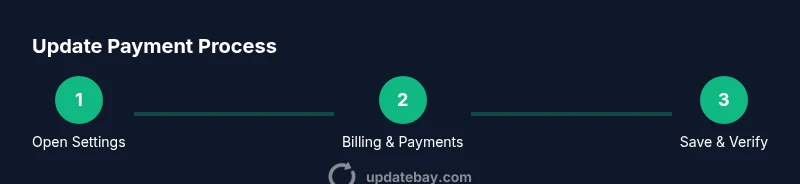
- 1
Open YouTube TV settings
Sign in to your YouTube TV account and navigate to the profile or settings area. This is where you access Billing and Payments. If you’re on mobile, tap the profile icon and locate Billing & payments in the menu.
Tip: Having two-factor auth enabled speeds up secure access. - 2
Go to Billing & Payments
Within Settings, find Billing or Payments. This page lists your current method, renewal date, and payment history. If you don’t see it, use the search feature in the app or website to locate Billing.
Tip: If you don’t see Billing, you may be in the wrong account or profile. - 3
Choose Update Payment Method
Select the option to add a new payment method or edit the existing one. You may see a choice between card, PayPal, or Google Pay depending on your region.
Tip: Choose a method you can reliably maintain for future renewals. - 4
Enter new payment details
Input the new card or payment account information. Double-check card numbers, expiration dates, and billing address. Save changes and set the new method as default if prompted.
Tip: Avoid copy-paste errors by typing details manually if you suspect autofill mistakes. - 5
Confirm and test
After saving, review the Billing page to confirm the new method is active. It’s helpful to run a quick test by triggering a minor test charge or checking for a recent renewal entry.
Tip: If you don’t see an immediate renewal, wait 15-30 minutes and refresh. - 6
Monitor your charges
Check recent transactions in your bank or PayPal to confirm the renewal processed with the new method. If something looks off, contact support with transaction IDs and screenshots.
Tip: Keep receipts handy for reconciliation.
Frequently Asked Questions
How do I update my YouTube TV payment method?
Open YouTube TV, go to Settings > Billing & Payments, and add or edit your payment method. Save changes and verify the renewal date. If you encounter errors, try another method or contact support.
Open YouTube TV, navigate to Billing, update your payment method, and save. If there are errors, switch methods or contact support.
Why is my YouTube TV payment failing?
Common causes include expired cards, insufficient funds, or regional currency restrictions. Verify the card details, balance, and that your country settings match your billing region. Retry after correcting any issues.
Usually it's an expired card or currency mismatch. Check your card and region, then try again.
Will updating my payment method affect my current subscription?
Updating the payment method generally takes effect for the next renewal. It shouldn’t cancel or pause your current subscription, but ensure you save changes before the next billing date.
No, updating the method affects the next renewal, not the current one. Save changes to ensure a smooth next bill.
What should I do if I don’t see the updated payment reflected after saving?
Refresh the page and check the Billing history for the latest entry. If nothing changed after a reasonable processing window, try adding the method again or use a different method. Contact support if issues persist.
If you don’t see changes, refresh and try again, or contact support if it keeps failing.
Are there regional restrictions on payments for YouTube TV?
Some regions use different currencies or payment providers. Ensure your account country matches the payment method’s region and that currency settings align with your billing address.
Region settings can affect payments; make sure your country and currency match your method.
How can I get a refund for a duplicate charge?
Contact YouTube TV support with the transaction ID and date. Provide receipts and explain the duplicate charge. Refunds are subject to policy and review by the billing team.
If you were charged twice, reach out with receipts and IDs for review and possible refund.
Watch Video
What to Remember
- Update payment methods promptly to avoid interruptions
- Verify charges and keep receipts for disputes
- Use official channels to update billing information
- Keep country and currency settings aligned with your account
- Enable security features to protect payment data