Nintendo Update Switch: Safe Console Updates
Learn how to safely update your Nintendo Switch, keep firmware and games current, and avoid common mistakes with our step-by-step guide for system and game updates.


With a Nintendo update switch, you will learn how to safely update your console, verify current firmware, and apply essential system and game patches. This guide covers prerequisites, step-by-step actions, common pitfalls, and recovery options if an update stalls. By following these steps, you minimize data loss and keep your Switch features and security up to date.
Why Updating Matters for Nintendo Switch
Regular updates improve system stability, fix security issues, and maintain compatibility with new games and DLC. The nintendo update switch process often includes minor performance tweaks and bug fixes that can reduce crashes and improve battery life. Staying current helps you access new features such as improved online play, better parental controls, and expanded compatibility with upcoming games. In this section we explain why updates are worth your time and how they fit into a healthy maintenance routine for your console. You'll learn how updates are delivered over the air and why skipping updates can lead to missed security patches or game incompatibilities. By understanding the why you can plan update times that minimize disruption to your gaming sessions.
Checking Your Current Firmware and Game Versions
To decide when to update you should know your current firmware version and your game patch status. On the Nintendo Switch, go to Settings, System, and System Update to see the installed firmware. If a newer version is listed you should update. You can check installed game patches by viewing the eShop update notes or by starting a game and checking the patch notes if available. Keep a list of installed versions if you manage multiple consoles or profile saves. Having this information helps you confirm that updates succeeded and that you did not skip important patches. If you find your console is not showing an update, confirm your internet connection and try again. In some cases updates are rolled out gradually by region, so you may see a later bump even if you are up to date on the version number. Document your version history for future reference.
Understanding What Updates Do
Updates for the Nintendo Switch fall into several categories: system firmware updates that improve core functionality and security, game patches that fix bugs or add features within specific titles, and sometimes firmware improvements that enable new online services. Reading patch notes helps you understand the scope of a release and any potential impacts on gameplay. Updates may also adjust performance profiles, reduce power consumption, or modify network behavior for better stability. This section clarifies why you might see a brief warning screen or longer download times and how to interpret version numbers when tracking changes over time.
Prerequisites Before You Update
Before you start any update, ensure the device has a reliable power source and enough storage space. A charged battery or a steady charger connection reduces the risk of a mid update shutdown. A stable Wi Fi connection minimizes interrupted downloads. It is also wise to back up save data, especially if you play heavily or rely on cloud saves. Keep in mind region based release variations; some updates arrive later in certain regions, so plan accordingly. Finally, close all running software to avoid conflicts during the download and installation.
Step-by-Step Safety Checklist
This section provides a non executable overview to prepare for updates, not the exact steps. Ensure battery is sufficient, connect to a stable network, back up your saves, and close all active software. Verify you are using the official Nintendo network and avoid third party download sources. If you are updating multiple profiles, sign into the correct account. Have a plan to pause if the download slows and return later. This checklist helps you reduce the chance of data loss and installation issues.
Step-by-Step: Update the System Firmware (High Level)
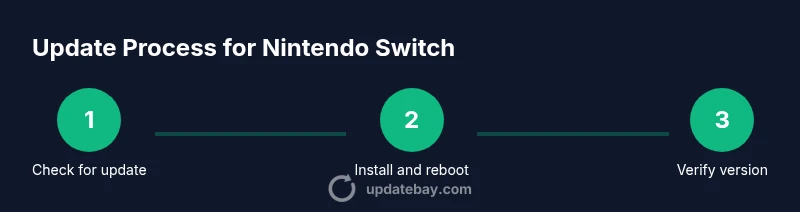
System firmware updates should be performed with a known good internet connection and a charged device. Start by confirming update availability through the Settings menu, then begin the download and installation. The console will restart automatically if required. After installation, re check the firmware version to confirm success and resume gameplay. If the update is large, you may notice longer download times; patience can prevent cancellation.
Updating Games Manually and Automatically
System updates are distinct from game updates. You can enable automatic updates on the Nintendo eShop for titles you own, ensuring patches install when you are online. Manual updates can be done by selecting a game from the home menu, opening its options, and choosing update. In both cases, make sure you have enough storage space and a stable connection. Auto updates keep your titles current without extra steps, while manual updates give you control over when patches are applied.
Recovering from Update Failures and Recovery Options
If an update stalls or fails, first check your connection and retry. If problems persist, power cycle the console and attempt again. In persistent failure cases you may need to perform a hard reset or restore settings to default, but this should be a last resort as it can affect saved preferences. Nintendo provides safety nets for recovery, and cloud saves can protect your progress if you had backups.
Security and Privacy Considerations
Only download updates from official Nintendo sources and avoid third party installers. Regular updates close security gaps and fix known vulnerabilities. Keeping your account credentials secure also reduces the risk of unauthorized updates or tampering with game data. If you notice abnormal activity after an update, contact Nintendo support and review your account security settings.
Troubleshooting Network Issues for Updates
If your connection is unstable, try a different network or reset your router. For slower connections, pause ongoing downloads and resume later. Ensure DNS settings are default or pointing to a reliable resolver. If you use a VPN, disable it during the update as it can interfere with the Nintendo update switch process. A stable network is essential to a smooth update.
After Update: Verification and Maintenance
Once the update completes, reboot the console and verify the firmware version. Check a few online features like the eShop, online play, and saved data to ensure updates have not caused regressions. Regular maintenance includes periodic checks for new firmware and keeping saves backed up. Keeping a routine helps you stay current and reduces surprises during gaming sessions.
Tools & Materials
- Nintendo Switch console(Ensure device is authentic and charged before updating)
- Official charger(Use the original charger or approved accessory to prevent power loss during update)
- Stable Wi Fi connection(Prefer 5 GHz if available; avoid weak networks)
- MicroSD card (optional)(For extra storage and backups if needed)
- Save data backup method(Nintendo Switch Online cloud saves or local backups)
Steps
Estimated time: 20-40 minutes
- 1
Prepare your device
Ensure the Switch is charged or connected to a power source. Confirm you have a stable network and close any running games to prevent interruptions. This preparation reduces the risk of mid update failures.
Tip: Charge to at least 50% before updating. - 2
Check for update availability
Open Settings and navigate to System to check for System Update. If an update is listed, you can start the download. If not, your firmware is current for now and regional rollouts may explain delays.
Tip: If you don’t see an update, verify your region and retry after a short period. - 3
Back up your saves
Back up important save data before updating. Use Nintendo Switch Online cloud saves or transfer saves to another device if available. Backups protect progress in case of any update mishaps.
Tip: Backups are your safety net for data loss. - 4
Start the system update
Begin the system update from the System Update option. Do not power off the console during the installation. The process may take several minutes depending on network speed.
Tip: Avoid pausing or disconnecting during install. - 5
Verify the update completed
After installation, check the firmware version in Settings again to confirm the new version is active. Test a quick game launch to ensure normal operation.
Tip: If the version did not change, retry update or contact support. - 6
Update games if needed
If you rely on automatic updates, ensure they are enabled. For manual updates, select each game and run the update from its options. This ensures patches arrive for your titles as well.
Tip: Keep a backup handy before major game patches. - 7
Handle a failed update
If the update stalls or fails, restart the process after a power cycle. If failures persist, consult official Nintendo support and consider a factory reset only as a last resort.
Tip: Do not panic; many issues resolve with a fresh retry. - 8
Post update maintenance
Reboot the console and recheck settings. Confirm that digital purchases, user profiles, and save data function normally. Consider scheduling future checks for updates to stay current.
Tip: Set a reminder to verify updates every few months.
Frequently Asked Questions
How long does a Nintendo Switch system update take?
System updates typically take several minutes to download and install, depending on your internet speed and the update size. Most users experience a smooth process when on a stable connection and a charged device.
System updates usually take a few minutes to download and install if your connection is stable and the device is charged.
Will updating erase saved games or user data?
System updates do not erase saved games. It is still wise to back up saves before starting any update as a precaution against unforeseen issues.
Updates don’t erase saves, but backups are a smart precaution.
What should I do if the update stalls or fails?
If an update stalls, pause and retry after confirming a stable network. If it still fails, perform a power cycle and try again. If issues persist, contact official support.
If it stalls, retry with a stable network and a fresh power cycle. If it fails, contact support.
Is it safe to enable automatic updates for games?
Yes, enabling automatic updates ensures games receive patches as they’re released, reducing manual maintenance. Monitor storage space to prevent fill ups.
Auto updates are convenient, just watch your storage.
Can I update Switch using a different network or hotspot?
Updating over a stable home network is preferable. If you must use a hotspot, ensure a strong signal and avoid data caps that could interrupt the download.
A strong, stable network is best for updates.
Can I downgrade or revert a firmware update?
Downgrading firmware is not typically supported by Nintendo and can be risky. It is best to stay current with the latest official release.
Downgrades are generally not supported; stay on latest official releases.
Watch Video
What to Remember
- Update firmware regularly for security and performance
- Back up saves before updates
- Verify updates after installation
- Use a stable network and power source