How to Update Fortnite on Nintendo Switch
Learn a clear, step-by-step method to update Fortnite on Nintendo Switch. This educational guide covers prerequisites, troubleshooting, and best practices to ensure you always have the latest patch for smooth, uninterrupted play.


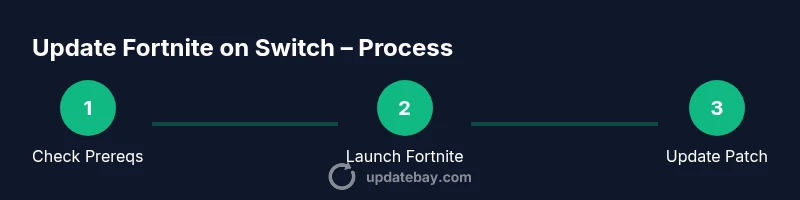
To update Fortnite on Nintendo Switch, make sure your console is online and charged, then launch Fortnite to trigger an automatic patch check. If the game doesn’t begin updating, verify your Switch system is on a stable internet connection and try restarting the console. In most cases, the latest build downloads in the background when you launch the game.
Why Keeping Fortnite Updated on Switch Matters
Keeping Fortnite updated on Nintendo Switch ensures you have the latest features, bug fixes, and cross-play compatibility with friends on other platforms. An up-to-date patch improves stability, performance, and security, reducing crashes during intense matches. According to Update Bay, most players see smoother gameplay and fewer connectivity drops once they’re on the current patch. Regular updates also unlock new cosmetic items and season content that are not available on older builds. If you play regularly, build a habit of checking for updates before you start a session to avoid interruptions.
How Fortnite Update Mechanics Work on Nintendo Switch
Fortnite on Switch updates through a combination of the game client and the console’s download system. When a new patch is available, the game presents a prompt to download and install, while the Switch’s background services facilitate streaming the patch in the background if you stay online. The process usually starts automatically when you launch Fortnite, but you can trigger it manually by starting the game from the home menu and watching for on-screen prompts. Understanding this flow helps you plan updates around your playtime and avoid long waits. Update Bay analysis shows that players who time updates before sessions report fewer mid-game patch interruptions and more reliable matchmaking.
Common Update Scenarios and What They Mean
- Automatic patch download: Proceed; you’ll see a progress bar in-game and installation occurs in the background while you play other games.
- Slow or stalled downloads: Check your internet connection, switch to a stable network, and ensure the Switch is not sleeping during the update.
- Patch notes vs. build number: Reading the patch notes helps you understand new features and balance changes; verify you’re on the expected build number in the Fortnite settings.
- Epic account linkage: Some updates require you to be signed into your Epic account to access saved data and cross-progression.
In all cases, patience and a stable connection are key. The Update Bay team recommends ensuring you are on a reliable network before starting the update window.
Connectivity and Power Requirements for Seamless Updates
For a smooth Fortnite update on Switch, keep the console plugged in or fully charged, and connect to a stable network. Use a wired adapter if possible, or a strong 5 GHz Wi‑Fi connection. Avoid updates when the device is in battery saver mode or when downloads are paused due to low power, as interruptions can corrupt the patch. If you share a network with heavy usage devices, pause those activities during the update window to prioritize Fortnite’s download stream.
Troubleshooting Quick Fixes for Update Issues
If Fortnite doesn t update as expected, try the following quick fixes: (1) Restart Fortnite and the Switch; (2) Sign out and back into your Epic account inside Fortnite; (3) Check for a Nintendo system update and install it if available; (4) Ensure you have enough free storage space for the patch; (5) Temporarily disable any firewall or parental controls that could block the patch download. These steps cover the most common blockers and restore update flow quickly.
Tools & Materials
- Nintendo Switch console(Ensure it’s charged or plugged in during updates)
- Stable internet connection(Wi‑Fi (prefer 5 GHz) or reliable hotspot)
- Fortnite installed on Switch(Launched from the Epic Games launcher in-game)
- Epic Games account(Linked to your Switch profile for progress)
- Power supply or dock(Keep the console charged during download)
- microSD card (optional)(Extra storage for larger patches)
Steps
Estimated time: 15-25 minutes
- 1
Prepare your Switch and network
Ensure your Switch is charged, connected to a stable network, and not in sleep mode. This prevents interrupted downloads and corrupted patches.
Tip: Connect to a 5 GHz network if possible for more stable download speeds. - 2
Launch Fortnite and watch for update prompts
Open Fortnite and look for an on-screen prompt to download the latest patch. If prompted, accept to begin the update.
Tip: If you do not see a prompt, proceed to the next step because the update may start automatically. - 3
Verify patch status in-game
After the download, return to the lobby and check the patch notes or build number to confirm you are on the latest version.
Tip: Patch notes help you understand new features and balance changes. - 4
If the patch doesn’t start, test system update
Go to System Settings > System > System Update to ensure the console OS is current; update if needed.
Tip: A system update can unlock patches or fix download issues. - 5
Ensure Epic account readiness
Sign into your Epic Games account if not already; this ensures access to saved data and cross-progression.
Tip: Linking your account before updating can prevent data sync delays. - 6
Restart and retry
Restart the Switch and relaunch Fortnite to reinitiate the patch process and verify completion.
Tip: A clean restart clears temporary hiccups.
Frequently Asked Questions
Do I need to update Fortnite through the Nintendo eShop?
No. Fortnite patches are delivered through the game client; starting Fortnite will trigger the latest patch when available. If prompts appear, follow on-screen instructions.
Fortnite updates come from within the game, not the eShop. Launch Fortnite to update.
What if the update never starts automatically?
Check your internet connection, ensure the Switch is not asleep, and restart the game or system. If needed, perform a system update.
If the update doesn t start, check connection, restart, and update the system if needed.
Will updating Fortnite affect my saved data?
Your progress is tied to your Epic account, so updating the game will not erase it as long as you stay signed in.
Your data stays tied to your Epic account, even after updates.
How long does an update typically take on Switch?
Update length varies with network speed and patch size; expect a short wait and plan for a few minutes.
It varies, but expect a short wait depending on your network.
Can I update while playing online?
It's best to update before a session to avoid interruptions; you can start patching when launching the game.
Update before playing to avoid interruptions.
What should I do if patch notes don t match the game version?
Restart Fortnite after updating; re-check patch notes and ensure you are on the latest build number.
Restart the game and verify build number after update.
Watch Video
What to Remember
- Update Fortnite on Switch before you play
- A stable internet connection enables smooth patching
- Fortnite updates are prompted within the game
- Ensure your system is up to date for compatibility