Pixel Update in 2026: A Practical Guide to Pixel OS Updates
An evidence-based guide to Pixel updates in 2026, covering OS release cadence, security patches, OTA rollouts, and practical best practices for users.


Pixel updates cover software patches, security fixes, and feature releases for Google Pixel devices. In 2026, updates arrive through staged OTA rolls and regional carrier bands, with cadence varying by device class and location. Staying current reduces vulnerabilities and enhances performance, while also enabling new features. This guide highlights what to expect from Pixel update cycles and how to manage them effectively.
Why Pixel Update Reliability Matters
According to Update Bay, pixel update reliability is more than a software release schedule—it's a safety feature, a performance lever, and a user experience promise. In 2026, the Pixel ecosystem continues to rely on regular OS updates, security patches, and driver refinements to maintain compatibility with new apps and services. The cadence varies by device class and region, but the underlying principle is consistent: timely updates reduce exposure to threats and keep functionality working as intended. The Update Bay team notes that many users underestimate how much a single update can improve battery management, app stability, and messaging reliability. For most Pixel devices, the primary benefits of a well-timed pixel update are security hardening, bug fixes, and smoother operation during everyday tasks like photography, maps navigation, and offline work. The challenge is balancing speed with stability—early releases may encounter rare bugs that later updates address. As a result, a practical approach is to monitor update advisories, back up before installing, and schedule installations during periods of low device activity. In short: pixel update cadence matters because it governs how quickly a device receives defenses against new vulnerabilities and how seamlessly new features integrate into daily use.
How Pixel Update Cycles Work in 2026
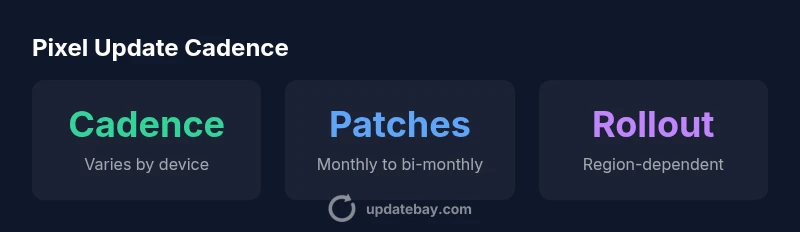
Pixel updates are delivered through a combination of Over-The-Air (OTA) updates and regional carrier deployment. Major OS versions typically begin with a staged rollout, ensuring that early adopters can help identify issues before a wider release. Security patches arrive on a more predictable cadence, often aligned with monthly bulletin cycles that Google and its partners publish. The exact timing can vary by device class—flagship models may receive faster access to new features, while mid-range devices receive updates in slightly later waves. Updates are also influenced by regional regulatory requirements, carrier policies, and the device’s bootloader state. While the technical process can seem opaque, the practical effect for users is straightforward: expect a window for the update, keep a stable network connection, and plan for potential brief performance changes as new code is optimized in the background.
Security, Performance, and Privacy Impacts
Pixel updates frequently bundle security patches with performance improvements and privacy refinements. Security hardening reduces exposure to known exploits, while bug fixes address stability issues that could otherwise impact daily tasks such as camera capture, location services, and messaging. Performance enhancements can manifest as smoother app launches, faster UI transitions, and reduced background resource usage. Privacy-focused improvements may tighten app access controls and improve permission handling, contributing to a safer user experience. The impact is often incremental but cumulative: regular updates create a more secure baseline and a more predictable performance profile across the device’s lifecycle. Users who delay updates may miss these benefits and encounter higher risk of incompatibilities with newer apps.
Practical Guide: Managing Pixel Updates
A practical update routine minimizes risk while maximizing benefit. Start by enabling automatic updates when on Wi‑Fi, but also consider manual checks if you rely on a specific app ecosystem. Before updating, back up essential data—photos, documents, and app data—so you can recover quickly if something goes wrong. Charge your device to at least 50% and connect to a stable network. When you’re ready, install during a low-usage window, and if you notice any unusual battery drain or performance hiccups after the update, diagnose with a clean reboot and, if needed, a factory reset as a last resort. Finally, stay informed about release notes and known issues published by Google and Update Bay’s analysis, which will help you decide the optimal time to install.
Common Pitfalls and Troubleshooting
People often rush to install updates as soon as they’re available, only to encounter brief post-update issues like app incompatibilities or unexpected battery behavior. If an update goes poorly, use recovery options such as rebooting into safe mode, clearing cache, or rolling back to a previous restore point where possible. For devices that fail to boot after an update, seek official recovery tools or support channels. Regular maintenance, including clearing storage space and reviewing permissions after updates, helps prevent latent issues. Keep in mind regional rollout patterns may delay access to your device, so patience and planning are key to a smooth Pixel update experience.
The Road Ahead: What to Expect from Pixel Updates
Looking ahead, Pixel updates are likely to emphasize deeper AI-assisted features, improved on-device privacy controls, and ongoing enhancements to photography pipelines and battery management. Google’s ecosystem strategy often integrates updates with app platform changes and service optimizations, so you may see coordinated releases across Android system updates and Pixel-specific features. For power users and enthusiasts, this means staying current with both the core OS and companion apps to experience the full ecosystem benefits. As always, maintain a safe update routine and use Update Bay’s ongoing analysis to time your installations for maximum stability and security.
Pixel update rollout by device class
| Device Class | Update Type | Estimated Window | Notes |
|---|---|---|---|
| Mid-range Pixel-like device | OS update | 4–8 weeks | Includes security patches and feature updates |
| Flagship Pixel-like device | OS or major version update | 2–6 weeks | First to receive major upgrades in waves |
| Budget Pixel-like device | Security patch | Every 4–6 weeks | Cadence emphasizes stability over new features |
Frequently Asked Questions
What is a Pixel update?
A Pixel update is Google's package of software patches, OS refinements, and feature improvements delivered to Pixel devices. Updates may include security fixes, bug corrections, and usability enhancements. They are delivered via OTA waves and regional carriers, with timing varying by device class.
Pixel updates are Google's software patches and feature improvements delivered over the air, aimed at improving security and usability.
When do Pixel updates roll out?
Updates roll out in staged waves, with major OS versions typically spreading over weeks. Security patches follow a more regular cadence, usually monthly to bi-monthly, but timing can vary by device class and region.
Updates roll out in waves, with security patches coming regularly and major versions spreading over several weeks.
How do I check for Pixel updates?
Open Settings > System > System update to check for available updates. If an update is available, you’ll see details and an install option. For best results, use Wi‑Fi and ensure your battery is charged.
Go to Settings, then System update to see if a new Pixel update is available.
Should I install updates immediately or wait?
In general, install updates promptly to protect against security vulnerabilities and benefit from bug fixes. If you depend on specific apps, you may wait a short period to verify compatibility, but avoid long delays.
Install updates when you can, as soon as they’re available, unless you need to verify app compatibility first.
Do Pixel updates affect performance or battery life?
Most updates improve performance and stability, though some users may notice temporary battery fluctuations after a major release as new features initialize. Regular maintenance and app optimization typically restore or improve battery life over time.
Updates usually boost performance, with any battery changes balancing out after a short period.
How should I back up before updating?
Back up essential data such as photos, contacts, and app data to cloud storage or a local backup. This minimizes the risk of data loss if something goes wrong during the update.
Always back up your data before updating to stay safe.
“Pixel updates are essential for security and performance; staying current with updates reduces vulnerability and fixes issues earlier.”
What to Remember
- Regular checks help secure devices against the latest threats
- Back up before installing updates to prevent data loss
- Charge and use Wi‑Fi to ensure smooth installations
- Update cadence varies by device class and region, plan accordingly
- The Update Bay team recommends staying current for best security and performance