How to Update Pixel: A Complete Google Pixel Update Guide
Learn how to update Google Pixel devices using OTA, sideload, and factory images. This thorough how-to covers prerequisites, step-by-step actions, troubleshooting, and best practices to keep your Pixel secure and feature-rich.


Update Pixel devices through OTA updates, sideloaded packages, or official factory images. This guide walks you through prerequisites, the standard OTA path, advanced manual methods, and post‑update checks to keep your Pixel secure and up to date. By following the steps, you’ll be able to complete a Pixel update confidently and minimize downtime.
What updating a Pixel achieves
Updating your Pixel device—what Update Bay calls "update pixel" in everyday usage—delivers security patches, performance improvements, bug fixes, and new features. According to Update Bay, timely Pixel updates reduce exposure to known vulnerabilities and optimize system reliability. This section explains why staying current matters for personal data protection, app compatibility, and overall device longevity. We’ll lay out the main pathways and demonstrate how to decide between OTA, sideload, or factory image updates. Whether you’re updating a single Pixel or managing devices across a family, understanding the goals of each update channel helps you choose the safest, fastest route. We’ll cover OTA updates first, since they’re designed for most users and require minimal technical steps. Keeping update pixel routines consistent minimizes downtime and ensures you can continue to use essential apps without disruption.
How Pixel updates work
Pixel updates are delivered over the air (OTA) as incremental packages that include OS improvements and security patches. Each update carries a build number and a security level you should review after installation. Based on Update Bay analysis, 2026 shows that OTA updates remain the most common method for Pixel firmware updates, because they automate installation, minimize data loss, and preserve user data. In addition to OS updates, Google periodically releases Play System updates and monthly security patches that improve reliability and reduce exploit surfaces. Understanding these channels helps you pick the best path for your situation, whether you’re patching a single device or coordinating updates across a family.
Prerequisites before updating Pixel
Before you initiate any update, prepare the device to avoid interruptions. Ensure the Pixel has at least 50% battery or is connected to a charger, and connect to stable Wi‑Fi to download the update without data loss. Back up important data—contacts, photos, and documents—either to Google Drive or an alternative cloud service. Sign in with your primary Google account to access OTA updates and verify your device’s identity. Clear enough storage space so the update can unpack and install. Lastly, confirm you have the latest stability patches installed in case you need to roll back. Following these prerequisites makes update pixel processes smoother and reduces the risk of bricking the device during installation.
OTA update: the standard path
The simplest way to update Pixel is via OTA. Open Settings, go to System, then Advanced, and select System update. If an update is available, tap Download and install. The device will reboot and complete the installation in the background. After reboot, verify the Build number and Patch level to confirm the update took effect. Keep in mind that large updates may require a longer restart window. If you run into issues, try a different network or pause any aggressive battery-saving mode that could interrupt the download.
Sideloading updates: when and how
Sideloading is an advanced method used when OTA is unavailable or for testing beta builds. You’ll typically need a computer with ADB/Fastboot tooling and a compatible update ZIP. Start by enabling developer options and connecting the Pixel to your computer via USB. Boot into recovery and use the command adb sideload <update.zip> to apply the update. This method can bypass the Play services constraints of OTA, but it’s riskier and may wipe data if not done carefully. Only sideload from trusted sources, and be prepared for potential driver and USB issues that can interrupt the process.
Factory images and clean installations
For major version upgrades or when a device is experiencing persistent issues, flashing a factory image is an option. This process often requires unlocking the bootloader, which will erase user data. Follow Google’s official factory image instructions, download the exact factory image for your model, and flash it using fastboot commands. After flashing, re-lock the bootloader if recommended and sign back into your Google account. Factory images provide a clean slate and can resolve stubborn software problems, but they demand careful attention to version matching and bootloader state.
Verifying update integrity and post-update checks
After completing any update path, verify the update by checking the Build number, security patch level, and Android version in the About phone section. Test core functions like unlocking the device, launching essential apps, and syncing data to ensure there are no permission or stability issues. Confirm that critical services (camera, network, notifications) run smoothly and that there’s no unexpected battery drain. If you notice anomalies, repeat the update steps or consider reverting to a prior restore point where possible. Post-update checks help ensure the update pixel result meets your expectations and keeps your data secure.
Troubleshooting common update problems during Pixel updates
If an update fails, first check your network connection and available storage. A failed OTA can occur due to corrupted download or insufficient space. If you’re sideloading, ensure the ZIP file is legitimate and the ADB drivers are installed correctly. A boot loop after update often points to a software conflict or a partial install; booting into recovery and wiping cache or performing a clean flash may be required. For persistent issues, consult official Pixel support resources or the Update Bay community for troubleshooting steps tailored to your device model and Android version.
Future-proofing: staying current with Pixel updates
To maximize security and features, enable automatic system updates on your Pixel if you haven’t already. Consider joining Google’s beta programs to test upcoming features, but remember that betas can be less stable. Regularly check for updates, review the changelog, and verify that critical apps remain compatible after each update pixel cycle. The goal is consistent, reliable updates that protect your data and enhance usability over time.
Tools & Materials
- Google Pixel smartphone(Ensure the device is charged or connected to a power source)
- USB-C charging cable(For charging and data transfer during sideload if needed)
- Stable Wi‑Fi or mobile data connection(Prefer Wi‑Fi to avoid data loss during download)
- Google account signed in on the device(Needed for OTA access and verification)
- ADB & Fastboot tooling (optional)(Required for sideload or factory image flashing)
- Computer with USB ports (optional)(Needed for sideload or factory image procedures)
- Backup storage solution(Cloud or local backup before major updates)
Steps
Estimated time: 45-90 minutes
- 1
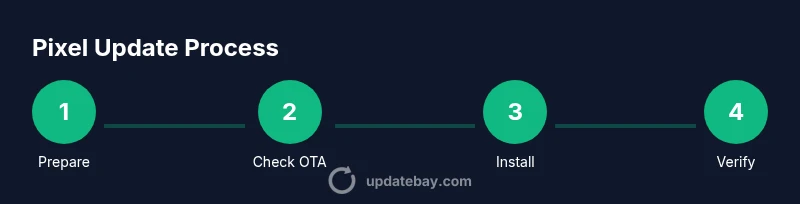
Prepare the Pixel
Charge the device and back up important data. Verify you’re connected to a stable network and sign in with your Google account. Confirm you have enough storage space for the update package.
Tip: Pro tip: Enable battery saver after update to preserve performance, but disable it during the download to avoid interruptions. - 2
Check for OTA availability
Open Settings > System > Advanced > System update and check for updates. If an update is listed, prepare to download and install. If nothing appears, you may be on the latest version or facing regional rollout limitations.
Tip: Pro tip: If you’re impatient, toggle airplane mode off and on to refresh the update check. - 3
Initiate OTA download
Tap Download and install. The device will download the package in the background and prompt for installation. Ensure you stay connected to power or keep charging during this process.
Tip: Pro tip: Do not interrupt the download; use a fast, stable Wi‑Fi network to avoid corrupting the package. - 4
Install and reboot
Once the update finishes downloading, the device will install and reboot automatically. Do not turn off the device during installation. After reboot, review the Android version and security patch level.
Tip: Pro tip: If you see a boot loop, enter recovery mode and try a cache wipe; avoid factory reset unless necessary. - 5
Optionally sideload an update
If OTA isn’t available, connect the Pixel to a computer with ADB/Fastboot. Boot into recovery and use adb sideload <update.zip>. This carries more risk, so proceed only with trusted ZIP files.
Tip: Pro tip: Verify the ZIP’s source, checksum, and compatibility with your exact Pixel model before sideloading. - 6
Consider factory images for major updates
For significant OS updates or persistent issues, flashing a factory image is an option. This typically wipes user data, so ensure a full backup first. Follow official instructions for the exact model and build.
Tip: Pro tip: After flashing, re-lock the bootloader if advised and reconfigure your Google account to restore apps and data. - 7
Verify post-update status
Check Build number and Patch Level. Test essential apps (camera, messaging, banking) and verify connectivity (Wi‑Fi, cellular). Confirm that automatic backups resume and that notifications are working.
Tip: Pro tip: Run a quick photo gallery backup to confirm media is syncing post-update. - 8
Troubleshoot common issues
If updates fail or the device stalls, consult official Pixel support guides. Common fixes include clearing cache, ensuring sufficient storage, and, if needed, performing a clean flash with a factory image.
Tip: Pro tip: Document the exact error message or build number to speed up support calls. - 9
Set up ongoing protection
Enable automatic system updates and review new features after each release. Consider enrolling in beta programs if you want early access to features while staying mindful of potential stability trade-offs.
Tip: Pro tip: Schedule monthly update checks as part of your device maintenance routine.
Frequently Asked Questions
What is the safest way to update my Google Pixel?
For most users, OTA updates are the safest and easiest path. They install automatically with minimal risk and preserve user data. Reserve sideload or factory image flashing for advanced scenarios or when OTA is unavailable.
For most users, OTA updates are the safest and easiest path. They install automatically and keep your data, then you can verify the update after reboot.
Can I update my Pixel if the battery is low?
You should have at least 50% battery or keep the device plugged in during an update. Updates can fail or interrupt if power is lost mid-install.
Make sure you’re plugged in or have half a charge before starting an update.
What if the update is not available in my region?
Regional rollouts can delay availability. If OTA doesn’t show an update, you can still prepare by backing up data and waiting for the rollout to reach your device.
Regional delays happen; keep your device ready and check again later.
Is sideloading safe for my Pixel?
Sideloading can be risky if you use untrusted ZIP files or improper commands. Only sideload from trusted sources and follow official instructions closely.
Sideload only from trusted sources and follow the steps carefully.
Will updating Pixel erase my data?
OTA updates typically preserve user data. Factory image flashing may erase data, so always back up first.
OTA usually keeps data; factory images can wipe data, so back up ahead of time.
How do I verify that the update installed correctly?
After installation, check the Build number and Patch level, test core apps, and ensure security features are intact. If something seems off, review logs or contact support.
Check build details and test essential apps to confirm success.
Watch Video
What to Remember
- Update Pixel devices using OTA, sideload, or factory images
- Always back up before applying updates
- Verify the update after installation
- Choose OTA for most users; sideload or factory images for advanced cases