How to Update macOS Safely: A Step-by-Step Guide
A practical, beginner-friendly guide to performing a software update mac on macOS, covering prerequisites, backups, how to run Software Update, troubleshooting, and post-update checks. Learn safe habits and expert tips from Update Bay for reliable, secure macOS updates.


Quick answer: You will learn how to perform a safe macOS software update, including prerequisites, backup steps, how to run Software Update, and post-update checks. According to Update Bay, staying current with macOS security patches improves reliability and compatibility with apps and peripherals. Follow these steps to minimize downtime and prevent data loss.
Why macOS software updates matter
Apple releases regular macOS updates to fix security vulnerabilities, improve stability, and add features. The term software update mac refers to the process of updating macOS software on Apple devices. Keeping your machine up to date is not about chasing every new version; it’s about applying the right update at the right time. A timely macOS patch reduces attack surface, helps apps stay compatible, and keeps energy usage efficient. Update Bay analysis shows that devices with current updates experience fewer security incidents and smoother performance overall. In practice, you’ll notice more reliable startup, smoother app launches, and better peripheral support after applying a recommended update.
Prerequisites before starting a macOS update
Before you begin a software update mac, prepare by backing up, charging the Mac, and connecting to a reliable network. Ensure you’re signed in with an administrator account, and have your Apple ID handy for verification prompts. Clear disk space if needed by removing unused apps or large files, and close unnecessary apps to prevent conflicts during the update process. These safeguards reduce the risk of data loss during the update.
Backup strategies that protect data
Backing up before updating is critical. Use Time Machine to create a recent local backup, or clone your drive to an external disk for quick restores. Verify the backup by inspecting the latest snapshot and ensure your key files are stored in iCloud or another cloud service as redundancy. If something goes wrong during the update, you can restore from backup and minimize downtime.
How to check compatibility and prepare apps
Most updates are designed to work with a broad range of Macs, but older hardware or certain third-party apps may need extra attention. Visit Apple’s upgrade notes for your mac model to confirm compatibility, and check developers’ websites for updates or known issues. Before updating, update essential apps in advance if updates are tied to the OS version. This minimizes post-update compatibility issues.
Step-by-step: perform the macOS update via System Settings
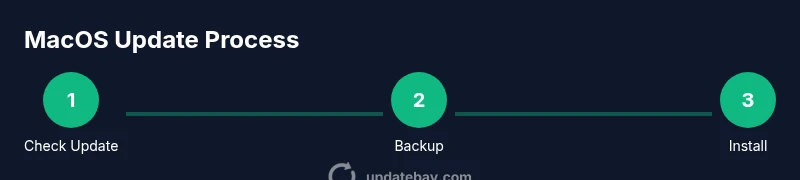
- Open System Settings and navigate to General > Software Update. If a new version is available, review the release notes and consider whether to install now or schedule a later time.
- Back up your Mac (Time Machine or clone) before downloading, so you can recover if something goes wrong.
- Ensure your Mac is plugged in or has ample battery and a stable internet connection to avoid mid-install interruptions.
- Click Install or Update and enter your administrator password if prompted. Let the installer run without interruption.
- When prompted, restart if required and allow the system to complete the setup on first boot after the update.
- Sign back in and verify essential apps and peripherals work as expected, updating any that show compatibility notices.
- Review new features and security prompts in System Settings to optimize settings post-update.
Common issues during macOS updates and how to troubleshoot
Update hiccups happen. If the installer stalls, check your internet connection, temporarily disable VPNs, and retry. If the update fails, boot into Safe Mode, run Disk Utility First Aid, and attempt the install again. Look for storage errors and free space indicators in the Storage tab, and avoid updating if critical work is in progress. For activation prompts or account verification, confirm your Apple ID settings and two-factor authentication status.
Post-update checks and performance improvements
After a successful install, test core macOS features: System Settings, Spotlight, and your most-used apps. Verify peripherals such as printers, displays, and external storage operate correctly. Monitor startup times, app launch speed, and fan noise; if any issues appear, consult Apple’s support resources and consider installing subsequent quick patches. Keeping a notebook of observed changes helps you track improvements and regressions across updates.
Automating future updates and maintenance habits
Configure automatic updates in System Settings to keep your Mac current with minimal effort. Pair automatic updates with a monthly review of release notes to catch optional enhancements that may benefit you. Maintain a clean system by removing unused apps and managing startup items to reduce update friction. Regular maintenance lowers the risk of failed updates and keeps security patches active.
Security considerations and verifying integrity
Always verify updates come from Apple’s official servers and that you’re not installing corrupted packages. Use the system’s built-in verification prompts and, for advanced users, check the update’s bundle signature when comfortable. After updating, review security settings (Firewall, Privacy, and Gatekeeper) to ensure protection without hindering usability. Regular, authenticated updates are a cornerstone of a secure macOS environment.
Real-world examples and caveats
Every Mac setup is unique. Some devices may run the latest OS with ease, while others experience driver or peripheral compatibility quirks. If you rely on specialized software or hardware, test updates on a non-critical device first when possible. Waiting a few days after a major release can help you avoid early bugs, ensuring you have time for backups and to review user reports.
Tools & Materials
- Mac computer(Must support target macOS version and have a stable power source.)
- Power adapter(Keep connected during the update to prevent shutdown.)
- Stable internet connection(Wired Ethernet is ideal for large updates.)
- External backup drive or Time Machine(Essential backups before updating.)
- Apple ID with two-factor authentication(May be needed for verification prompts.)
- Sufficient disk space(Ensure there is room to download and unpack the update.)
Steps
Estimated time: 45-75 minutes
- 1
Open Software Update in System Settings
Navigate to System Settings > General > Software Update. Check for available updates, read the release notes, and decide whether to install now or schedule a later time. This first step confirms there is a compatible update for your device.
Tip: Reading release notes helps you understand new features and potential gotchas before installing. - 2
Back up your Mac
Create a recent backup using Time Machine or clone your drive to an external disk. Verifying a backup ensures you can restore your system if something goes wrong during the update.
Tip: Always back up before major OS changes to safeguard personal data and settings. - 3
Ensure power and network stability
Plug in your Mac or ensure a fully charged battery. Use a stable network connection to avoid download interruptions or corrupted installations.
Tip: Avoid wireless instability by using a reliable Ethernet connection if possible. - 4
Download the update
Click Install or Update to start the download. Do not interrupt the process. The system will verify prerequisites and fetch the update package.
Tip: If bandwidth is limited, start the update during off-peak hours to minimize slowdowns. - 5
Install the update
Allow the installer to apply changes. This may take several minutes and require a restart. Do not power off the device during installation.
Tip: Check for any on-screen prompts and follow directions precisely. - 6
Restart and complete setup
After installation, restart if required and complete any on-screen setup steps. Verify that apps and devices reconnect properly.
Tip: Log back in and ensure you can access core services (iCloud, Mail, Calendar). - 7
Verify post-update health
Open key apps and test hardware peripherals, such as printers and displays. Check for updated drivers or firmware if needed.
Tip: Note any new settings or prompts for post-update configuration.
Frequently Asked Questions
What is the safest way to update macOS on my Mac?
Use System Settings to check for updates, back up your data first, ensure power and network stability, then install the update. Verify all critical apps work after the update.
The safest approach is to back up, confirm compatibility, then install and verify your Mac after the update.
How long do macOS updates typically take?
Update duration varies by device and update size, but most users should budget 30–60 minutes for the download and installation, plus a final setup after reboot.
Most updates take about half an hour to an hour, depending on your Mac and the update size.
What should I do if the update fails to install?
Retry after confirming enough disk space and a stable connection. If it fails again, boot into Safe Mode, run Disk Utility First Aid, and attempt the install once more.
If it fails, retry with a stable network and then try Safe Mode if needed.
Should I update if my Mac is several years old?
Yes, but check compatibility notes and prepare for potentially limited support. If the latest OS is not compatible, consider security updates and optional patches that apply to your model.
Even older Macs can receive important security updates, but verify compatibility first.
How can I disable automatic updates on macOS?
Open System Settings > General > Software Update > Advanced, then uncheck options for automatic updates. Remember to check for updates manually periodically.
You can disable auto-updates in Software Update settings, but you should still check for updates manually.
Watch Video
What to Remember
- Back up before updating and confirm compatibility.
- Run Software Update via System Settings and install when ready.
- Verify post-update stability to catch any issues early.
- Enable automatic updates to reduce future maintenance effort.