How to Update iPhone Software in 2026
Learn how to safely update iPhone software with a practical, step-by-step approach. This 2026 guide covers prerequisites, backups, timing, post-update checks, and troubleshooting to help you avoid common issues.


Keeping your iPhone updated protects security, improves performance, and unlocks new features. This quick answer previews a complete step-by-step guide that covers prerequisites, backup, update processes, and post-update checks, with practical tips to avoid common problems. Follow these steps to update confidently, minimize interruptions, and maintain device health today at home.
Why software updates on iPhone matter
According to Update Bay, keeping your iPhone software current is essential for security, stability, and enjoying the latest features. Software updates patch vulnerabilities that attackers exploit, fix bugs that can cause apps to crash, and improve performance and battery efficiency. When devices run on outdated code, they miss important security fixes and may become slower or incompatible with newer apps. The benefits extend beyond protection; updates can introduce refinements to the user experience, new privacy controls, and improved app compatibility. Staying current reduces the risk of unexpected outages and simplifies support if you encounter issues. In short, regular updates are a practical, proactive part of device maintenance that can save time and frustration later. This block sets the stage for a practical, risk-aware approach to updating your iPhone.
How iPhone updates work
iPhone updates are delivered over the air (OTA) through a direct download from Apple’s servers. Most users receive updates via Settings > General > Software Update, with the option to install immediately or schedule for later. Major releases bundle new features and security fixes, while smaller updates address bugs or privacy improvements. Updates are cryptographically signed by Apple, and the device verifies integrity before installation. In addition, you can update a connected iPhone via Finder on macOS or iTunes on Windows if preferred. The update size varies by version, device model, and current iOS build, so the process can range from a few hundred megabytes to several gigabytes. Expect a reboot as part of the installation flow, and remember that updates may fail if there’s insufficient storage or a weak connection.
Prerequisites before you update
Preparing for an update reduces the risk of interruptions and data loss. Ensure your iPhone has a stable battery or is plugged into a power source to prevent shutdowns mid-install. Connect to a reliable Wi‑Fi network to avoid cellular data overages and to ensure faster downloads. Check available storage; if space is tight, offload unused apps, delete old media, or use iCloud to store photos temporarily. Finally, back up your data via iCloud or your computer to guard against any unexpected issues during the update.
Understanding release notes and versions
Release notes accompany every iOS update and describe new features, performance improvements, security fixes, and known issues. Reading these notes helps you set expectations and decide whether to install now or wait for a subsequent patch. Some updates introduce privacy enhancements, new controls, or accessibility improvements that can affect how you use the phone. If you rely on specific apps, verify their compatibility after the update by checking App Store ratings or developer notes. Update notes also indicate whether a reboot is required and any settings that may need adjustment after installation.
Step-by-step overview (high level)
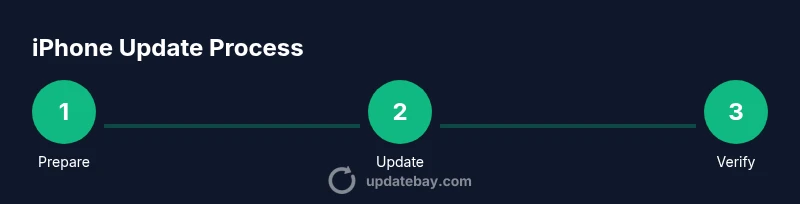
Before you begin, think of the update as a three-phase process: preparation, download and installation, and post-update verification. Preparation ensures you won’t lose data or run into space issues. The download and installation phase handles the actual update, which may take some time and requires your device to restart. Post-update verification confirms that the new iOS version is active and that key features function as expected. This overview helps you pace yourself and avoid rushing through a potentially disruptive task.
Troubleshooting common update issues
If an update stalls or fails, first check your internet connection and available storage. Restart the iPhone and try again, preferably on a stable Wi‑Fi network. If problems persist, you can retry after freeing space, or use Finder/iTunes to update via a computer. For stubborn failures, contact Apple Support or visit an official support page for error codes and fixes. Keeping a recent backup makes recovery straightforward and reduces anxiety during troubleshooting.
Security and privacy considerations after update
Post-update habits matter. Review privacy settings and app permissions to ensure they align with your preferences, and consider enabling automatic updates for security patches when you’re comfortable with the process. Regularly backing up your data ensures you can recover quickly from any issues. Staying informed about updates helps you maintain a secure and smoothly functioning iPhone.
After-update checks: verifying version and features
To verify the installed version, go to Settings > General > About. Confirm the iOS version matches the latest release noted in release notes. Check key features you rely on, such as camera quality, Face ID, and network connectivity. If something seems off, reboot the device and recheck settings or apps that may need updates to work correctly with the new iOS version.
Verdict & next steps
The Update Bay team recommends establishing a routine for checking updates monthly and enabling automatic updates on secure networks when appropriate. Regular checks help you stay protected and enjoy improvements without disruption. If you’re ever unsure, schedule updates during a low-usage period and keep a current backup handy for peace of mind.
Tools & Materials
- iPhone with current iOS support(Ensure device model is supported by the latest iOS and has some free storage.)
- Stable Wi-Fi connection(Prefer a trusted home or office network for reliability.)
- Power source(Keep the device plugged in to avoid shutdown during install.)
- Backups (iCloud or computer)(Back up before updating to protect against data loss.)
- Sufficient free storage(Free space depends on update size; delete or offload unused content as needed.)
Steps
Estimated time: 30-60 minutes
- 1
Open Settings
Open the Settings app on your iPhone. Tap General, then select Software Update. This screen shows whether an update is available for your device and lets you decide when to install.
Tip: If you don’t see an update, your device may be up to date or not eligible for the latest release. - 2
Back up your iPhone
Create a backup via iCloud or your computer before proceeding. This protects your data if something goes wrong during the update.
Tip: Ensure the backup completes before continuing. - 3
Connect to power
Plug your iPhone into a power source to prevent shutdown during the installation process.
Tip: If you’re near a charger, keep the device plugged in for the entire update. - 4
Join a stable Wi‑Fi network
Connect to a reliable Wi‑Fi network to download the update without data charges or interruptions.
Tip: Avoid public Wi‑Fi when possible due to potential instability. - 5
Download and install
Tap Download and Install. You may be asked to enter your device passcode or Apple ID credentials to authorize.
Tip: Allow the device to download from Apple servers without interruption. - 6
Wait for the update to apply
The update will download, prepare, and install. The device will restart during the process.
Tip: Do not interrupt the process; keep your device charged. - 7
Follow post-install prompts
Complete any on-screen setup steps after the restart and sign in if required.
Tip: Check for app updates afterward to ensure compatibility. - 8
Verify the update
Go to Settings > General > About to confirm the new iOS version is installed.
Tip: Test core features like camera, phone, and messaging to verify stability. - 9
Troubleshoot if needed
If the update fails, retry after freeing space or use Finder/iTunes to update via a computer.
Tip: Refer to official support if errors persist.
Frequently Asked Questions
Do I need to use Wi-Fi to update my iPhone?
Wi‑Fi is recommended to download updates reliably and avoid using cellular data. You can update over cellular if your carrier allows it and you have sufficient data, but Wi‑Fi is generally more stable.
Wi‑Fi is best for updates, but you can use cellular if you have enough data and a strong connection.
How long does an iPhone update usually take?
Most updates take 30 to 60 minutes, depending on the version, device model, and network speed. Allow extra time for large updates and planned restarts.
Most updates take about 30 to 60 minutes, depending on your device and connection.
What if the update fails to install?
If installation fails, restart the iPhone and try again. Ensure sufficient storage and a stable connection. If it continues to fail, update via Finder/iTunes on a computer or contact Apple Support.
If it fails, reboot and try again. Check storage and connectivity, or update from a computer if needed.
Will updating erase my data?
Official iPhone updates do not erase data, but it’s essential to back up beforehand in case something goes wrong during installation.
Updates don’t erase data, but always back up first for safety.
Should I enable automatic updates?
Automatic updates keep your device secure with minimal effort. Turn them on when you’re comfortable with automatic installations.
Automatic updates help you stay secure with minimal effort; enable them if you’re okay with automatic installs.
Can I use my iPhone while updating?
During most updates, you should avoid heavy use. The device can be responsive, but high-demand tasks might slow or interrupt the process.
It’s best to avoid heavy use while updating to prevent slowdowns or interruptions.
Watch Video
What to Remember
- Back up before updating to safeguard data.
- Use Wi‑Fi and power during installation.
- Read release notes to understand new features and fixes.
- Verify the new version and test essential functions after update.