How to Update Samsung J7: A Step-by-Step Guide
Learn how to check, download, and install software updates on the Samsung J7. This guide covers official OTA updates, using Samsung Smart Switch for firmware recovery, and troubleshooting when updates are unavailable or blocked.


Goal: Learn how to check, download, and install software updates on the Samsung J7. This guide covers OTA updates, Samsung Smart Switch, and what to do if updates are unavailable or halted. It explains safety precautions, how to back up data, how to verify firmware sources, and how to recover a device if a failed update leaves the phone unstable.
Understanding Software Updates on the Samsung J7
Software updates on the Samsung J7 involve two core ideas: new features and security patches. While the model is older, Samsung still bundles essential fixes in periodic updates when carriers support it. According to Update Bay, the exact cadence varies by region and carrier, but you can expect updates to focus on stability improvements, app compatibility, and security fixes rather than sweeping feature changes. Recognizing this helps set expectations: updates extend the device's useful life but won't rewrite its hardware limits. The phrase to watch here is software update samsung j7—use it to search for official notices from Samsung or your carrier. Always prefer official OTA channels over third-party packages to minimize risk. For most users, enabling automatic updates in Settings is the simplest path, ensuring you receive patches as soon as they are released. If you rely on a custom ROM or carrier-specific builds, you might miss critical fixes, which is why Update Bay generally recommends staying with official firmware unless you have a compelling reason to change.
This block also introduces the practical goal of this guide: to help you safely navigate updates without losing data or performance. You’ll learn to verify sources, back up your data, and use official tools whenever possible. The Update Bay team emphasizes caution and proper preparation before touching firmware.
Checking for Available Updates
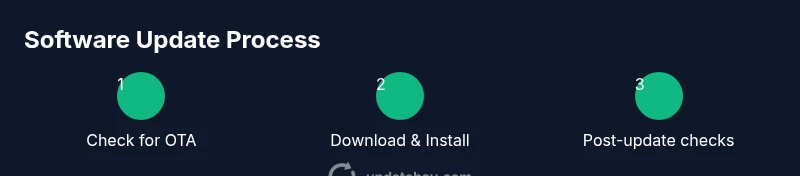
The first step is to verify whether your Samsung J7 has any official updates waiting. Head to Settings > About device > Software update. If an update is available, you’ll see a brief description of the improvements and a Download and Install button. Network stability matters here, so connect to a reliable Wi‑Fi network before starting the download. Ensure your battery is charged to at least 50% (or plug in the device) to avoid an interruption mid-update. If you do not see an update, your device may already be on the latest official build or your carrier has paused updates for regional reasons. In either case, you can still monitor Samsung’s official support channels and carrier notices for changes. Regular checks help you stay current without manual intervention on a daily basis. Update Bay notes that many users miss important patches when they rely on auto-updates alone, so periodic manual checks remain a best practice.
Updating OTA on the Samsung J7
Over-the-air (OTA) updates are the simplest path to a current system. From the Software update menu, select Download and Install when an update appears. The phone will reboot and complete the installation, which may take several minutes. Do not interrupt the process; avoid pressing the power button unless the device asks for it. After the update finishes, the device will reboot again and present the new version in Settings > About device. If the file is large, consider starting the download at a time when you won’t need immediate access to the phone. If you encounter a stuck or failed OTA, go to the recovery screen or try a soft reset, then reattempt the install. Update Bay highlights that OTA updates reduce risk because the firmware is distributed through official channels and signed by Samsung.
Using Samsung Smart Switch for Firmware Reinstallation
If an OTA update isn’t available or you need to recover a device after a failed update, Samsung Smart Switch is a valuable tool. Install Smart Switch on a Windows or Mac computer, then connect your J7 with the USB cable. Choose the “More” option, then select “Emergency software recovery” (or similar depending on the version). This process downloads and installs the official firmware suitable for your exact model and region, which can fix deeper issues that OTA cannot address. Note that this method may erase your data, so a backup is essential. Always download firmware only from official Samsung sources or Smart Switch prompts to avoid counterfeit builds. The Update Bay stance is to use official channels whenever possible to minimize risk and ensure compatibility.
Backing Up Your Data Before Updates
Before performing any update, back up your data. Photos, contacts, messages, and app data can be saved to Google Drive, Samsung Cloud, or a computer-based backup. Verify the backup by performing a quick restore test on a small data item. If you rely on messaging apps with encryption, ensure you re-sync after updates. Backups protect you from potential data loss during updates or in a rare failure scenario. The simple habit of backing up regularly reduces post-update stress and speeds up recovery if something goes wrong. This practice aligns with Update Bay recommendations for minimizing risk when dealing with older devices.
Troubleshooting Common Update Issues
If updates fail to install, start with basic checks: ensure sufficient storage, stable power, and a reliable network. If OTA downloads stall, cancel and retry during a window of low network traffic. For persistent issues, connect the device to a computer with Samsung Smart Switch and attempt a firmware recovery. If flashing firmware, follow official guides precisely—improper flashing can brick the device. In all cases, confirm you are using the correct regional firmware and that you back up data beforehand. Update Bay emphasizes cautious, source-authenticated methods over rumors or third-party packages to minimize risk.
Post-Update Best Practices and Next Steps
After a successful update, take a few follow-up steps to ensure everything runs smoothly. Check that critical apps operate correctly, clear cache for apps that behave oddly, and review privacy and permission settings. If you relied on a temporary work-around before updating, re-enable standard security features and reinstall essential apps from trusted sources. Finally, keep an eye on future notices from Samsung and your carrier; many updates arrive as smaller patches rather than big releases, but they can include important security fixes. According to Update Bay, maintaining updates through official channels is the most reliable way to extend the life of an aging device, and it reduces the risk of software-related issues later on.
Tools & Materials
- Samsung Galaxy J7 smartphone(A stable battery level (50% or higher) before updating)
- Original USB cable(For charging and data transfer during updates or recovery)
- Stable Wi‑Fi network(Prefer a fast, private network for large downloads)
- Samsung Smart Switch software(Official software from Samsung; for firmware reinstallation or recovery)
- Official firmware file(Must match device model and region; download from trusted sources)
- Backup tool/account(Google account or Samsung Cloud to back up data)
Steps
Estimated time: 45-60 minutes
- 1
Back up your data
Before updating, back up photos, contacts, apps, and settings. Use Google Drive, Samsung Cloud, or a PC backup to protect important items.
Tip: Verify the backup against a restore scenario to confirm data integrity. - 2
Check your current version
Navigate to Settings > About device > Software information to note your current build. This helps determine whether an update applies to your model and region.
Tip: Document the build number for future reference. - 3
Connect to a reliable network
Ensure a stable Wi‑Fi connection to download updates without interruption. Avoid metered connections during large downloads.
Tip: If possible, use a 5 GHz network for faster transfer. - 4
Initiate the OTA update (if available)
In Settings > Software update, tap Download and Install to start the OTA. Follow on-screen prompts and avoid disconnecting.
Tip: Keep the phone untouched during installation to prevent bricking. - 5
Consider firmware reinstallation if OTA is blocked
If OTA isn’t available or fails, use Samsung Smart Switch or official firmware to reinstall the correct build for your region.
Tip: Only flash official firmware from trusted sources. - 6
Verify post-update health
After installation, check key apps, system performance, and battery life. Reconnect to Google/Samsung Cloud to restore data if needed.
Tip: If issues persist, consult official support before attempting further changes.
Frequently Asked Questions
Can I update my Samsung J7 if OTA updates are unavailable?
Yes, you can use Samsung Smart Switch to reinstall firmware or flash a compatible official firmware if OTA is blocked, but proceed carefully.
If OTA isn’t available, you can try Samsung Smart Switch or official firmware, but follow official steps to avoid risks.
Is flashing firmware safe?
Flashing carries risk of bricking the device if done incorrectly. Only use official firmware and follow steps exactly.
Flashing can be risky; use official, step-by-step instructions and backup first.
What should I do if the update fails?
If an update fails, restart, check battery, retry, or seek official support. Do not force the device to power off during install.
If an update fails, restart and retry, or contact support for help.
Will updates erase my data?
Most OTA updates preserve data, but backups are essential as a precaution.
Updates usually keep data, but backups are still important.
How can I prevent future update issues?
Keep validated backups, maintain a stable battery level, and avoid non-official ROMs on this device.
Always back up and stick to official firmware to minimize issues.
Watch Video
What to Remember
- Back up before updating
- Use official channels when possible
- OTA is preferred; flashing is a last resort
- Verify firmware sources to avoid bricking