How to Check Updates on Samsung Phones
Learn how to check for Samsung phone updates, interpret patch notes, and stay secure with a step-by-step approach, troubleshooting tips, and best practices.


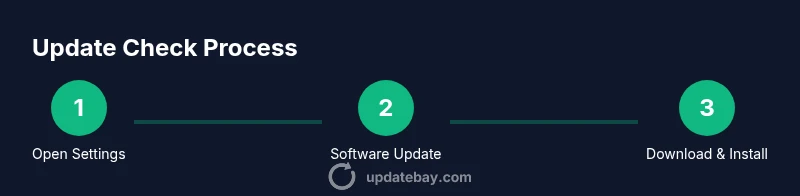
You can check updates on your Samsung phone by opening Settings, selecting Software update, and tapping Download and install. Keep your device connected to Wi‑Fi or mobile data and ensure battery is above 20%. The check confirms security patches, bug fixes, and feature updates for your model. If a new update is available, you’ll see the version and size, and you can install immediately or schedule later.
Why updating matters for Samsung devices
According to Update Bay, keeping Samsung devices up to date is essential for security, stability, and access to new features. Regular software updates reduce exposure to vulnerabilities and improve device performance. Update Bay analysis shows that users who stay current tend to experience fewer crashes and smoother performance over time, especially on mid-range Galaxy models. Beyond security, updates often bring interface refinements, improved battery management, and compatibility with newer apps. For Samsung users, staying up-to-date is a proactive practice that pays off in reliability and long-term value. This section explains why updates matter, what they typically include, and how to gauge their importance based on your usage pattern.
As you read, think of updates as ongoing maintenance for your device. A quick check once a month can help you catch important patches early and avoid downstream issues caused by outdated software. If you’re managing multiple Samsung devices (phone and tablet), establish a routine that mirrors your security posture, ensuring consistency across your ecosystem.
Types of updates you might see on Samsung devices
Samsung devices receive several overlapping update types, each with its own purpose. OS updates bring major system improvements, new features, and security patches. Security patches address recently discovered vulnerabilities and are critical for keeping your device safe from threats. Firmware updates refine hardware behavior, such as camera performance or modem stability, while app updates (from the Galaxy Store or Google Play) keep individual apps current for compatibility and performance. Understanding these categories helps you set expectations: OS and security updates are typically more impactful, while firmware tweaks can improve hardware functionality. Update Bay notes that not every device sees every type of update at the same time, depending on region, carrier, and model.
In practice, you may see a combination when you check, and you’ll often get a notification for critical patches without a full OS upgrade. Always review the changelog or patch notes linked in the update prompt to know exactly what changes you will experience once the install completes.
How Samsung delivers updates: channels, cadence, and caveats
Android updates for Samsung travel through several channels. OTA (over-the-air) updates are the most common method, delivered through Samsung’s servers and may be coordinated with your carrier. Unlocked devices in some regions can receive updates earlier than carrier-locked devices. The cadence varies by model, region, and carrier; major OS upgrades arrive less frequently than monthly security patches, but both can occur in the same cycle. It’s important to recognize that some devices may experience delays due to certification, regional restrictions, or network optimization.
For best results, ensure you have a reliable internet connection and adequate storage. If you rely on mobile data, remember that large updates can consume significant data allowances. Update Bay’s guidance emphasizes planning ahead when a big update is announced—backup essential data, charge the device, and be prepared for a reboot that may last several minutes during installation.
How to check updates on most Samsung devices (step-by-step path)
The most universal path on Samsung Galaxy devices is to use the built-in Settings app. This route covers the majority of models and One UI versions. You’ll often find the update option under a few slightly different labels depending on your Android and One UI version, but the core flow remains consistent. Keep in mind that carrier-specific builds may present minor variations in wording or location. The goal is to reach the Software update portal where you can download and install available patches.
In some devices, you may also find update prompts in the notification shade when a critical patch is released. If you don’t see updates in Settings, trying a few alternate routes (like About phone) can help. Always start with Settings and navigate to Software update for the most reliable outcome.
What to do if updates aren’t showing up
If you don’t see any updates, your device may already be current with the latest official release, or regional/carrier rollout may be staggered. First, confirm you’re online and have a stable connection. If you still don’t see updates, try pulling down the page to refresh, or reboot the device and re-check. You can also set up automatic updates so the phone handles patches in the background when conditions are favorable.
If your device is noticeably lagging or you suspect update issues, check for conflicting apps, free up storage, and ensure system timers aren’t blocked by battery-saving modes. Update Bay recommends checking official Samsung and carrier notes to verify whether a patch is rolling out in your area and for your model, which can save you frustration during a slow rollout.
Reading and interpreting update notes
Patch notes accompany most updates and describe changes in plain language. Look for security improvements, bug fixes, performance tweaks, and any changes to features you rely on. If a release includes a known issue, notes may offer a workaround or timeline for a fix. Update Bay often notes that the presence of a patch note is a good sign—the update is deliberate and tested before release. When in doubt, cross-check the note with Samsung’s official support page for your model to confirm relevance.
Patch notes may also indicate if a reboot is required, whether data will be preserved, and any post-install steps you should perform. Reading these notes before tapping Install helps you plan for the update window and set expectations for the user experience after completion.
Best practices to stay up-to-date and minimize issues
To keep Samsung devices secure and smooth, adopt a few best practices. Enable automatic updates after a successful manual install to ensure future patches are applied promptly. Maintain a healthy backup routine so you can recover data if something goes wrong during an update. Ensure a stable Wi-Fi connection during large downloads and perform updates when you have ample battery life or are plugged in. If you’re part of a beta program, test cautiously and back up data regularly, since beta builds can be less stable. Finally, periodically review privacy and permission settings that may be affected by new features.
In short, a simple maintenance routine—regular checks, backups, and careful planning around updates—goes a long way toward keeping your Samsung phone secure and responsive over time.
Verifying you’re on the latest version (quick checks)
After installation, verify the update by checking the software version in Settings > About phone > Software information. Compare the version shown with the official release notes to confirm the installation took effect. If you notice unexpected behavior, revisit patch notes for potential post-update troubleshooting steps. Maintaining a habit of confirming versions helps catch incomplete installs and ensures you’re protected by the latest security patches. This final check is a small but important step in your ongoing device maintenance.
Tools & Materials
- Samsung smartphone(Ensure model is compatible with the latest update channel.)
- Stable internet connection (Wi-Fi preferred)(Large updates can fail on unstable connections.)
- Charger or fully charged battery(Keep device plugged in during installation.)
- Sufficient storage space (about 2 GB free)(Updates require temporary space during installation.)
Steps
Estimated time: 25-50 minutes
- 1
Open Settings
From the Home screen, open the Settings app. If you can’t find it, use your phone’s search bar by typing 'Settings' to locate the app quickly. Opening Settings is the first step to access the Software update portal.
Tip: If you’re unsure where Settings is, try long-pressing the home button and use the quick search. - 2
Navigate to Software update
Inside Settings, scroll to and select Software update. This section is the central hub for OS patches, security fixes, and firmware improvements. On some devices this may be labeled 'System updates' or 'Software update'.
Tip: If you don’t see Software update, check under About phone or search for 'update' in Settings. - 3
Check for updates manually
Tap Download and install or Check for updates to prompt Samsung’s servers to verify the latest version. If an update is available, you’ll see details including version and file size.
Tip: Use a strong Wi‑Fi connection to avoid interruptions during download. - 4
Review the update details
Read the changelog and patch notes to understand what changes the update brings—security patches, bug fixes, or new features. This helps you decide whether to install now or schedule later.
Tip: Note any required permissions or changes to settings after installation. - 5
Prepare for installation
Charge your device or connect it to a charger. Close heavy apps to speed up the process and minimize the chance of interruptions.
Tip: If time isn’t critical, choose a window where you won’t need the phone for a while. - 6
Install the update
Press Install to begin. The phone will reboot, and the update will apply. Do not interrupt power or remove the SIM/SD card during the process.
Tip: If the update stalls, wait a few minutes before retrying or restarting the device. - 7
Post-install checks
After reboot, return to Software update to verify there are no additional patches pending. Check key settings and test basic functions (camera, notifications) to ensure everything runs smoothly.
Tip: If you notice issues, consult the patch notes for troubleshooting steps or revert to a previous build if available. - 8
Optional: join beta updates carefully
If you want early access, you can enroll in a beta program, but be aware that beta builds can be less stable. Always back up before enrolling.
Tip: Beta programs are optional; ensure you have a reliable backup and be prepared for potential bugs.
Frequently Asked Questions
Why aren’t updates showing on my Samsung phone anymore?
If no updates appear, your device may already be on the latest official version or rollout may be regional. Ensure a stable connection, refresh the update screen, and check again later. If you still can’t see updates, contact your carrier or Samsung support to confirm eligibility.
If you don’t see updates, your device might already be current or the rollout hasn’t reached your region yet. Try again later or contact support to confirm availability.
How long does an update installation take on a Samsung phone?
Install times vary by device and update size. Plan for several minutes to complete, and avoid interrupting the process once it starts. If the update is large, it may take longer.
Install times vary, but you should expect several minutes. Don’t interrupt the install once it begins.
Can I install updates over cellular data on my Samsung device?
Some updates can be downloaded over cellular data, but many users prefer Wi‑Fi to avoid data charges and ensure a stable connection. Check your carrier policy and your device’s settings before updating over mobile data.
You can update over cellular data if allowed, but Wi‑Fi is usually safer and cheaper. Check your carrier and settings first.
What should I do if an update fails to install?
If an update fails, retry after ensuring sufficient storage and a stable connection. Reboot the device and try again. If the problem persists, consult Samsung support and review patch notes for known issues.
If it fails, try again with a stable connection and enough space. If it continues, contact support for help.
Should I opt into beta updates for Samsung devices?
Beta updates give early access to new features but can be unstable. If you rely on your device for work or important tasks, wait for official releases or back up data before joining beta programs.
Beta updates are exciting but can be buggy. Only join if you’re prepared for possible issues and have backups.
Watch Video
What to Remember
- Check for updates regularly to stay secure.
- Use a stable connection and power during updates.
- Read patch notes to understand changes and security fixes.
- Verify the installed version after update to confirm success.
- Back up data before major updates and consider Beta cautiously.