How to Update Android OS: A Practical Guide
Learn how to safely update Android OS with a clear, step-by-step process. Includes backups, device-specific paths, troubleshooting, and best practices to stay current.


Keeping your Android OS up to date is essential for security, performance, and app compatibility. This guide shows you how to update Android OS, what to expect from OTA updates, and steps to avoid common pitfalls. According to Update Bay, regular updates reduce vulnerabilities and improve device reliability. Follow these steps for a smooth upgrade across Pixel, Samsung, and other devices.
Why updating Android OS matters
Keeping your Android OS up to date is essential not just for new features, but for security and performance. If you're wondering how to update android os, this guide walks you through the exact steps and best practices. According to Update Bay, timely OS updates reduce exposure to vulnerabilities and improve battery efficiency through optimized code paths. By staying current, you gain bug fixes that prevent crashes and ensure smoother multitasking. OTA updates are delivered by device manufacturers and carriers, while Google Play system updates can bring critical security improvements without a full OS upgrade. Understanding these mechanisms helps you plan updates around daily use. The goal is a secure, reliable device with minimal downtime. Always ensure you have enough storage and a stable connection when the update window arrives.
How Android update mechanisms work
Android updates come through a mix of over-the-air (OTA) system updates and Google Play system updates. OTA packages are delivered by the device maker or carrier and can include security patches, bug fixes, and feature tweaks. Google Play system updates are smaller, modular updates that improve security and performance without a full OS flash. Manufacturers may also release monthly patches, and some devices offer optional beta channels for early access. Knowing which mechanism applies to your device helps you set expectations about size, time to install, and reboot requirements. In most cases, enabling automatic updates is the simplest path, but manual checks after security advisories can prevent gaps in protection.
How to check for updates on different devices
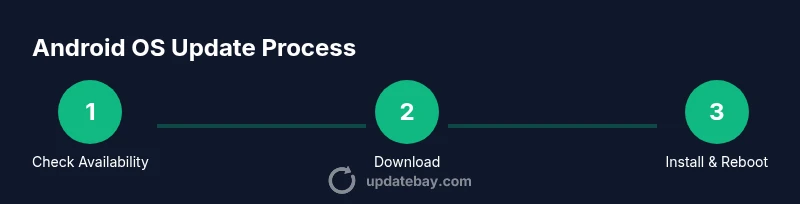
The exact path varies by manufacturer, but common routes exist on most devices. For most stock Android or Pixel devices, go to Settings > System > System update and tap Check for update. Samsung devices use Settings > Software update > Download and install. OnePlus and other brands typically follow Settings > System > System updates or a dedicated Software updates tab. If you use a carrier-locked device, you might also see a carrier settings update. For tablets, look for a separate Updates section in Settings. Always connect to Wi‑Fi and ensure battery is sufficiently charged before proceeding.
Preparing for an update: backups, storage, data safety
Before updating, back up your data to a trusted cloud service or computer. Ensure your device has at least half a battery, preferably charging, to avoid mid-update shutdowns. Free up space by moving photos or apps to the cloud or a SD card if supported. Disable unnecessary apps temporarily and keep essential services enabled. It’s smart to note down important apps and login details in case you need to re-enter credentials after the update. By planning ahead, you minimize the risk of data loss and post-update issues.
Troubleshooting update failures and rollback
If an update fails, start with a simple reboot and then retry. Check storage space and a stable Wi‑Fi connection, as downloads can fail on poor networks. If the install begins but stalls, cancel and re-download the update. In some cases, a firmware downgrade or rollback is not user-friendly and may require official support. When problems persist, consult the device manufacturer’s support resources or visit an authorized service center. Avoid forcing a flash unless you have explicit, official instructions from the maker.
Best practices and automation for staying current
Enable automatic updates where possible to reduce manual effort, but review update notes before installing major OS changes. Keep Play services and essential apps up to date after the OS upgrade. Regularly back up data, especially before major updates or when storage is tight. If you participate in beta programs, remember they can introduce instability—only opt in if you’re comfortable with potential issues. By adopting a routine, you’ll stay current with fewer surprises.
Tools & Materials
- Phone with charged battery(Aim for at least 50-60% battery; connect to charger if possible.)
- Stable Wi‑Fi connection(Prefer a reliable network to avoid download pauses.)
- Backup method(Google Drive backup or local computer backup recommended.)
- Google account access(Needed for some devices and cloud backup features.)
- USB-C cable and computer (optional)(Useful for offline backups or manual transfers.)
- Sufficient device storage(Free space is often required for the update package.)
Steps
Estimated time: 30-60 minutes
- 1
Prepare your device for update
Charge your device to at least 50% and connect to a stable Wi‑Fi network. Back up critical data to a cloud service or computer. Close unnecessary apps to ensure the update process has enough resources and avoid interruptions.
Tip: Having a backup ready prevents data loss if something goes wrong during the install. - 2
Open the update settings and check for updates
Navigate to Settings, then System or Software updates, and select Check for update. If a larger update is available, review release notes before proceeding to confirm it’s compatible with your device.
Tip: If you’re on a beta channel, consider opting out for a stable release if you rely on critical apps. - 3
Initiate the download
Tap Download or Install when an update is found. Ensure you remain connected to Wi‑Fi and avoid using the device heavily during the download.
Tip: Use a charger during the download to prevent battery drain from the update process. - 4
Install and reboot
The device will install the update and reboot automatically. Do not interrupt the process; allow the reboot to complete and reach the home screen.
Tip: If you see a progress indicator stuck for an extended period, soft reboot and retry after checking storage. - 5
Verify the update and update apps
After the reboot, verify the OS version in Settings > About phone. Open Google Play and update essential apps to ensure compatibility with the new OS.
Tip: Some apps may require you to re-grant permissions after an OS update. - 6
Post-update maintenance
Monitor device performance for a day. Check battery life and storage usage, and review any new settings introduced by the update.
Tip: If issues appear, consult official support channels before attempting risky fixes.
Frequently Asked Questions
Do I need to back up before updating Android OS?
Yes. Backing up protects your photos, contacts, and apps if something goes wrong during the upgrade. Use Google Drive or a local backup to ensure you can restore quickly.
Yes. It's best to back up your data before updating Android OS to prevent any loss if the update encounters issues.
What is the difference between OTA updates and major Android version updates?
OTA updates are small, device-specific patches delivered over the air for security and bug fixes. Major version updates upgrade the entire OS with new features and UI changes. OTA tends to be faster and smaller, while version upgrades are larger and may require more time and battery.
OTA updates are small patches; major version updates are larger, feature-rich upgrades.
Can I update Android OS without a Wi‑Fi connection?
You can update over mobile data in many cases, but it’s slower and may incur data charges. If possible, use Wi‑Fi and a stable connection to avoid interruptions during download and install.
You can update over mobile data, but Wi‑Fi is recommended for speed and reliability.
Will updating Android erase my data?
Typically no, updates preserve app data and files, but it’s not guaranteed. Backups are essential as a safety net in case something goes wrong during the upgrade.
Usually updates don’t erase data, but backups are still important.
What should I do if I can’t find an update for my device?
If your device isn’t showing an update, it may be out of phase with your region or carrier, or your model might not have the latest OS yet. Check for carrier settings, ensure storage is sufficient, and consult the manufacturer’s support pages.
If you don’t see an update, check regional availability and storage, then consult official support if needed.
Watch Video
What to Remember
- Update regularly to improve security and performance.
- Always back up before updating the OS.
- Use Wi‑Fi and a charger during updates to avoid interruptions.
- Verify post-update app compatibility and settings.