Visual Studio Code Update 2026: What’s New and How to Use It
Explore the Visual Studio Code update for 2026. This guide explains what's new, including performance improvements, UI refinements, and guidance on installing or updating VS Code, plus tips for managing extensions and settings.


The most recent Visual Studio Code update delivers tangible performance improvements, smoother extension handling, and targeted bug fixes. In the official changelog, Microsoft highlights faster startup, snappier command palette responses, improved IntelliSense with popular languages, and more reliable debug sessions. Expect lower idle memory use, better responsiveness on large projects, and refined UI interactions across platforms.
What’s New in the Visual Studio Code Update 2026
The 2026 Visual Studio Code update represents another step in the editor’s ongoing evolution, focusing on speed, reliability, and developer productivity. For teams evaluating a visual studio code update, the release emphasizes performance improvements, smarter IntelliSense, and better integrated tooling. The official changelog highlights several core areas: startup time reductions, faster extension activation, improved debugging workflows, and enhancements to remote development experiences. From an architectural standpoint, these changes aim to reduce latency in common tasks, such as opening the command palette, switching files, or launching a debug session. In practice, developers report that opening large projects feels noticeably snappier, with fewer pauses when switching between files or when reloading the window after installation of extensions.
The update also expands the built-in capabilities without compromising compatibility with existing extensions. Users can expect more robust language services for JavaScript, TypeScript, Python, and C/C++, with incremental improvements to language server communication and IntelliSense accuracy. Accessibility improvements include better keyboard navigation in the command palette and more consistent screen reader focus. Finally, Microsoft has refined the update process itself—auto-update delivery is more resilient, and the installer handles partial network outages more gracefully, reducing the chance of a corrupted install during upgrade. Overall, this VS Code update balances speed, stability, and extensibility for everyday coding tasks.
Performance Improvements Across Platforms
Across Windows, macOS, and Linux, the 2026 update emphasizes speed, stability, and predictable performance for daily coding. Startup time has been a major target, with optimizations in the initialization sequence and extension activation paths to minimize the time to ready. This matters most in large workspaces where the initial spawn can feel sluggish after plugin-heavy configurations. Users should notice fewer cold starts and smoother transitions when opening new files or projects. The rendering pipeline also benefits from updated GPU acceleration, reducing rendering jank during scrolling and resizing, particularly on high-DPI displays.
Memory usage has been optimized through smarter caching and more deterministic garbage collection during idle periods. In practice, this means fewer background spikes when switching branches or running analyzers. The update also improves the terminal and integrated console experience, with more reliable output rendering and faster redraws after terminal events. For remote development, latency is reduced when connecting to SSH hosts, containers, or WSL environments, and file watching remains responsive under heavy project trees. Taken together, these platform-wide tweaks create a noticeably more responsive editor during long sessions and complex builds.
Extension Management and Marketplace Enhancements
Enhancements to extension management address both performance and safety. The Extensions view now loads faster, with smarter search suggestions and more accurate filtering for language or framework. There’s a stronger emphasis on extension recommendations based on your project type, installed extensions, and recent activity, helping you discover tools you actually use. The marketplace has improved security signals and clearer visibility into extension permissions, reducing the risk of installing questionable add-ons. For developers who maintain extensions, improved telemetry opt-in controls and clearer update notes help manage expectations around compatibility and feature support.
With this update, extension activation becomes more predictable as the activation events are better orchestrated, reducing startup surprises when multiple extensions initialize. Developers can continue to customize their environments by pinning essential extensions, configuring per-workspace settings, and leveraging autoload features to keep the editor clean and fast even in large repos.
Debugging and Language Support Enhancements
In 2026, language tooling sees targeted improvements across popular stacks. TypeScript and JavaScript debugging now offer more accurate source maps, faster evaluation, and smoother conditional breakpoints. Python and other language servers gain more precise autocomplete and fewer false positives, thanks to improved token-based analysis and better caching of language services. The debugger UI includes clearer visuals for complex call stacks and inline values, which makes it easier to diagnose issues without leaving the editor. There are also improvements to remote debugging workflows, enabling more reliable breakpoints when working with containers or remote hosts.
Developers will notice faster IntelliSense suggestions as you type, especially in large codebases with complex generics or heavy typings. New log points and improved console output help track state without adding noisy breakpoints. Overall, these language-server and debugging enhancements reduce context switching and keep developers productive across multiple languages and frameworks.
UI/UX Tweaks and Accessibility
This section covers polish rather than core features. Visual improvements include refreshed icons, refined color contrast, and a more cohesive theme across light and dark modes. The command palette search algorithm has improved ranking to surface relevant actions faster, and keyboard navigation has been streamlined for power users who rely on quick access without a mouse. Accessibility features include better screen reader focus order, improved high-contrast themes, and more descriptive aria labels for controls in the editor panes. Cross-platform consistency remains a priority, with platform-specific tweaks that preserve expected behavior on Windows, macOS, and Linux.
For daily use, small changes add up: fewer modal distractions, more predictable pane behavior, and smoother transitions during pane resizing or tab switching. These refinements are designed to reduce cognitive load and make it easier to stay in the flow while coding, debugging, and reviewing pull requests.
Security and Stability Improvements
Beyond features, the VS Code team has hardened several security and stability aspects in the 2026 update. Improved sandboxing and isolation for extensions help limit the impact of compromised add-ons, while more robust permission signals enable safer prompts and clearer user consent. Dependency updates and verified extension signatures reduce the risk of supply-chain issues, and the update process itself has better resilience against partial network failures. Bug fixes across core components and frequently used extensions multiply the reliability of the editor during long sessions and heavy project loads.
Users should see fewer crashes related to extension conflicts and smoother recovery after unexpected terminations. As with any major update, we recommend backing up settings and extensions before upgrading, especially in specialized development environments with custom workflows.
How to Install or Update VS Code
To install the 2026 Visual Studio Code update, you can start from the official download page or use the built-in updater in your current installation. On Windows and Linux, open Help > Check for Updates, or run the command palette and type Check for Updates. macOS users can use Code > Check for Updates. If your organization enforces policies, verify that auto-update is enabled in Settings and that the deployment channel aligns with your stability needs. After the update finishes, a restart is typically required to apply changes. If you encounter issues, try repairing the installation or reinstalling from the latest official release, then re-import your settings and extensions.
For Insiders builds, you can enable the Insiders channel from the Settings or Preferences menu to preview upcoming features, with the understanding that changes may be more frequent and less stable. Regularly clearing cache and reviewing the changelog will help you identify which features you want to keep or disable in your workflow.
Developer Tips: Migrating Settings and Extensions
Developers with customized configurations should consider using Settings Sync to migrate preferences across devices, including theme, keyboard shortcuts, and extension lists. Workspaces can isolate project-specific settings, so you can share a consistent environment across team members. Before migrating, export a list of installed extensions and verify compatibility notes from the marketplace. If you maintain custom snippets or tasks, export them to a safe location and reimport after the upgrade.
Finally, keep an eye on the changelog for behavior changes that might affect your build scripts or debugging workflows. While most updates are backward compatible, some language services or extension APIs may change, requiring minor adjustments to your settings or extension configuration.
Impact of VS Code Update on editor performance
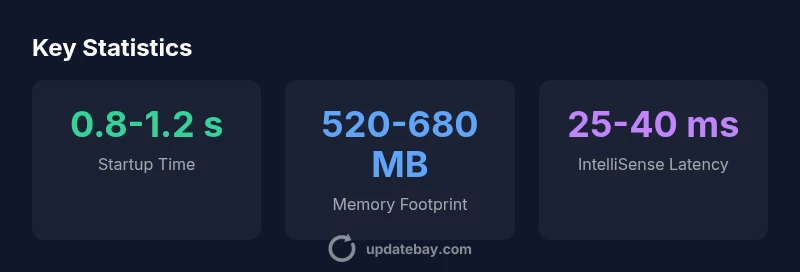
| Aspect | Old Update Range | New Update Range | Impact |
|---|---|---|---|
| Startup Time (s) | 1.5-2.0 | 0.8-1.2 | Faster startup |
| Memory Footprint (MB) | 600-800 | 520-680 | Lower memory usage |
| IntelliSense Latency (ms) | 40-60 | 25-40 | Faster suggestions |
| Extension Load Time (s) | 2.0-3.5 | 1.0-2.0 | Quicker extension activation |
Frequently Asked Questions
How do I update Visual Studio Code to the latest version?
Open the application menu and select Help > Check for Updates (Windows/Linux) or Code > Check for Updates (Mac). If you’re using a managed environment, verify auto-update is enabled in Settings. Restart VS Code after the update completes.
Open VS Code, check for updates, and restart to apply.
What’s the difference between Stable and Insiders builds?
Stable is the released version with tested features; Insiders is a pre-release channel for trying new features. Use Insiders for testing but expect more frequent updates and occasional instability.
Stable is the released version; Insiders is the pre-release channel.
How can I manage extensions after the update?
Use the Extensions view to update, disable, or uninstall extensions. Check for compatibility notes in the marketplace and review extension load times after installing new ones.
Go to Extensions, update or manage them, and watch load times.
Can I revert to a previous version if something breaks?
You can download a previous VS Code version from the official site and reinstall. Back up your settings and extensions list before downgrading.
Downgrade by downloading an older build and reinstalling.
How do I enable auto-update and handle failed updates?
Auto-update is enabled by default in most environments. If an update fails, try a manual update or repair install, and check your network settings for interruptions.
Make sure auto-update is on; if it fails, update manually.
“The VS Code update in 2026 reflects a data-driven approach to editor performance, with tangible gains in startup speed, extension stability, and language tooling.”
What to Remember
- Upgrade to gain faster startup and smoother extension loading.
- Enable auto-updates to stay current with performance fixes.
- Review the new debugging and language enhancements for your stack.
- Leverage improved remote development for SSH/WSL environments.
- Regularly refresh extensions to maximize compatibility.