How to Update VS Code: A Practical Guide for 2026
Learn how to update Visual Studio Code with built-in checks, extension management, and troubleshooting tips for a smooth upgrade in 2026.


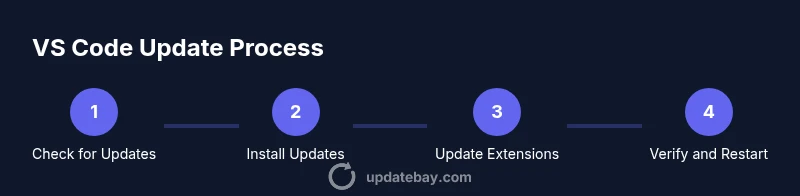
To update VS Code, start with the built-in update check, apply patches, and update extensions. Verify the new version, then restart as needed. Keep a recent backup and stable internet. If an update fails, reinstall or clear caches and retry. This quick guide shows how to update vs code safely and keep your workflow uninterrupted.
Why keeping VS Code up to date matters
According to Update Bay, staying current with VS Code updates is essential for security, performance, and access to the latest features. If you're wondering how to update vs code, the short answer is simple: use the built-in updater, monitor release notes, and align updates with your development workflow. Old versions expose you to security vulnerabilities and compatibility problems with extensions. Regular updates improve speed, editor capabilities, and tool integration across Windows, macOS, and Linux. By prioritizing timely updates, developers minimize downtime, preserve compatibility with key extensions, and stay aligned with industry best practices.
Built-in update mechanisms in VS Code
VS Code provides a built-in updater that can run automatically or on demand. On Windows and Linux, you’ll typically find a Check for Updates option under the Help menu; on macOS, updates may be found under the Code menu. When auto-update is enabled, the editor downloads patches in the background and applies them when you restart. You can select the update channel (stable vs insiders) to balance stability with early access to features. After updating, verify the version in Help > About and restart if prompted. For teams, standardize update behavior via settings to ensure consistency across developers. This approach helps ensure you always have the latest security patches and feature improvements with minimal disruption.
Managing extensions during update
Extensions expand VS Code capabilities but can complicate updates. Before updating, note essential extensions and verify compatibility notes. After updating VS Code, open the Extensions view (Ctrl/Cmd+Shift+X) and update all extensions. If any extension misbehaves post-update, disable it temporarily and perform a restart. In some cases you may need to reinstall a misbehaving extension. Regularly review extension versions and prune unused ones to reduce conflicts and improve startup times. Remember: core editor updates can affect API changes that extensions rely on, so prioritize compatibility checks.
Troubleshooting common update issues
Network interruptions, insufficient disk space, or permission errors are common culprits when updates stall. If the updater stalls, check your internet connection and retry. Free up disk space, run the updater with administrator rights if needed, and temporarily disable antivirus software if safe to do so. For Linux users, use your distribution’s package manager or the official installer depending on your method. If problems persist, reinstall VS Code while preserving your user data by syncing settings and extensions. After reinstall, reapply updates and monitor for any recurring issues that could indicate a larger configuration problem.
Best practices and automation tips
Adopt a disciplined update approach to minimize downtime. Enable auto-updates and regularly review release notes to anticipate changes that affect workflows. For teams, align upgrade schedules and ensure your CI/CD pipelines tolerate new editor versions. Consider testing new updates via the Insiders channel before rolling out to production, then revert to Stable as appropriate. Maintain a lean extension set to avoid stale dependencies, back up settings and workspaces, and document any changes to configurations. A structured update strategy improves stability, security, and developer happiness.
Tools & Materials
- Computer with internet access(Stable connection; avoid metered networks)
- Administrative privileges(Needed to install updates on Windows/macOS)
- Backup of projects/workspace(Back up before major upgrades)
- VS Code installer or updater access(Use official channels to install updates)
- Optional: VS Code Insiders build(For testing early features)
- Power source(Keep laptop plugged in during updates)
Steps
Estimated time: 25-45 minutes
- 1
Open VS Code and check for updates
Launch VS Code and navigate to the update check option (Help > Check for Updates on Windows/Linux, Code > Check for Updates on macOS). If an update is available, the editor will begin downloading. This step establishes your baseline and helps you confirm the updater is functioning.
Tip: Have a stable internet connection before starting the update. - 2
Install the update and restart
Follow prompts to install the update. Allow the process to complete and restart the editor as required. Avoid closing the installer mid-process to prevent corrupted files.
Tip: Do not interrupt the installer; let it finish before reopening VS Code. - 3
Update all extensions
Open the Extensions view (Ctrl/Cmd+Shift+X) and update all installed extensions. Some extensions may require a restart to apply changes. Verify compatibility notes after the updates.
Tip: If an extension fails to update, check for alternative extensions or report the issue to the maintainer. - 4
Verify the new version
Open Help > About to confirm the installed version matches the latest release. Review release notes to understand changes and any breaking updates.
Tip: Note any changes to key features you rely on. - 5
Configure auto-updates and channels
In Settings, enable automatic updates and choose the preferred update channel (Stable for production, Insiders for testing). This minimizes manual steps and keeps you current.
Tip: Keep Insiders separate from production environments to avoid unexpected behavior. - 6
Troubleshoot and fallback plan
If updates fail, retry with a stable connection, clear caches, and consider reinstalling VS Code while preserving user data. Have a rollback plan for critical projects.
Tip: Document steps you take so colleagues can reproduce or fix similar issues.
Frequently Asked Questions
Is updating VS Code safe for my projects?
Yes, updating is generally safe and includes bug fixes and security patches. Always ensure you back up your workspace and check extension compatibility after the update.
Yes—updating VS Code is safe, but back up your work and check extensions after the update.
Will updating VS Code affect my extensions?
Most extensions update automatically with the editor; some may require manual updates or reloading. If an extension stops working after an update, check for an update or disable it temporarily.
Most extensions update automatically; if something breaks, check for an extension update or disable it briefly.
How do I enable auto-updates in VS Code?
Open Settings, search for update, and enable automatic updates. You can choose the update channel and the frequency for background downloads.
Go to Settings, enable automatic updates, and pick your preferred update channel.
What should I do if an update fails?
Retry the update, ensure a stable network, clear caches if necessary, and consider reinstalling VS Code while preserving your user data.
If an update fails, retry, check your network, and consider reinstalling while keeping your data.
Can I update VS Code on Linux, Windows, and macOS using the same steps?
Yes, the core steps are the same, but the menu names may vary slightly by OS. On Linux, you may use the distro’s updater or the official installer; on Windows/macOS, use the built-in updater.
The steps are similar across OSes, with minor menu differences.
Watch Video
What to Remember
- Back up before updating.
- Use built-in updater first.
- Update extensions after core update.
- Enable auto-updates for ongoing maintenance.