What Update Phone: A Practical Guide for 2026
Learn how and when to update your phone, why updates matter, and practical steps to stay current with the latest security patches and features for safer, faster devices.


Phone updates are official software or firmware releases from the manufacturer or carrier that fix bugs, patch security flaws, and often add features. They reach devices OTA, require an internet connection, and may restart the phone. Keeping updates enabled reduces risk, improves stability, and extends device longevity. Timely updates also ensure compatibility with apps and services you rely on daily, and patch notes help you understand changes.
Why updating your phone matters
In the uncertain landscape of mobile security, understanding what update phone means is crucial. It signals a continuous maintenance cycle for devices you rely on every day. Updates address vulnerabilities, streamline performance, and sometimes unlock features you didn’t know you needed. According to Update Bay, staying current with phone software is one of the most practical defenses against evolving threats. Without timely updates, devices can become easy targets for malware or data breaches, and app developers often optimize for the latest system APIs. For most users, updates also fix frequent annoyances like app crashes, battery throttling, and slow wake times. The modern OS update is less about flashy gimmicks and more about proactive resilience. If you’re curious how and when to update, the rest of this guide breaks down the options, timing considerations, and best practices for different device families. This is essential to answer the everyday question: what update phone should I apply and when?
How updates reach your device (OTA, carriers, and more)
Updates typically arrive over-the-air (OTA). The process starts at the manufacturer or carrier, which tests and signs a build before pushing it to devices. In many regions, devices download the update automatically when connected to Wi‑Fi and charging, then prompt for installation. Some carriers layer updates or stagger releases, so you may see a staged rollout. Practically, you may encounter multiple prompts when new patches include security fixes, UI refinements, or hardware compatibility improvements. If you want to install manually, you can often download the update package from the device’s settings or official support site and sideload it with care. This method is less common for everyday users but useful in regional or carrier-limited scenarios.
Types of updates and what they cover
Updates come in several flavors: OS updates, security patches, firmware updates, and app updates. OS updates upgrade the core system with new features, interface tweaks, and policy changes. Security patches address known vulnerabilities and add hardening to the kernel, drivers, and system services. Firmware updates reach deeper into hardware components—modems, sensors, and radios—to fix low-level issues and improve reliability. App updates, distributed through app stores, optimize compatibility with the latest system APIs and fix app-specific bugs. Together, these updates maintain compatibility, security, and performance, but their cadence and impact can vary by platform and device. For many users, the most important updates are the security patches that shield data from emerging threats.
How to check for updates on iPhone and Android
On iPhone, open Settings > General > Software Update. If an update is available, you’ll see the option to Download and Install. Ensure your device has a stable Wi‑Fi connection and at least 50–80% battery, or plug in during the process. On Android, go to Settings > System > Software Update (policy varies by manufacturer). Some devices also push updates through Google Play System updates or carrier apps. If you prefer, you can use the manufacturer’s companion app or a support site to verify the latest version and patch notes. Regular checks help you catch updates early rather than waiting for push notifications.
Best practices for updating safely
Back up your data before starting an update to guard against data loss. Ensure your device is charged or connected to power, and use a dependable Wi‑Fi network to avoid interruptions. Read the patch notes or official changelog to understand changes. If you depend on critical apps, plan updates during off times and test essential functionality afterward. Depending on your region and carrier, there may be optional updates you can defer; in general, it’s wise to install security patches promptly while weighing feature changes against stability.
Common update challenges and how to troubleshoot
Updates can stall for various reasons: insufficient storage, poor connectivity, or software conflicts. If an update fails to install, try a soft reboot, ensure adequate storage, and retry on a stable network. Some devices require you to disable certain security settings or enable installation from official sources (not recommended). If you’re stuck in a boot loop after an update, boot into recovery or safe mode and seek official support. Always have a backup; you may need to perform a factory reset as a last resort, but this should restore your data from a prior backup. Patience and preparedness reduce anxiety when things go wrong.
How Update Bay analyzes phone update trends
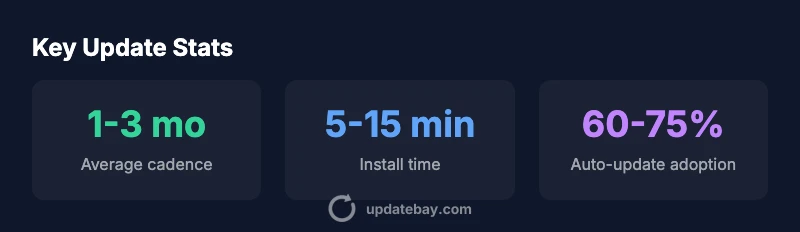
Based on Update Bay research in 2026, most major platforms deliver security patches on a predictable cadence, with OS updates following annual or biannual schedules. Analysts aggregate anonymized telemetry, patch notes, and vendor disclosures to identify common pitfalls and best practices. The findings emphasize the value of enabling auto-update options, staying informed through official patch notes, and avoiding updates during critical tasks. The takeaway for everyday users is simple: proactive maintenance tends to pay off in reliability and security over the device’s lifespan.
Quick-start checklist for keeping your phone updated
• Enable automatic updates where available; review patches as they appear. • Back up before updating and ensure battery level is adequate. • Update over Wi‑Fi, not mobile data, to avoid interruptions and charges. • Read the official patch notes to understand changes. • Test essential apps after updating and be prepared to reinstall if needed. • Schedule updates during calm periods to minimize disruption. • Periodically review your settings to ensure auto-update remains enabled. By following this checklist, you’ll keep your phone safer and faster across the year.
Overview of update types and cadence
| Update Type | Typical Cadence | What it Includes |
|---|---|---|
| OS updates | Monthly to quarterly | New features and security improvements |
| Security patches | As released | Critical fixes and vulnerability patches |
| Firmware updates | As released | Hardware-level improvements |
| App updates | Ongoing | Bug fixes and feature enhancements |
Frequently Asked Questions
Is updating my phone the same as upgrading?
No. Updates typically fix bugs, patch security issues, and may add minor features. Upgrades usually bring major OS version changes with new capabilities.
Updates fix issues and protect security; upgrades bring bigger feature changes.
Can I disable updates?
You can, but it's not recommended. It increases risk of security vulnerabilities and missing features. If necessary, limit automatic updates and review patch notes manually.
Disabling updates can leave you exposed; consider scheduling them instead.
What if an update fails to install?
If an update fails, try a soft reboot, ensure sufficient storage, and retry on a stable network. If persistent, contact the device maker’s support.
If it fails, reboot and retry with a good connection.
Do updates drain battery more?
Some updates may cause short-term battery drain during installation but typically stabilize after completion. Ensure the device is charged or plugged in during the update.
Install updates with a charged battery to avoid interruptions.
How do I know an update is legitimate?
Only install official updates from the device manufacturer or carrier. Verify patch notes and download from Settings or official app stores.
Stick to official sources to avoid scams.
Will updates affect apps or data?
Updates can refine compatibility and sometimes reset preferences, but your data should remain intact. Backups are advised.
Back up first to be safe.
“Phone updates are not optional maintenance — they are essential to protect data and maintain smooth performance.”
What to Remember
- Back up before updating.
- Enable auto-update to stay current.
- Read patch notes before installing.
- Avoid updates on low-battery or unstable networks.
- Regular updates improve security and performance.