Who Do You Update Your Phone? A Practical Guide
Learn who should update your phone, when to install updates, and how to stay secure. Update Bay explains OS, apps, and firmware updates with practical steps.


According to Update Bay, the person who should update your phone is the device owner or primary user, supported by platform developers and the device maker. The Update Bay team found that updates come from OS vendors (Apple, Google), app developers, and carriers. Enable automatic updates when possible and review notes to understand fixes and privacy changes.
Why updating matters for security and performance
If you're wondering who do you update your phone, the simple answer is that you are the device owner; you are responsible for applying updates, while the platform developers and the device maker supply the updates. Regular software updates patch security vulnerabilities, fix bugs, improve battery life, and enhance overall performance. OS-level patches often address zero-day flaws that malware could exploit, while app updates ensure compatibility with the newest features and services. The Update Bay team found that OS vendors, app developers, and carriers coordinate updates to keep devices safer and more compatible with new apps. Staying current reduces malware risk, preserves feature availability, and helps you get the most from your device. In practice, you should schedule a regular update routine, allocate time for occasional restarts, and anticipate brief downtime during a large update. Remember: skipping updates can leave you exposed to threats and missed improvements in performance and privacy controls. By treating updates as essential maintenance, you extend the life of your phone and its software ecosystem.
Who is responsible for updating your phone?
The responsibility for updates rests with several stakeholders. First, you—the device owner or primary user—are responsible for applying updates, especially when automatic updates are disabled. Second, the OS maker (Apple for iOS, Google for Android) releases security patches and feature updates. Third, the device maker (Samsung, OnePlus, Google Pixel, etc.) may push firmware updates that optimize hardware drivers and modem performance. Finally, mobile carriers can deliver firmware updates in some regions for network improvements. The Update Bay team emphasizes that keeping all parties aligned by enabling automatic updates is the simplest path to staying secure and current. If you use multiple devices, a single update routine can simplify maintenance across your ecosystem. This collaborative approach reduces the time your devices stay exposed to known vulnerabilities.
What should you update: OS, apps, and firmware
Updates fall into several categories: operating systems, apps, and firmware. OS updates bring security patches, performance improvements, and new features, while firmware updates address hardware-level concerns such as modem performance, camera stability, and sensor calibration. App updates ensure compatibility with the latest OS versions and fix known bugs. For best protection, update all three areas when prompted and install updates from trusted sources only. If you see a large OS update and several app updates, prioritize the OS update first to lay a solid foundation for the rest.
How to check for updates on iOS and Android
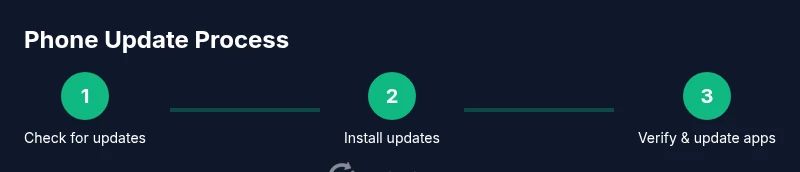
On iOS devices, open Settings → General → Software Update, then tap Download and Install if an update is available. On Android, open Settings → System → System Update or Software Update, then follow prompts. If updates require a restart, save work and allow the device to reboot. After installation, verify you can access essential apps and features. If you travel frequently, consider updating only when you have stable network connectivity to avoid interruptions.
Best practices for keeping your phone secure
Best practices for keeping your phone secure include enabling automatic updates for OS and apps, reviewing release notes, backing up data prior to major updates, and keeping a charger nearby. The Update Bay team recommends reviewing privacy changes and adjusting security settings (like two-factor authentication, biometrics, and app permissions) after major OS versions. Regularly cleaning up unused apps and clearing storage can help prevent failed updates and ensure smooth installations. Consider maintaining a quarterly update rhythm to stay current without surprises.
Common pitfalls and how to avoid them
Common pitfalls include updating over metered cellular connections, skipping updates due to fear of downtime, neglecting to update apps after OS updates, and installing beta builds from unofficial sources. To avoid them: use Wi‑Fi, schedule updates during low-usage times, update apps immediately after OS updates, and stick to official releases from the App Store or Google Play. If you encounter a failed update, check storage space, restart the device, and retry. In all cases, keep a recent backup.
Tools & Materials
- Phone (iPhone or Android)(Ensure battery > 20% before starting)
- Stable Wi-Fi connection(Prefer 5 GHz networks for large updates)
- Apple ID / Google account access(Needed to authenticate updates)
- Backup method (cloud or computer)(Back up data before major updates)
- Sufficient storage space(Free at least 2-3 GB)
- Automatic updates on device(Enable for OS and apps when possible)
- Charger or power bank(Keep device charged during updates)
Steps
Estimated time: 25-60 minutes
- 1
Open Settings
Open the Settings app on your phone and locate the software update area. This ensures you start with the latest available version.
Tip: If you can't find it, use the search feature in Settings. - 2
Check for updates
Tap on Software Update (iOS) or System Update (Android) to see available versions. If an update is pending, you'll see details and a install button.
Tip: Read the release notes before installing to understand changes. - 3
Install the update
If an update is available, tap Install Now or Download and Install. Do not interrupt the process; the device may restart.
Tip: Connect to power to avoid mid-update shutdown. - 4
Review and confirm
After installation, review any setup prompts (privacy settings, permissions) and adjust as needed.
Tip: Some updates reset preferences; re-check key settings. - 5
Enable automatic updates
In Settings, turn on automatic OS updates and app updates to stay current without manual checks.
Tip: Choose automatic server delivery if available. - 6
Update apps
Open the App Store/Play Store and update all apps to ensure compatibility with the new OS.
Tip: Auto-update apps is helpful but monitor for problematic updates.
Frequently Asked Questions
Why should I update my phone regularly?
Regular updates close security holes, fix bugs, and improve performance. They also often add new features and improve compatibility with apps.
Regular updates fix security holes, improve performance, and add features. Keeping your phone updated helps you stay secure.
How often should I check for updates?
Check for updates monthly or enable automatic updates. Some devices provide notifications when updates are available.
Check for updates monthly or enable auto updates so you don’t miss important ones.
What if an update fails to install?
If an update fails, retry, check storage, or restart. If problems persist, seek official support resources.
If an update fails, try again, ensure enough storage, and restart. If it keeps failing, contact support.
Can updates affect battery life?
During updates, you may see higher battery drain. After updates, performance often stabilizes.
Updates can temporarily affect battery life; once installed, battery usage usually returns to normal.
Should I update apps after a OS update?
Yes, updating apps after an OS change ensures compatibility and new features.
Yes—update apps after OS updates to maintain compatibility.
Is automatic updating safe?
Auto updates are generally safe, but review update notes and avoid unstable beta builds.
Auto updates are safe for most users; read notes and steer clear of betas.
Watch Video
What to Remember
- Enable auto-updates to stay protected.
- Review update notes for security and privacy changes.
- Back up data before major OS updates.
- Keep apps up-to-date for best performance.