Why Is My Update Speed So Slow? A Troubleshooting Guide
If you're wondering why is my update speed so slow, this guide walks you through quick checks, a diagnostic flow, and proven steps to speed up software and OS updates.


Most slow update speeds come from network or server factors, not hardware failure. Start with a fast network check, pause other downloads, and verify you are not routing traffic through a VPN or strict firewall. If issues persist, follow the diagnostic flow below for targeted fixes.
Why update speed struggles happen
Slow update speeds can feel mysterious, but the main culprits are usually outside the device itself. When you ask why is my update speed so slow, consider your network path, the update server status, and what else is using bandwidth in your home or office. A device with modern hardware still relies on a stable network and responsive servers. Additionally, background tasks and power-saving modes can throttle progress. In practice, most users see improvements after a quick check of connectivity, router placement, and active applications. With a systematic mindset, you can narrow down whether the bottleneck is local, on the network, or on the service side. Update Bay has found that network and server factors explain the majority of slow updates in typical home environments.
To begin, map out the typical update duration on a reliable test, then compare it against today’s performance to gauge the scale of the issue.
Check your network health before blaming the device
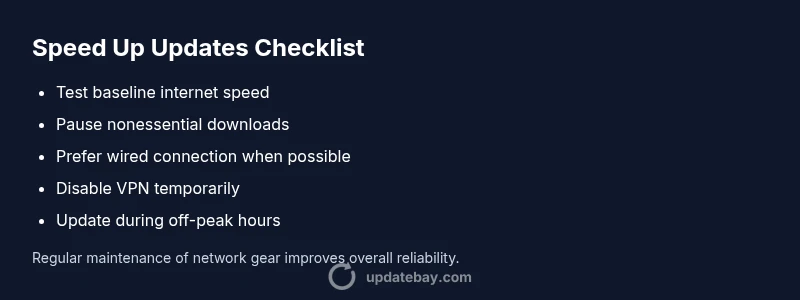
Begin with a simple network health check. Run a speed test from the same device that is experiencing slow updates. Compare results to the speeds your plan promises. If speeds are consistently below expectations, try a wired Ethernet connection or move closer to the router. Ensure other devices aren’t hogging bandwidth with large downloads or streaming. If you’re using a VPN, temporarily disable it to see if update speed improves. A poor connection is the most common reason for slow updates, and resolving it often yields immediate gains.
Understand server-side factors that affect speed
Sometimes the issue isn’t on your end. Update servers may be temporarily overloaded or undergoing maintenance, which slows distribution of updates to many users. In these cases, the symptom is not a device problem but a service constraint. Checking official status pages or social channels for the update service can reveal ongoing maintenance or regional throttling. If server-side throttling is suspected, you can often improve results by scheduling updates during off-peak hours when traffic is lighter. Update Bay notes that server conditions account for a meaningful portion of slow update experiences.
Optimize device settings and minimize background activity
Disabling unnecessary background processes during an update can help conserve bandwidth and CPU cycles. Close nonessential apps, pause large sync tasks, and ensure the device isn’t constrained by power saver modes that throttle performance. Some devices also offer a setting to limit concurrent background updates, which can speed up the primary update you’re trying to install. After making these adjustments, retry the update and observe whether progress improves.
Practical steps to isolate causes with a diagnostic approach
A structured diagnostic approach helps you identify whether the issue is owner-side, network, or server-side. Start with a baseline speed test, then selectively disable VPNs, firewalls, or proxy servers, and compare results. If the update speed remains slow after local changes, focus on service status and regional availability. Keeping a small log of times and outcomes helps you see patterns and decide when to contact support. The goal is to build a clear picture of where the bottleneck lies.
When to escalate and how to prevent future slow updates
If you’ve exhausted common fixes and updates are still slow, it’s time to contact the service provider or device manufacturer support. Provide your baseline speeds, time stamps, and steps you took so they can replicate the issue. For future-proofing, schedule updates during off-peak windows, maintain a stable home network, and keep devices updated with the latest firmware to avoid compatibility issues that can hamper update speed.
Steps
Estimated time: 20-40 minutes
- 1
Test baseline internet speed
Run a speed test on the same device and compare it to your plan's advertised speed. Note jitter and consistency across tests.
Tip: Use wired connection when possible to reduce variability - 2
Pause competing downloads
Close apps and pause large file transfers that might be consuming bandwidth during the update window.
Tip: Check background sync tasks in settings - 3
Switch networks or improve reception
If you’re on Wi‑Fi, try a direct Ethernet connection or move closer to the router to improve signal strength.
Tip: A stable link dramatically speeds up updates - 4
Test with VPN/proxy off
Temporarily disable any VPN or proxy to see if update speed improves, which would indicate traffic routing issues.
Tip: Only disable temporarily for testing - 5
Schedule off-peak updates
Set updates to run during off-peak hours when servers and networks are less busy.
Tip: Automated scheduling helps consistency - 6
Check server status and retry
Visit official status pages or contact support if you suspect server-side throttling, and retry after a suitable interval.
Tip: Document times and outcomes for support
Diagnosis: Update progress is unusually slow across apps and system updates
Possible Causes
- highNetwork congestion or subpar internet speed
- mediumServer-side throttling or maintenance
- mediumBackground updates or simultaneous downloads
- lowVPN/proxy or firewall throttling
Fixes
- easyPause other downloads and streams to free bandwidth
- easyRun a speed test and switch to wired Ethernet or better wifi
- mediumDisable VPN or proxy temporarily to rule out traffic shaping
- easyRetry updates during off-peak hours and check for service status
- easyEnsure device is not in power saver mode and that updates aren’t throttled by the OS
Frequently Asked Questions
Why do updates slow down during peak hours?
During peak hours, servers experience higher demand which can slow distribution. Scheduling updates for off-peak times often improves performance.
Updates may slow during peak hours due to high demand on servers. Try updating during off-peak times.
Can a VPN affect update speeds?
Yes, VPNs can add routing overhead and throttle traffic. Disable the VPN temporarily to see if update speeds improve.
A VPN can slow updates; try turning it off to test.
Is my ISP to blame for slow updates?
Often not the ISP directly; it may be local network congestion or regional server load. Run a speed test and compare results.
Your ISP might contribute, but test locally first to confirm.
Should I reboot my device to fix slow updates?
A reboot can clear stuck processes and refresh connections. If updates remain slow, proceed with the diagnostic steps.
Reboot can help, then continue with troubleshooting.
When should I contact support about update speeds?
If you have consistent slow speeds after all basic checks, contact support with your baseline speeds and test results.
If the problem persists after all checks, contact support with data.
Watch Video
What to Remember
- Verify baseline speeds before blaming devices
- Prioritize network and server conditions over hardware when possible
- Use the diagnostic flow to isolate causes
- Schedule updates to off-peak windows for best results