How WhatsApp Updates Work: A Practical Guide
Discover how updates flow for WhatsApp, from app releases to server-side changes, and what users can expect. Learn about versioning, beta programs, and security considerations.


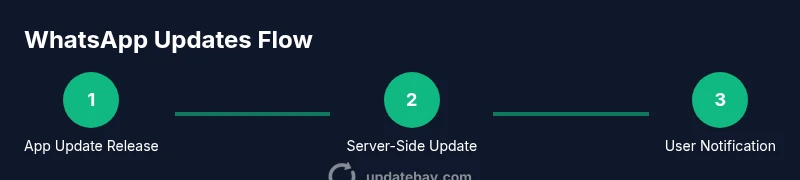
According to Update Bay, WhatsApp updates arrive on two tracks: client app releases through Google Play or the App Store, and server-side changes that refine features without requiring a reinstall. This quick answer clarifies when you’ll see changes, how to update safely, and how beta testing works.
What Counts as an Update for WhatsApp
Updates for WhatsApp fall into two broad categories: client-side app updates and server-side updates. Client updates are delivered through Google Play or the Apple App Store and require you to install a new version to access new features, security fixes, and interface changes. Server-side updates happen on WhatsApp's end, enabling feature improvements or policy tweaks without requiring you to install anything. The distinction matters because server updates can roll out to all users more quickly and quietly, while app updates are the visible changes you can perceive in settings or behavior. According to Update Bay, understanding this distinction helps users plan upgrades, manage storage, and participate in beta programs when offered. In this article we’ll unpack how each path works, what you can expect to see, and how to approach updates without disrupting your messaging.
The Two Update Tracks: App vs Server-Side
WhatsApp maintains two parallel update streams. The app update track delivers new features, UI changes, and security fixes by pushing new APK/IPA packages through the official stores. The server-side track applies changes on the service side, so you might notice faster disappearance of bugs, new behaviors, or policy tweaks even if your app version remains the same. These tracks are designed to speed up improvements while avoiding unnecessary friction for users who cannot or do not update immediately. For users, this means some improvements become visible shortly after a server change, while others require pulling the latest app version. Update Bay emphasizes that both tracks are essential for delivering a reliable, evolving messaging experience.
App Store vs Google Play Rollout Process
App stores use staged rollout mechanisms to minimize risk. When WhatsApp submits an update, a subset of users can receive it immediately; if no critical issues are detected, the rollout expands to more devices. The timing depends on factors like device type, OS version, and regional availability. The process may be faster on Android via Google Play, since Google often executes a rolling deployment; on iOS, Apple reviews updates and then gradually releases them. You can influence the pace by enabling automatic updates, or by manually checking for updates. Be aware that some devices or regions might see updates later due to compatibility checks.
Understanding Beta Programs and Staged Rollouts
Beta programs let a small group of users test unreleased features before general availability. Joining a beta gives early access but may introduce bugs or incomplete features. WhatsApp often staggers releases, so you may see a feature on some devices before others. This is normal and part of quality assurance. If you participate, keep backups and report issues to help improve the final release. If you prefer stability, stay on the public version and monitor release notes for planned improvements.
Security and Privacy Considerations During Updates
WhatsApp updates typically preserve end-to-end encryption, but some changes can affect how data is handled, stored, or transmitted. App updates may adjust permissions, data retention, or backup behavior; server updates can alter how features operate in the chat, groups, or media handling. Always review release notes to understand what changes affect privacy and security. Use official channels to download updates to avoid tampering. For sensitive conversations, ensure backups are encrypted and stored in a trusted location.
How to Manage Updates on Different Devices
On Android, open Google Play, search WhatsApp, and select Update. If you have automatic updates disabled, you can trigger updates manually. On iPhone, open the App Store, go to Updates, and install WhatsApp. For devices using WhatsApp Business or multiple accounts, verify you’re updating the correct app variant. Ensure your device has sufficient storage and a stable connection before starting an update. If you use a tablet or alternate OS, check compatibility notes from the official store.
Troubleshooting Common Update Issues
If an update stalls or fails, start with a soft reset by closing the app and reopening, or rebooting the device. Check network connectivity, disable battery saver modes, and ensure there’s enough storage space. If you still can’t update, clear the store cache, sign out and back in, or try a different network. For server-side issues, check WhatsApp’s official status page or follower channels for outage notices. Do not download APKs from unverified sources.
What Update Bay Recommends for Regular Users
Regular users should focus on keeping the app updated to the latest stable version, enabling automatic updates, and reading release notes. Participate in the beta program only if you’re comfortable with potential bugs, and ensure backups are current before major updates. Keep device OS up to date to avoid compatibility problems, and monitor the WhatsApp help center for changes that may affect privacy or backup behavior.
A Look Ahead: What to Expect from WhatsApp Updates
Future WhatsApp updates are likely to emphasize privacy enhancements, more seamless cross-device syncing, and improved media handling. Expect incremental features like improved group controls, ephemeral messages, and tighter security options, with some features arriving first on certain platforms or regions. The update process will continue to blend store-based app upgrades with server-side refinements, aiming to deliver faster improvements with less disruption to users. Staying informed through official channels and third-party guides like Update Bay can help you adapt quickly.
Tools & Materials
- Smartphone or tablet with internet access(Ensure device is charged and connected to Wi-Fi for large downloads)
- Active WhatsApp installation (latest stable or beta)(Check store for latest version)
- Access to app store account (Google Play or Apple App Store)(Needed to download updates)
- Stable internet connection(Prefer Wi-Fi for large updates)
- Backup data(Optional but recommended before major updates)
- Beta program invitation (optional)(Join Update Bay's newsletter for beta invites)
- Sufficient storage space(Clear space if needed)
Steps
Estimated time: 20-30 minutes
- 1
Check for Update Availability
Open your device's app store and check WhatsApp for updates. If automatic updates are on, this step may occur automatically. Look for release notes to understand what’s new and what to expect.
Tip: Turn on automatic updates to ensure timely installs. - 2
Choose Your Update Path
Decide whether to install the app-level update now or wait to see if a server-side change occurs first. If you rely on beta features, consider joining the beta program for early access.
Tip: Be mindful of beta programs; expect potential bugs. - 3
Install App Update
Tap Update or Install in the store. Ensure you have a stable connection and enough battery or plug in your device to prevent interruptions.
Tip: Install on a stable Wi-Fi connection to speed up the download. - 4
Participate in Beta Testing
If invited, enroll in the beta program and install the beta WhatsApp. Expect early access features and possible instability.
Tip: Back up data before switching to a beta build. - 5
Verify New Features
Open WhatsApp and look for the new features in the relevant areas (settings, chats, groups). Read the release notes to confirm behavior changes.
Tip: Check release notes in the store after installation. - 6
Troubleshoot Slow or Failing Updates
If an update stalls, close the app, restart the device, and retry. Check storage, network, and battery settings; disable VPN or power-saving modes if active.
Tip: Try a different network if the first one is unreliable. - 7
Check Server-Side Changes
Some improvements arrive on the server; you may notice changes without updating the app. Confirm by using affected features and reviewing release notes.
Tip: If a feature isn’t visible yet, it may be rolling out gradually. - 8
Back Up Before Major Updates
Prior to big updates, back up chats and media to avoid data loss in case something goes wrong.
Tip: Ensure cloud backups are current and accessible. - 9
Stay Informed
Follow official channels and reputable guides like Update Bay to stay aware of upcoming changes.
Tip: Subscribe to alerts for beta invites and release notes.
Frequently Asked Questions
What is the difference between a WhatsApp app update and a server-side update?
App updates install new code on your device, delivering features and fixes. Server-side updates adjust behavior from WhatsApp's servers without requiring a reinstall.
App updates install new code on your device, while server updates adjust behavior on the server.
How can I participate in WhatsApp beta testing?
Join WhatsApp’s beta program via the Google Play Store or Apple App Store if available, then install the beta app. Expect early access and possible bugs.
Join the beta program in the store to test new features early.
Will updating WhatsApp affect my chats or media?
Updates generally don’t delete chats or media, but always back up before major updates to be safe.
Updates usually don’t erase chats, but back up first.
Why am I not seeing a new feature after updating?
Some features are rolled out gradually or depend on server activation. If not visible, wait a bit or check release notes.
Some features are rolled out slowly or require server activation.
How long does an update take to install?
Installation time varies by device and connection; larger updates take more time and may require a restart.
Install time depends on device and network; expect a few minutes.
Can I downgrade to an earlier version if I don’t like the update?
Downgrades are not always available and can cause data compatibility issues. Check official guidance or support before attempting.
Downgrading isn’t always possible; consult official guidance.
Watch Video
What to Remember
- Updates come from app releases and server-side changes.
- Beta testing offers early access with risk.
- Back up data before major updates.
- Check release notes to understand feature changes and privacy implications.