How to Make Apps Automatically Update
Learn how to enable and manage automatic updates for apps across platforms with best practices for security, testing, and user control. A practical guide from Update Bay for developers and everyday users.


By following these steps, you will enable reliable automatic updates for your apps across platforms. You'll learn how to choose update channels, sign and package updates securely, and test changes before release. The guide also covers user controls, release notes, and rollback plans to minimize disruption while keeping software current.
Why automatic updates matter
Automatic updates matter because they bolster security, stability, and usability without placing additional work on users. They ensure devices run the latest fixes and features, reducing known vulnerabilities and fragmentation across platforms. According to Update Bay, auto-updating is a critical capability for modern software ecosystems, but it must be designed with safeguards and user control to avoid disruption. The Update Bay team found that well-defined update policies, transparent messaging, and easy rollback options lead to higher user trust and fewer support requests. For developers, a thoughtful auto-update process minimizes manual maintenance and accelerates delivery of improvements. For end users, dependable updates translate to smoother performance and better protection against threats. The bottom line: auto-updates are powerful when you balance security, performance, and user choice.
How automatic updates work across platforms
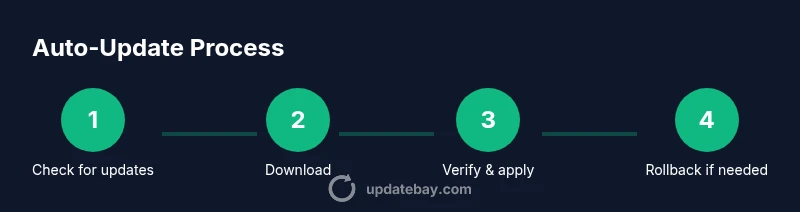
Automatic updates rely on three core components: a delivery channel, a verifiable update package, and a client-side updater. The delivery channel dictates when and how updates are pushed (e.g., background download, on-network availability, or user-initiated triggers). The update package must be signed and validated by the client to prevent tampering. The client then applies the update, verifies integrity, and, if needed, rolls back on failure. Across platforms, these components vary in specifics—Windows, macOS, Android, and iOS each have distinct APIs and policies—but the underlying principles are the same: secure delivery, integrity checks, and smooth application of changes. Practically, you should architect your system so clients can confirm a new version, download efficiently (prefer delta updates when available), and apply updates with minimal user disruption.
Platform-specific auto-update settings you should know
Each major platform offers built-in controls for auto-updates, plus developer options for more granular behavior:
- Android: Most devices and apps honor a system-wide auto-update setting in the Google Play ecosystem, with options for over-the-air updates, Wi-Fi only, and battery considerations.
- iOS: The App Store updates are typically managed by the device settings and the app’s release cadence; developers can configure update channels and phasing strategies but user control remains strong.
- Windows: Windows Update and the Microsoft Store provide channels for automatic app updates; enterprises may enforce policies via management tools.
- macOS: Apps distributed through the Mac App Store or enterprise channels can be updated automatically, with user preferences affecting timing and bandwidth.
Understanding these nuances helps you design an update experience that respects user context (data usage, power, and business hours) while maintaining security and feature parity.
How to implement auto-updates as a developer
If you’re building apps that support auto-updates, plan a robust, end-to-end pipeline. Start with a signed, tamper-evident update package, issued from a trusted server. Implement a version-check endpoint that returns the latest available version and metadata (size, release notes, mandatory vs optional). On the client, perform a background check, download updates over secure channels, verify signatures, and apply updates safely. Include a rollback path in case the new version fails to load, and ensure partial updates (diffs) are supported if your platform allows it. Finally, surface clear status indicators to users so they know when an update is pending, downloading, or installing.
Designing user-friendly auto-update policies
Users value transparency and control. Provide clear opt-in/opt-out options, predictable update times, and straightforward messaging about what changes the update includes. Allow pausing and rescheduling, especially for large or disruptive updates. Offer a concise changelog and a concise, non-technical release note that explains benefits and any required user actions. When feasible, consider phased rollouts to minimize impact and gather early feedback. A well-designed policy reduces friction and increases the likelihood that users stay current.
Security, privacy, and compliance considerations
Security is foundational to any auto-update system. Always sign updates with a trusted certificate and transport updates over TLS. Implement certificate pinning where possible and monitor for anomalies in update delivery. Limit data collection to what’s strictly necessary for updating, and provide a private workspace for enterprise customers to manage updates within compliance boundaries. Respect platform guidelines and user consent requirements, especially in regulated environments. Periodically audit the update pipeline for vulnerabilities and ensure rollback mechanisms are tested and trusted.
Testing, monitoring, and troubleshooting auto-updates
Testing should cover end-to-end scenarios on multiple devices and networks, including loss of connectivity, slow networks, and partial installs. Use staging environments that mirror production and automate tests for update integrity, rollback success, and user-facing messaging. Monitor success rates, failure causes, and time-to-install metrics with dashboards. If an update fails, trigger a controlled rollback and report details to developers. Establish a clear support channel for users encountering update issues and publish a postmortem after any significant incident.
Final guidance and Update Bay verdict
In sum, deploying automatic updates is a balancing act between security, reliability, and user autonomy. The Update Bay team recommends designing update channels that respect user context, providing transparent messaging, and maintaining robust rollback options. With careful planning, testing, and monitoring, auto-updates can markedly improve software health without compromising user trust. If you implement signing, verifiable delivery, and user controls, you’ll achieve a durable, scalable auto-update strategy that serves both developers and end users well.
Tools & Materials
- Device with internet connection(Stable Wi-Fi or wired connection for downloads.)
- Admin or developer access to platform distribution channel(Needed to publish and sign updates.)
- Code signing certificate and update server access(Ensures updates are verifiable by clients.)
- Staging environment or test devices(Highly recommended for testing updates before broad rollout.)
- Clear update policy documentation(Helps communicate with users and internal teams.)
Steps
Estimated time: 4-6 hours
- 1
Define update objectives and policy
Outline what needs to be updated, the urgency, and whether updates are mandatory or optional. Document rollback criteria and user notification rules to ensure clarity across teams.
Tip: Align policy with platform guidelines and internal risk tolerance. - 2
Choose update delivery model
Decide between delta (patch) updates and full packages. Delta updates save bandwidth and time, but require more sophisticated packaging logic and robust integrity checks.
Tip: Prefer delta updates when supported by the platform to reduce payload sizes. - 3
Implement signing and integrity checks
Set up a secure signing process for all update artifacts and implement server-side checks to ensure only signed packages are distributed. On the client, verify the signature before applying the update.
Tip: Use short-lived credentials and rotate keys regularly. - 4
Create a version-check mechanism
Expose an endpoint or API that returns the latest version, release notes, and mandatory vs optional status. The client should compare this with its own version to decide the update path.
Tip: Include a fallback to critical security updates if a version check fails. - 5
Enable background download and apply
Allow updates to download in the background and apply on next restart or during idle moments. Show a non-intrusive progress indicator to users.
Tip: Respect user bandwidth and power constraints; offer a Wi‑Fi only option. - 6
Implement rollback and fail-safes
Prepare a rollback plan in case the new version crashes or breaks features. Test rollback procedures in staging to ensure seamless recovery.
Tip: Keep the previous version accessible for a predefined window to allow quick rollback. - 7
Test updates in staging
Use a staging environment that mirrors production. Validate installation, data integrity, and UI messaging across devices and networks.
Tip: Automate end-to-end tests for multiple platforms. - 8
Monitor, iterate, and communicate
Set up monitoring dashboards for success/failure rates, seed rollout metrics, and user feedback. Iterate based on data and publish clear release notes.
Tip: Notify users of important changes and provide a simple opt-out path when appropriate.
Frequently Asked Questions
What is automatic app updating and why should I enable it?
Automatic updates keep software secure and reliable by delivering patches and improvements without requiring user action. Enabling them reduces exposure to known vulnerabilities and ensures users receive important fixes promptly.
Automatic updates keep software secure and reliable by delivering patches automatically. Enabling them helps users stay protected with the latest fixes without manual effort.
Is auto-update safe for my device and data?
Yes, when updates are signed and delivered over secure channels, the risk of tampering is minimized. Always enable rollback and test in a safe environment.
Auto-updates are safe when updates are signed and delivered securely, with rollback options in place.
How can I customize auto-update settings on different platforms?
Platform settings vary, but most systems offer options like background downloads, Wi‑Fi-only updates, and scheduled installation. Check both system settings and app-level options for best results.
Most platforms let you choose background downloads and schedule installations. Check both system and app settings.
What should I do if an update breaks my app?
If an update causes issues, use the rollback plan to revert to the previous version and investigate the cause. Report the problem with logs and recovery steps to the development team.
If an update breaks things, roll back to the previous version and review logs to diagnose the issue.
Do auto-updates consume more data or affect bandwidth?
Auto-updates may use bandwidth, especially for large packages. Favor delta updates when possible and provide user controls to pause updates on metered connections.
Updates can use data, especially large ones; delta updates help reduce bandwidth usage.
Can I disable auto-updates or pause them?
Yes. Provide clear controls to pause or disable auto-updates temporarily, and communicate how to resume when ready.
Yes, you can pause or disable auto-updates and resume later with ease.
What’s the difference between a delta update and a full package?
A delta update contains only the changes since the previous version, saving bandwidth. A full package installs the entire app, which is simpler but heavier.
Delta updates are lighter, but full packages are simpler to implement; choose based on platform support.
Watch Video
What to Remember
- Enable updates with clear user controls.
- Sign and verify every update artifact.
- Test thoroughly before rollout.
- Provide transparent release notes and messaging.
- Maintain an effective rollback strategy.