How to Update Android Apps: A Practical Guide for 2026
Learn how to update Android apps safely, automatically, and efficiently. This step-by-step guide covers methods, settings, troubleshooting, and best practices from Update Bay.


Updating applications on Android improves security, stability, and access to new features. This quick guide shows how to update automatically or manually, how to troubleshoot common issues, and how to maintain device performance. By following these steps, you’ll keep your apps current and your data safer, with fewer crashes and smoother multitasking.
Why Update Android Apps Matters
Keeping your Android device secure and performing well depends on one simple habit: updating applications on Android. In practice, updating apps closes security gaps, fixes bugs, and improves overall stability. According to Update Bay, timely updates also unlock new features, refinements, and compatibility with the latest services. This is especially important for critical apps handling messaging, banking, and productivity, where outdated versions can expose devices to known vulnerabilities. In this section, we explore the core reasons drivers for updates and how ongoing maintenance translates into real-world benefits such as fewer crashes, smoother multitasking, and longer device lifespans. By understanding the why, you’ll be more motivated to adopt reliable update practices and to treat updates as a routine part of digital hygiene rather than an afterthought.
How Android App Updates Work
Android app updates flow through three key channels: the Google Play Store, Play Services, and the developer’s update payload. When you tap Update all or enable automatic updates, your device negotiates with the Play Store to download new APK bundles or delta updates. Delta updates minimize data transfer by sending only what changed. Models like Play Protect scan updates for malware, and security patches are often bundled with feature improvements. In cloud terms, updates are delivered as patches, which may arrive in staged waves depending on device model, OS version, and region. Understanding this process helps you anticipate when updates arrive, why some apps update at different times, and how to avoid partial installations that can leave apps in an unstable state.
Best Practices for Automatic Updates
Automatic updates are convenient, but you should tailor them to your data plan and privacy preferences. Enable automatic updates over Wi‑Fi when possible, and consider disabling auto updates for paid apps or for apps that frequently update due to beta channels. Update Bay analysis shows that users who keep auto-updates enabled tend to stay current with patches and feature improvements, reducing the chance of incompatibilities after OS updates. In practice, navigate to Google Play > Settings > Network preferences and choose Auto-update apps over Wi‑Fi only, or specify auto-update behavior per connection. If you must use mobile data, monitor total monthly usage and adjust settings to avoid surprise overages. Finally, review app permissions after large updates to ensure new capabilities align with your privacy expectations.
Manual Update Methods: Step-by-Step Overview
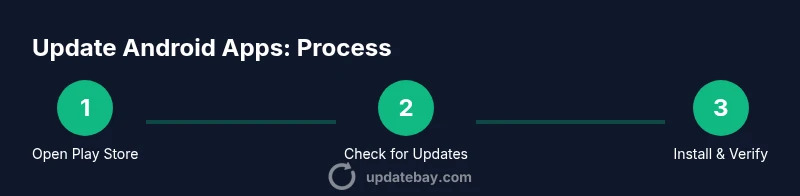
Manual updates give you control when you don’t want to enable automatic updates, or when a critical app requires a quick check. Start by opening the Google Play Store and selecting your profile icon, then My apps & games to see available updates. Tap Update next to individual apps or choose Update all to refresh everything at once. After updating, launch the apps briefly to confirm they run correctly and that new features appear as expected. If you encounter a stalled download, pause or cancel, clear Play Store cache, and retry. This approach works well for devices with limited storage where you prefer incremental updates over large bundles.
Troubleshooting Common Update Issues
Updates can fail for a variety of reasons: insufficient storage, poor network connectivity, outdated Google Play services, or compatibility conflicts with older OS versions. Start by freeing space: delete unused apps, clear cache, or move files to an SD card if supported. Check your internet connection and switch to a stable Wi‑Fi network if possible. Open Google Play Services and Google Play Store status; sometimes service outages delay updates. If an update installs but behaves oddly, try clearing cache for the Play Store and rebooting the device. If issues persist, revert to a previous version by uninstalling updates for built-in apps or reinstalling from the Play Store.
Security Implications and Permissions
App updates often change permissions and security settings. Updates may request increased access for new features or integrations, so read the permission prompts carefully during installation. Keep an eye on newly granted capabilities and revoke any permissions that seem excessive or unnecessary after you’ve reviewed the update notes. If you routinely install updates on a shared or corporate device, enforce a policy that requires updating before granting access to sensitive data. Only download updates from trusted sources, primarily the Google Play Store, to minimize the risk of tampered APKs.
Performance and Battery Considerations
Updates can impact device performance during installation and in the days that follow, as new code is verified and optimized by the system. In practice, some updates may temporarily increase CPU usage or background activity until the app’s new version stabilizes. To minimize disruption, schedule updates during charging or overnight, and avoid initiating large updates while you’re gaming or streaming. Turn on battery optimization for apps that drain power more aggressively after updates, if your device supports it. If you notice persistent slowdowns after updates, check for additional large apps updating in the background and consider restarting the device.
Pro Tips for Keeping Your Apps Updated Across Devices
Across phones, tablets, and other Android devices, consistency matters. Use the same Google account across devices to simplify sync and restore. Enable Auto-update over Wi‑Fi, but review each app’s update notes for privacy or security notes. Create a small storage buffer by keeping essential apps updated first, then batch the rest. For tablets with larger screens, verify compatibility by checking the app’s supported devices list. Finally, set up a monthly audit to review installed versions and remove apps that no longer meet your needs.
What to Do After Updating: Verification and Rollback Options
After updates, verify that every app runs properly by launching key apps and watching for crashes, login prompts, or UI changes. Check the version numbers in App info to confirm the update installed correctly. Monitor storage usage to ensure updates didn’t unexpectedly balloon data caches. If an update causes issues, you can often revert a built-in app by uninstalling its updates from the App info menu, then reinstall the latest version from the Play Store. For third‑party apps, reinstalling the latest version from Google Play is typically enough. Maintain a rollback plan and keep an eye on critical apps during the first few hours after an update. The Update Bay team recommends keeping a regular update cadence and reviewing update notes for security patches.
Tools & Materials
- Android smartphone or tablet(Ensure device runs Android 7.0+ for best compatibility)
- Active internet connection(Wi‑Fi preferred for large updates)
- Google account signed in(Needed for Play Store access)
- Google Play Store app(Updated to latest version)
- Sufficient storage space(Check free space before updating)
- Charger or power source(Update while charging if possible)
- Optional: computer for APK management(Only if updating outside official stores)
Steps
Estimated time: 15-25 minutes
- 1
Prepare your device
Charge your device and ensure a stable internet connection. If storage is tight, free up space by removing unused apps or moving media to the cloud. This preparation reduces the risk of failed updates and interruptions during installation.
Tip: Charge the device or connect to power before starting updates. - 2
Open Play Store and view updates
Open Google Play Store, tap your profile icon, and select 'My apps & games' to see available updates. You can choose to update individually or use 'Update all' for a broad refresh.
Tip: Use a stable Wi‑Fi connection to avoid data charges. - 3
Choose automatic updates or manual updates
If you enable automatic updates, apps will download and install in the background. If you prefer control, choose 'Update all' now and monitor progress. Automatic updates save time but may use data if not on Wi‑Fi.
Tip: Automatic updates are convenient for security patches—balance with data usage. - 4
Review new permissions
Read release notes and examine any new or changed permissions. Approve essential access and reconsider or revoke any permissions that seem excessive after installation.
Tip: Check for privacy-friendly settings introduced with the update. - 5
Verify updated apps
Launch updated apps to confirm they run correctly and display new features. Check for UI changes and ensure there are no immediate crashes or login prompts.
Tip: Confirm the app version in Settings > Apps > [App] > About. - 6
Handle issues or rollback if needed
If an update causes issues, try clearing the app cache or reinstalling the app. For built-in apps, you can uninstall updates via App info and re-update from the Play Store when ready.
Tip: Keep a rollback plan—don’t hesitate to reinstall from Play Store if problems persist.
Frequently Asked Questions
Do I need to update apps manually if I have automatic updates turned on?
No, automatic updates run in the background. You should still monitor for failed updates and periodically review app versions.
No—automatic updates handle most updates, but it's wise to check occasionally for failures.
What data usage should I expect from updates?
App updates can use mobile data or Wi‑Fi. To control usage, enable Wi‑Fi only automatic updates or limit updates on mobile data.
Updates can use data; enable Wi‑Fi only updates to save mobile data.
How do I rollback an app update if it causes issues?
Some built-in apps allow uninstalling updates via the App info page. For other apps, reinstalling from Google Play is the typical path.
You can often revert built-in apps by uninstalling updates; reinstall from Play Store for others.
Can updates affect battery life?
Yes, updates may cause temporary increased background activity. After stabilization, battery drain usually returns to normal.
Updates can use slightly more power initially, but stabilizes after a while.
Is it safe to update on a rooted device?
Rooted devices can face additional risks; updates may behave differently. Exercise caution and prefer updates from trusted sources.
Rooted devices have extra risks; update carefully and rely on trusted sources.
What should I do if updates fail to install?
Check storage space, stable network, and Google Play services status. Retry after clearing cache and reboot if needed.
If updates fail, check storage and connectivity; clear cache and retry.
Watch Video
What to Remember
- Enable automatic updates to reduce manual checks
- Choose Wi-Fi for large updates to save data
- Review app permissions after updates
- Verify updates by checking version numbers
- Have a rollback plan for problematic apps