Update Apps: A Step-by-Step Guide to Safe Updates in 2026
Learn how to update apps across Windows, macOS, Android, and iOS with best practices, avoid common pitfalls, and keep software secure, fast, and compatible in 2026.


Learn how to update apps across Windows, macOS, Android, and iOS, plus best practices to keep software secure and fast. This guide covers when to update, how to verify updates, and how to handle failed installations without data loss. Follow clear steps and checklists to stay current on all your devices.
Why updating apps matters
Keeping apps up to date is a core habit of maintaining a secure, efficient digital life. The phrase update apps is not just about features; it is about closing security gaps, optimizing performance, and ensuring compatibility with new devices and services. According to Update Bay, timely updates reduce exposure to known vulnerabilities and help apps run smoothly with the latest APIs and hardware. On desktop and mobile, overdue updates can leave users exposed to malware and compatibility issues. By staying current, you improve app stability, extend battery life on mobile devices, and ensure access to the latest security controls. Regularly updating apps also supports developers by enabling better telemetry and feedback, which in turn leads to fewer bugs and better performance across the ecosystem. This approach is especially important in 2026, when devices and services increasingly rely on synchronized software stacks. The goal is to update apps as a routine practice, not a panic response to a new advisory.
If you manage multiple devices, a consistent update habit reduces the time you spend troubleshooting compatibility problems and security alerts. The Update Bay team emphasizes that disciplined updates help you maintain a coherent software baseline across all your laptops, phones, and tablets.
How updates differ across platforms
Platform-specific update mechanisms influence both the timing and the scope of updates. On Windows, the Update service often bundles OS and application patches, which means a single restart may install multiple improvements.
When to update and how to decide priority
Prioritizing updates is about managing risk and user experience. Security patches should typically take precedence over feature updates, since they address active vulnerabilities and exploit vectors. For devices with limited bandwidth or storage, you can stagger updates by criticality—start with security-only patches, then address performance and feature improvements later. It’s helpful to review official release notes and CVE advisories to gauge impact. Update Bay analysis shows that enabling automatic security updates dramatically reduces exposure, while manual review of optional feature updates can prevent unexpected behavior in mission-critical workflows. Always back up before applying major updates, and consider scheduling larger updates during off-peak hours to minimize disruption. If an update requires a reboot, plan a maintenance window and inform any affected users or teammates.
In 2026, many apps support incremental updates, which means you may only download the changed components rather than the entire package. This can save time and bandwidth, especially on slower networks. When in doubt, test updates on a non-production device to catch compatibility issues before rolling out widely.
Best practices for managing updates across devices
A practical update strategy combines automation with thoughtful review. Start by enabling automatic security updates where possible, and set a monthly calendar reminder to review optional updates. Maintain a simple inventory of critical apps and their update status so you can quickly spot out-of-date components. Before applying major updates, perform a quick backup of important data to protect against potential data loss. Use a staged rollout approach for teams or households: update essential devices first, then propagate to less critical systems. Document the process in a shared note or lightweight wiki so everyone follows the same steps. Regularly audit installed apps for deprecated software and replace it when replacements offer better security and performance. By keeping a central record of versions, you’ll reduce the risk of version skew and fragmentation across devices.
Common pitfalls and how to avoid them
Many users encounter updates that stall due to insufficient storage, weak network connections, or running updates while devices are on battery power. To avoid these issues, ensure you have enough free space before updating, connect to a reliable network, and keep devices plugged in during installation. Some apps require you to sign back in after an update; have your credentials handy and enable two-factor authentication for quicker recovery. Beware of updates that introduce new features you don’t need; review release notes and disable automatic installation for nonessential apps if you want tighter control. If an update fails, don’t panic—retry after clearing the cache, check storage, and consult official support channels. In rare cases, rolling back to a previous version is possible, but it is typically best to wait for a patched release rather than attempting a manual downgrade.
Tools and utilities to streamline updates
To simplify cross-device updates, rely on official app stores and vendor-specific update managers. On desktops, enable automatic updates in your OS and in critical apps; on mobile, allow apps to update automatically when connected to Wi-Fi. Consider using a lightweight update log or checklist to track what has changed on each device. If you manage many devices, look at mobile device management (MDM) solutions or enterprise-grade patch management tools that provide centralized visibility, execution, and rollback options. For non-production environments or home users, simple reminders and a shared spreadsheet can be surprisingly effective for keeping software current. Finally, always verify post-update behavior by running essential workflows and checking for any setting changes.
Practical checklist to stay current
- Establish a baseline: list critical apps and their latest versions across all devices.
- Enable automatic updates for security patches where possible.
- Back up data before applying major updates.
- Review release notes to understand changes and potential impact.
- Schedule updates during off-peak hours to minimize downtime.
- Test critical workflows after updates and report any issues promptly.
- Maintain an update log to track progress and prevent version drift.
- Periodically audit for deprecated apps and replace them with supported alternatives.
AUTHORITY SOURCES: This section provides guidance from reputable sources to support update best practices and is intended for reference.
AUTHORITY SOURCES
- https://www.cisa.gov
- https://www.nist.gov
- https://www.apple.com/support
Tools & Materials
- Desktop or laptop with internet(Windows 10/11 or macOS 11+; admin access recommended)
- Smartphone or tablet(Android 8+ or iOS 14+; access to app store accounts)
- Stable internet connection(Wi-Fi or wired Ethernet; avoid metered connections during updates)
- Accounts for stores(Apple ID / Google account; Microsoft account if using Windows Update)
- Backup method(Cloud backup or external drive; ensure recent restore points)
- Charger or power source(Keep devices plugged in during updates to prevent interruptions)
- Optional: Update management software(For multi-device environments, can centralize updates)
Steps
Estimated time: 45-90 minutes
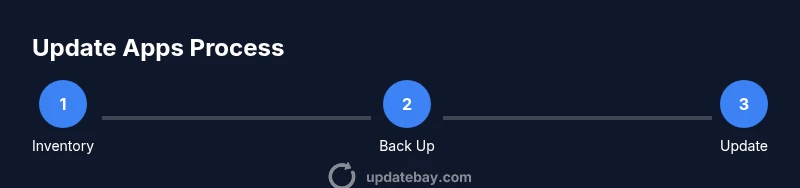
- 1
Identify devices and critical apps
Create an inventory of all devices and mark which apps are essential for daily workflows. This helps you prioritize updates and avoid missing important patches.
Tip: Start with security-critical apps and your primary productivity tools to minimize risk. - 2
Back up before updating
Perform a backup of important data on each device. If a major update goes awry, you can restore quickly and avoid data loss.
Tip: Use at least two backup locations; one local and one cloud-based if possible. - 3
Check for updates on each platform
Open the OS update settings and the app store for each device to check which updates are pending. Review notes to understand changes and potential impacts.
Tip: Filter by security-only patches when in a time crunch. - 4
Install updates in order (security first)
Apply security and critical patches first, then proceed with feature updates. This minimizes exposure during the update window.
Tip: Restart devices if prompted and avoid multitasking during installations. - 5
Verify updates and test key workflows
After updates finish, launch essential apps and run critical tasks to ensure everything works as expected.
Tip: Check for login prompts, permission changes, or UI shifts that may require adjustments. - 6
Handle failed updates and rollback if needed
If an update fails, retry once after addressing common causes (storage, connectivity). If issues persist, consult official support resources and consider rolling back to a prior version when supported.
Tip: Document what happened and the fix applied for future reference. - 7
Set up automatic updates for future
Enable automatic updates for security patches where possible and schedule routine checks for optional updates.
Tip: Limit automatic updates to trusted apps and review changes monthly.
Frequently Asked Questions
How often should I update apps?
Aim for automatic security updates whenever possible and schedule a monthly review of optional updates. Regular checks prevent missing important patches that protect data and improve compatibility.
Update apps regularly by enabling automatic security patches and reviewing optional updates at least once a month.
Is enabling automatic updates safe?
Automatic updates are generally safe, especially for security patches. Always back up data and review update notes if you enable automatic updates for critical apps.
Automatic updates are usually safe, but back up important data and review notes when enabling them for critical apps.
What should I do if an update fails?
Retry the update after checking storage and network. If it still fails, consult vendor support and consider rolling back if the option is available. Document the issue for future reference.
If an update fails, retry with adequate storage and network, then consult support if needed and document the issue.
Should I update all apps at once or stagger?
Stagger updates to reduce downtime and troubleshoot more easily. Prioritize essential, security-sensitive apps first, then roll out non-critical updates.
Stagger updates to manage downtime and verify essential apps first.
Can I skip updates for certain apps?
Skipping updates can leave vulnerabilities or missing features. If needed, you can postpone non-critical updates briefly, but plan to install them later.
You can postpone non-critical updates briefly, but plan to install them later to stay secure and current.
Do updates affect settings or data?
Most updates do not erase personal data, but some settings may change. Review release notes and test critical workflows after updates.
Most updates don’t delete data, but some settings may change. Check notes and test critical tasks.
Watch Video
What to Remember
- Update apps regularly to minimize security risk.
- Back up data before applying major updates.
- Prioritize security patches before feature updates.
- Use automatic updates where appropriate to save time.