How to Update Apps: A Practical Step-by-Step Guide
Learn how to update apps across Android, iOS, Windows, and macOS. This guide covers automatic updates, manual checks, troubleshooting, and best practices to keep software secure and functioning smoothly.


According to Update Bay, regularly updating apps is essential for security, performance, bug fixes, and access to new features. This quick answer previews the steps to update apps across Android, iOS, Windows, and macOS, plus how to enable automatic updates, manage data usage, and handle common update prompts.
Why Keeping Apps Updated Matters
Keeping apps up to date is a foundational habit for any device user. Updates fix security vulnerabilities, close bugs that can cause crashes, improve compatibility with new devices or other software, and often bring user-facing enhancements like faster performance or new features. From the perspective of the modern tech ecosystem, an up-to-date app stack reduces exposure to known exploits and helps ensure a smoother workflow. The Update Bay team emphasizes that regular checks, combined with automatic updates where appropriate, create a resilient software environment. In this section we’ll explore the core reasons to stay current and how updates tie into broader security and usability goals.
- Security: Patches close known flaws that attackers could exploit.
- Stability: Bug fixes reduce crashes and improve reliability.
- Compatibility: Updates ensure apps continue to work with latest OS versions and services.
- Features: Updates deliver quality-of-life improvements and new capabilities.
- Performance: Many updates optimize speed and resource usage.
For everyday users, the habit of updating apps complements other best practices like backing up data and using strong authentication. Update Bay analysis shows that a consistent update routine correlates with fewer post-update issues and a quicker return to productive work.
The Risks of Skipping Updates
Choosing to skip updates may seem harmless in the short term, but it increases risk over time. Unpatched apps can leave devices more vulnerable to security threats and malware. Additionally, older versions may lack important performance optimizations, resulting in slower operation, higher battery drain, or incompatibilities with new features and services. Compatibility problems can arise when an app relies on a backend API that has changed, potentially breaking workflows or causing data errors.
Beyond security, skipping updates can affect app behavior: UI changes, permission prompts, or altered default settings. Keeping apps current reduces the need to troubleshoot unusual behavior and helps preserve a consistent user experience across devices.
Update Layers: App Updates vs OS Updates
App updates and operating system (OS) updates serve related but distinct roles. App updates fix bugs, add features, and adjust to the latest platform APIs. OS updates, meanwhile, provide core security, kernel, and system-level improvements that affect all software on the device. In practice, you should treat both as part of a unified maintenance plan. Incompatibilities can occur if you delay OS updates too long while rushing app updates, or vice versa. Schedule updates to occur within windows when you can monitor the process and ensure backups exist.
For example, a new OS security feature may require app permission handling to change, which will be reflected in the next app update. Keeping both layers current minimizes friction and enhances overall device health. Update Bay recommends a balanced approach: enable automatic updates where appropriate, and set a monthly cadence for reviewing pending OS and app updates.
How App Stores Deliver Updates
Most modern ecosystems deliver updates through centralized app stores. These stores manage versioning, digital signatures, and background download of updates, sometimes in staggered batches to reduce network load. Stores also provide release notes so you can see what each update changes and any required user actions. Automatic updates are commonly available, but you can customize when updates occur (e.g., only on Wi‑Fi, or during charging). Understanding how your store handles updates helps prevent surprises, such as updates consuming data when you’re on a metered connection.
Update Bay emphasizes reviewing release notes before applying updates, especially for business-critical apps. If you rely on specific tools for work, consider creating a quarterly routine to review major version changes and deprecations noted in the changelog.
How to Update Apps on Android
Android users typically update apps through the Google Play Store. Start by opening the Play Store, tapping your profile icon, and selecting “Manage apps & device.” From there you can see “Updates available.” You can update all at once or install individual updates. For large updates, you may want to connect to Wi‑Fi and ensure sufficient battery or charging. Automatic updates can be configured to run only on Wi‑Fi and when the device is charging, helping conserve mobile data and preventing mid-update interruptions.
If you prefer manual control, you can also go to Settings > Apps & notifications > See all apps and update each app from the individual app page. Periodically clear cache for the store if updates aren’t showing up. Update Bay reminds users to check app-specific permissions after major updates, as makers may adjust what an app can access.
How to Update Apps on iOS (iPhone/iPad)
iOS updates are delivered through the App Store. Open the App Store, tap your profile picture in the upper-right corner, and view “Available Updates.” You can update all apps or select individual ones. For the most seamless experience, enable automatic updates and, if you want to preserve data, choose “Wi‑Fi only” for automatic downloads. iOS updates frequently include security patches, so prioritizing timely updates helps protect personal data.
Release notes in the App Store are helpful for understanding what changed. After updating, test a few core apps to ensure they’re working as expected and review app permissions if requested by updated features.
How to Update Apps on Windows
Windows primarily updates apps via Microsoft Store, though some third-party software uses its own update mechanism. Open the Microsoft Store, select Library, and then click “Get updates.” You can enable automatic updates in the Store settings so that new versions install automatically. For work computers, consider policy-based updates and periodic audits of installed apps to ensure critical tools stay current.
If a store update fails, check your internet connection, ensure sufficient disk space, and retry. Restarting the device can also clear temporary issues that block updates. After updates, verify that essential apps launch correctly and that license or subscription information remains intact.
How to Update Apps on macOS
Mac users update apps primarily through the Mac App Store, but some apps distribute updates independently. Open the Mac App Store and click “Updates” to see available versions. You can enable automatic app updates in System Preferences > App Store, choosing whether updates occur in the background and whether to use Wi‑Fi only. macOS updates themselves are a separate process that often runs in tandem with app updates.
For professional environments, schedule updates during off-peak hours. If an update causes issues, you can revert to a previous version if a backup is available or contact the developer for rollback guidance. After updates, it’s wise to reboot if prompted to complete installation correctly.
Best Practices for Automatic Updates
Automatic updates reduce the cognitive load of keeping software current. Start by enabling automatic updates for essential apps on all devices, with preferences that fit your data plan and battery life. Consider configuring automatic updates to occur only on Wi‑Fi and when charging to minimize data usage and device strain. Periodically review which apps are set to auto-update and adjust based on usage and security needs.
Establish a routine for manual checks on a monthly basis to review release notes, test critical workflows, and ensure no conflicting permissions were introduced. For devices used in sensitive environments, apply stricter controls or patch management software to orchestrate updates across multiple devices from a central console.
Troubleshooting Common Update Problems
Update problems are usually caused by missing storage, unstable network connections, or conflicting software. Start by ensuring you have enough free space; delete or offload unused apps and media. Check your internet connection, switch to a more stable network if possible, and retry the update. If an update stalls, cancel and restart the process, or reboot the device.
If a specific app fails to update repeatedly, removing and reinstalling the app (or using a clean reinstall) can resolve corrupted update files. In managed environments, IT admins may use enterprise tools to push updates and monitor installation status. Always back up before major updates to avoid data loss.
Security and Privacy Considerations in App Updates
Updates are a primary defense against evolving threats. Read release notes to understand security patches and permission changes, and avoid updating apps from unknown sources. Use official app stores and verify publisher certificates before installing. Regularly review app permissions after updates, as some changes may require access to new data or capabilities.
Keeping a device’s OS and apps up to date reduces the attack surface and minimizes the risk of data exposure through vulnerable versions. Update Bay notes that aligning update cadence with security advisories from trusted sources helps maintain a resilient digital environment.
Case Study: A Smooth Update Routine
Alex uses a simple, repeatable routine that keeps all devices current without causing downtime. On Sundays, he checks for OS updates, then opens the app stores to review the list of available updates. He enables automatic updates for non-critical apps and allocates a short 15‑minute window to perform manual updates for mission-critical tools. He logs any unusual behavior and tests core workflows after updates. This routine minimizes surprise updates and maintains a steady, reliable ecosystem across devices.
Tools & Materials
- Internet-connected device (phone, tablet, or computer)(Ensure a stable connection during updates to avoid partial installs.)
- Account credentials for platform stores(Google/Apple/Microsoft accounts may be required to access update settings.)
- Sufficient storage space(Free up space before large updates; 100–300 MB+ recommended per device.)
- Backup method(Cloud backup or local backup to recover data if an update fails.)
- Charging cable or power source(Keep device charged during updates to prevent interruptions.)
Steps
Estimated time: Estimated total time: 25-40 minutes
- 1
Open the device's app store or system settings
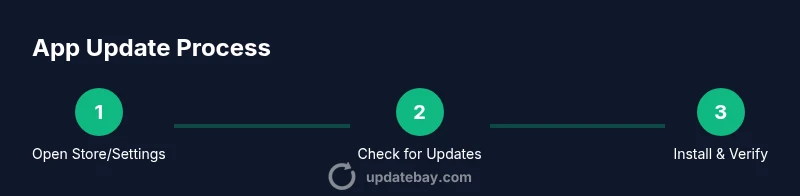
Access the store or update settings for your platform (e.g., Google Play on Android, App Store on iOS, Microsoft Store on Windows, Mac App Store on macOS). This is the first step to view available updates and adjust automatic update options.
Tip: Starting point: locate the Updates or Apps section within the store or settings. - 2
Enable automatic updates where appropriate
Turn on automatic updates so apps install new versions in the background. Choose Wi‑Fi-only if you have a limited data plan and enable charging to prevent mid-update pauses.
Tip: Automatic updates save time and reduce manual checking. - 3
Check for updates now
Manually trigger a check for updates to see the current version matrix for installed apps. This ensures you don’t miss updates that aren’t yet scheduled automatically.
Tip: Pair this with viewing release notes to assess impact. - 4
Review release notes and permissions
Read the update notes to understand changes, security patches, and any new permissions the app might request.
Tip: Release notes help you decide whether to install immediately. - 5
Install available updates
Proceed with updating apps. If prompted, allow background activity and ensure the device remains connected to power or charge.
Tip: Avoid interrupting the install; interruptions can corrupt updates. - 6
Restart if required
Some updates require a device restart to complete installation. Follow on-screen prompts to finish the process.
Tip: A quick restart can prevent runtime issues. - 7
Verify the updates installed
Open updated apps to confirm they launch correctly and show the expected version numbers in settings.
Tip: If an app behaves oddly, check for conflicts or repeat the update. - 8
Consider updating the OS as well
If a system update is available, review its notes and plan installation. OS updates can improve compatibility and security.
Tip: Back up before system updates to protect data. - 9
Back up before major updates
Perform a backup of important data before applying major updates to guard against data loss.
Tip: A backup gives you a safe rollback option. - 10
Free up storage if updates fail
If updates fail due to lack of space, delete unused apps or media, then retry.
Tip: Temporary cleanup often resolves update stalls. - 11
Test critical apps after updates
Run essential workflows to ensure updated apps function as expected and no data integrity issues arose.
Tip: Pay attention to permissions and feature changes. - 12
Document your routine
Keep a simple log of update times and notes for future reference and audits.
Tip: A small record helps track changes across devices.
Frequently Asked Questions
What happens if I disable automatic updates?
Disabling automatic updates means you’ll need to check for updates manually. This can leave apps vulnerable if you forget to update. Create a monthly reminder to review updates and security patches.
If you turn off automatic updates, you’ll need to check for updates yourself to stay secure.
Should I update apps using cellular data or Wi‑Fi?
Updates can consume significant data, especially with multiple apps. Prefer Wi‑Fi for updates when possible, and configure devices to avoid background updates on metered connections.
Use Wi‑Fi for updates when you can to save data and ensure stable installs.
Why do updates fail to install sometimes?
Common causes include insufficient storage, poor internet connection, or conflicting apps. Free space, retry after a reboot, and check for app-specific requirements.
Updates can fail due to storage or network problems; try freeing space and retrying.
Do I need to restart after updates?
Some updates require a restart to complete. If prompted, follow through to ensure the new version is active.
A restart is often needed to finish updating; follow the prompt.
Can I update specific apps or should I update all at once?
You can update apps individually or in batches. Prioritize security-critical apps first, then proceed with the rest to manage time and bandwidth.
Update the most important apps first, then the rest when convenient.
Watch Video
What to Remember
- Update apps regularly to reduce security risks
- Use automatic updates where feasible to save time
- Always read release notes before updating
- Keep OS and apps aligned for best compatibility
- Back up data before major updates