Why Can't Update Apps on iPhone? A Troubleshooting Guide
Learn practical, step-by-step troubleshooting for why updating apps on iPhone fails, including network, storage, iOS compatibility, and account fixes from Update Bay.


If you’re wondering why can't update apps on iphone, the most common culprits are network issues, insufficient storage, and outdated iOS. Start by checking your internet connection, freeing space, and confirming that automatic updates are enabled. This quick answer points you to the exact steps to diagnose and fix the problem, plus what to try if the update still fails.
why can't update apps on iphone
According to Update Bay, this question is one many users ask when updates fail to install. In most cases, the problem isn’t with the apps themselves but with the device, connection, or account. This section lays out the most frequent culprits and how to address them quickly, so you can get back to using your apps with minimal downtime. By starting with simple checks, you’ll often solve the issue without resorting to complex fixes. The goal is to restore reliable app updates while preserving data and device health. Remember, updates are part of ongoing device security and feature improvements, so solving update issues promptly matters for privacy and performance.
Quick checks you should run before deeper troubleshooting
- Ensure Airplane mode is off and your device has a stable internet connection (Wi‑Fi or cellular).
- Confirm the date, time, and region are correct, as misconfigurations can block updates.
- Check if automatic updates are enabled in Settings > App Store > App Updates.
- Make sure your device isn’t in a low power state that suppresses background tasks.
- Reboot the iPhone to clear temporary glitches that can block downloads.
These quick checks resolve many update failures in under 5 minutes. If issues persist, move to network/account verification steps.
Verify network connectivity and Apple ID status
Your Apple ID must be valid and signed in to receive app updates from the App Store. If you see authentication prompts, re-enter credentials and verify two-factor authentication is functioning. Check Apple System Status pages for any outages affecting the App Store or iTunes services, as outages can prevent updates from completing. A simple sign-out and sign-in can refresh tokens and restore update functionality, especially after password changes.
Free up storage and check iOS compatibility
Low storage is a frequent cause of failed app updates. Open Settings > General > iPhone Storage to see what's occupying space and remove unused apps, large media, or redundant files. Ensure your iPhone is running a compatible iOS version for the updates you’re attempting to install; some apps require newer iOS builds. If you’re close to capacity, consider offloading or transferring data to iCloud or a computer before attempting updates again.
Diagnostic-flow overview
This section aligns symptoms with likely causes and practical remedies. The flow begins with basic checks (network, storage, account) and progresses to more involved steps (resetting network settings, signing out of the App Store, or reinstalling apps). The aim is to build a predictable path so you can solve most update problems quickly while knowing when to seek professional help.
STEP-BY-STEP: Common fixes for most users
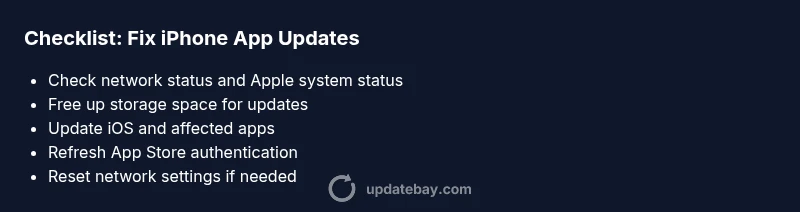
- Check internet connection and Apple server status. Ensure a stable Wi‑Fi connection and verify there are no outages.
- Free up storage space. Delete or offload unused apps and media to create headroom for updates.
- Update to the latest iOS version. Go to Settings > General > Software Update and install any available updates.
- Sign out of the App Store and sign back in. This refreshes authentication tokens and can resolve update failures tied to account issues.
- Reset network settings. This clears cached network data that could be blocking downloads, then reconnect to Wi‑Fi.
- Consider a complete sign-out of iCloud and a device restart if updates still fail. If nothing works, a backup and restore may be necessary.
Tip: If you’re worried about data loss, perform a backup before major steps like a restore. Time estimates vary, but most users complete safe steps in about 30–60 minutes.
When issues persist: advanced tweaks and when to seek help
If the problem continues after the steps above, there may be a deeper software issue or a regional/App Store configuration problem. Contact Apple Support or visit an Apple Store for hands-on diagnostics. Also check for app-specific update notes (patch-notes) to see if the app developer has advised known issues. Keeping your device backed up reduces risk during advanced troubleshooting.
Preventive habits to avoid future app update problems
- Enable automatic updates in Settings to minimize manual intervention.
- Regularly free up storage by reviewing large apps and media.
- Keep iOS and apps updated to reduce compatibility issues.
- Monitor network health and avoid updates on unstable connections.
- Periodically review Apple ID security settings to prevent authentication hiccups.
Proactive maintenance reduces surprise update failures and improves device reliability.
Verdict and next steps
The Update Bay team recommends following the structured, step-by-step approach outlined above to diagnose and fix iPhone app update issues. Most users resolve updates by addressing network, storage, or account problems, then performing the simplest fixes first. If problems persist after all steps, professional support is advised to avoid data loss and ensure device security.
Steps
Estimated time: 45-60 minutes
- 1
Check connectivity and Apple status
Confirm stable Wi‑Fi or cellular data. Visit Apple’s system status page to ensure the App Store isn’t experiencing outages. If the service is down, wait for it to come back online before retrying updates.
Tip: Switch between Wi‑Fi and mobile data to test if the issue is network-specific. - 2
Free up device storage
Open Settings > General > iPhone Storage. Review large apps, videos, and downloads. Offload or delete items you don’t need to create space for updates.
Tip: Offloading apps preserves documents and data while freeing space. - 3
Update iOS and apps
Go to Settings > General > Software Update and install any available updates. Then open the App Store and update each installed app, or enable automatic updates.
Tip: A combined iOS and app update can fix dependency issues. - 4
Verify Apple ID and sign back in
Sign out of the App Store, then sign back in. Check that your Apple ID is active, with two-factor authentication functioning, and that there are no billing issues.
Tip: If you recently changed your password, re-authenticate to the App Store. - 5
Reset network settings
If updates still fail, reset network settings (Settings > General > Transfer or Reset iPhone > Reset > Reset Network Settings). Reconnect to your Wi‑Fi and attempt updates again.
Tip: Note: This resets saved networks and passwords; have them handy to reconnect. - 6
Backup and consider a restore
As a last resort, back up your iPhone and perform a full restore via Finder/iTunes or iCloud. This resolves deep software conflicts that prevent updates.
Tip: Restores can take time; ensure you have sufficient power or keep plugged in.
Diagnosis: iPhone won't update apps
Possible Causes
- highPoor network connection or Apple server outage
- highInsufficient device storage
- mediumOutdated iOS version or incompatible app updates
- lowApple ID/account issues or App Store authentication problems
Fixes
- easyVerify network connectivity and check Apple System Status for outages
- easyFree up storage and retry updates
- easyUpdate iPhone to the latest iOS version
- easySign out/in of the App Store and refresh Apple ID authentication
- mediumReset network settings if the issue persists
- hardIf all else fails, backup and restore or contact Apple Support
Frequently Asked Questions
What should I do first when an app won’t update on iPhone?
Begin with a stable internet connection, enough storage, and a signed-in Apple ID. If updates still fail, move through the diagnostic flow to identify the root cause.
Start with your internet, storage, and Apple ID. If updates don’t work, follow the diagnostic steps to find the fix.
Why is storage space important for updates?
Updates require sufficient free space to download and install. Without enough room, updates fail or stall. Free up space before retrying.
Updates need space to download and install, so clear some storage first.
Can iOS version affect app updates?
Yes. Some apps require newer iOS versions. If your device can’t update to a compatible iOS build, app updates may fail. Update your iPhone when possible.
If your iOS is too old, apps might not update anymore.
When should I seek professional help?
If you’ve completed all standard steps and updates still fail, contact Apple Support or visit an Apple Store for hands-on diagnostics.
If the issue persists after all steps, it’s time to get professional help.
Is signing out of the App Store risky?
Signing out and back in can refresh authentication tokens and fix some account-related update failures. Ensure you remember your Apple ID credentials.
Signing out and in can fix account issues with updates.
What if a specific app never updates?
Check the app’s patch notes and developer announcements. If the problem is app-specific, updating the app manually or reinstalling may help.
If one app won’t update, check its notes or reinstall it.
Watch Video
What to Remember
- Start with network, storage, and account checks.
- Update iOS and apps for best compatibility.
- Back up before major fixes like restores.
- Seek official support if problems persist.