Why iPhone Apps Don’t Update Automatically: Troubleshooting Guide
Urgent, step-by-step guide to diagnosing and fixing why iPhone apps don't update automatically. Learn common causes, quick checks, and prevention tips to keep your apps current on iOS.


Most often, the culprit is a settings or network issue rather than a faulty app. On iPhone, automatic updates rely on App Store updates, background refresh, and a stable connection. Start by checking that App Updates is enabled, your device has a reliable Wi‑Fi or cellular connection, and Low Power Mode isn’t throttling updates. If those fail, try the steps below.
Understanding the problem: why iphone apps don't update automatically
According to Update Bay, many users wonder why iphone apps don't update automatically, and the answer rarely lies in the apps themselves. Most issues originate from the device’s settings, the quality of the network, or iOS-imposed constraints. In this guide, we break down the failure points and offer practical, user-friendly checks you can perform without specialist tools. Update Bay analysis shows that auto-update failures typically stem from three broad areas: App Store configuration, network reliability, and device storage. By addressing these basics, you can restore automatic updating and keep your apps current across iPhone models.
This article is designed for tech enthusiasts and everyday users who want fast, reliable fixes. You’ll find a clear diagnostic flow, concrete step-by-step actions, and practical prevention tips so you won’t be left guessing when updates stall. The goal is to empower you to fix the issue quickly and prevent recurrence, with references to trusted guidelines from Update Bay.
Check your iPhone settings for automatic updates
The most common reason for stalled updates is that the phone isn’t allowed to update apps automatically. Start by verifying the following settings and toggles:
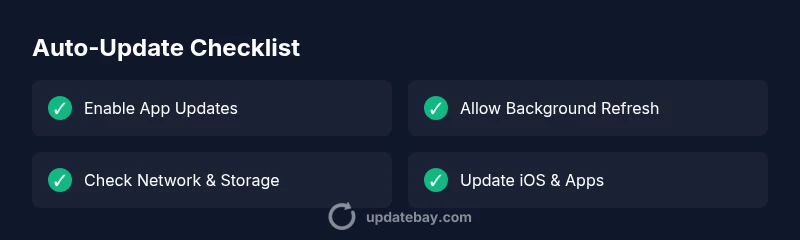
- Go to Settings > App Store and ensure App Updates is turned on. This enables automatic app updates when new versions are available.
- Also in Settings > App Store, enable Automatic Downloads for Apps and App Updates to allow automatic installation of updates and content.
- Check Settings > General > Background App Refresh and set it to On for Wi-Fi or On for Wi-Fi & Cellular. This keeps apps fresh in the background.
- Ensure your iPhone uses a stable data connection. Prefer Wi‑Fi for large updates, and if you must use cellular, make sure “Cellular Data” is allowed for App Store.
- Confirm that Low Power Mode is off if you want updates to run in the background. Low Power Mode can throttle background activity and delay updates.
If any of these toggles were off, re-enable them and try updating again. You should also verify no Screen Time restrictions block auto updates, and that there’s no profile or VPN forcing a manual update workflow. Reboot after applying changes to solidify them.
Check network conditions and storage
Even with the right settings, updates won’t happen if the device can’t fetch data cleanly or lacks space. Start with the basics:
- Ensure you have a strong, stable Wi‑Fi connection or reliable cellular data. If your signal is weak, updates may queue or fail entirely.
- Check storage: go to Settings > General > iPhone Storage to see if you have enough free space for the new app versions. If you’re tight on space, offload unused apps, delete large videos, or move content to iCloud.
- If you’re using a VPN or corporate network, test a direct connection to see if it interferes with download traffic.
- Try downloading a small app update to confirm the connection works, then test a larger update. This helps you gauge whether the issue is general connectivity or specific to certain apps.
If you notice intermittent connectivity or space constraints, address those first. After clearing space or stabilizing the network, attempt updates again.
Common causes and realistic likelihoods
Understanding the plausible culprits helps you triage faster. Here are typical causes, with general likelihoods:
- App Updates toggle off or Automatic Downloads disabled: high likelihood. This is the most frequent reason users see no updates.
- Poor or restricted network connection: high likelihood. A spotty Wi‑Fi or restricted cellular data can pause or block downloads.
- Background App Refresh or Low Power Mode throttling: medium likelihood. These modes limit background activity and can delay updates.
- Outdated iOS version or App Store outages: low to medium likelihood. While less common, both can prevent updates until resolved.
By focusing on the high-likelihood causes first, you can typically restore automatic updates without deeper troubleshooting. Update Bay recommends checking for an iOS update as a separate, optional step when issues persist, since OS updates can refine how update traffic is managed.
Quick fixes you can implement now
If updates still aren’t downloading, try these quick, practical fixes in order. They’re designed to be easy and low-risk:
- Step 1: Turn App Updates on and re-enable Automatic Downloads in Settings > App Store. A quick toggle cycle often resolves the issue.
- Step 2: Confirm Background App Refresh is enabled for Wi‑Fi or Wi‑Fi & Cellular under Settings > General > Background App Refresh.
- Step 3: Verify your network. Connect to a stable Wi‑Fi network and retry updates. If you must use cellular, ensure Cellular Data is allowed for the App Store.
- Step 4: Disable Low Power Mode from Control Center or Settings > Battery, then test updates again. This allows background activity to run freely.
- Step 5: Free up space. If storage is tight, remove unused apps or large media to create room for updates.
- Step 6: Sign out and back in to your Apple ID (Settings > iTunes & App Store), then attempt updates again.
If none of these steps work, move to deeper diagnostics or contact Apple Support for assistance. Sometimes a temporary App Store outage or a rare device-specific glitch requires expert help.
TIPS & WARNINGS
- Pro tip: Always back up important data before major iOS or app updates, so you won’t lose progress if something goes wrong.
- Warning: Don’t disable essential security or privacy settings in pursuit of updates. Revert any risky changes after testing.
- Note: Some apps delay updates due to licensing terms or developer-recommended rollout schedules. A backlog at the App Store can cause temporary delays.
Following best practices helps prevent future issues and keeps your iPhone apps updating automatically.
Key takeaways and prevention tips
- Ensure App Updates and Automatic Downloads remain enabled at all times.
- Maintain a steady network connection and ample free storage to support updates.
- Avoid using Low Power Mode during updates to prevent throttling.
- Regularly update iOS to benefit from improved update handling and bug fixes.
- If problems persist, use the diagnostic flow to isolate whether the issue is device-wide or app-specific.
FAQ: Common questions about iPhone app auto-updates
Steps
Estimated time: 1 hour
- 1
Open App Store settings and enable updates
Navigate to Settings > App Store and turn on App Updates. Also enable Automatic Downloads for Apps if available. This allows apps to install updates automatically when connected to the internet.
Tip: A quick toggle cycle often fixes the issue. - 2
Check Background App Refresh and Power mode
Go to Settings > General > Background App Refresh and set it to On for Wi-Fi (or Wi-Fi & Cellular). Ensure Low Power Mode is off to avoid throttling background activity.
Tip: Background tasks need a clear channel to run. - 3
Test your network and storage
Connect to a stable Wi-Fi network and verify you have sufficient free space under Settings > General > iPhone Storage. If space is low, offload or delete files.
Tip: A small network test with a known-good update helps isolate issues. - 4
Restart and retry updates
Restart your iPhone, then return to the App Store and attempt updates again. If you’re still stuck, sign out/in to your Apple ID and retry.
Tip: Sometimes a clean start resolves stubborn delays. - 5
Update iOS and apps
Check for an iOS update in Settings > General > Software Update. Install any available updates, then retry app updates. If updates persist, contact Apple Support.
Tip: OS updates often improve update reliability. - 6
Escalate if needed
If updates fail consistently, consider professional help. Persistent issues may indicate a device-specific defect or a service outage.
Tip: Document steps you’ve tried to speed up support.
Diagnosis: Apps on iPhone are not updating automatically
Possible Causes
- highApp Updates toggle off or Automatic Downloads disabled
- highWeak or blocked network connection
- mediumBackground App Refresh disabled or Low Power Mode active
- lowOutdated iOS or App Store outage
Fixes
- easyEnable App Updates and Automatic Downloads for Apps in Settings > App Store
- easyEnsure a stable network connection (Wi-Fi preferred) and retry updates
- easyToggle Background App Refresh on (Settings > General) and disable Low Power Mode while updating
- mediumUpdate iOS if available and check for App Store service outages before retrying
Frequently Asked Questions
Why are my iPhone apps not updating automatically?
Auto updates fail mostly due to app update settings, network issues, or device restrictions like Background App Refresh or Low Power Mode. Checking these settings often resolves the problem quickly.
Auto updates fail mainly because the settings or network block updates. Check App Updates, Background App Refresh, and your network to fix it fast.
How do I turn on automatic app updates on iPhone?
Open Settings > App Store and toggle on App Updates and, if available, Automatic Downloads for Apps. For best results, ensure Background App Refresh is enabled and you are connected to Wi‑Fi when updates occur.
Go to App Store settings, enable auto updates, and make sure your background refresh and Wi‑Fi are on.
What should I do if updates still won’t download after checking settings?
Test your network, free up storage, restart the device, and try updating again. If needed, sign out/in to your Apple ID and check for an iOS update or App Store outage.
If updates fail after settings, check network, storage, and consider restarting or updating iOS.
Can Low Power Mode affect app updates?
Yes. Low Power Mode can throttle background activities, including app updates. Disable it temporarily during updates and re-enable afterward if you want longer battery life.
Low Power Mode can slow updates, so turn it off while updating apps.
Do updates depend on iOS version?
Some updates require a compatible iOS version. If your device runs an older iOS, updating the OS first can unlock modern app updates.
An outdated iOS version can block updates; consider updating iOS to fix it.
When should I contact support?
If updates continue to fail after trying the troubleshooting steps, contact Apple Support or visit an Apple Store for a diagnostic.
If nothing works, reach out to Apple Support for a deeper check.
Watch Video
What to Remember
- Enable App Updates and Automatic Downloads for Apps.
- Maintain a stable network and adequate storage.
- Avoid Low Power Mode during updates; test after changes.
- Update iOS to improve update reliability and compatibility.