Why Can't I Update My Phone? A Practical Troubleshooting Guide
This urgent troubleshooting guide explains why can't update my phone and provides practical steps to fix update failures on Android and iPhone, from connectivity to compatibility and prevention tips.


Most likely, your phone can't update due to connectivity, storage, or compatibility issues. Start by securing a stable Wi‑Fi connection, freeing space, and confirming your device model supports the update. If it still fails, reboot, retry, and check for account restrictions or parental controls. These quick checks often resolve the problem within minutes.
Why can't update my phone? Common causes and quick checks
If you're facing update failures, you’re not alone. Many users ask why can't update my phone, and the fastest path to a solution starts with simple, verifiable steps. According to Update Bay, a broad pattern emerges: most failures are caused by weak connectivity, insufficient storage, or device compatibility limits. The good news is that many issues are not hardware failures; they’re configuration or policy problems that you can fix without professional help. In this guide, we’ll outline the most frequent culprits, explain how to recognize them, and set you up with a safe, repeatable process to get back to a working update. A methodical approach helps you avoid data loss and wasted time, and it minimizes the risk of bricking your device during the update. Whether you own an Android phone or an iPhone, the same core ideas apply: a stable connection, adequate space, and a compatible OS version matter more than anything else. By staying calm and following the steps, you can often resolve the problem in under an hour and resume regular use. Remember: some issues require updates to the manufacturer’s servers, in which case you’ll need to be patient and retry later. The Update Bay team emphasizes practical, step-by-step troubleshooting for fast resolution.
Check your network and storage first
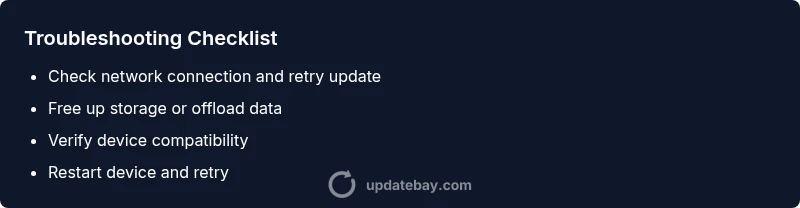
Your update transmission relies on a stable internet connection and enough local space for the new files. The most frequent failures are caused by flaky Wi‑Fi or mobile data. Connect to a reliable Wi‑Fi network, pause any VPNs, turn off data-saver modes, and try again. Then check available storage: on Android, go to Settings > Storage to see what's free; on iPhone, go to Settings > General > iPhone Storage. If storage is under the recommended threshold, delete or offload unused apps and media, or move photos to iCloud/Drive. Update Bay analysis shows that, when storage is insufficient, even a small update may fail to install. Once you’ve freed space, restart the device and retry the update. If the update still fails, verify that the device is on a supported OS version and that there are no battery or charging restrictions during the update window. If you still encounter issues, try a different network or temporarily disable any firewall rules that could block the update ping.
Verify compatibility and account settings
Even when storage and connectivity look good, devices sometimes fail to update due to compatibility or account constraints. Check that your model, carrier, and current OS are eligible for the update you’re attempting. Manufacturers publish minimum requirements and supported devices in patch notes or update changelogs. If you’re attempting a beta or staged rollout, confirm you’re enrolled in the correct channel. Additionally, make sure your device isn’t enrolled in any parental controls or enterprise restrictions that block updates. If you use a work profile or MDM, verify that the policy allows the update to install. Finally, sign in with an account that has permission to install updates and check for any pending payment issues or device restrictions that could block installation. According to Update Bay’s guidance, many update failures occur here when accounts are misconfigured or approvals are pending.
Step-by-step quick fixes you can try right now
Here’s a practical sequence you can follow to address the most common causes, in order of likelihood. Start with the easiest fixes and work toward the more involved checks. Have backups ready in case you need to reset anything.
Advanced troubleshooting for stubborn updates
If basic fixes don’t resolve the problem, try troubleshooting at a deeper level. Boot into safe mode (Android) or use a diagnostic tool provided by the manufacturer. Clear the cache for the update app, reset network settings, or remove VPNs that could interfere with the update flow. Check for any device policy restrictions or device enrollment configurations that prevent updates. As a last resort, a factory reset may be considered, but only after backing up all personal data. In all cases, ensure you know how to recover data if something goes wrong.
Final checks and prevention tips
After you successfully update, take a few steps to prevent future issues. Keep your OS and apps up to date, monitor storage usage, and back up regularly. Consider enabling automatic updates where available and schedule updates during times when you won’t be disrupted by installation pauses. If you frequently rely on critical apps, test updates on a secondary device when possible. The Update Bay team emphasizes keeping devices healthy with routine maintenance, so you don’t face urgent troubleshooting in the future.
Steps
Estimated time: 60-90 minutes
- 1
Check network status
Ensure a stable connection by testing on Wi‑Fi with good signal. Try loading a webpage or speed test to confirm reliability. If the network is flaky, switch to a different network or move closer to the router.
Tip: Avoid public networks for big OS updates. - 2
Free up storage space
Open Storage settings and identify apps or media consuming space. Delete or offload large videos, uninstall rarely used apps, and empty caches. Re-check the available space after cleaning.
Tip: Offloading unused apps can free space without data loss. - 3
Confirm device compatibility
Check the update notes for minimum OS version and device model. If your device isn’t listed, the update may be unavailable for you. If you’re on a beta channel, switch to the stable channel if possible.
Tip: Review patch notes for any known issues. - 4
Restart and retry
Restart the device to clear temporary glitches. After reboot, open Settings > Software Update and retry. If the update still fails, take note of any error codes displayed.
Tip: Small restarts fix many update hiccups. - 5
Check account and policies
Sign out and back into the update service, check for any account restrictions, and confirm there are no enterprise policy blocks. Ensure you have sufficient permissions to install updates on the device.
Tip: Work profiles can block updates; verify policy settings. - 6
Advanced reset if needed
If you’re technically comfortable, reset network settings or clear cache for the update app. As a last resort, perform a factory reset after backing up data.
Tip: Always back up before a factory reset.
Diagnosis: Phone won't update or shows an error during update
Possible Causes
- highWeak or intermittent internet connection
- highInsufficient storage space
- mediumUpdate not supported on this device or OS version
- lowAccount restrictions or device management policies
Fixes
- easySwitch to a stable Wi‑Fi network and retry the update
- easyFree up storage by removing apps/media or moving data to cloud
- easyCharge the device and retry the update
- mediumVerify device compatibility and update channel (stable vs beta)
- mediumReset network settings or disable VPN/proxy causing block
- hardIf none work, contact manufacturer support or visit a service center
Frequently Asked Questions
Why can't I update my phone?
Update failures usually come from connectivity, storage, or compatibility issues. Start with a stable network, free up space, and verify device support for the update. If the issue persists, check account permissions and policy restrictions.
Update failures are often due to network, storage, or compatibility problems. Start with a stable connection and space, then check device support.
What if storage is full?
If storage is full, delete or offload media and apps or move data to the cloud. After freeing space, retry the update. This is one of the most common causes of update failures.
Full storage is a common reason updates fail; free space and retry.
Can I update over mobile data?
Some updates require Wi‑Fi and may block over cellular data to prevent data overages. If possible, connect to Wi‑Fi and retry. Check your settings to see if the update is restricted to Wi‑Fi only.
Updates may require Wi‑Fi. Try a Wi‑Fi connection to retry.
Will a factory reset fix update problems?
A factory reset can resolve persistent software issues, but it erases data and should be a last resort after backing up. Consider other fixes first or contact support.
Factory reset is a last resort and will erase data.
How do I check device compatibility for an update?
Consult the update changelog or official bulletin for minimum requirements and supported devices. If your device isn’t listed, the update may not be available for you.
See the changelog to confirm device compatibility.
What should I do if none of the basic fixes work?
If nothing works, contact the device manufacturer or visit a service center. Some issues require professional support, especially if hardware or firmware corruption is suspected.
If basic fixes fail, seek official support.
Watch Video
What to Remember
- Check connectivity before storage.
- Free space is essential for updates.
- Verify compatibility and account permissions.
- Back up data prior to updates.