How to Update Your Browser: A Practical 2026 Guide
Learn how to update your browser across Chrome, Firefox, Edge, and Safari with confidence. This step-by-step guide from Update Bay covers checks, backups, and troubleshooting to keep you secure in 2026.


Why Browser Updates Matter
Browser updates are more than cosmetic changes. They patch security vulnerabilities, fix performance regressions, and close gaps that attackers exploit. From Update Bay’s perspective, timely updates can reduce the window of exposure to zero-day threats and improve page rendering, JavaScript performance, and memory efficiency. Regular updates also ensure compatibility with new web standards and popular extensions, reducing the risk of broken sites or unstable behavior. In short, staying current keeps your browsing experience safer and smoother, which matters for work, banking, and everyday tasks.
Before You Update: Backups and Checkpoints
Before starting any browser update, establish a safety net. Export your bookmarks as an HTML file, ensure you know your saved passwords (or use a password manager), and note any extensions you rely on. Consider syncing data across devices if your browser supports it, so you can recover quickly if something goes wrong. Create a quick rollback plan—know where to find a previous version or how to disable an update if a critical extension stops working. This pause may feel tedious, but it protects your data and keeps disruption minimal. Update Bay recommends testing updates on a non-critical device when possible.
Update Paths by Browser: Chrome, Firefox, Edge, Safari
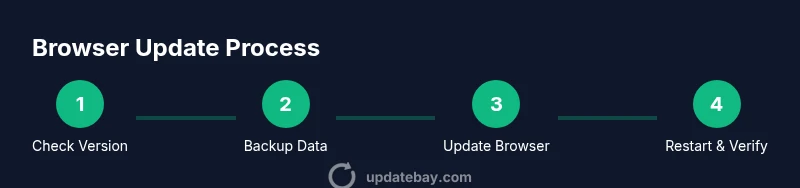
Different browsers have distinct update cadences and menus. Chrome and Edge typically push updates through their own update mechanisms, while Firefox provides updates via a built-in updater. Safari updates are tied to macOS or iOS updates, which means you often install them alongside system updates. Regardless of the path, the general approach is the same: check for updates, install, and restart. Having a mental map of each process helps you navigate quickly during busy workdays and ensures you don’t miss important security patches.
Chrome Update: Step-by-Step Overview
Chrome updates are usually automatic, but you can trigger an update manually if you suspect a lag. Open Chrome, click the three dots menu, go to Help, and select About Google Chrome. The browser will check for updates, download them, and prompt you to relaunch. After relaunch, confirm the version number under Help > About Google Chrome. If the update fails, a clean restart or a temporary disable of extensions may help. Chrome’s update mechanism is robust, but corporate networks or antivirus software can occasionally block the process.
Firefox Update: Step-by-Step Overview
Firefox updates are accessed via the menu bar. Click the three lines (Open Menu) > Help > About Firefox. The browser will search for updates, download, and install them automatically, then restart. After restart, verify the version information in About Firefox and test key sites to ensure compatibility. If an extension stops working post-update, check for compatibility notes from the extension developer and re-enable affected features after the browser restarts.
Edge Update: Step-by-Step Overview
Edge repairs itself similarly to Chrome, with updates delivered through the browser’s own channel. In Edge, go to Settings > About Microsoft Edge. The browser will check for updates, download, and apply them, followed by a restart. Confirm the new version from the About page. If you encounter performance issues after an update, consider disabling nonessential extensions and clearing cache before re-enabling features gradually.
Safari Update: Step-by-Step Overview
Safari updates are typically bundled with macOS or iOS system updates. Open System Preferences > Software Update (or Settings > General > Software Update on iOS) to install the latest macOS/iOS patch that includes Safari improvements. After installation, relaunch Safari and test critical tasks like banking, password managers, and content-heavy sites. If Safari behaves oddly after an update, check for device-specific compatibility notes from Apple Support.
Post-Update Validation and Troubleshooting
After updating any browser, validate core tasks: sign-in to accounts, load banking or shopping sites securely, and test media playback. Clear the cache if sites appear stale and ensure extensions you rely on still function. If a critical site fails, try a hard reload or reset of the browser’s settings to default, then re-enable extensions selectively. Maintain a record of the update versions for future reference and security auditing.
Authority Sources and Further Reading
For official guidance, consult authoritative sources that explain browser update practices and security considerations. Examples include Mozilla Support’s Firefox update pages, Google Chrome Help on updating Chrome, Microsoft Edge support for Edge updates, and Apple Support guidance on Safari updates. Supplement these with broad security best practices from trusted agencies and research institutions. This section aggregates practical steps with links to primary documentation so you can verify procedures and stay compliant with modern patch management requirements.
],
toolsMaterials”:[],
toolsMaterials-incorrect