Google Chrome Update: Safe, Fast, Step-by-Step Guide
Master how to perform a google chrome update across Windows, macOS, Android, and iOS. This 2026 Update Bay guide covers automatic updates, manual steps, troubleshooting, and best practices to keep your browser secure.


A google chrome update keeps your browser secure, faster, and feature-rich. Updates often run automatically on supported devices, while you can trigger a manual update via the Chrome menu (Help > About Google Chrome). This Update Bay guide explains platform-specific steps and practical troubleshooting to help you stay current.
What a google chrome update is and why it matters
A google chrome update is a bundled set of improvements that includes security patches, bug fixes, performance tweaks, and sometimes new features. Keeping Chrome up to date reduces exposure to newly discovered vulnerabilities and helps websites render correctly. According to Update Bay, most google chrome update releases are rolled out in waves, which means some devices receive them earlier than others. In practice, you should aim to apply updates promptly; delays can leave you vulnerable to known exploits. The update process is designed to be seamless: many devices install updates automatically in the background, while others prompt you to restart after the download completes. If you manage multiple devices (desktop, laptop, or mobile), a consistent update habit minimizes fragmentation across your browsing ecosystem.
The google chrome update life cycle typically begins with a security-focused patch, followed by performance improvements. For everyday users, this means fewer crashes, faster page rendering, and better protection against evolving threats. Update Bay emphasizes that staying current is less about chasing every new feature and more about maintaining a robust security posture and reliable compatibility with modern web standards. Regular updates also reduce the risk of extension conflicts and broken sites that arise when browsers lag behind.
How Chrome updates work across platforms
Google Chrome updates are delivered through platform-specific channels designed to minimize disruption while maximizing security and compatibility. On Windows and macOS, updates often occur through Chrome's built-in updater and may integrate with each OS’s own update cadence; on Linux distributions, updates typically flow through the package manager. For mobile devices, Chrome on Android updates via the Google Play Store and on iOS via the App Store. The google chrome update process prioritizes security: critical fixes may be shipped promptly to protect users from actively exploited vulnerabilities. Most devices will auto-update in the background, but you can trigger a manual check anytime from the Chrome menu to ensure you’re on the latest build.
A key nuance is that updates may be staged, meaning not everyone gets them at once. This staggered roll-out helps prevent server overload and allows quick rollback if a new build has unexpected issues. If you work across multiple devices (desktop, laptop, tablet, phone), routine checks help ensure your entire environment remains current and secure.
Desktop and laptop specifics
On Windows and macOS, Chrome updates are often handled by the browser's updater service, which may run in the background and periodically fetch new builds. A manual trigger from the About Google Chrome page forces a check and immediate download if an update is available. Users on Linux see update behavior governed by their distro's package manager, which might require a command like sudo apt update && sudo apt upgrade google-chrome-stable in some environments.
Mobile specifics
On Android devices, updates flow through the Google Play Store, and you can opt into automatic updates for Chrome. On iOS devices, updates come through the App Store; enabling automatic updates ensures you get new Chrome features and security fixes without lifting a finger. In all cases, a google chrome update is the same essential goal: keep your browsing experience secure and smooth.
Manual update steps across major platforms
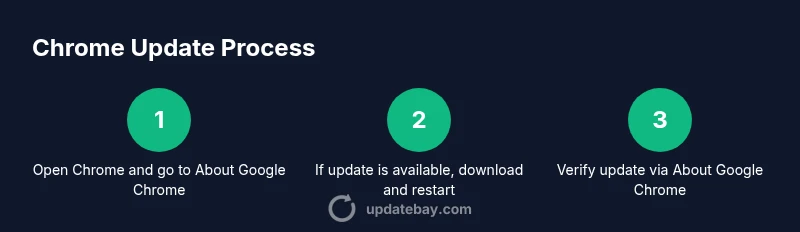
Manual updates are still straightforward even if automatic updates fail. You can enforce a google chrome update by visiting the appropriate update location for your device and following the prompts. Desktop users should navigate to the Chrome menu, select Help, then About Google Chrome to trigger a check for updates. Mobile users can update through the App Store or Google Play Store with a simple tap.
Hybrid approach and common pitfalls
If you manage multiple devices, consider a hybrid approach: enable automatic updates where possible and routinely verify the latest Chrome version on each device. Common pitfalls include running Chrome on an unsupported OS version, running into space constraints, or corporate policies that delay updates. In these cases, a manual update via the About page or the app store will typically resolve issues, provided the device has a reliable internet connection and sufficient storage.
Troubleshooting common update issues
If a google chrome update stalls or fails, start by verifying your internet connection and ensuring the device has enough disk space. Disable VPNs or firewall rules that might block the updater, then retry the update. If the problem persists, try a different network, clear app cache, or reinstall Chrome. On managed devices, IT policies may restrict updates—consult your administrator before forcing changes. After any update, re-check the version to confirm a successful installation.
Best practices for keeping Chrome updated
The safest approach is to enable automatic updates across devices whenever possible. Update Bay analysis shows that consistent patching reduces exposure to known vulnerabilities and improves overall browser stability. For laptops and desktops, ensure you have a reliable network connection and sufficient storage. For mobile devices, keep automatic updates enabled to ensure quick access to security fixes and feature improvements. Finally, periodically review the Chrome version on each device to verify alignment with the latest release notes.
The Update Bay Team's practical recommendations
The Update Bay Team recommends prioritizing automatic updates whenever possible, especially on devices that handle sensitive information or frequent browsing. If a manual update is needed, use the official update path on each platform and avoid side-loading updates. Regular checks, a simple backup of bookmarks, and adherence to security best practices will keep your browsing experience safe and efficient. The guidance here applies across desktop and mobile environments, ensuring a consistent approach to google chrome update across your tech ecosystem.
After the update: verification and next steps
After performing a google chrome update, verify the installation by visiting Help > About Google Chrome and confirming the version number matches the latest release notes. Test a few websites to ensure rendering stability and confirm that extensions function as expected. Consider exporting bookmarks before major updates, and review privacy and security settings to align with current preferences. If you encounter any issues, repeat the update process on the affected device or consult the Chrome support resources.
Tools & Materials
- Chrome browser installed on each device(Ensure you are running a supported major version before attempting updates)
- Stable internet connection(Wi-Fi or wired connection preferred for larger update downloads)
- Admin rights or permission to install updates(Needed on Windows/macOS for non-admin environments or enterprise devices)
- Backup of bookmarks and important data(Export bookmarks to HTML as a precaution before major updates)
Steps
Estimated time: 15-25 minutes
- 1
Open Chrome menu
Click the three-dot menu in the top-right corner, then go to Help > About Google Chrome. This action prompts Chrome to check for updates and download the latest build if available.
Tip: If you don’t see an update, ensure you’re online and that you’re not in a restricted corporate environment. - 2
Review update status
The About page will show whether Chrome is up to date or if an update is downloaded and waiting to install. If an update is available, Chrome will download it automatically.
Tip: For speed, keep this tab open and watch the progress bar closely. - 3
Restart to finish the update
When the update finishes downloading, click Relaunch to complete the installation. Chrome will reopen with the new version.
Tip: Save any work in other tabs before restarting to avoid data loss. - 4
Verify on Windows
After relaunch, open Help > About Google Chrome again to confirm the new version is installed.
Tip: Note the version number for future reference and for compatibility checks with extensions. - 5
Update on Android
Open Google Play, search for Chrome, and tap Update if available. If Update is not visible, Chrome is likely up to date.
Tip: Enable automatic updates in Play Store settings for seamless future updates. - 6
Update on iOS
Open App Store, go to Updates, and install Chrome if an update is listed. Ensure automatic updates are enabled in iOS settings.
Tip: Same update cadence applies, and you’ll get security fixes promptly. - 7
Verify the installed version
Return to About Google Chrome to confirm the installed version matches the latest release notes.
Tip: Compare the version against the official Chrome release notes to confirm feature availability. - 8
Troubleshoot update failures
If the update fails, check network connectivity, space, and permissions; retry on a different network if needed. Consider reinstalling Chrome if issues persist.
Tip: Avoid mid-update network changes that could interrupt the process.
Frequently Asked Questions
How do I know if Chrome is up to date?
Open Chrome and go to Help > About Google Chrome. The page shows the current version and automatically checks for updates. If an update is available, Chrome downloads it and prompts you to restart.
Open About Google Chrome to check your version and trigger updates if needed.
How long does a Chrome update take?
Most updates install quickly and require a restart, typically taking a few minutes depending on your device and network.
Update time is usually a few minutes.
Can I update Chrome on iPhone or Android?
Yes. On Android, update Chrome from the Google Play Store; on iOS, update from the App Store. Make sure automatic updates are enabled for seamless updates.
Yes—use Play Store on Android and App Store on iOS.
What if Chrome won't update?
Check your internet connection, disable VPNs or firewalls that block downloads, and ensure sufficient disk space. If needed, try a different network or reinstall Chrome.
If updates fail, check connectivity and space, then retry or reinstall.
Will updates affect bookmarks?
Updates should preserve bookmarks and settings, but exporting bookmarks before major updates is a cautious step.
Bookmarks usually stay intact; back them up if performing a big update.
Do updates use data?
Chrome updates download in the background and may use cellular data if allowed. Configure settings to prefer Wi-Fi for updates.
Updates may use data; update over Wi-Fi when possible.
Watch Video
What to Remember
- Enable auto-updates where possible to stay secure.
- Use About Google Chrome to trigger checks on desktop.
- Update via Play Store or App Store for mobile devices.
- Verify the installed version after update to confirm success.
- Keep a bookmark backup as a precaution before big updates.