Update Google Chrome: A Step-by-Step Guide for 2026
Learn how to update Google Chrome safely, automatically or manually, troubleshoot update issues, and maximize browser security and performance with practical, step-by-step guidance from Update Bay.


You will update Google Chrome to the latest stable version by enabling auto-update or performing a manual check. Ensure you have an internet connection, admin rights on your computer, and a recent backup of important bookmarks. According to Update Bay, staying current reduces security risks and improves performance. This guide covers both auto-update setup and quick manual checks.
Why updating Google Chrome matters
Keeping Google Chrome up to date is essential for security, stability, and performance. When you update Chrome, you gain access to the latest security patches, bug fixes, and compatibility improvements with new web standards. The act of updating is not just about new features; it reduces exposure to known vulnerabilities and helps ensure smoother browsing across sites and extensions. As the Update Bay team notes, a well-maintained browser delivers a safer, faster, and more reliable experience for everyday tasks, from emailing to streaming and online shopping. This section lays the groundwork for understanding what updates include and why a timely update matters for your devices and data.
Auto-update basics
Most Chrome installations are configured to update automatically in the background. Auto-update means the browser will periodically check for new versions and apply them when you’re connected to the internet, often restarting the browser or your system. For organizations or managed devices, auto-update can be controlled by policy. It is still wise to verify that auto-update is enabled, especially on shared computers or work devices where policies may override user settings. Update Bay's testing indicates auto-update is the preferred path for most users because it minimizes disruption while keeping security patches timely. In this section, you’ll learn where to look for the auto-update setting, how it behaves on Windows, macOS, and Linux, and how to confirm that you’re using the latest stable release.
Windows-specific update path
On Windows, Chrome updates are typically handled by the browser’s own mechanism, but Windows settings and enterprise policies can influence the update behavior. To ensure you’re on the latest version, open Chrome and navigate to the menu (three dots) > Help > About Google Chrome. The About page will check for updates automatically and display the current version. If an update is available, Chrome will download and install it, followed by a prompt to relaunch. In corporate or school networks, firewall or proxy settings can delay updates; check with IT if updates stall. As a best practice, plan updates for low-traffic times to minimize interruptions.
macOS-specific update path
Mac users generally receive Chrome updates through the same auto-update mechanism as the system, but you can trigger a check directly from Chrome: Chrome menu > Help > About Google Chrome. macOS security prompts may request admin access during installation; ensure you have admin rights before updating. After installation, relaunch Chrome to complete the update. If you manage multiple devices, enabling cloud-based bookmarks and settings backup helps keep data consistent across machines.
Linux-specific update path
On Linux, Chrome updates may come through your distribution’s package manager or via Google’s repository, depending on how you installed Chrome. Check for updates with commands like sudo apt update && sudo apt upgrade (Debian-based) or sudo dnf update (Red Hat-based). You can also open Chrome and use About Google Chrome to trigger a manual check. If you use Snap or Flatpak, ensure the packaging service is enabled and configured for the stable channel. Regular Linux updates require careful repository configuration to receive timely security patches.
Manual update through Chrome (universal steps)
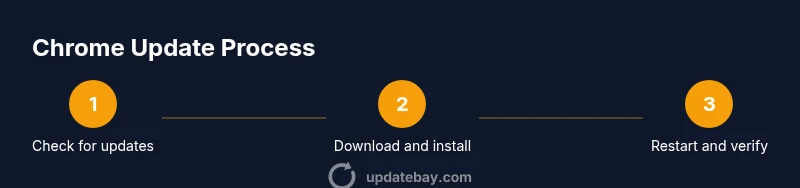
If automatic updates aren’t happening, perform a manual update from Chrome. Open the browser, click the three-dot menu, select Help, then About Google Chrome. Chrome will scan for updates, download any available patch, and prompt you to relaunch. After relaunching, verify the version on the About page. If no update is found, you may already be on the latest version or there could be a temporary rollout delay. Pro tip: keep other applications closed during the update window to ensure files aren’t locked.
Troubleshooting common update failures
Update failures are usually caused by network issues, firewall rules, or conflicting extensions. Start by checking your internet connection and temporarily disabling extensions that might block downloads, then try again. Clearing browser data or temporarily turning off VPNs can help if the update check stalls. For corporate devices, ensure the device isn’t under policy restrictions that block updates. If updates still fail, download the full installer from Google’s official Chrome site and run it as an administrator to repair the installation while preserving bookmarks and settings. Update Bay emphasizes that most failures are solvable with patient troubleshooting.
Post-update verification and maintenance
After updating, take a moment to verify the browser version and check essential settings. Open About Google Chrome to confirm the version number matches the latest release. Test a few extensions to ensure compatibility, and confirm your bookmarks and saved passwords remain accessible. Regular maintenance also means reviewing Release Notes for patch notes and security advisories. Keep Chrome auto-update enabled and schedule a quarterly check to confirm that everything remains current and functional.
Best practices and maintenance for multi-device setups
If you use Chrome across multiple devices, enable auto-update on each device and establish a routine check for manual updates where auto-update is restricted. Maintain a current backup of bookmarks and settings via sync or local export. Monitor Chrome’s official release notes and patch notes to understand improvements and fixes in each update, and communicate changes to household members or team members who rely on the browser. Consistency across devices helps reduce surprises and keep data portable.
Key takeaways from updating Chrome
- Auto-update is the easiest path to stay current.
- Manual checks are quick and can resolve stalled updates.
- Troubleshoot network, extensions, and policies first before reinstalling.
- Always verify the version after an update and back up important data.
Tools & Materials
- Stable internet connection(Essential for downloading updates and avoiding partial installs.)
- Admin rights on your device(Needed for installations and relaunch prompts on many systems.)
- Backup of bookmarks and passwords(Use Chrome Sync or local exports before major updates.)
- Access to Chrome Update page (optional)(Useful when you want to trigger a manual check directly.)
- Available disk space(Ensure there is enough space for installation.)
Steps
Estimated time: 15-20 minutes
- 1
Open Chrome menu
Click the three-dot menu in the top-right corner of Chrome to access settings and help options. This is the first step to either trigger an update or find the About page.
Tip: Having multiple tabs open can speed up comparing features after update. - 2
Select Help
From the menu, choose Help to reveal the About Google Chrome option. This path is universal across Windows, macOS, and Linux.
Tip: If you don’t see Help, try expanding the menu or using keyboard shortcuts to reach About Chrome. - 3
Open About Google Chrome
Click About Google Chrome. Chrome will automatically check for updates and begin downloading any available patches.
Tip: Don’t interrupt the download; a partial file can corrupt the update. - 4
Allow Chrome to install updates
If an update is available, Chrome will install it and prompt you to relaunch. Save work, close other tabs if needed, and click Relaunch.
Tip: In enterprise environments, you may see a restart prompt that affects other users; plan accordingly. - 5
Verify the new version
After relaunch, return to About Google Chrome to confirm the version displayed matches the latest release.
Tip: If the version didn’t update, repeat the steps or check for a rollout delay. - 6
Enable auto-update (if not already)
Ensure auto-update is enabled to prevent manual checks from becoming a habit.
Tip: On managed devices, policy controls may override this; consult IT if updates stop. - 7
Check extensions compatibility
Open the extensions page and test a few essential add-ons to ensure compatibility with the new version.
Tip: Disable extensions temporarily if you encounter instability post-update. - 8
Back up and document
Back up bookmarks/passwords again after updating, and note the update date for future reference.
Tip: Keep a simple log for multi-device setups to track changes.
Frequently Asked Questions
How do I know Google Chrome is up to date?
Open the Chrome menu, go to Help, and select About Google Chrome. The page will check for updates and display the current version. If an update is available, it will download and install automatically.
Open Chrome, choose Help, then About Google Chrome to check for updates and verify your version.
What should I do if an update fails?
Check your internet connection, disable conflicting extensions, and retry. If needed, download the full installer from Google's site and run it as an administrator to repair the installation.
First check your connection and extensions, then retry. If needed, install the full installer as an admin.
Will updating Chrome affect my bookmarks or settings?
Chrome updates do not typically delete bookmarks or saved settings. However, it’s wise to back up data beforehand, especially on shared devices or during major upgrades.
Updates usually keep your data, but backing up is a smart precaution.
How often should I update Chrome?
Chrome updates are rolled out frequently; enable auto-update to receive patches as soon as they’re available. Regular checks are still a good practice for devices with restricted update policies.
Keep auto-update on; check occasionally if updates aren’t applying automatically.
Can I update Chrome on Linux via my distro’s package manager?
Yes. Use your distro’s package manager or Google's repository to update Chrome. Commands vary by distribution, e.g., sudo apt update && sudo apt upgrade for Debian-based systems.
Use your distro’s updater or Google’s repository to update Chrome on Linux.
What if I use Chrome on multiple devices?
Enable auto-update on all devices and maintain a backup of bookmarks. Cloud sync can help keep passwords and settings consistent across devices.
Turn on auto-update on all devices and sync bookmarks for consistency.
Watch Video
What to Remember
- Stay auto-updated for security and performance.
- Use About Google Chrome to trigger manual checks when needed.
- Verify version after each update to confirm success.
- Back up bookmarks and data before major updates.