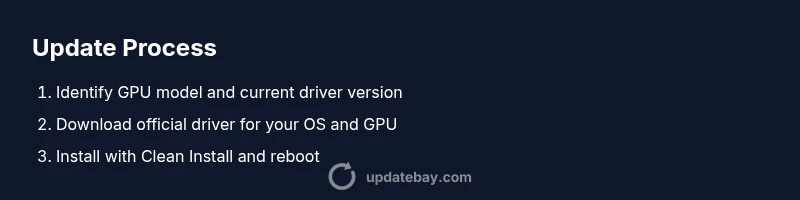
Graphic Driver Update: Safe GPU Driver Guide 2026
Learn how to safely perform a graphic driver update across Windows and macOS. Guidance carefully covers identification, installation, verification, and pitfalls.


Graphic driver update can boost gaming performance, fix visual glitches, and improve compatibility with recent software. This guide shows how to identify your GPU, select the correct driver, and install safely on Windows or macOS. You’ll verify the update and have rollback options ready to minimize downtime and avoid driver conflicts.
Why graphic driver updates matter
According to Update Bay, keeping graphics drivers current matters for performance, stability, and compatibility. A graphic driver update can boost gaming performance, fix visual glitches, and improve compatibility with recent software. This matters not only for gamers but for any workload that leverages GPUs, including content creation and 3D design. When vendors release new drivers, they include optimizations for popular titles, API support, and security fixes. Regular updates reduce display errors, system hangs, and artifacting, especially on laptops with constrained thermals. Planning updates during low-usage periods minimizes downtime and disruption to work or play, and helps you avoid forcing a reinstall later. In short, a graphic driver update is a practical maintenance task that improves reliability and shines a light on future software compatibility.
Key considerations before updating
Before starting a graphic driver update, check prerequisites to prevent headaches. Ensure you have a reliable internet connection and a recent system restore point or backup. Download drivers only from official vendor sites to avoid malware or mismatches. Confirm OS compatibility with the chosen driver version, as newer drivers may drop support for older hardware or operating systems. If you’re on a laptop, verify power settings and keep the charger connected during installation to avoid interruptions. Consider removing conflicting software or overlays that could interfere with the installer. Finally, set realistic expectations: you might need a reboot and a few minutes of post-install tuning to reach peak performance.
How to identify your GPU and driver version
Start by identifying your GPU model and current driver version. On Windows, open Device Manager > Display adapters, right-click the GPU, and choose Properties to view the Driver tab for version information. You can also run dxdiag or System Information for cross-check. On macOS, click the Apple menu > About This Mac > System Report > Graphics/Displays to identify the GPU model and what driver level macOS is using. This identification ensures you download exactly the right driver, avoiding mismatches that cause instability. For multiple GPUs or external GPUs, note which display is driven by which GPU to avoid installing the wrong driver on the wrong adapter. Writing down model numbers helps when you search on official vendor pages.
Where to download the right driver
Always download graphics drivers from official sources: NVIDIA, AMD, or Intel. Navigate to the Support or Drivers section and enter your exact GPU model and OS. Filter results by your OS version and system architecture (32-bit vs 64-bit). Avoid third-party download sites that may bundle unwanted software or corrupted installers. After download, verify the file name matches the expected driver package and, if provided, check the digital signature or hash to confirm integrity. If you use a software updater, ensure it targets only the official vendor page and flags potential mismatches.
Installing the driver safely
Close unnecessary applications, save work, and run the driver installer as an administrator. On Windows, choose Custom or Advanced install and opt for a Clean Install to remove old traces that can cause conflicts. Accept licensing terms and follow prompts; do not rush the process. If the installer offers additional component choices (like 3D Vision or HD audio), deselect any unused features to reduce risk. After the install completes, reboot to ensure the changes take effect and the new driver initializes properly. If you use a dual-GPU setup, repeat for the secondary GPU if required.
Verifying the update and troubleshooting
After rebooting, verify the driver version in the GPU control panel or Device Manager to confirm the update took. Run a quick test with a game or graphics benchmark to check stability and frame delivery. Look for artifacts, crashes, or abnormal temperatures as signs of issues. If problems arise, try a rollback to the previous driver version via the Windows Device Manager or the vendor’s clean-install options. If instability persists, consider temporarily disabling overclock profiles, updating OS patches, or contacting vendor support.
Tools & Materials
- Stable internet connection(Wi-Fi or Ethernet; bandwidth sufficient for large downloads)
- Operating system knowledge(Windows 10/11 or macOS 11+; know exact version)
- GPU model and series(e.g., NVIDIA GeForce RTX 30xx, AMD Radeon RX 6000)
- Official driver installer(Download from NVIDIA, AMD, or Intel official pages)
- Backup/restore point(Create a restore point if possible)
- Optional: backup software(Used to snapshot system before install)
Steps
Estimated time: 30-60 minutes
- 1
Identify GPU model and current driver
Open your system tools to confirm the exact GPU model and the driver version you’re currently using. This helps ensure you download the correct update without guessing.
Tip: Document the model and version before proceeding. - 2
Download the official driver
Visit the GPU vendor’s official drivers page, select your model and OS, and download the latest recommended package.
Tip: Verify the file name and, if offered, the digital signature. - 3
Prepare the system for install
Close background apps and save open work. If possible, create a system restore point or backup in case you need to rollback.
Tip: Plug in to power on laptops to prevent an unexpected shutdown. - 4
Run the installer with a clean install
Execute the downloaded file and choose a Custom/Advanced install. Select Clean Install to remove older components that could cause conflicts.
Tip: Keep other drivers at default during install to minimize conflicts. - 5
Reboot after installation
Restart the computer to allow the new driver to initialize fully and apply changes.
Tip: If prompted, allow system to complete first-time setup tasks. - 6
Verify the update
Check the driver version in the GPU control panel or Device Manager and run a quick graphics test.
Tip: Look for stabilitiy indicators like stable framerates and no artifacts. - 7
Test and troubleshoot
Play a game or run a benchmark; if issues arise, rollback to the previous version or seek vendor support.
Tip: If overclocking is enabled, disable it temporarily to test stability.
Frequently Asked Questions
Do I need to back up before updating drivers?
Creating a restore point or backup is a sensible precaution in case the new driver causes issues. This is especially important for laptops or systems with critical workloads.
It's a good idea to back up before updating in case you need to roll back.
Can I update drivers automatically or should I do it manually?
Both are valid. Automatic tools can simplify the process but may install the wrong version if not configured carefully. Manual updates from official sources give you precise control.
You can use official tools, but always double-check the exact GPU model and OS.
What if the update causes instability?
If instability occurs, try a rollback to the previous driver version or perform a clean reinstall. Check for conflicting software or OS patches.
If things go wrong, roll back to the previous driver and try again.
Will updating drivers improve gaming performance?
Yes, up-to-date drivers often include optimizations for current games and APIs. Real gains vary by title and hardware.
New drivers can improve performance, but it depends on the game and hardware.
How often should I update graphics drivers?
Check for updates regularly, especially after new games or OS patches. Do not rush every week; plan updates when stable.
Update when a major driver release is available and you’re not mid-project.
Is it safe to update drivers on laptops with discrete GPUs?
Yes, but use official sources and keep your charger connected. Some laptops use integrated graphics for power saving.
Yes, just follow standard steps and ensure you don’t interrupt the install.
Watch Video
What to Remember
- Identify your GPU before updating
- Use official driver sources only
- Choose a clean install for best results
- Verify installation with tests and benchmarks