Video Card Driver Updates: A Practical How-To for PCs
Learn how to safely update video card drivers to improve gaming performance, stability, and compatibility. This guide covers NVIDIA/AMD/Intel GPUs, official download sources, clean install tips, and troubleshooting steps.


You will learn to safely update video card drivers to boost gaming performance and stability. The guide covers identifying your GPU, downloading official drivers, performing a clean install, and verifying results. It applies to Windows PCs with NVIDIA, AMD, or Intel GPUs, and includes troubleshooting steps for common update issues.
Why updating video card drivers matters
Keeping your graphics drivers up to date matters for performance, stability, and compatibility with the latest games and applications. Driver updates fix known issues, improve security, and can unlock new features that optimize rendering, power efficiency, and support for new APIs. For everyday users, a routine check ensures you don't miss critical patches that could cause crashes or glitches. Update Bay's analysis highlights that staying current with official releases often yields smoother gameplay and fewer driver-related stability problems. In this section, we’ll explain how to identify your GPU, choose the right drivers, and perform safe updates on Windows PCs.
How to identify your GPU and current driver version
Start by identifying your GPU model and the version of the currently installed driver. On Windows 10/11, open Device Manager, expand Display adapters, and note the vendor and model (NVIDIA/AMD/Intel). For the driver version, right-click the adapter, choose Properties, and go to the Driver tab to see the version. You can also run DirectX Diagnostic Tool (dxdiag) to confirm the GPU name and driver date. If you use a laptop with switchable graphics, you may have both integrated and discrete GPUs; be sure you’re updating the correct device for the tasks you perform—gaming, creative work, or everyday use.
Official sources vs third‑party updates
Always download GPU drivers from the official vendor sites to ensure authenticity and safety. NVIDIA, AMD, and Intel host drivers tailored to your exact GPU model and OS. Windows Update can supplement driver delivery, but it may not always provide the latest version for your card. Avoid third‑party aggregators or unofficial download sites, which can bundle unwanted software or deliver incomplete installers. When you download, verify the file name, version, and digital signature to reduce risk and ensure you’re getting a valid, WHQL-qualified package.
A clear path to update drivers (high-level overview)
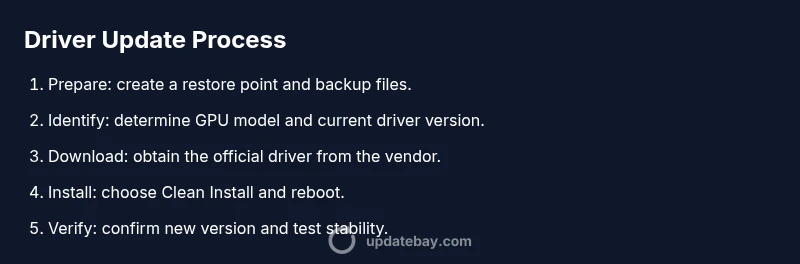
A safe driver update typically follows this flow: prepare a restore point, identify your GPU, download the official driver, perform a clean install, reboot, and verify the result. If the update fails, retry with an alternate installer or revert to a previous version. Laptop users should ensure they’re updating the correct GPU variant (e.g., NVIDIA Optimus/AMD Switchable Graphics) to avoid wasted installs and potential instability.
Troubleshooting common issues after an update
If you encounter issues after a driver update, start with simple checks: reboot again, ensure the monitor is connected to the correct GPU output, and verify that Windows recognizes the GPU. If problems persist, roll back to the previous driver version, run a clean install, or use the vendor’s cleanup utility to remove remnants before reinstalling. For rare cases, hardware conflicts or power settings can affect stability; check that the system power plan is balanced or high performance and that thermal conditions are within safe ranges.
Best practices for ongoing driver maintenance
Set a regular cadence for checking driver updates—monthly or ahead of major game releases. Favor official sources and prefer the latest stable release unless you need a specific feature from a beta or Game Ready/Studio driver. Before major updates, back up important files and create a system restore point. Consider enabling automatic updates for Windows graphics drivers if you want a hands-off approach, but verify compatibility with your preferred software and games afterward.
Tools & Materials
- Admin access on the computer(You’ll need administrator rights to install graphics drivers.)
- Official GPU driver installer(Download from NVIDIA, AMD, or Intel official site for your exact GPU model.)
- Stable internet connection(A reliable connection helps prevent corrupted downloads.)
- System restore point or backup(Create a restore point to revert if needed.)
- Optional cleanup tool (DDU)(Use only if driver remnants cause issues; follow vendor guidance.)
- Reboot-capable workstation(You’ll often need to restart to finalize installation.)
Steps
Estimated time: 45-75 minutes
- 1
Prepare the system and backups
Save open work, back up critical files, and create a system restore point. This protects you if the update introduces instability or a failed install. Close all running software to prevent conflicts during installation.
Tip: A restore point is a quick safety net—activate it before starting. - 2
Identify the exact GPU model
Open Device Manager, expand Display adapters, and note the exact model name (e.g., NVIDIA GeForce RTX 3060). This ensures you download the correct driver package.
Tip: If you have a laptop with switchable graphics, identify both discrete and integrated GPUs. - 3
Download the official driver package
Visit the vendor’s site and select the driver that matches your GPU model and OS. Avoid generic or third‑party mirrors. Save the installer to a known location.
Tip: Prefer the latest stable release unless you have a reason to choose a beta. - 4
Choose a clean install option
Run the installer and choose a Clean Install (or Custom Install with Clean Install) to remove old components that might clash with the new version.
Tip: A clean install reduces driver conflicts and hidden remnants. - 5
Install and reboot
Allow the installer to complete, then reboot when prompted. A restart ensures files are properly integrated into the system.
Tip: If the installer reports a reboot is required, do not skip it. - 6
Verify installation
After reboot, open the GPU control panel or the About page in the installer to confirm the new version is active. Run a quick test in a graphic‑intensive application or game.
Tip: If version numbers don’t update, re‑run the installer and choose again to install the new driver. - 7
Test for stability and performance
Play a recent game or run a benchmark to check for visual glitches, crashes, or lower frame rates. Compare results with a prior run to gauge improvement.
Tip: Monitor temperatures during testing to ensure cooling is adequate. - 8
Tidy up and plan future updates
Record the new driver version in your notes and set a reminder to check for updates in the next four–six weeks. Consider enabling automatic updates if you prefer a hands-off approach.
Tip: Regular checks prevent falling behind on important fixes.
Frequently Asked Questions
Why should I update my video card drivers?
Driver updates fix bugs, improve compatibility with new software, and can enhance performance. They also address security issues and provide access to new features. If you notice glitches, updating is a sensible first step.
Driver updates fix bugs, improve compatibility, and can boost performance. If you see glitches, start with an update.
Do I need to reboot after installing drivers?
Most driver updates require a reboot to finalize the installation. If the installer prompts for a restart, follow through to ensure all files are properly integrated.
A reboot is usually required to complete a driver update.
What should I do if the update causes issues?
If problems occur, reboot and try a clean reinstall of the previous driver version. Use a system restore point or the vendor’s cleanup tool to remove conflicting files before reinstalling.
If issues appear, revert to the previous driver version and try a clean reinstall.
Is Windows Update enough for GPU drivers?
Windows Update can provide drivers, but it may not offer the latest version or the exact build for your GPU. For the best compatibility and features, download directly from the GPU vendor.
Windows Update helps, but official vendor downloads are often more current.
Should I update drivers for both discrete and integrated GPUs on a laptop?
Yes, if you use both discrete and integrated graphics, update the driver for the active GPU as needed. Verify which GPU handles your display in the settings.
If you use both GPUs, update the one actively driving your display.
How often should I check for driver updates?
Aim to check monthly or before new games or major software updates. You don’t need to update daily, but staying reasonably current helps prevent issues.
Check monthly or before big game releases, and update if you need new features or fixes.
Watch Video
What to Remember
- Back up before you update.
- Always use official driver sources.
- Choose a clean install for best results.
- Verify the new driver version and test stability.
- Schedule regular driver maintenance for ongoing performance.