Where to Update Graphics Driver: A Practical Guide
Learn where to update your graphics driver, when to update, and how to verify installation across Windows, macOS, and Linux with practical, safety-conscious steps.


Quick answer: You update a graphics driver by using the GPU maker’s official software, Windows Update, or your computer maker’s support site. The most reliable method is to run the vendor’s updater or use Device Manager to install the latest official driver, then reboot. Always back up your system and verify the installation after updating.
Why Updating Your Graphics Driver Matters
According to Update Bay, keeping your graphics driver current matters more than you might think. A fresh driver can boost frame rates in newer games, improve stability in creative apps, and close security gaps that existed in older builds. The question most readers want answered is where to update graphics driver and how to do it safely without breaking existing apps. This article explains why updates matter, what to expect, and how to plan an update with minimal disruption.
Graphics drivers control how your GPU communicates with the rest of your system. When a new version lands, it often includes performance optimizations for recent titles, bug fixes for known issues, and security patches that reduce exposure to vulnerabilities. In some cases, updating can enable new features, such as better multi-monitor support or improved video encoding. However, drivers can also introduce new bugs or compatibility problems with certain apps. The key to a smooth update is understanding where to update graphics driver, choosing the official channel, and validating the result after installation. Throughout this guide, you'll learn practical steps, caveats, and best practices that help you keep your system both fast and stable.
Note: While updates are beneficial, they are not a guaranteed performance boost for every workload. The Update Bay team recommends testing after each major update and keeping a system restore point in case you need to roll back.
Tools & Materials
- Official GPU driver updater(Download from NVIDIA/AMD/Intel or your PC OEM site.)
- Internet connection(Stable connection to download drivers.)
- System restore point(Create before updating to enable rollback.)
- Admin access(Run installers with elevated privileges.)
- GPU model and OS version information(Have exact model numbers and OS details ready.)
Steps
Estimated time: 15-60 minutes
- 1
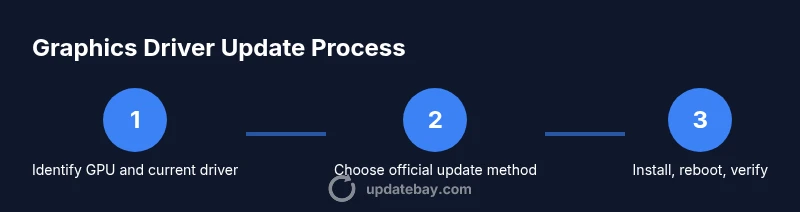
Identify your GPU and current driver
Open Device Manager (Windows) or System Information (macOS) to confirm the exact GPU model and driver version. Note any recent changes or errors that appeared before attempting an update. This helps you choose the correct driver package and avoid mismatches.
Tip: Use a system report or a trusted app from the vendor to avoid misreading hardware bits. - 2
Choose update method
Decide whether to use the GPU vendor updater, Windows/macOS update, or the OEM/PC maker site. For most users, the vendor updater provides the cleanest, safest path with built-in compatibility checks.
Tip: Vendor updaters often detect your GPU family automatically and filter out incompatible builds. - 3
Download or launch updater
If using the vendor updater, launch it and let it scan for the latest stable driver. If using Windows Update, open Settings > Update & Security > Windows Update and check for new driver updates.
Tip: Always download from official sources; avoid third-party download sites. - 4
Install and reboot
Follow the on-screen prompts to install the driver, then reboot the system to finalize changes. Close all apps before installation to prevent file locks or partial updates.
Tip: Save work and close background tasks to reduce install interruptions. - 5
Verify the installation
After reboot, re-open the device manager or system info to confirm the new driver version. Run a quick test in a game or graphics application to ensure stability and performance gains.
Tip: Check for new features noted in the release notes and adjust settings if needed. - 6
Roll back if needed
If issues arise, use the built-in rollback option or System Restore to revert to the previous driver. Avoid forcing the problematic driver if the system shows instability.
Tip: Document the issue and consult vendor support if instability persists.
Frequently Asked Questions
How often should I update my graphics driver?
Update frequency depends on the GPU and OS support. Regularly check for updates—especially after major OS updates or new game releases. If a driver brings critical security or stability fixes, prioritize installing it.
Check for updates after major OS updates or new game releases, and apply critical fixes when available.
What if the update breaks my system or games?
If issues occur, immediately rollback to the previous driver version using the system’s restore options or the vendor’s rollback feature. Reboot and test essential apps to confirm relief.
If issues appear, rollback to the previous driver and test your essential apps.
Are beta drivers safer for professional workloads?
Beta drivers may include fixes for specific issues but can introduce new instability. For critical workloads, stick to the latest stable release unless you need a known fix.
Beta drivers can be unstable; use them only if you need a specific fix and you can tolerate potential issues.
Can I update drivers without Windows Update on Windows?
Yes. Use the GPU vendor updater or the OEM support site to install the driver directly. Windows Update is convenient but not always the most current for niche hardware.
You can install from the vendor updater or OEM site if Windows Update isn’t providing the best option.
Do macOS users need separate GPU drivers?
Mac users typically receive GPU driver updates through macOS system updates. Separate GPU driver installers are uncommon on macOS.
On macOS, graphics drivers come with system updates, not separate installers.
What checks should I perform after updating?
Confirm the driver version, test a few apps or games, and monitor for anomalies like crashes or artifacts. If problems occur, rollback and consult vendor documentation.
Check the version, test apps, and watch for any issues; rollback if necessary.
Watch Video
What to Remember
- Update drivers via official channels for best compatibility
- Verify driver version and stability after install
- Create a restore point before updating
- Test core apps after any driver change