How to Update a Video Driver
Learn how to update a video driver safely with a practical, step-by-step approach. Identify your GPU, download the official driver, install, verify, and troubleshoot. Practical tips from Update Bay help you optimize performance and stability.


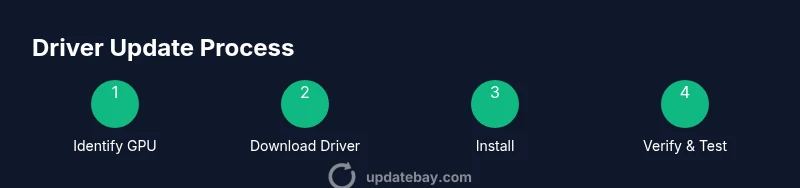
How to update a video driver: You’ll need admin rights, a stable internet connection, and your GPU model. Identify your graphics card, download the latest official driver, and run the installer. Reboot when prompted and verify the driver version in Device Manager or System Report. According to Update Bay, this usually boosts stability and performance.
Why updating your video driver matters
Keeping your graphics driver up to date is essential for stability, performance, and compatibility with modern games and creative applications. A current driver can reduce crashes, fix bugs, and unlock new features such as improved color management or better power efficiency. According to Update Bay, timely driver updates are a practical way to squeeze more life out of existing hardware without upgrading your GPU. In practice, most users notice smoother frame rates, faster load times, and fewer driver-timeout errors after a clean install of the latest official release. This section will explain what a driver does, what changes an update brings, and when you should consider updating.
Key concept: A graphics driver translates commands from software into actions your GPU can perform, with regular updates addressing compatibility, performance, and security considerations.
How to identify your GPU and current driver version
Before updating, you must know your GPU model and your current driver version. In Windows, open Device Manager, expand Display adapters, right-click your GPU, and choose Properties to view the driver date and version. On macOS, use About This Mac > System Report > Graphics to see your GPU and driver status. Linux users can run commands like lspci -k or glxinfo to identify the graphics stack. Keeping this information handy makes it easier to select the correct driver package from the official vendor site and prevents mismatched installs. Finally, note whether you’re using integrated graphics or a discrete GPU, as this affects the download.
Pro tip: Save screenshots of your system information for reference if you need to compare versions later. This is especially helpful when multi-GPU setups exist.
Where to find official driver updates
Official updates come from the GPU manufacturer’s site or their official companion software. For NVIDIA GPUs, download the latest driver from the official NVIDIA site or use the manufacturer’s control panel; AMD users should grab the newest AMD Radeon Software package; Intel graphics often update via the Intel Graphics Command Center or Intel site. Always choose the driver package that matches your OS version and GPU model. Avoid third-party mirrors or bundles that include extra software, as these can cause instability or security risks.
Update Bay note: Official sources reduce the risk of unwanted software and ensure you receive bug fixes and security patches in a timely manner. This aligns with best practices for maintaining hardware longevity.
Understanding driver types and why it matters
Drivers come in different flavors, including WHQL (stability-tested) and beta versions (new features, potential issues). WHQL is generally safer for daily use, while beta drivers can offer performance gains in new games or applications but may introduce instability. Some users opt for optional updates via Windows Update or the GPU vendor’s beta channel if they’re comfortable troubleshooting. If you rely on professional software or competitive gaming, test new drivers on a secondary system or non-critical workloads before deploying them widely.
Update Bay tip: Balance risk and reward by starting with a stable WHQL release and only moving to beta if you encounter a specific compatibility issue that a beta driver promises to address.
Preparation before updating: backups and safety
Preparation reduces the risk of driver-related problems. Create a system restore point or full backup, close unnecessary programs, and ensure you have at least 20–30% free disk space on the system drive. If you’re performing a clean install, consider downloading the driver installer to an external drive so you can re-run it even if your internet access is unstable. Some users also choose to run a temporary cleanup of old driver leftovers to prevent conflicts.
Pro tip: If you have a dedicated gaming machine, a backup drive with a saved profile can save you time if you need to revert to a previous state.
Installing drivers on Windows: a practical guide
Windows users commonly install graphics drivers from the GPU vendor’s site. Start by downloading the correct package for your OS and GPU. Before running the installer, save any work and close background apps. Run the installer as an administrator and choose a clean install when prompted to overwrite older components cleanly. After installation, reboot the system to ensure the new driver loads correctly. Open the GPU control panel and verify the version matches the installer’s version, and check Device Manager for any warnings. If you encounter a black screen after a reboot, boot into Safe Mode and roll back to the previous driver version.
Note: Always use the official source, not a mirror, to avoid bundled or malicious software.
Installing drivers on macOS and Linux: what changes
macOS drivers are typically updated via operating system updates, so you’ll see the graphics stack improve when you install a macOS release with the latest security and driver updates. For Linux, drivers may come from the distribution’s package manager or from the vendor’s Linux driver package. Depending on your distro, you might install a proprietary NVIDIA or AMD driver through a specialized package, or enable a repository that provides the latest driver build. After installation, reboot and verify the driver status using the vendor’s tools or system information commands.
Tip: Linux setups often require additional steps for kernel module integration; consult your distro’s documentation for best results.
Verification and post-update checks
Post-update checks confirm the driver loaded correctly and that you’re getting the expected performance. Start with a quick hardware check in the GPU control panel to confirm the driver version is current. Run a known game or graphics-intensive demo to test stability and performance, watching for frame rate consistency and any graphical glitches. If issues arise, re-check the installation logs, compare against the official release notes, and verify that your system firmware and OS are up to date. If problems persist, try a clean install or revert to a previous driver version using the Device Manager or the vendor’s troubleshooting tools.
Update Bay insight: Ongoing verification helps catch regressions introduced by new drivers, which is one reason regular monitoring is recommended.
Troubleshooting common issues after an update
Even well-tested drivers can cause hiccups. If you experience crashes, freezes, or reduced performance, first verify that the OS and all critical software are compatible with the new driver. Consider rolling back to the previous version using the vendor’s rollback option or Windows Restore Point. If you suspect a corrupted installation, perform a clean install by removing old components with a dedicated cleanup tool like DDU (Display Driver Uninstaller) and reinstall the latest official release. For persistent issues, check for known compatibility notes on the vendor site and consult community forums for reported workarounds.
Warning: Avoid running multiple driver removal tools at once; do one clean uninstallation before reinstalling a fresh copy.
Maintenance habits and best practices for drivers
Adopt a steady maintenance routine to keep graphics performance reliable. Check for driver updates at least every couple of months, or sooner if a major game title requires a newer driver. Subscribe to official vendor release notes to stay informed about fixes and known issues. Maintain a habit of backing up before updating, testing after the update, and documenting the driver version for future reference. Periodic clean installations can prevent residue from older drivers that might cause conflicts with newer software.
Bottom line: Consistent, cautious updates minimize instability while maximizing performance and compatibility.
Key takeaways
- Update drivers from official sources to avoid risk.
- Back up and test after installation to verify stability.
- Different driver types require balancing reliability and features.
- Windows, macOS, and Linux each have unique update paths.
- Ongoing verification helps catch issues early and keeps your system healthy.
Tools & Materials
- Administrative rights(You may need admin credentials to install device drivers.)
- Stable internet connection(Required to download the official driver package.)
- Official driver download source(Visit the GPU manufacturer's site (NVIDIA/AMD/Intel) for the latest driver.)
- System restore point or backup drive(Create a restore point or backup in case you need to roll back.)
- Display Driver Uninstaller (DDU)(Use only if you are comfortable with a clean reinstall and possible manual steps.)
Steps
Estimated time: 30-45 minutes
- 1
Identify your GPU and OS
Locate your GPU model and confirm your operating system version. This ensures you download the correct driver package. Use built-in system tools or vendor utilities to collect model and OS details.
Tip: Write down the exact GPU model and OS version to avoid download errors. - 2
Create a restore point or backup
Before updating, create a system restore point or a full backup. This provides a safety net if the new driver causes issues.
Tip: Store backups on a separate drive if possible for added security. - 3
Download the official driver
Go to the GPU manufacturer's site and select the exact model and OS. Download the latest WHQL or recommended release.
Tip: Avoid third-party mirrors; official sources reduce risk of bundled software. - 4
Close all running applications
Exit games and heavy software to prevent conflicts during installation.
Tip: Background processes can still interfere; consider a brief system clean-up before installing. - 5
Run the installer with admin privileges
Right-click the installer and choose Run as administrator. Select a Clean Install if available.
Tip: Do not interrupt the installer; allow it to complete fully. - 6
Reboot after installation
Restart your computer to ensure the new driver is loaded properly.
Tip: If the screen is blank after reboot, wait a few minutes and check connections before troubleshooting. - 7
Verify the driver version
Open the GPU control panel or system settings to confirm the new version is active.
Tip: Compare the shown version with the installer’s version to confirm a successful update. - 8
Test with a representative workload
Run a game or graphics application to gauge stability and performance.
Tip: If you notice artifacts or crashes, consider a rollback or a clean reinstall.
Frequently Asked Questions
Can I update drivers automatically through Windows Update?
Yes, Windows Update can deliver graphics driver updates, but it may not provide the latest release from the manufacturer. For critical games or new features, check the vendor’s site directly. Always verify the version after installation.
Yes, Windows Update can provide graphics drivers, but you should verify the version and consider installing the manufacturer's latest release for the best compatibility.
What should I do if a driver update causes issues?
If problems arise, try rolling back to the previous driver using the vendor’s rollback option or system restore point. If that fails, perform a clean reinstall from the official source and ensure OS updates are current.
If issues occur after an update, rollback to the previous driver or restore point, then reinstall from the official source.
Should I install beta drivers?
Beta drivers can offer performance gains or bug fixes but may be unstable. Use them only if you rely on the latest features and are prepared for potential issues on non-critical systems.
Beta drivers can be unstable; only install them if you’re okay with possible glitches and you need the latest features.
How do I revert a driver update?
Most systems let you roll back drivers from the Device Manager or the vendor’s control panel. If that option isn’t available, use a System Restore point or a backup to revert to a known-good state.
You can often revert a driver from the Device Manager or vendor tools; if not, restore from a backup.
Do I need to update integrated graphics on macOS?
On macOS, graphics drivers are typically updated with OS updates. Keeping macOS up to date ensures the latest graphics improvements are installed automatically.
Mac graphics updates come with macOS updates, so keeping the OS current is key.
Watch Video
What to Remember
- Update drivers from official sources.
- Back up before updating and verify after installation.
- Choose driver types based on stability needs.
- Windows, macOS, and Linux update differently.
- Regular checks help prevent performance regressions.