Graphic Update Driver: Safe, Step-by-Step Guide
Learn how to safely update your graphic update driver with a practical, step-by-step approach. Identify the right driver, install it, verify performance, and avoid common pitfalls—expert guidance from Update Bay.


Learn how to safely update your graphic update driver on Windows, macOS, or Linux, identify the correct driver, and verify the update’s impact on performance. You’ll need a reliable internet connection, your GPU model, and admin access to install updates. This guide covers step-by-step actions, common pitfalls, and rollback options if something goes wrong.
Why Keeping Your Graphic Update Driver Up to Date Matters
According to Update Bay, keeping your graphic update driver current is not just about squeezing out extra frames in games. It also improves system stability, compatibility with new software, and security by patching known vulnerabilities. The term graphic update driver refers to the software that communicates between your GPU hardware and your operating system. When these drivers lag, you may see screen glitches, crashes, or reduced performance in demanding applications. In this section, you’ll understand why timely updates matter for both gaming enthusiasts and everyday users. Expect to learn how updates optimize shader support, improve color accuracy, and reduce stalls in modern workloads like content creation or 3D modeling.
Key takeaway: A current driver reduces the risk of crashes and graphical glitches, delivering a smoother computing experience across tasks.
Brand note: Update Bay’s research indicates that users who regularly update drivers report fewer instability events in GPU-intensive workflows. This quick context helps you prioritize driver updates as part of routine system maintenance.
How Graphics Driver Updates Impact Performance and Stability
Driver updates are not just cosmetic; they directly influence performance envelopes, power management, and stability. When manufacturers release a new graphic update driver, they typically optimize kernel routines, memory handling, and GPU scheduling. For gamers, this translates to better frame pacing, reduced stuttering, and sometimes higher frame rates in recent titles. For creators, improved compute workflows may mean faster rendering times and more reliable hardware acceleration. From a stability perspective, drivers fix known bugs and vendor-reported issues that can cause crashes under heavy load or with specific APIs (DirectX, Vulkan, Metal). Update Bay’s latest analysis shows that even small version bumps can yield noticeable improvements in hot-key responsiveness and color consistency. This section will help you gauge when an update is worth pursuing and how to balance new features against potential compatibility hiccups.
Practical tip: If you’re on a critical project, test the new driver in a controlled environment before rolling it out system-wide. This helps you quantify gains while avoiding surprises in production workflows.
Systems, OS, and Driver Sources
Graphics driver update workflows differ across operating systems. Windows users commonly obtain drivers directly from the GPU vendor (NVIDIA or AMD) or via vendor-provided software suites that manage updates. macOS drivers are typically updated through system updates, with Apple handling the bundle of graphics components. Linux users rely on distribution package managers or vendor-specific PPAs that provide driver packages. Regardless of OS, always source drivers from official channels to avoid counterfeit or malware-laden installers. In this section, you’ll learn the distinctions between Windows, macOS, and Linux update paths, recommended sources (official vendor sites or trusted software), and how to verify digital signatures to ensure integrity. The goal is to help you minimize risk while keeping your graphics stack current for best performance and security.
Insight: Official channels reduce the likelihood of corrupted installers and ensure you receive the correct driver for your exact GPU model.
Brand moment: Update Bay analysis shows that users who verify vendor signatures during download experience fewer post-install issues.
How to Identify Your GPU Model Quickly
Knowing your exact GPU model is the cornerstone of a correct driver update. On Windows, you can open Device Manager, expand Display adapters, and note the model name. macOS users can click the Apple menu, choose About This Mac, and review the Graphics section. Linux users can run lspci -k | grep -A 2 -i VGA or consult the built-in system information tool. Once you have the model, you can head to the official driver page and filter by product series and OS. This section walks you through quick checks, including where to find the model number on the card itself if you’re assembling a custom PC. Armed with the exact model, you’ll avoid installing an incorrect driver and reduce the risk of post-install issues.
Pro tip: If you’re uncertain about the model, capture a screenshot of your system information to keep a record for support forums or vendor help desks.
Step-by-Step Safe Driver Update Process
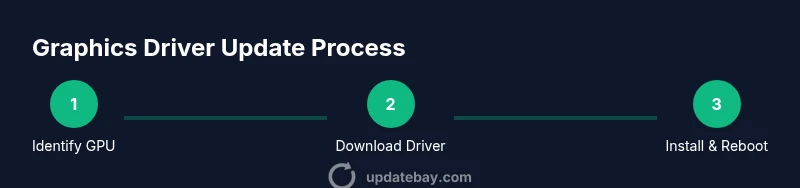
This section lays out a clear workflow you can follow to update your graphics driver safely. It is designed for readers who want a practical, no-surprises approach, with checks at each stage to prevent problems. First, identify your GPU model and OS, then download the official driver from the vendor. Next, prepare your system with a restore point and a quick backup. Run the installer with admin privileges, choose a clean installation when available, and restart. Finally, verify the install by checking the driver version, testing a few applications, and monitoring for any anomalies. By following these steps, you reduce the risk of conflicts with existing software and ensure you can revert if necessary.
Helpful note: Some installers offer “Express” and “Custom” installation options. If you’re not sure, start with Express and then review the components listed in Custom mode to deselect unused extras. This approach minimizes bloat while keeping essential features.
Troubleshooting Common Update Issues
After updating a graphic update driver, some users encounter issues such as screen flicker, color tiling, or performance regressions. Common causes include incompatible software, stale cache, or partial installs. Start with a simple rollback to the previous driver version if problems appear, then perform a clean reinstall using the official installer. If you use a game-specific profile, try resetting to default settings to rule out config conflicts. For persistent issues, check for firmware or BIOS updates that might be interacting with the driver. Finally, consult vendor support pages or user forums for model-specific tips. This section equips you with practical recovery paths that minimize downtime.
Tip: Always test after a major update with a few representative tasks to determine if the update is worth keeping.
Maintenance and Best Practices for Driver Hygiene
Keeping drivers up to date is part of broader system hygiene. Consider setting a quarterly reminder to check for driver updates, especially after large OS patches or major software releases. Maintain a library of backup points before updates, and avoid installing every driver release—focus on stable, tested versions. If you frequently switch between GPUs on a single system, consider using a backup profile strategy to switch drivers quickly without losing configurations. These habits help you sustain peak performance and minimize disruption. The end goal is a reliable graphics stack that supports your workflow without frequent troubleshooting.
Final reminder: Regular maintenance reduces the cumulative risk of driver-related issues and helps your system stay aligned with the latest software ecosystems.
Quick Tips for Post-Update Graphics Optimization
After updating, perform a quick round of checks to verify that your display and performance meet expectations. Run a lightweight benchmark or a few minutes of gameplay to observe stability, frame pacing, and heat output. Revisit display settings, such as resolution, refresh rate, and color depth, and ensure they’re aligned with your monitor’s capabilities. If you rely on content creation software, re-check GPU acceleration settings to maximize throughput. Keeping a record of post-update results helps you compare performance across driver versions over time.
Tools & Materials
- Stable internet connection(Broadband recommended for large driver packages)
- GPU model and vendor information(NVIDIA, AMD, or Intel; exact model name helps filter drivers)
- Administrative access to the computer(Admin/root privileges needed to install drivers)
- Official driver source URL or software(Use manufacturer sites or validated software (e.g., GeForce Experience, Radeon Software))
- System restore point or full backup(Critical rollback option if the update causes issues)
- Compatible display cables/monitor for testing(HDMI/DisplayPort to verify output after install)
- Driver cleanup tool (optional)(Useful for a thorough clean install in some cases)
- Benchmark or test app (optional)(Helps quantify post-update performance)
Steps
Estimated time: Estimated total time: 35-50 minutes
- 1
Identify GPU model and target OS
Locate your exact GPU model and confirm your operating system version. This ensures you download the correct driver and avoid compatibility issues. Use system tools or vendor utilities to confirm the model.
Tip: If you’re unsure, capture a screenshot of your system info for later reference. - 2
Download the official driver
Visit the official GPU vendor page or trusted software to download the correct driver. Filter by model and OS to ensure you get the latest stable release. Avoid third-party mirrors to reduce risk.
Tip: Prefer the latest stable release over beta versions unless you have a specific compatibility reason. - 3
Create a restore point and backup
Before starting, create a system restore point or full backup. This provides an easy rollback path if the new driver causes issues. Document the current driver version for reference.
Tip: Backups can save hours of troubleshooting if something goes wrong. - 4
Prepare for installation
Close unnecessary applications, especially any software that uses GPU acceleration. If possible, disable active recording or streaming tools during the install to avoid conflicts.
Tip: Disconnect external devices that might interfere with installation. - 5
Run the driver installer with admin rights
Execute the downloaded installer as an administrator. Choose a clean installation if offered, which removes older components that could conflict with the new driver.
Tip: If prompted, allow the installer to restart the graphics subsystem instead of rebooting immediately. - 6
Restart the system
Reboot after the installation completes to ensure all components load correctly. Some systems may require more than one restart for full integration.
Tip: If the display goes blank during restart, wait a few minutes before powering on again. - 7
Verify the update and run tests
Check the driver version in system settings and run a quick workload to verify stability. Look for artifacts, crashes, or performance regressions. If you see issues, consider rolling back to the previous version.
Tip: Run at least one GPU-accelerated task to confirm real-world performance. - 8
Configure preferences and enable auto-updates
Adjust display settings as needed and set up automatic checks for new drivers if you want ongoing maintenance with minimal effort. Consider enabling security patches and performance enhancements.
Tip: Keep a note of the current driver baseline for future comparisons.
Frequently Asked Questions
How do I know which driver I need for my GPU?
Identify your exact GPU model from your system information, then download the driver that matches your model and OS from the official vendor site. Avoid generic or third-party installers.
Find your exact GPU model in system information, then get the official driver from the vendor site to ensure compatibility and safety.
Can I update graphics drivers on macOS?
Graphics drivers on macOS are bundled with macOS updates. Install system updates to receive driver improvements, rather than downloading standalone GPU drivers.
On Macs, graphics drivers come with system updates, so keep macOS up to date.
What if the new driver causes problems?
If problems arise, roll back to the previous driver version using the vendor installer or system restore point. Check for known issues and consider trying a different driver branch if available.
If issues occur, revert to the previous driver and test again to confirm stability.
Should I install beta drivers?
Beta drivers can offer fixes and new features but are less stable. Reserve beta versions for troubleshooting specific issues or test environments.
Beta drivers may fix issues but can be unstable; use them cautiously.
Do I need to uninstall old drivers first?
Modern installers typically perform in-place updates, but a clean install option helps remove remnants. If you experience issues, perform a clean install.
A clean install can help if you see conflicts after updating.
How often should I check for driver updates?
Check for updates quarterly or after major OS patches. For critical or GPU-intensive work, align updates with your project cycles and test results.
Check drivers every few months and after big OS updates.
Watch Video
What to Remember
- Identify your GPU model before updating.
- Download drivers only from official sources.
- Back up before major updates.
- Test post-update performance with representative tasks.
- Consider automatic updates for ongoing maintenance.