How to Update AMD Driver: A Practical Guide
A comprehensive 2026 guide to updating AMD graphics drivers with Radeon Software Adrenalin, Windows Update, and clean install tips for performance and stability.


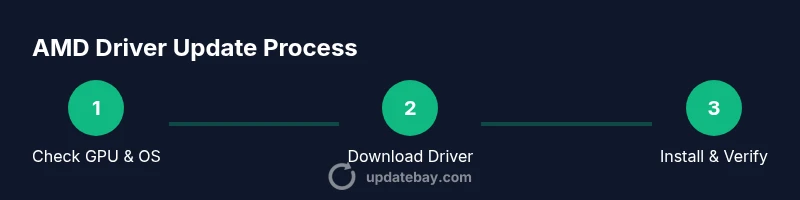
Update your AMD driver by using Radeon Software Adrenalin or Windows Update. First, confirm your GPU model and Windows version, then download the latest driver from AMD’s official site or let the Radeon Software app fetch it automatically. For clean installs, uninstall the old driver first, reboot, and install the new package.
Why updating your AMD driver matters
According to Update Bay, keeping your AMD graphics driver current is essential for stability, game compatibility, and access to the latest features. An up-to-date driver can improve frame timing, fix known issues, and unlock optimizations introduced by game developers and engine updates. This section explains why you should schedule regular checks for updates, how driver versioning affects compatibility, and when you should consider a rollback if something goes wrong. You’ll learn about common symptoms that indicate a driver update is needed, such as flickering textures, sudden crashes, or reduced performance in graphically intensive titles. While drivers are generally safe, the update process has edge cases—so understanding the basics helps you minimize risk and maximize the positive impact on your system.
Check your system and GPU model
Before you download anything, identify your hardware and software environment. Determine your exact AMD GPU model (for example, RX 6000, RX 7000 series, or another model) and confirm your Windows version and edition. This ensures you pull a compatible driver package and avoids wasted downloads. Based on Update Bay analysis, most issues users encounter stem from downloading drivers that don’t match the GPU or OS. Use the built-in tools in Windows to view your device manager entry for Display Adapters, and cross-check the model name with AMD’s product pages. If you’re unsure, you can also run the AMD auto-detect tool, which will guide you to the correct download. Remember to check whether you’re on 32-bit or 64-bit Windows, as this affects installer compatibility and feature support.
Choose your update method
There are several paths to update an AMD driver, and you can choose the one that fits your workflow. The simplest method for most users is to install via Radeon Software Adrenalin, which can scan for updates and install with a single click. If your system is offline or you prefer automatic protection, Windows Update might prompt driver maintenance in the background. A manual download from AMD’s official site gives you exact control over driver version and release notes, which is useful when troubleshooting compatibility. According to Update Bay guidance, starting with the Radeon Software approach is recommended for most gamers and creators, because it includes clean uninstall options and automatic configuration recommendations. Whichever path you pick, make sure you’re downloading from the official AMD site or Windows Update to reduce the risk of malware or tampered files.
Prepare for update: backups and restore points
Preparation reduces the risk of losing a configuration or encountering instability after an update. Start by exporting or noting critical game settings, desktop layouts, and any overclock or fan profiles you rely on. Create a system restore point in Windows so you can revert to a known-good state if something goes wrong. If you rely on third-party software to manage overclocking, record your current profiles. Update Bay emphasizes that a quick backup of personal data and a saved recovery point helps you recover quickly in case of boot problems or driver uninstall loops. Keep in mind that some updates require a reboot, so plan a maintenance window. Finally, ensure your power source is stable if you’re on a laptop, and connect to a reliable power supply to avoid mid-update shutdowns.
Update via Radeon Software Adrenalin
Launch Radeon Software and go to the Driver & Software tab. Click Check for Updates, then allow the app to download the latest AMD driver package compatible with your system. Follow the on-screen prompts to complete the installation; during the process you may be asked to reboot. If you see optional components or features listed (like Adrenalin Performance Tuner or GPU-specific optimizations), decide whether to install them based on your use case. Prefer a clean install if you’ve previously had issues with old files lingering. After installation, reopen Radeon Software to confirm the driver version, the installation date, and any new features or bug fixes highlighted by AMD. Test a few benchmark scenarios to verify stability and performance gains.
Clean install for stubborn issues
Some issues persist when updating AMD drivers because old files linger in the system. A clean install erases previous driver remnants and reduces the likelihood of conflicts. Start by uninstalling the current driver via Windows Settings > Apps > AMD Software > Uninstall, then reboot. If the installer offers a 'Perform a clean installation' option, enable it. For deeper cleanup, you can temporarily use a dedicated cleanup tool, but ensure you download from reputable sources and avoid third-party installers bundled with other software. After reboot, reinstall the latest driver package from AMD or Radeon Software. This approach often resolves artifacting, flickering, or performance regressions caused by partial removals of older components.
Verify the installation and adjust settings
Once the driver is installed, verify the version matches the latest release and review any new features or bug fixes documented by AMD. In Radeon Software, check the System or Overview page for the driver version and build date. Enable recommended default settings and consider enabling performance- or quality-focused options such as FidelityFX, anti-aliasing modes, or Smart Access Memory if your hardware supports them. If you’re using a gaming monitor with adaptive sync, confirm FreeSync/G-Sync is enabled in both Windows and the AMD software. Running a quick game session or a synthetic benchmark helps validate stability and ensures the update didn’t introduce frame-time irregularities or stuttering.
Windows-specific considerations and privacy
Windows users should ensure the driver update aligns with Windows version support and security practices. Run as Administrator when installing, avoid running installers from untrusted sources, and verify the digital signature on the driver package. If you’re on Windows 11 or Windows 10, check for compatibility notes from AMD that specify supported OS builds. You may also want to review privacy and telemetry settings related to driver updates, ensuring you understand what data is collected during install or update. If you rely on enterprise management, coordinate with your IT department to schedule updates during maintenance windows to minimize disruption.
Automating updates and rollback options
Automatic updates can streamline maintenance, but you should still review each release notes for critical fixes or known issues. In Radeon Software, you can enable automatic updates, but consider turning them off if you’re testing new drivers for a specific title. If a new driver causes problems, use the built-in rollback feature to revert to the previous stable version. Document the version you roll back from so you can reference it if you decide to reattempt later, after verifying compatibility with your games and software. For standalone drivers installed via Windows Update, you may need to uninstall and rollback through Device Manager. Keeping a backup profile of your settings helps minimize disruption.
Troubleshooting common post-update problems
Even with careful preparation, some users encounter issues after updating AMD drivers. If you experience black screens, boot loops, or artifacting, start with a clean reinstall of the driver as described above. Check for game-specific compatibility notes, or try disabling newly enabled features (like performance overlays or ray tracing) to isolate the cause. Ensure Windows is up to date and that the monitor cable and GPU power connections are secure. If problems persist, consult AMD’s support pages and community forums, and consider performing a Windows system repair if necessary. Remember that not every update will improve every system; timing and hardware variation can change outcomes.
What to expect after updating and final checks
After a successful update, you should notice smooth gameplay, improved stability, and access to the new features highlighted by AMD. Keep an eye on frame times during heavy workloads and verify that your power and cooling remain within safe limits. If you use a productivity workflow, check drivers for any regressions in Rendering or AI acceleration tasks. The Update Bay team recommends saving a short post-update checklist for future reference so you know what to re-check after the next release. Finally, maintain routine checks every few months to stay current with driver improvements and game compatibility, and celebrate the improved stability and performance that come with a well-managed AMD driver update.
Tools & Materials
- Radeon Software Adrenalin(Install from AMD's official site; ensure version supports your GPU)
- Windows administrator account(Use admin privileges during installation)
- Stable internet connection(Needed to download large driver packages)
- Backup storage or system restore point(Optional but recommended before major updates)
- Display Driver Uninstaller (DDU) or equivalent cleanup tool(Use only if performing a thorough clean install)
- Power source (laptop on external power)(Keep device plugged in to avoid mid-update shutdowns)
Steps
Estimated time: 60-90 minutes
- 1
Identify GPU model and OS
Open System settings and Device Manager to confirm your exact AMD GPU model and Windows version. Record these details so you download a compatible driver. This prevents post-install issues caused by mismatched software.
Tip: Use the Windows + R shortcut, type 'dxdiag', and check the Display tab for GPU details. - 2
Backup data and create a restore point
Create a system restore point and back up important files. This gives you a safe rollback path if the update introduces instability or conflicts with existing software.
Tip: Backups should cover game saves and user profiles in addition to system settings. - 3
Choose your update method
Decide between Radeon Software Adrenalin, Windows Update, or a manual download from AMD’s site. For most users, Radeon Software offers the simplest, integrated workflow.
Tip: If you need immediate control over the exact driver version, opt for the manual download from AMD. - 4
Open Radeon Software and check for updates
Launch the app and navigate to the Driver & Software tab. Click Check for Updates and let the tool fetch the latest compatible package.
Tip: If the app prompts for a restart, save work and schedule the reboot. - 5
Install the new driver
Follow the on-screen prompts to install. Choose the express or clean install option, depending on whether you’ve had prior driver issues.
Tip: If offered, select 'perform a clean installation' to remove old files completely. - 6
Reboot if prompted
Restart your system to complete the installation. Many issues only resolve after a full reboot.
Tip: Avoid interrupting the reboot; give the system time to finalize updates. - 7
Verify driver version
After boot, open Radeon Software and confirm the installed driver version and build date match the latest release notes.
Tip: Compare the version to AMD’s patch notes to confirm key fixes and features are present. - 8
Test with a familiar workload
Run a game or benchmarking tool you trust to ensure stability and expected performance.
Tip: Note any anomalies in frame times, stuttering, or crashing during the test. - 9
Enable or adjust features as needed
If your hardware supports it, enable features like FidelityFX, anti-aliasing modes, or SAM where appropriate.
Tip: Only enable features that align with your performance goals to avoid unnecessary overhead. - 10
Consider Windows updates alignment
Ensure Windows is up-to-date and that driver updates won’t conflict with pending OS patches.
Tip: Delay major Windows updates if a driver update is in progress to avoid compatibility issues. - 11
Document and plan future updates
Note the driver version and any observed changes so you can re-check after the next release cycle.
Tip: Keep a short changelog for quick reference during future updates.
Frequently Asked Questions
What is the best method to update AMD drivers?
For most users, Radeon Software Adrenalin provides the simplest path with built-in checks and a clean install option. If you need exact control, use a manual download from AMD’s site.
Usually the Radeon Software method is best, unless you need to pick a specific driver version.
Can I update AMD drivers without reinstalling Windows?
No full Windows reinstall is required. Driver updates can be installed on top of Windows without a fresh OS install. If issues arise, a clean reinstall of the driver can help.
Updating only the driver won't require Windows reinstallation.
Why should I create a restore point before updating?
A restore point gives you a quick way to revert if the update causes boot issues or instability. It helps minimize downtime and data loss.
Backups give you a safety net if something goes wrong.
What should I do if the update causes crashes?
Use the rollback or clean-install option to revert to the previous stable driver. Then verify game compatibility or wait for a hotfix in a subsequent update.
If it crashes, roll back to the previous driver version.
Do AMD driver updates always improve performance?
Not always. Driver updates can improve stability and compatibility in some games, but results vary by hardware and software. Check patch notes for specifics.
Performance gains vary; check the release notes.
Is it safe to update drivers during gaming?
It's safer to update outside of intense gaming sessions, since updates may require a reboot. If you must update while gaming, close games and save progress first.
Update outside gaming if possible to avoid interruptions.
Watch Video
What to Remember
- Identify your GPU and OS before updating
- Choose Radeon Software for a streamlined update
- Back up data and create a restore point
- Prefer a clean install if issues occur
- Verify the driver version and test stability