How to Update AMD Radeon Drivers: A Practical Guide
Learn how to update AMD Radeon drivers safely and efficiently. This guide covers automatic and manual methods, backups, compatibility checks, troubleshooting, and best practices for desktop and laptop systems in 2026.


This guide explains how to update your AMD Radeon driver to improve performance and stability. You can choose automatic updates through Radeon Software or Windows Update, or perform a manual download from the AMD site. Before starting, back up your system and ensure your device meets the GPU requirements. This approach reduces conflicts and ensures you’re on a supported, secure driver set.
Why Updating AMD Radeon Drivers Matters
According to Update Bay, keeping your graphics drivers current is a practical best practice for both gaming performance and system stability. The Update Bay team found that many users notice smoother frame rates, fewer crashes, and fewer driver-related quirks after installing the latest AMD Radeon driver packages. In 2026, driver updates often include optimizations for new games, bug fixes for known issues, and security improvements. If you rely on Radeon Software to manage GPU settings, regular updates help ensure features like FidelityFX, Radeon Chill, and Radeon Anti-Lag work as intended. By staying current, you also reduce the risk of compatibility problems when you install new software or operating system updates. If you haven’t updated in a while, plan a maintenance window and back up critical data first. Use the official AMD source or Radeon Software to minimize risk from counterfeit installers.
AMD Radeon Driver Update Methods: Automatic vs Manual
Automated updates are the most convenient path for most users. Radeon Software can fetch the newest driver package and handle the installation with minimal user input. Windows Update may also offer driver updates, but AMD-specific features and optimizations are sometimes delivered through Radeon Software first. Manual updates give you control: you can choose a specific driver version, verify release notes, and perform a clean install if you’re troubleshooting a stubborn issue. When selecting a method, consider the stability of your current setup, whether you need new features in a beta driver, and whether you depend on a consistent gaming profile. For most players, starting with Radeon Software is the recommended approach. Update Bay notes that official sources reduce the likelihood of driver payloads that could compromise system security.
Backup, Compatibility, and Preparation
Before touching drivers, make a backup plan. Create a system restore point (or full disk backup if you have that capability) so you can revert if something goes wrong. Check compatibility by confirming your GPU model and your operating system version are supported by the driver you intend to install. If you’re running a laptop, ensure you’re on a power source to prevent a mid-install shutdown. Gather essential details like your current driver version, your GPU model, and your motherboard chipset to verify compatibility after install. With preparation in place, you reduce the risk of post-update issues and can troubleshoot more effectively if something unexpected happens.
Common Issues After Updating and How to Fix Them
Sometimes a driver update can cause a temporary hiccup, such as screen flicker, black screen on boot, or a game not launching. If you experience issues, first try a clean install of the driver to remove remnants of previous versions. Check for Windows or BIOS updates that may be required for full compatibility. If you suspect a stale or corrupted cache, perform a quick clean boot and re-run the installer. If problems persist, you can roll back to the previous driver version using either the AMD installer’s restore option or Windows’ device manager rollback feature. The key is to remain methodical: document the exact driver version you install and test a few different apps to confirm stability.
Best Practices for Ongoing Radeon Driver Maintenance
Make driver maintenance a regular habit rather than a one-off task. Enable automatic updates where feasible, but consider periodic manual checks to review release notes for bug fixes, performance improvements, and feature changes. Avoid unofficial third-party updater tools that can bundle unwanted software or inconsistent installers. Keep a backup copy of your key system state, and consider creating a separate restore point before major updates. For professional environments, establish a quarterly update window to test drivers with your most critical applications before wide deployment. Regular maintenance helps you stay current without surprises.
Laptop vs Desktop Considerations for Radeon Drivers
Desktop setups typically benefit from more aggressive driver versions and less risk of power-related installation interruptions, whereas laptops require careful power management and sometimes vendor-specific driver packages for optimal battery life and thermals. If you’re using a system with integrated graphics or hybrid graphics, confirm which GPU is active and ensure the update targets the correct adapter. In both cases, using official sources and performing a clean install when moving to a new major driver version minimizes post-update issues. Update Bay consistently recommends verifying the driver’s new features against your game library and applications to maximize value from each update.
Tools & Materials
- Administrator access (Windows)(Needed to install or uninstall drivers)
- Stable internet connection(Downloading the driver package or Radeon Software)
- Radeon Software or official AMD Driver installer(From AMD’s official site or Radeon Software app)
- System restore point or full backup(Protects data if the install goes wrong)
- Checked GPU model and OS compatibility(Ensure driver supports your exact hardware and OS)
- Optional external storage(Useful for backing up larger data before major updates)
Steps
Estimated time: 15-45 minutes
- 1
Prepare your system for update
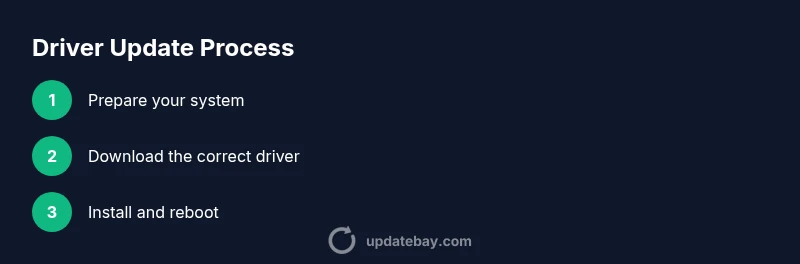
Ensure you’re on a reliable power source (desktop or plugged-in laptop). Create a system restore point or a full backup. Close unnecessary apps to prevent conflicts during installation and note your current driver version for reference.
Tip: Having a restore point makes it easy to revert in case of a failed update. - 2
Identify your GPU model and current driver
Open Device Manager or Radeon Software to identify the exact Radeon GPU model and the current driver version. Record these details so you can verify the update targets the correct device and version.
Tip: If you’re unsure, take a screenshot of the Radeon Software interface showing the driver version. - 3
Choose update method
Decide between automatic updates via Radeon Software or Windows Update, or a manual download from AMD's site. Automatic updates are convenient, but manual can give you control over version choices.
Tip: For critical work, start with automatic updates and review release notes before installing a new version. - 4
Download and install the driver
If using Radeon Software, check for updates and initiate the install. If downloading manually, choose the correct OS and GPU model, then run the installer and follow on-screen prompts. Reboot when prompted.
Tip: Always select a clean install if offered to remove old driver remnants. - 5
Verify installation and test
After reboot, open Radeon Software to confirm the new driver version. Run a few games or graphics-intensive apps to verify stability and performance improvements. Check display settings for any changes to resolution or color profiles.
Tip: If something feels off, revert to the previous version using the rollback option. - 6
Rollback plan if issues arise
If the update causes issues, use the AMD installer to rollback or reinstall the previous version from a restore point. Document any errors and consider waiting for a hotfix in a future release.
Tip: Keep the previous driver version file handy in case you need a quick reinstall.
Frequently Asked Questions
What is the best way to update AMD Radeon drivers?
For most users, starting with Radeon Software for automatic updates is best. It handles downloads, installs, and some reboots. If you need more control, download the driver from AMD’s official site and perform a manual install.
Most users should start with Radeon Software automatic updates, or manually install from AMD's site if they need specific driver versions.
Do I need to uninstall old drivers before updating?
Not usually. AMD's installer typically performs a clean upgrade. If you run into issues, performing a clean install or using a rollback to a previous version is recommended.
Usually you don’t need to uninstall first; the installer cleans up older files. If issues occur, consider a clean install or rollback.
Will updating drivers improve performance in all games?
Driver updates can improve performance and stability, especially with new games or engine updates. Results vary by title and system configuration, so verify with actual gameplay after updating.
Driver updates can boost performance in some games and fix stability, but results vary by title and system.
What should I do if my display goes black after an update?
Boot into Safe Mode, reinstall the previous driver version, and consider a clean install. Check cables and monitor settings to rule out hardware issues.
If the display goes black, boot safe mode and reinstall the previous driver or use rollback.
Can I rollback to an older driver after updating?
Yes. Use the AMD installer’s rollback option or Windows Device Manager to revert to a prior driver version. Keep the previous installer handy when possible.
Rollback is possible via AMD installer or Windows tools; keep a copy of the previous installer if available.
Is it safe to update drivers on a laptop while on battery?
Avoid driver updates on battery power for laptops to prevent interruptions. Connect to power and perform the update to minimize risk of a failed install.
Update on battery power is risky; plug in first to ensure a smooth install.
Should I use Windows Update for GPU drivers?
Windows Update can provide driver updates, but it may not offer the latest AMD-specific optimizations. If you want the newest features, use Radeon Software or AMD's official site.
Windows Update can update drivers, but for latest AMD optimizations use Radeon Software or AMD site.
Are beta drivers worth trying?
Beta drivers can include new features and fixes, but they may be less stable. Use them only if you rely on early access and can tolerate potential issues.
Beta drivers offer early features but may be unstable; use with caution.
Watch Video
What to Remember
- Back up before updating drivers.
- Use official sources for downloads.
- Choose automatic updates for ease, or manual for control.
- Test stability after installation and know how to rollback.