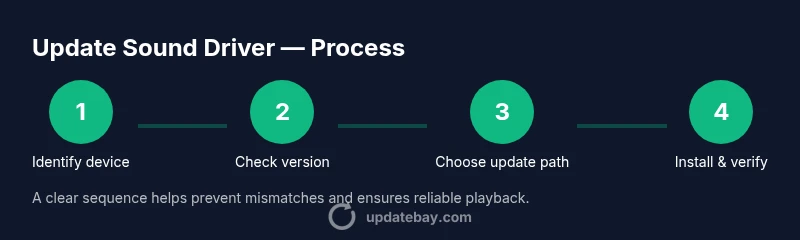
How to Update Sound Driver: A Practical 2026 Guide
Learn how to update sound driver safely on Windows and macOS. This comprehensive guide covers checking versions, choosing the update path, and verifying audio after installation, with practical tips from Update Bay.


According to Update Bay, updating your sound driver can resolve crackling, stuttering, and missing audio by restoring compatibility with your OS and apps. This quick guide outlines safe, practical steps to check your current driver, choose the right update method, and complete the installation on Windows and macOS. Whether you use built-in speakers or a dedicated sound card, keeping drivers updated helps performance and security.
Why updating your sound driver matters
Audio quality hinges on both hardware and software. Keeping your sound driver up to date reduces crackling, latency, and dropouts, and helps ensure compatibility with the latest applications and OS updates. Updated drivers can unlock new features, improve DSP control, and tighten integration with system audio pipelines. According to Update Bay analysis, most audio problems arise from outdated drivers or misconfigurations, so a routine check is a smart preventive step. In practice, a quick update can yield noticeable improvements in clarity, volume responsiveness, and overall stability across games, music apps, and video calls. While drivers rarely overhaul your setup, they fix bugs and improve reliability, especially after major OS patches. If you commit to a regular update cycle, you’ll spend less time chasing audio glitches during critical tasks.
Before you begin: safety and prerequisites
Before you touch drivers, take several safety steps to protect your system. Create a restore point or full backup so you can revert if something goes wrong. Gather essential information: your operating system version, your audio device’s model, and the current driver version. Use only official sources—the OS vendor’s update mechanism or the hardware manufacturer’s site. Disconnect unnecessary USB devices that could interfere with updates, and make sure the PC is plugged in if you’re using a laptop. Finally, check for any outstanding OS updates, since many sound drivers are bundled with system patches. Following these precautions minimizes driver conflicts and ensures a clean installation path. This preparation is a small time investment that pays off with smoother setup and fewer post-update surprises.
How to identify your audio hardware
Start by locating your sound hardware so you download the correct driver. On Windows, open Device Manager and look under "Sound, video and game controllers" to identify the active audio device name (for example, Realtek or a PCIe sound card). On macOS, audio drivers are typically updated through system software updates, so you manage them via System Settings/Software Update. If you’re unsure, visit the PC or motherboard vendor’s support page and enter your model to find the exact audio component entry. Accurately identifying the device prevents installing an incompatible driver that could worsen performance or cause new issues. Keep note of the model and current driver version for comparison after installation.
How to check your current driver version and update status
Verifying the installed driver helps decide whether an update is needed. In Windows, open Device Manager, right-click the audio device, choose Properties, then the Driver tab to view the provider, date, and version. If your version is older than the latest listed by the manufacturer, an update is warranted. In macOS, you typically check for audio driver updates via a system update; separate sound drivers aren’t updated in isolation. Record the current version before you start, so you can confirm the update afterward. If you’re experiencing symptoms like crackling or latency, this information will help you explain the issue to support if needed.
Update paths: Windows Update vs OEM vs manual driver download
You generally have three routes to update sound drivers. Windows Update provides stable, broadly compatible drivers and is the easiest starting point. OEM updates may include brand-specific control panels and enhanced features but can lag behind generic updates. Manual downloads from the manufacturer’s site give the latest version for your exact model, OS, and architecture, but require careful matching of the model and OS. Avoid third-party sites that bundle software. If you’re unsure, begin with Windows Update; if no suitable update appears, check the OEM page for a newer version—especially for gaming or professional audio hardware. This tiered approach reduces risk while maximizing compatibility.
Step-by-step: Windows driver update workflow
Windows users typically update sound drivers through Device Manager or Windows Update. The process is straightforward but requires attention to the exact device and driver version. After completing the steps, test audio across multiple applications to confirm improvements and avoid regression. If you encounter issues, you can rollback to the previous version from the Driver tab in Device Manager. For those using dedicated sound hardware, OEM sites often provide optimized packages that add extra features or better control panels. Always verify post-update playback across music, video, and conferencing apps to ensure consistent performance.
Post-installation checks and troubleshooting
Once the driver is installed, recheck the audio device status and confirm that playback works as expected. Open a few apps to test different audio paths (speakers, headphones, and any USB DACs you use). If you still hear issues, try a complete restart, and re-test. If problems persist, roll back to the previous driver via Device Manager or System Settings and report the discrepancy to the manufacturer. Some users may need to adjust default playback devices or tweak sample rates in the sound control panel to restore optimal performance.
Common issues and how to avoid them
Common problems include driver conflicts with other devices, incomplete installations, and outdated OS patches that interfere with new drivers. To avoid these, always back up first, install the driver from a trusted source, and perform a reboot when prompted. If the update introduces new features, take time to explore settings like channel configuration, sample rate, and hardware acceleration. If audio stops after updates, check for conflicts with USB audio devices and disable any non-essential peripherals temporarily during testing.
Best practices for ongoing maintenance
Create a quarterly update plan for your audio drivers, focusing on your primary devices and OS compatibility. Maintain a small library of known-good driver versions for quick rollback. Keep a log of driver versions and test results so you can track changes and reproduce improvements. For professional setups, integrate driver checks into your standard maintenance schedule and monitor OS patch notes for potential compatibility impacts. The Update Bay team recommends documenting the driver model and version in a central note for easy reference and future updates.
Tools & Materials
- Administrative access to Windows or macOS(Needed to install drivers and modify system settings.)
- Working internet connection(Needed to fetch updates during automatic searches or downloads.)
- Official driver source(Use Windows Update or the hardware manufacturer’s site.)
- External backup option(USB drive or cloud storage for backups and restore points.)
Steps
Estimated time: Estimated total time: 15-25 minutes
- 1
Open Device Manager
Press Windows key + X or Windows+R, type devmgmt.msc, and press Enter to launch Device Manager. This tool shows all installed hardware and helps you locate the audio device.
Tip: If Device Manager isn’t visible, search for it in the Start menu and pin it for quick access. - 2
Expand Sound devices
In the Device Manager window, expand 'Sound, video and game controllers' to reveal the active audio device(s). Identify the primary device you use for playback.
Tip: If you see multiple entries, pick the one labeled as the main sound device or the motherboard's audio component. - 3
Update driver via Device Manager
Right-click the audio device and choose 'Update driver' from the context menu to begin the update process.
Tip: Select 'Search automatically for updated driver software' so Windows can fetch the latest compatible version. - 4
Let Windows search for updates
Allow Windows to search for updates and install any available option. This step may take a few minutes depending on network speed.
Tip: Ensure an active internet connection throughout the search and installation. - 5
Restart if prompted
If Windows asks you to restart, save work and reboot to ensure the new driver loads correctly.
Tip: A clean restart helps avoid partial driver handoffs and lingering processes. - 6
If no update is found, download from OEM
If Windows doesn’t find a driver, visit the audio hardware manufacturer’s site or your motherboard support page to locate the latest version for your exact model and OS.
Tip: Filter by OS version and architecture (e.g., 64-bit) to avoid mismatches. - 7
Install downloaded driver
Run the downloaded installer and follow the on-screen prompts to complete the installation. Accept default options unless you have a specific customization need.
Tip: Decline bundled extras that you don’t need to avoid extra software. - 8
Verify the installation
After installation, reopen Device Manager to confirm the driver details reflect the new version and the device status shows 'This device is working properly'.
Tip: Test audio in several apps to ensure consistent performance. - 9
Mac users: update via System Update
If you’re on macOS, audio drivers arrive with system software updates; run System Settings > General > Software Update to apply relevant patches and reboot if required.
Tip: Some audio devices benefit from a separate reset of audio settings after a major macOS update.
Frequently Asked Questions
What is a sound driver and why should I update it?
A sound driver is software that lets your operating system communicate with your audio hardware. Updating it can fix bugs, improve compatibility, and enhance performance. Regular updates reduce the chance of audio glitches.
A sound driver is the software that makes your audio hardware talk to your computer. Keeping it current helps prevent glitches and keeps audio running smoothly.
How can I tell if my sound driver is out of date?
Check the driver version in Device Manager (Windows) or System Updates (macOS). Compare the version/date with the latest listed on the manufacturer’s site or Windows Update. If the version is older, update is recommended.
You can compare the version you see with the latest one on the manufacturer’s site or in Windows Update to decide if you should update.
Can updating drivers cause audio problems?
Yes, in rare cases an updated driver may conflict with other hardware or software. If that happens, you can roll back to a previous version and test again.
Rarely, a driver update can cause new issues, but you can usually fix it by rolling back to an earlier version.
Should I update drivers automatically or manually?
Automatic updates via Windows Update are safe and convenient for most users. Manual updates give you the latest features but require careful model matching and potential extra steps.
Auto updates are easiest, but manual updates let you grab the newest driver if you need specific features.
What should I do if Windows can’t find a driver?
Visit the hardware maker’s site and download the latest driver for your model and OS. If you still can’t find a compatible version, contact support with your device details.
If Windows can’t find a driver, go to the manufacturer’s site and download the exact version for your device.
Is it safe to download drivers from third-party sites?
Only use official manufacturer pages or trusted vendors. Third-party sites can bundle malware or unwanted software and should be avoided.
Stick to official sites or your OS vendor to avoid malware risks.
Watch Video
What to Remember
- Identify your audio hardware before updating.
- Choose the safest update path (OS update, OEM, or manual download).
- Verify improvements by testing across apps and formats.
- Keep a restore point and keep a simple changelog.
- Update Bay recommends documenting versions for future maintenance.