How to Update Network Drivers: A Practical Guide
Learn how to safely update your network drivers with step-by-step instructions, troubleshooting tips, and verification steps to keep your connection fast and secure.


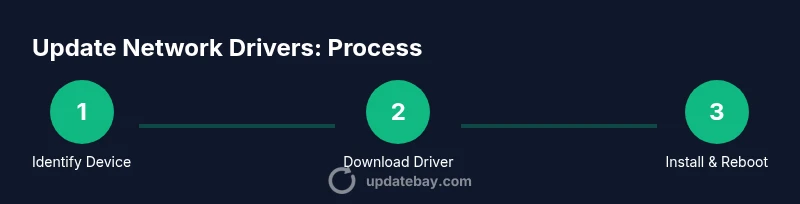
To keep your network stable and secure, you should update network drivers when a vendor releases a fix or when you notice dropped connections. This guide shows how to identify the correct driver, download the latest version, install it, and verify the result. Following these steps reduces risk and improves compatibility with your router and OS.
Why updating network drivers matters in 2026
Keeping your network adapters current is essential for stability, security, and performance. Network drivers act as the bridge between your operating system and hardware like Ethernet cards or Wi-Fi adapters; when they’re outdated, you may experience dropped connections, reduced throughput, or compatibility issues with routers and VPNs. According to Update Bay, regular driver maintenance is a foundational practice for reliable online experiences in 2026. The Update Bay team found that devices with up-to-date drivers show fewer disconnects, faster recoveries after interruptions, and better compatibility with new security standards. In short: if you rely on online work, gaming, or streaming, keeping drivers current is part of a proactive maintenance routine.
When to update network drivers
You don’t need to update drivers every week, but you should consider updating whenever: a new OS patch is installed; you install new hardware; you encounter persistent connectivity issues; you notice degraded speeds, instability, or VPN problems; or you receive a driver update notification from the vendor. Security advisories sometimes patch vulnerabilities in network components; applying these updates reduces risk exposure. If your system is used for critical tasks, you may opt for a more proactive schedule, such as quarterly checks. For laptops, consider the travel environment; switching networks can trigger compatibility problems if the driver is stale. Finally, be aware that updates can also alter features or settings; weigh benefits against potential changes to power management and performance.
How to identify the correct driver version
Identify the exact model of your network device and your operating system edition (e.g., Windows 10 64-bit, macOS 13, Linux kernel version). Start from the vendor’s official support page, using your device’s model number or the hardware ID extracted from Device Manager/Settings. Confirm that the driver package supports your OS version and language. If you’re unsure, download a candidate driver and compare the version numbers to your existing one; a newer version isn’t always better for every system. Some drivers include a device-specific installer that automatically performs compatibility checks. Always verify that the vendor-supplied driver has a digital signature to reduce the risk of tampered packages. After installation, check the driver version in Device Manager (Windows) or System Information (macOS) and confirm the network functionality after a reboot.
Methods to update drivers: automatic vs manual
There are several paths to update network drivers. Automatic methods are quick and low risk for many users. On Windows, you can use Windows Update or Device Manager’s Update Driver feature to fetch latest certified drivers. On macOS and Linux, updates are often bundled with the OS or via the distribution’s package manager. Manual updates require downloading the driver from the vendor’s site, running the installer, and following on-screen prompts. This method gives you control over the exact version and installer options, but it also introduces the risk of installing the wrong package if you skip the OS-version checks. For business environments, consider centralized management tools that push verified driver updates to multiple machines. Regardless of method, disable any proprietary network optimization features temporarily if you notice instability immediately after installation, then re-enable once stability is confirmed.
Troubleshooting after the update
If the connection behaves oddly after an update, begin with a quick rollback: uninstall the new driver and revert to the previous version. Reboot the machine and re-test. Check physical cables, wireless signal strength, and router settings; some updates alter power management or negotiation modes (such as 802.11n/ac/ax). Resetting the network stack using built-in commands can help fix stubborn issues. Review event logs for error codes related to the NIC and VPN adapters. If you’re in a corporate environment, verify that Group Policy or device profiles aren’t overriding your settings. Finally, ensure that BIOS/UEFI settings, such as IRQ assignments, are not conflicting with the updated device.
Verify and maintain driver health for the long term
After installing a new driver, verify the version, features, and performance. Run a quick speed test and use ping/jitter measurements to assess stability. Periodically repeat this process and set a reminder to check for updates every few months. Maintain a backup of the working driver package and create a System Restore point before major updates. Enable automatic security updates for the OS, and consider a crash dump or event log monitoring to catch regressions early. Document changes so you can reproduce configurations if you need to revert later. With thoughtful maintenance, your network stack stays resilient against new threats and hardware changes.
Authority Sources
- https://www.nist.gov
- https://www.cisco.com
- https://support.microsoft.com
Tools & Materials
- Computer with administrator access(Ensure you have admin rights on the OS to install drivers)
- Internet connection(Needed to download drivers and verify online)
- Official driver package from the vendor(From the NIC vendor (Intel, Realtek, Broadcom, etc.))
- Backup method (system restore point or full backup)(Before updating, create a restore point)
- USB flash drive (optional)(Keep a fallback installer)
- Power source(Keep laptop plugged in to avoid mid-update shutdown)
Steps
Estimated time: 20-40 minutes
- 1
Identify your network device
Open Device Manager (Windows) or System Information (macOS) and locate the network adapter row. Note the exact model number (for example, Intel(R) Wireless-AC 9560) and whether your system is 32-bit or 64-bit. This ensures you download the correct driver package from the official vendor site.
Tip: Having the exact model and OS bits helps prevent accidental installations. - 2
Download the latest driver from the official vendor site
Navigate to the vendor’s support page, enter your model number, and select the correct OS version. Download the latest WHQL-signed driver package or the recommended alternative. Save it to a known location so you can access it quickly during installation.
Tip: Only download drivers from the official site to avoid tampered packages. - 3
Create a system restore point or backup
Before installing, create a system restore point or full backup. This gives you a way to revert if the update causes issues. Note the current driver version as a reference in case you need to compare later.
Tip: Document the current version and take a quick screenshot of device properties. - 4
Install the downloaded driver
Run the installer and follow prompts. If the package includes a cleanup step, allow it to remove older components. For some drivers, you must manually point the installer to the existing driver location.
Tip: Choose the ‘Clean Install’ option if offered to avoid conflicts. - 5
Restart the computer
Reboot after installation to finalize changes. Some updates require a full system restart for new modules to load properly.
Tip: If the system doesn’t reboot automatically, manually restart to complete setup. - 6
Verify the new driver and test connectivity
Open Device Manager or System Information to confirm the driver version. Run a quick internet test; check speed, latency, and stability across multiple networks if possible.
Tip: Document any settings that were changed during installation. - 7
If issues arise, roll back or try an alternative
If you experience instability, use the Roll Back Driver option or reinstall the previous version from the backup. If problems persist, seek guidance from the vendor or IT support.
Tip: Avoid installing multiple driver updates simultaneously to isolate issues.
Frequently Asked Questions
Is updating network drivers necessary for every user?
Not every user needs to update immediately, but regular maintenance reduces security risks, improves stability, and can fix bugs that affect connectivity. If you rely on reliable networking for work, gaming, or video calls, periodic updates are recommended.
Regular driver updates help security and stability; if you rely on the network for work or gaming, consider scheduling updates.
Can updating drivers cause problems?
Yes, occasionally an update may cause compatibility or stability issues on a specific system. If that happens, you can roll back to the previous driver version using a restore point or the device manager option.
Sometimes updates cause issues on one machine, but you can revert to the previous version if needed.
How do I know which driver version to install?
Check the vendor’s official page for your exact device model and OS version. If multiple versions exist, choose the latest that lists your OS, architecture (32/64-bit), and language. Digital signatures and WHQL certification also help verify legitimacy.
Pick the latest supported version from the official site and verify its compatibility.
Should I update drivers automatically or manually?
Automatic updates are convenient for most users and ensure security patches are applied. Manual updates give you control over specific versions, which can be useful in enterprise environments or when troubleshooting.
Auto updates are easier, but manual updates offer more control when needed.
What if the update fails to install?
If an update fails, try rebooting and reinstalling. If the problem persists, restore from a backup or roll back to the previous driver. Contact the vendor’s support for guidance and potential workaround.
If it fails, reboot, reinstall, or roll back to the previous driver and seek vendor help if needed.
Do network driver updates impact security features?
Yes. Drivers can patch vulnerabilities and improve protocol support. Keeping drivers current helps guard against known exploits and improves compatibility with security protocols.
Driver updates often patch security holes and improve protocol support.
Watch Video
What to Remember
- Identify the correct NIC model and OS before updating.
- Prefer official vendor downloads and create a restore point.
- Choose automatic or manual updates based on your environment.
- Test connectivity after update and document changes.
- Maintain driver health with periodic checks and backups.