How to Make Xbox Update Faster
Learn practical steps to speed up Xbox updates by optimizing network, storage, and console settings. This Update Bay guide covers wired connections, scheduling, and myth-busting guidance.


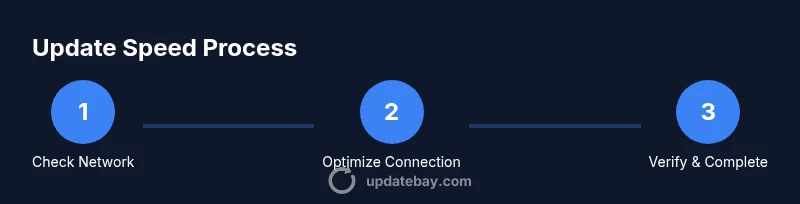
By following these steps, you can make Xbox updates faster by optimizing your network, storage, and settings. Start with a stable wired connection if possible, pause other downloads, and ensure your console runs the latest OS. If you still see delays, perform a quick cache clear and schedule updates during off-peak hours. This guide from Update Bay shows practical, repeatable methods.
Why Xbox update speeds vary
If you're asking how to make xbox update faster, you're not alone. Update times are influenced by multiple factors that blend together during a single session. According to Update Bay, most delays stem from three broad sources: the local network, Microsoft's update servers, and how the console handles concurrent downloads. When the network is congested, or NAT is non-optimal, your Xbox may throttle the download to prevent instability. The OS also performs background tasks such as checking file integrity and verifying patches, which can momentarily pause or slow the active transfer. Finally, peak hours on the Xbox Live service can introduce additional delays as many players pull updates at once. By diagnosing these variables, you can target the bottlenecks with confidence and apply practical steps that reliably trim update time.
To manage expectations, remember that updates often consist of multiple components—from system firmware to game patches—that must be downloaded and staged for installation. Even when your connection seems fast, background activity or simultaneous downloads from other devices can compete for bandwidth. The good news is that many delays are controllable at home by adjusting a few settings and habits.
Optimize your network for gaming updates
The fastest path to a quicker update starts with your network. Start by validating your speed and stability with a simple test at a barrier-free moment; if the result shows jitter or packet loss, then focus on home equipment rather than blaming the Xbox alone. Use a wired connection whenever possible; Ethernet avoids interference and can dramatically reduce latency during downloads. If wired isn’t practical, place the console within clear line of sight of a strong 5 GHz Wi‑Fi signal, close to the router, and minimize wall interference. Consider a simple QoS setup to prioritize Xbox traffic on the router. If you’re comfortable, switch to a reliable DNS like Google’s 8.8.8.8 or Cloudflare 1.1.1.1 to reduce resolution delays. Small changes here compound into measurable reductions in update time.
Use a wired Ethernet or strong Wi‑Fi
A stable, fast connection is the single biggest factor in how to make xbox update faster. A wired Ethernet cable reduces packet loss and jitter that can creep into wireless links. If you must use Wi‑Fi, connect to a strong 5 GHz network and keep the console within a short distance of the router, ideally with minimal physical barriers. Avoid plug-in power strips or mesh configurations that split bandwidth unexpectedly. When testing, perform a live download of a small update and observe whether the speed improves after switching to wired or optimizing your Wi‑Fi channel. If your router supports Quality of Service (QoS), enable it to prioritize the Xbox’s traffic during updates. Be mindful that guest networks or VPNs can degrade throughput, so disable them for the duration of the update.
Manage console storage and background activity
Updates are staged on the drive; if the drive is nearly full, or if background tasks take bandwidth, the update may slow down. Free up space on the internal drive by removing unused apps and games, or move large media to an external drive. Pause or limit other downloads and background installations in Settings > System > Updates, and set updates to install automatically only when you’re not actively gaming. If you rely on Instant-On, you may see more background activity; consider temporarily switching to a standard power mode during a big update to give the system uninterrupted bandwidth.
Configure Xbox settings to speed updates
A few settings changes can shave minutes off update time. Enable automatic updates only after you’ve verified your network is stable, and consider scheduling updates for overnight hours. In Settings, turn off background code scanning or background download of large media while updating; close other apps that may compete for bandwidth; ensure the console is not paused by parental controls or energy-saving modes. For many users, a quick sign-out and sign-in helps the system refresh its update queue before starting a download.
Minimize other devices and time updates
Your network is shared, so limit heavy traffic during the update window. Pause large downloads on nearby devices, temporarily turn off video streaming in other rooms, and ask others to avoid streaming or conferencing tasks that consume bandwidth. Scheduling updates for late night or early morning minimizes competition from family activity. If you’re using mobile hotspots as a backup, disable them during the update to avoid data throttling. A small, focused window often yields a noticeable boost in update speed.
Regular maintenance and update checks
Keep your environment healthy so updates run faster over time. Restart your router once a week to clear temporary network issues, and check for firmware updates that improve performance or stability. Periodically clear the Xbox cache (Power cycle the console) and ensure the system software is up to date. Review your privacy and security settings to avoid unnecessary background scanning. Finally, periodically check for any Xbox Live service status notes that indicate server-side issues; these can slow even a well-tuned home network.
Common myths vs reality
There are common myths about speeding Xbox updates that people try to exploit. Myth: using a USB drive to host updates will speed things up. Reality: Updates must be delivered from official servers and USB caches may not help; in some scenarios, they can cause compatibility problems. Myth: more RAM or storage automatically speeds updates. Reality: The speed is dominated by the network path and server load, not hardware capacity. Myth: turning Instant-On off will dramatically slow updates. Reality: Instant-On can enable background downloads; turning it off can sometimes reduce interference during critical update windows, but it may delay other routines. If you follow practical optimization steps, you’ll often see meaningful improvements without gimmicks.
Tools & Materials
- Ethernet cable (Cat5e/Cat6)(For a stable wired connection if possible)
- Reliable internet connection(Test stability before updating)
- 5 GHz-capable router or access to a strong Wi-Fi signal(Prefer 5 GHz for gaming)
- USB drive (optional)(Can be used for cache, but updates come from official servers)
- Xbox account access(Needed to manage downloads)
Steps
Estimated time: 45-60 minutes
- 1
Check network and start with a test
Assess current network health by running a quick speed and stability check. Note any jitter or packet loss and decide whether to switch to a wired connection or adjust your router.
Tip: Run a test during a quiet time to get an accurate baseline. - 2
Switch to wired Ethernet when possible
Connect the Xbox directly to the router with an Ethernet cable to reduce interference and improve download stability.
Tip: If a direct wire isn’t possible, move the console closer to the router and reduce obstacles. - 3
Pause other downloads and background tasks
Limit other devices’ downloads and pause any large background tasks on the network while the update runs.
Tip: Reserve bandwidth for the Xbox by assigning it higher priority on your router if supported. - 4
Optimize Xbox settings for updates
In Settings, review auto-update options and consider scheduling updates for off-peak hours. Disable non-essential background activities that compete for bandwidth during the update window.
Tip: Turn on automatic updates only after ensuring the network is stable. - 5
Schedule updates for off-peak times
Let updates run during night hours when household activity is lowest. This reduces contention and can shorten overall update times.
Tip: Set a recurring schedule so you don’t have to remember each time. - 6
Perform cache clear if slow persists
If downloads stall, perform a soft reset to clear temporary data that can slow updates. Do not interrupt updates in progress.
Tip: Power cycle the console rather than a forced shutdown during an active update.
Frequently Asked Questions
Will clearing the cache speed up updates?
Clearing the cache can clear out stale data that may interfere with downloads. It's safe to perform, but it won't fix server-side delays. If updates still lag, focus on network and storage improvements.
Clearing the cache can help, but it's not a guaranteed fix. Do it when you're not updating.
Does Instant-On slow updates?
Instant-On can keep background tasks active, potentially competing for bandwidth. If updates are slow, temporarily switching to a standard power mode during the update can help.
Instant-On can cause more background activity; try a normal power mode during updates.
Can I update Xbox via USB drive?
No. Xbox updates must be downloaded from official servers; USB drives won't speed up the process and can cause compatibility issues if used improperly.
USB isn't a workaround for speed; use official servers.
Should I disable auto-updates?
Auto-updates help ensure you don’t miss critical patches. You can temporarily pause auto-updates during a heavy update window if needed, but re-enable afterward.
Auto-updates should stay on most of the time; you can pause briefly for heavy updates.
Why are updates slow even after optimization?
If server load or regional routing is congested, you may still experience slower updates. Try updating during off-peak times and ensure your network remains stable.
Server load can still slow things; try off-peak updates and check your network.
Watch Video
What to Remember
- Assess network first and fix bottlenecks
- Prefer wired connections for updates
- Pause other devices and background downloads during updates
- Schedule updates for off-peak hours
- Verify the console is on the latest OS