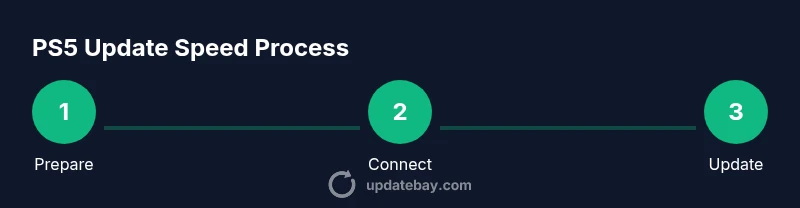
How to Make Updates Go Faster on PS5
Learn practical strategies to speed PS5 updates with wired networking, rest-mode scheduling, and smart download management. Update Bay shares actionable steps to reduce wait times and keep your PS5 current with less downtime.


To speed PS5 updates, optimize your network, use a wired connection, and manage downloads strategically. Start with a reliable Ethernet link, enable automatic updates, and schedule rest-mode downloads for off-peak hours. Clear the console cache, pause nonessential background tasks, and keep firmware current. These steps reduce wait times and help you stay current with less downtime.
Why speed of updates matters on PS5
Updates are more than routine patches; they unlock new features, fix security vulnerabilities, and improve overall stability. For many players, the update screen becomes a bottleneck that interrupts gaming sessions. If you’re exploring how to make updates go faster on PS5, you’re not alone. According to Update Bay, optimizing home network conditions and scheduling updates around rest periods can yield noticeable time savings without sacrificing reliability. The Update Bay team found that a stable, wired Ethernet connection almost always outperforms Wi‑Fi for large firmware packages, and that updating during off‑peak hours reduces congestion on your home network. As a result, you’ll experience shorter wait times, quicker feature access, and fewer mid‑update reboots. By embracing these principles, you create a smoother update experience for PS5 system software and game patches alike.
Prep: Check Your Network And Console Readiness
Before you start, verify that your PS5 is on the latest system software and signed into your PlayStation Network (PSN) account. Check that your internet connection is stable and meets your home bandwidth expectations, and ensure there is sufficient free storage on the PS5 to download and install updates. A quick network speed check from your router can help identify if your current path is congested. Also, have a plan for other devices: pausing large downloads or streaming on other devices during the update can prevent last‑minute slowdowns. Update Bay analysis shows that classic home network bottlenecks—weak Wi‑Fi signals, competing traffic, and inconsistent DNS—are common culprits that slow PS5 updates down. Clearing space and rebooting the router prior to starting an update can eliminate minor hitches and set you up for a smoother process.
Quick Wins That Reduce Update Time
Here are fast, practical actions you can take right now:
- Use a wired Ethernet connection instead of Wi‑Fi; this typically delivers more consistent speed and reduces dropouts during large downloads.
- Enable automatic updates on the PS5 so essential firmware patches install as soon as they’re available, minimizing manual intervention.
- Schedule downloads in Rest Mode and allow updates to continue while the system is idle or not actively being used for gaming.
- Pause nonessential downloads on other devices and limit bandwidth‑intensive activities during the update window.
- Keep your PS5 in a well‑ventilated area to avoid thermal throttling that can degrade performance during lengthy installations.
- Update your router’s firmware if an update is available; a modern router can handle high throughput more reliably than older hardware. Each of these steps addresses common bottlenecks and can noticeably shave minutes off total update time.
Advanced Strategies For Heavy Updates
Large PS5 updates—like operating system upgrades or major patches—benefit from a few advanced tactics. First, verify you are connected via Ethernet and consider enabling Quality of Service (QoS) on your router to prioritize the PS5’s traffic during the update window. If your router supports DNS customization, using a fast, reliable DNS can reduce negotiation time with update servers. In some cases, performing updates in a separate, dedicated network path (for example, a secondary 5 GHz network) can isolate PS5 traffic from other devices. Plan for multi‑part updates by allowing the system to download the next portion while the first portion is being installed.
Remember: updates may still require downtime, so scheduling them in a low‑traffic window is worth the extra planning. This section emphasizes practical, scalable strategies that can adapt to different home network configurations and update sizes.
Troubleshooting If Updates Still Take Too Long
If you still experience slow updates after trying the quick wins and advanced strategies, work through this checklist. Start by rebooting the PS5 and router to clear transient states. Check for any known service outages on the PSN status page and confirm there’s no on‑going throttling by your internet service provider. Temporarily disconnect other devices or switch to a less congested network (for example, a guest network). If the problem persists, try updating via a direct wired connection after power cycling the entire home network. In rare cases, you may need to perform a factory reset or reinstall the system software; consult Sony’s official support before taking these steps to mitigate data loss risk.
Maintenance Habits To Keep Updates Fast
To sustain fast update performance over time, adopt regular maintenance habits. Keep your PS5 software and games up to date, and perform routine restarts after long sessions to refresh network state. Maintain your router, modem, and any network extenders with current firmware and optimal placements to reduce dead zones. Periodically review active connected devices and network utilization, and consider enabling QoS rules that prioritize PS5 traffic during typical update windows. Documenting your usual update times can also help you identify when your network is most congested, guiding future scheduling decisions.
What Not To Do
Avoid interrupting an update once it has started; powering off mid‑install can corrupt system files and create longer recovery times. Don’t disable essential PSN connectivity during an update, as that can cause partial installations or failed updates. Refrain from installing updates during peak gaming hours if you’ve already observed slower speeds. Finally, don’t inflate expectations around DNS changes or minor router tweaks realizing dramatic improvements; progress can be incremental and depends on your unique home network.
PS5 Update Schedule Best Practices
A well‑planned update schedule can dramatically cut total downtime. Set updates to download automatically, and specify a regular “update window” during off‑peak hours when few devices are active. For major firmware releases, consider starting the download a day ahead and allowing installation overnight if possible. Use Rest Mode to keep the PS5 online so that updates can complete even while you’re not actively using the console. Consistency matters: the more you align updates with low‑traffic periods, the faster the effective update experience will feel.
Tools & Materials
- Ethernet cable(Cat6 or higher recommended; long enough to reach PS5 from router)
- Stable internet connection(Prefer wired path; ensure no throttling during updates)
- PlayStation Network (PSN) account(Active account needed for updates and downloads)
- Router with QoS (optional)(Can prioritize PS5 traffic during updates)
Steps
Estimated time: 30-60 minutes
- 1
Prepare your PS5 and network
Power on the PS5 and sign into PSN. Verify you’re connected to the internet and that there is enough free storage for the update. Ensure the console is on the latest system software to avoid compatibility issues.
Tip: Check for background processes on the PS5 that could be consuming bandwidth before you start. - 2
Switch to a wired Ethernet connection
Disconnect Wi‑Fi and run a physical Ethernet cable from your router to the PS5. A wired link provides more stable bandwidth and reduces packet loss during large downloads.
Tip: If you must use wireless, position the console closer to the router and minimize interference from other devices. - 3
Enable automatic updates and rest‑mode downloads
In Settings, turn on Automatic Updates for the system and games. In Rest Mode, allow downloads so updates can proceed while you’re not actively using the console.
Tip: Schedule updates for a window with historically low network activity. - 4
Pause other devices and prioritize PS5 traffic
Reduce nonessential downloads on other devices and, if possible, enable QoS or port forwarding rules on your router to prioritize PS5 traffic.
Tip: Avoid streaming or large file transfers on other devices during the update window. - 5
Monitor progress and stay patient during large updates
Keep an eye on the progress indicator. If it stalls, pause briefly and resume, or reboot the PS5 and router to refresh the connection.
Tip: Don’t unplug the console mid‑update; this can corrupt system files. - 6
Optimize DNS and firmware when needed
If you suspect DNS delays, consider switching to a fast, stable DNS service and ensure your router firmware is up to date.
Tip: Record any changes to revert if you encounter issues. - 7
Plan for multi‑part updates
Some updates install in stages. Start the next part while the first is finishing if your system allows it, or schedule overnight completion.
Tip: Keep a note of update size and time windows to manage expectations. - 8
Finalize and verify
After the update completes, restart the PS5 to ensure all components initialize correctly. Check the system version and confirm no additional patches are pending.
Tip: If anything seems off, recheck PSN connectivity and reattempt the update.
Frequently Asked Questions
Why are PS5 updates sometimes slow?
Updates can be slow due to weak network conditions, Wi‑Fi interference, crowded home networks, or router performance. Improving connectivity and scheduling updates during low traffic typically speeds things up.
Updates slow down mainly because of network conditions and congestion. Try a wired connection and update during quiet times for faster results.
Does Rest Mode help with download speeds?
Yes. Rest Mode allows downloads and installations to continue while you’re away, reducing idle time and letting updates finish without active gaming sessions.
Rest Mode lets updates run in the background, so you don’t have to wait for a gaming session to end.
Can changing DNS improve update speeds?
Changing to a reliable DNS can sometimes reduce resolution delays and minor bottlenecks. Ensure the DNS change is implemented correctly to avoid connectivity issues.
A faster DNS can help loading times, but results vary by network.
Should I update multiple games at once?
Updating several large games simultaneously can saturate bandwidth. Prioritize essential system updates first, then stagger game updates during off‑peak times.
If many updates are waiting, do them in smaller groups to prevent slowdowns.
What should I do if an update fails to install?
Pause, restart the PS5, and retry the update. If failures persist, check PSN status and verify your network path before attempting again.
If an update fails, restart and try again; check service status if problems continue.
Is there a hardware limit that slows updates on PS5?
Hardware limits are generally minimal; more often, network conditions and server load determine update speed. Optimizing the home network yields the best gains.
Mostly network conditions affect speed, not hardware limits.
Watch Video
What to Remember
- Use a wired connection to stabilize update throughput.
- Enable automatic updates and rest‑mode downloads for seamless installs.
- Pause competing network traffic during updates to maximize speed.
- Schedule updates in low‑traffic windows for best results.
- Always verify completion by checking system version after reboot.