How to Update Fortnite: A Practical 2026 Guide for Players
Learn how to update Fortnite across PC, consoles, and mobile with this step-by-step guide. Find platform-specific tips, troubleshooting, and how to verify patch notes, brought to you by Update Bay.


To update Fortnite, check for a launcher update and then install the latest patch for your platform. The process varies by device: PC users update via the Epic Games Launcher Library, console players update automatically or from the system update menu, and mobile users update through the App Store or Google Play. Ensure a stable internet connection and enough storage before starting.
Why Fortnite updates matter
Keeping Fortnite updated ensures you have access to the latest content, balance changes, bug fixes, and anti-cheat measures. According to Update Bay, staying current reduces crashes and compatibility issues across platforms and helps you participate in limited-time events. Updates also include security fixes for the Epic Games launcher and performance tweaks that can improve frame rate. Always check patch notes before updating to understand what changes to expect.
Platform-specific update mechanics
Fortnite's updater works a little differently depending on your device.
-
PC: The Epic Games Launcher handles updates; Fortnite appears in Library with an Update button when a new patch is available. Ensure the launcher is signed in to the correct account and that auto-update is enabled. Patch notes appear in the launcher; review them to know what’s changing.
-
Consoles (PlayStation, Xbox, Nintendo): Fortnite typically updates automatically when connected to the internet, or you can trigger an update from the console's system update screen or from within the game if prompted.
-
Mobile (iOS/Android): Updates come through the App Store on iOS or Google Play on Android. Because Fortnite's distribution can vary by region or device, make sure you have enough storage and a stable connection before starting the store update.
Prerequisites before updating
Before you begin, confirm you are signed into the correct Epic Games account on PC, have a stable internet connection, and possess enough free storage space. Plug devices into power if you’re on a console or a mobile device with a low battery. Close background apps to maximize download speed, and ensure your firewall or data restrictions won’t block the update. Finally, consider backing up important progress in case of rare edge cases.
Verifying the update and patch notes
After the update completes, open Fortnite and navigate to the in-game menu or official patch notes page to verify the version number and changes. Patch notes usually detail balance changes, new features, bug fixes, and maintenance times. If you don’t see the new version, recheck the launcher or store page, restart the app, and retry the update.
How to troubleshoot common update issues
If the patch won’t start, try a clean restart of your launcher or game, verify your internet connection, and free up storage. For PC users, running the launcher as an administrator can help install patches that require elevated permissions. If the download stalls, pausing and resuming, switching networks, or temporarily disabling VPNs can resolve the issue. Always recheck patch notes for any known issues.
Tools & Materials
- Device with Fortnite installed(PC, console, or mobile device)
- Stable internet connection(Wired or strong Wi‑Fi preferred)
- Sufficient storage space(At least 2 GB free recommended)
- Power source(Keep devices plugged in during update)
- Active Epic Games account(Needed for PC updates)
Steps
Estimated time: Estimated total time: 15-20 minutes
- 1
Identify your platform and updater
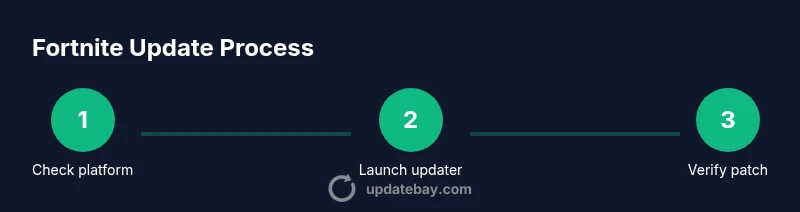
Determine whether you’re updating on PC, console, or mobile and open the appropriate updater (Epic Games Launcher for PC, console system menu or in-game prompt for consoles, App Store/Google Play for mobile). This ensures you follow the correct update path.
Tip: If you’re unsure, start with the Epic Games Launcher on PC to see if a Fortnite update is listed. - 2
Check storage and connection
Verify you have enough free space and a stable internet connection. If storage is tight, delete unused files or move them off-device before downloading.
Tip: Close other apps to maximize download bandwidth. - 3
Initiate the update
Click the Update button in your launcher (PC), accept any in-game prompts on consoles, or tap Update in the store on mobile.
Tip: Ensure you’re signed into the correct account to receive your progress and purchases. - 4
Monitor the download progress
Let the patch download and install. This may take several minutes depending on your hardware and connection.
Tip: Avoid using other bandwidth-heavy apps during the update. - 5
Review patch notes
Open the patch notes to understand changes, bug fixes, and new features in this update.
Tip: Patch notes can help you plan new tactics or adjust settings. - 6
Launch and verify the build
Start Fortnite and confirm you’re on the latest version by checking the in-game menu or version badge.
Tip: If the version isn’t visible, restart the game and recheck for updates. - 7
Enable auto-update for future patches
Turn on auto-update so Fortnite installs patches automatically when available.
Tip: On consoles, this is usually found in the system settings under automatic updates. - 8
Troubleshoot persistent failures
If updating fails repeatedly, try a clean reinstall of the launcher or app, clear cache, or switch networks.
Tip: As a last resort, contact official support with your device details and error messages.
Frequently Asked Questions
What should I do if the update never starts?
First, check your internet connection and available storage. Restart the launcher or app, then retry the update. If it still fails, try a different network or reinstall the launcher.
If the update won’t start, check your connection, restart the launcher, and retry. If it still fails, try another network or reinstall the launcher.
Will updating Fortnite affect my game saves?
Fortnite saves progress to your Epic Games account in the cloud, so updates don’t erase your achievements or purchases.
Updates don’t erase progress because Fortnite saves to your Epic account.
How can I fix a download that stalls?
Pause and resume the download, try a different network, or disable VPNs temporarily. If needed, clear the launcher cache and retry.
If the download stalls, pause and resume, switch networks, or disable VPNs briefly.
Do I need to sign in again after updating?
Usually not, but some updates may require re-authentication if your session expired during the update process.
Usually you don’t need to sign in again, unless your session expired.
Where can I see Fortnite patch notes?
Patch notes appear in the Epic Games launcher, the Fortnite in-game news tab, and on the official Fortnite website.
Patch notes are in the launcher, in-game news, and on the official site.
Can I update Fortnite without deleting anything?
Yes. Updates install over the existing game files and should preserve your in-game progress and settings.
Updates install over current files and typically don’t affect your progress.
Watch Video
What to Remember
- Update Fortnite regularly to access new content and fixes
- Use the right updater for your platform (PC, console, mobile)
- Keep auto-update enabled to simplify future patches
- Check patch notes after each update to know what's changed