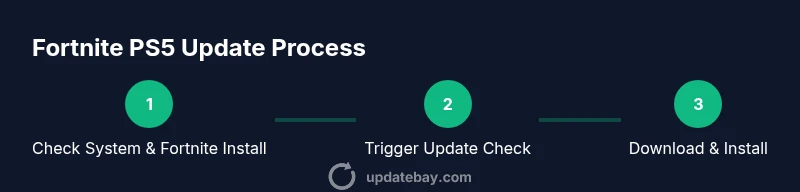
How to Update Fortnite on PS5
Learn how to update Fortnite on PS5 with this practical guide—from checking for updates to troubleshooting, ensuring you play the latest patch quickly and safely.


To update Fortnite on PS5, ensure your console is online with the latest system software, then check for Fortnite updates from the Game Library. If an update is available, download and install automatically. If updates stall, restart your PS5 and router, verify storage, and retry or reinstall as needed. Keep an eye on the progress bar and ensure you have enough disk space.
Fortnite updates on PS5: how they work
Fortnite updates on PS5 are delivered through the console’s update pipeline in conjunction with Epic Games’ patch distribution. According to Update Bay, staying current with patches matters for performance, bug fixes, and cross‑play compatibility. In practice, you don’t download a separate patch file from Epic; the PS5 system handles the deployment when you launch Fortnite or trigger a manual check from the Game Library. The PS5 will show an update notification during startup or when you open Fortnite in the library. Patch notes appear in‑game and on the Epic Games website, helping you understand what’s changing. To minimize downtime, plan updates when your network is stable, you have adequate storage, and you aren’t running other large downloads. If you see a “update pending” message, verify your PSN status and ensure you’re not set to Rest Mode, which can pause downloads. Whether you’re on a disk install or digital download, both paths use the same update engine. If you’re updating multiple games, prioritize Fortnite to reduce wait times.
Prerequisites before you start
Before you begin updating Fortnite on PS5, verify core conditions that prevent failures:
- Your PS5 is connected to the internet with a reliable connection. Ethernet is preferred for stability, but Wi‑Fi can work if signal strength is good.
- Fortnite is installed and accessible from the Game Library.
- You’re signed in to your PlayStation Network account with an active subscription if required for online features.
- There is sufficient free storage space on the console to download and install the patch. Large patches can take several gigabytes, and insufficient space will pause or cancel downloads.
- The PS5 system software is up to date. System updates can improve download reliability and security, which helps game patches install smoothly.
- Automatic updates are enabled (optional) so future patches install in the background while you play other games.
If any of these conditions aren’t met, address them first to reduce update friction.
Checking for updates: where to find them
The PS5 makes it straightforward to verify and install Fortnite updates. Start on the Home screen, navigate to Game Library, find Fortnite, and open the Options menu. Choose Check for Update to force a patch check; if an update is pending, the system will begin downloading it automatically. You can also manage automatic updates in Settings > System > Automatic Updates, and ensure “Keep my games up to date” is enabled. If Fortnite isn’t listed as needing an update but you still suspect an update is available, try restarting the console and retrying the check. After starting the download, the progress bar will appear on the Fortnite tile. Once the download completes, the game will install the patch and prompt you to launch.
Common issues that delay updates and how to fix
Update problems are usually caused by network instability, insufficient storage, or PSN status issues. Typical symptoms include a stuck download progress bar, error codes, or the game not showing as updated after installation.
To troubleshoot:
- Pause and resume the download, or cancel and restart the update.
- Restart the PS5 and your router to refresh network connections.
- Check your storage; delete unused games or move data to an external drive if needed.
- Confirm PSN status is operational by visiting PlayStation’s service status page.
- If problems persist, consider reinstalling Fortnite from the Game Library after backing up any data linked to your account.
Following these steps usually resolves most update hiccups.
Improving download speed and managing storage
If you’re trying to update during peak traffic times or with a crowded home network, you may see slower speeds. Practical strategies:
- Use a wired Ethernet connection for maximum stability and speed.
- Pause other downloads or streaming activities during the patch.
- Ensure there’s ample free storage; Fortnite patches can require significant space for unpacking and installation.
- Consider using an external USB drive if internal storage is limited, though performance may vary.
- Enable background updates so patches can continue while you use the console for other tasks.
These measures help ensure a smooth, uninterrupted update.
Verifying the install and keeping Fortnite up to date
After the patch finishes installing, launch Fortnite to confirm you’re on the latest version. Look for the patch notes in the Epic Games launcher or in-game notices, and verify the build number if you’re troubleshooting. If you enabled automatic updates, Fortnite should update automatically in the future, but you may still want to perform a quick manual check occasionally. Regularly reviewing patch notes helps you anticipate new features, balance changes, or required restarts that might affect gameplay. Keeping the PS5 system updated also ensures compatibility with future Fortnite patches and PSN features.
Additional tips for PS5 users
General best practices to keep Fortnite updates trouble-free on PS5:
- Always keep your PS5 firmware current to maximize download reliability and security.
- Prefer Ethernet when possible; wireless can still work with a strong signal but may intermittently stall downloads.
- Enable automatic updates for both the system and games to minimize manual checks.
- If you’re in a shared household, schedule updates during off-peak hours to speed up downloads.
- If you encounter persistent errors, consult the official Fortnite support pages and Epic Games’ patch notes for guidance.
By following these recommendations, you’ll reduce update friction and get back to playing quickly.
Tools & Materials
- PS5 console(Ensure it’s connected to the internet and has the latest system software.)
- Fortnite installed on PS5(Accessible via the Game Library or storefront.)
- Active PlayStation Network account(Needed for online services and updates.)
- Stable internet connection (Ethernet recommended)(Wired connections offer the most consistent speeds.)
- Sufficient free storage space(Patch downloads can require several gigabytes.)
- External USB drive (optional)(Useful if internal storage is tight; performance may vary.)
- Power source with reliable outlet(Minimize power interruptions during downloads.)
Steps
Estimated time: 20-45 minutes
- 1
Check PS5 system status and Fortnite installation
Power on the PS5 and verify your system software is current. Confirm Fortnite is installed and accessible from the Game Library.
Tip: A current system build reduces the risk of patch incompatibilities. - 2
Prepare your network and storage
Connect via Ethernet if possible and ensure there is ample free space to download and install the patch.
Tip: A stable connection prevents partial downloads and corrupted patches. - 3
Trigger a patch check in Fortnite
From the PS5 Home screen, open Game Library, select Fortnite, press Options, and choose Check for Update to prompt the patch check.
Tip: If you don’t see an update, enable automatic updates in Settings. - 4
Let the download install
Allow the patch to download and install in the background. Do not interrupt the process unless necessary.
Tip: Avoid using the console for other heavy tasks during the install. - 5
Troubleshoot stalled updates
If the update stalls, restart the PS5 and your router, then retry the update. Check PSN status if issues persist.
Tip: A fresh start often clears network or cache hiccups. - 6
Verify the update
Launch Fortnite and confirm you’re on the latest build via in-game patch notes or the Epic Games site.
Tip: If you still see an older patch, repeat the update check after a short wait. - 7
Consider reinstalling if needed
If problems persist after multiple attempts, uninstall and reinstall Fortnite after backing up your account data.
Tip: Reinstalling can fix corrupted patch files or partial installations.
Frequently Asked Questions
Why isn't Fortnite updating on PS5?
Update issues are usually caused by network problems, PSN service status, or insufficient storage. Check your connection, ensure PSN is online, and verify there’s enough space before retrying the update.
Most updates fail due to network or storage issues. Check your connection and storage, then retry.
Will updates affect my saved data or progress?
Fortnite patches typically update the game files without removing saved progress. However, always back up important data and ensure your account is linked correctly to avoid issues.
Updates generally don’t erase your progress, but back up data just in case.
Do I need PlayStation Plus to update Fortnite?
No, you do not need PlayStation Plus to update Fortnite. Updates rely on your PSN connection and game license, not the Plus subscription.
No Plus required for updates.
What should I do if the update keeps failing to download?
Try a full restart of your PS5 and router, clear temporary data, free additional storage, and attempt the update again. If persistent, reinstall Fortnite from the Game Library.
Restart devices, free space, then retry. Reinstall if needed.
Can I update Fortnite offline on PS5?
No, Fortnite requires an online connection to fetch and install the latest patch. Ensure your PS5 can access the internet for updates.
Updates require an online connection.
Watch Video
What to Remember
- Check for Fortnite updates via Game Library for the latest patch.
- Stable network and sufficient storage prevent update failures.
- Restart devices and retry if updates stall or fail.
- Verify the patch in-game to confirm a successful install.