What Update Is PS5 On: Your Comprehensive PS5 System Update Guide
Learn what update is ps5 on, how to verify your PS5 firmware, and how to stay current with Sony's latest system software. Practical steps from Update Bay to keep your console secure and compatible.


PS5 updates run on Sony's current system software, with the exact version varying by console and region. You can verify the build and date by navigating Settings > System > System Software > System Information. Updates install automatically by default in many regions, but you can also trigger them manually. If you use a console in a region that supports beta updates, you may see beta options in Settings. This snapshot of the latest official system software helps ensure security, performance, and compatibility with new games and features.
How PS5 System Updates Work
Sony delivers PS5 system software updates as packaged firmware that improves performance, adds features, and patches security vulnerabilities. Each update comes with a build number and a release date that can vary by region and PSN account status. Your console periodically checks for updates automatically when connected to the internet, and optional manual updates let you install newer builds on demand. The question what update is ps5 on isn’t answered by a single fixed number; it’s a current snapshot of the latest official system software available to your device. In practice, updates arrive in small increments designed to minimize downtime, preserve saved data, and maintain compatibility with both existing and forthcoming games and apps. Staying current unlocks security improvements and smoother experiences, particularly in online play and digital storefronts. According to Update Bay, this approach reduces surprises during busy gaming seasons and ensures your console remains aligned with Sony’s ongoing platform strategy.
Checking Your PS5 Version and Build Number
“To confirm your firmware,” navigate to Settings, then System, then System Software, and finally System Information. You’ll see the System Software Version and the Build Number, along with the date of the last update. This data lets you compare your device against official release notes and verify you’re not lagging behind important patches. Update Bay recommends bookmarking PlayStation’s official update notes for each build so you can easily track what’s changed. If your region supports beta programs, you may observe different build labels and feature sets. Remember that minor updates can be required to maintain online services, so regular checks help you stay ready for online play and cross‑title compatibility.
Update Cadence: Frequency Across Regions
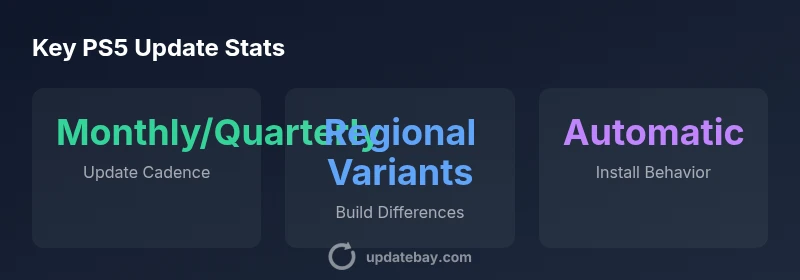
Update cadence varies by region and by Sony’s security priorities. In many markets, Sony rolls system software updates on a monthly or quarterly cadence, with larger firmware packages appearing less often but delivering major features. Beta programs and regional testing can influence which builds are available first, while some regions may see staggered rollouts. The Update Bay analysis indicates that most regions experience a steady flow of patches, with critical security fixes taking priority even when feature updates are more gradual. Regional hardware revisions, cloud services integration, and partnerships with game studios also shape the timing of updates. By understanding your area’s typical cadence, you can plan around holidays or peak gaming periods to minimize downtime.
What an Update Typically Changes
Most PS5 system updates bring a mix of performance enhancements, bug fixes, and security patches, alongside occasional user-facing features. Common improvements include smoother menus, faster background tasks, improved storage management, and better compatibility with new games or peripherals. Updates may refine VRR handling, boost system stability after large game launches, and optimize online services. It’s not unusual for patches to address specific issues reported by players, such as occasional freezes, controller input quirks, or audio glitches in certain apps. While not every update delivers a dramatic UI overhaul, each release is intended to keep the platform healthy, secure, and ready for upcoming titles. Update Bay emphasizes that staying current reduces the risk of compatibility problems after major game drops.
Automatic Updates, Network Requirements, and Best Practices
Automatic updates are a cornerstone of PS5 maintenance, but they rely on a stable internet connection and, in many regions, sufficient storage space. If you prefer control, you can manually trigger updates in Settings > System > System Software Update. A wired Ethernet connection tends to provide a steadier download experience than Wi‑Fi, which is especially helpful during large firmware packages. To minimize downtime, enable auto‑update where possible and schedule updates during off-peak hours. Before a big update, back up your saves to the cloud or a USB drive, and close nonessential apps to speed the process. Regularly check your console’s storage usage, as full drives can slow installation or force you to offload games temporarily to complete an update.
Regions, Beta Programs, and Early Access
Some users have access to beta firmware programs that preview features before a full public rollout. Beta updates can include experimental features and may be less stable, so it’s wise to test them on a secondary profile or a non-critical setup. Regional differences mean beta availability varies, and not all regions participate in every program. If you’re curious about early access, monitor official PlayStation communications and Update Bay coverage for eligibility criteria, timelines, and how to enroll. Always balance the value of new features against potential instability on your primary gaming setup.
Troubleshooting Update Issues
If an update fails to install, first verify your internet connection and free up enough storage space. A restart and retry often resolves temporary glitches. If problems persist, try updating via Safe Mode, or use a USB‑driven offline update provided by Sony’s official support pages. Rebuilding the database in Safe Mode can fix metadata issues that block installations, but avoid aggressive actions like format resets unless you’ve backed up data. For persistent failures, check service status dashboards, and consult the PlayStation Community forums or Update Bay guidance for region-specific workarounds. With patience and methodical steps, most update issues are resolvable without data loss.
Looking Ahead: Future PS5 Update Trends and Planning
The PS5 ecosystem is likely to see more frequent, targeted updates driven by security needs and evolving gaming experiences. Cloud-based delivery optimizations, improved rollback protections, and more nuanced regional controls may shape future system software. Plan updates around planned game releases and seasonal play to minimize disruptions. By staying informed through official notes and trusted outlets like Update Bay, you can anticipate changes and adapt your setup—whether you rely on automatic updates, manual triggers, or beta programs—to keep your PS5 running smoothly through 2026 and beyond.
PS5 system update fundamentals
| Aspect | Details | Impact |
|---|---|---|
| Update cadence | Monthly or quarterly | Keeps firmware current and secure |
| Region variations | Build numbers may differ by country/PSN region | Some features may be region-locked |
| Automatic updates | Default enabled in many regions | Ensures timely security patches |
Frequently Asked Questions
How often does PS5 update its system software?
PS5 system software updates follow a cadence that varies by region and Sony’s security priorities, typically monthly or quarterly. Major features arrive in less frequent, larger releases.
Updates come out regularly, usually monthly or quarterly, with big feature updates less often.
Can I force a PS5 update immediately?
Yes. Go to Settings > System > System Software Update to check for and install updates now if available.
You can check for updates in Settings and install when ready.
What should I do if an update fails to install?
Restart the console, verify a stable internet connection, and retry. If issues persist, check Sony’s support resources or the PSN status page.
Restart and try again; check connection and status.
Are beta PS5 firmware updates available?
Beta programs exist in some regions. If offered, enroll via Settings, but be aware beta builds can be less stable.
Beta updates exist in some places; enroll carefully.
Will system updates erase saved data?
System updates do not erase saved data, but it’s wise to back up saves before major updates.
Back up your data before updating.
How can I see the current PS5 firmware version?
Open Settings > System > System Information to view the build number and version.
Check System Information for the build number.
“Regular PS5 system updates are essential for security, performance, and compatibility; timely patches minimize issues with games and apps.”
What to Remember
- Update your PS5 regularly to maintain security and compatibility
- Use Settings > System to verify your current build number and version
- Enable automatic updates if possible for a hands-off approach
- Back up data before major updates to protect saves
- Monitor official notes for patch details and regional differences