How to Check for Updates on PS5
Learn how to check for PS5 system, game, and app updates. This step-by-step guide covers auto-updates, troubleshooting, and best practices to keep your console running smoothly.


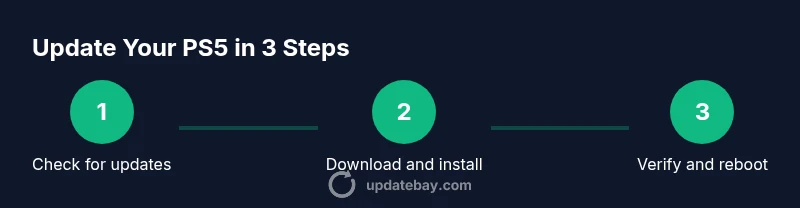
On PS5, you’ll check updates by navigating to Settings > System > System Software Update and Settings, then selecting Update System Software. Ensure your console is online and consider enabling automatic updates for ongoing maintenance. You can also check and update games and apps from the Library or individual titles.
Why updates matter on PS5
Staying current with updates on your PS5 is essential for security, new features, performance improvements, and game compatibility. System updates fix bugs, patch vulnerabilities, and add stability tweaks that keep the console running smoothly with new titles and services. Game and app updates can improve performance, fix localization issues, and resolve compatibility problems with the latest patches. According to Update Bay, most users benefit from keeping both the system and installed games up to date to avoid crashes or missing features. Regular maintenance also helps ensure accessories like controllers and headsets work reliably with the latest firmware. By understanding how PS5 updates work, you can minimize downtime and maximize your entertainment time without surprises.
What counts as an update on PS5
There are two main categories of updates on the PS5: system software updates and content updates. System updates apply to the operating system, system apps, and firmware for the console’s hardware features. Content updates cover games and apps, including patches, DLCs, and bug fixes. Some updates are prompted by the console itself, while others require user approval. Patch notes accompany many updates, detailing changes, new features, and known issues. Recognizing the difference helps you decide when and how to update, and reduces confusion when you see multiple update prompts in a short period.
Quick overview: where to check updates on PS5
You can check for system software updates directly in Settings. For games and apps, updates can be checked from the Library or from individual titles via the Options menu. Enabling automatic updates ensures the PS5 downloads and installs updates in the background whenever you’re connected to the internet. If you prefer manual control, you can review each item’s update status in the Library and trigger updates one by one. Always confirm that your internet connection is stable before starting an update, and ensure the console remains powered during the download and install process.
Step-by-step: checking system software updates
To check the PS5 system software, start from the home screen and go to Settings. Navigate to System > System Software Update and Settings. If an update is available, choose Update System Software and follow the on-screen prompts. The console will download and install the update, potentially requiring a reboot. If no update is shown, your system is up to date. You can also enable automatic updates here, which keeps the system current without manual checks.
Step-by-step: checking game and app updates
From the home screen, open Library to view installed games and apps. Highlight a title and press the Options button, then select Check for Update. Repeat for other titles as needed. If automatic updates are enabled, the PS5 will download updates in the background. You can also view the status of recent updates within each title’s detail page. After updates install, launch the title to confirm it runs correctly.
Troubleshooting common update issues
If updates fail to install, first verify your internet connection and ensure there’s enough free disk space. Pause and resume downloads, reboot the console, or try updating via a wired connection if you’re on Wi-Fi. If a specific game won’t update, check the PlayStation Network status page for outages and consult patch notes for known issues. For chronic failures, consider rebuilding the database from Safe Mode, which can resolve file system inconsistencies that block updates.
Best practices: keeping your PS5 current and secure
Set up automatic updates for both system software and games to minimize manual work. Regularly check the update status in the Library and Settings, and review patch notes to understand new features and potential compatibility changes. Keep your console powered during updates to prevent corruption, and maintain a backup of saved data if you’re performing a major system upgrade. Staying current reduces security risks and helps you enjoy the latest features and performance improvements.
Tools & Materials
- PS5 console(Must be online for automatic or manual updates.)
- Stable internet connection(Wired Ethernet is preferred for reliability.)
- Controller with a charged battery(Needed to navigate menus and confirm updates.)
- External USB drive (optional)(Useful for offline backups or large content transfers.)
Steps
Estimated time: 15-25 minutes
- 1
Power on and verify internet connection
Turn on the PS5 and ensure it is connected to the internet. A stable connection is required for system and game updates. If your Wi-Fi is unstable, switch to a wired Ethernet connection for reliability.
Tip: Wired connections reduce download interruptions and speed up installs. - 2
Open Settings from the home screen
Navigate to the gear-shaped Settings icon and open it to access update options. This is the hub for system software updates and automatic update settings.
Tip: Use the left-hand navigation to quickly reach System options. - 3
Check system software updates
Go to System > System Software Update and Settings. If an update is available, select Update System Software and follow prompts. If not, your system is current.
Tip: If prompted, read patch notes before installing. - 4
Check game/app updates
From the home screen, open Library. Highlight a title, press Options, and choose Check for Update. Repeat for other titles as needed.
Tip: Enable automatic updates to automate this process. - 5
Enable automatic updates
In Settings, turn on Automatic Updates for both System Software and Games & Apps. This minimizes manual checks and ensures timely patches.
Tip: Automatic updates work best with a stable internet connection. - 6
Handle a failed update
If an update fails, restart the console, verify network status, and try again. If issues persist, check PSN status pages for outages and review patch notes.
Tip: Sometimes pausing and resuming downloads can resolve hiccups. - 7
Verify after installation
Launch updated system software or game to ensure it runs correctly. Check for any new settings introduced by the update.
Tip: If problems occur, consider a secondary reboot or Safe Mode options.
Frequently Asked Questions
Do I need an internet connection to check for PS5 updates?
Yes. Updates generally require an online connection to access the latest files and patch notes. Without internet, you may not be able to download or install updates.
Yes, you need an internet connection to check and install PS5 updates.
How do I enable automatic updates for system software and games?
Go to Settings > System > System Software Update and Settings, then toggle Automatic Updates for system software. In Library, toggle for Games & Apps as well. This keeps your PS5 current with minimal manual effort.
Turn on automatic updates in system and library settings.
What should I do if an update fails to install?
First check your internet connection and available disk space. Restart the console and try the update again. If the problem persists, review PlayStation Network status and patch notes for known issues.
If an update fails, check connection, retry, and review PSN status and patch notes.
Can I update games manually if automatic updates are off?
Yes. In Library, select a title, press Options, and choose Check for Update. Repeat for other titles as needed. Manual updates require an active internet connection.
You can manually update games from the Library with an internet connection.
Will updating improve performance or fix issues I’m seeing in a game?
Updates often include bug fixes and performance improvements. Patch notes usually detail these changes, so reviewing them can help set expectations after updating.
Updates typically fix bugs and may boost performance; patch notes explain details.
Watch Video
What to Remember
- Check both system and game updates regularly.
- Enable automatic updates for hands-off maintenance.
- Differentiate between system software and game updates.
- Back up data if planning a major upgrade.
- Troubleshoot updates promptly to minimize downtime.