How to Manage Updates on PS5: A Practical Guide
Learn step-by-step how to manage updates on PS5, including automatic settings, manual checks, and troubleshooting. This Update Bay guide covers system software, game patches, network considerations, and best practices to keep your PS5 secure and up to date.


By the end, you’ll know how to manage updates on ps5 effectively, from enabling automatic updates to manually checking for firmware and game patches. This guide covers PS5 system settings, network tips, and validation steps to confirm successful installs. According to Update Bay, staying current reduces compatibility issues and improves security.
Why keeping PS5 updates matters
Keeping your PS5 updated is foundational for performance, security, and compatibility with new games. System software updates bring stability fixes, new features, and improved security defenses, while game updates patch known issues and add content optimizations. Skipping updates can lead to crashes, longer load times, or mismatches with online services. The Update Bay team emphasizes that a regular cadence reduces surprises and keeps your library functioning smoothly, especially as new titles illustrate evolving requirements for firmware compatibility and online connectivity. View updates as ongoing maintenance rather than occasional chores, and you’ll avoid cascading issues that disrupt play sessions or digital purchases.
In practice, establish a routine: check weekly for system updates, review game patches after major releases, and verify that automatic downloads are enabled for both system software and installed titles. This approach minimizes the risk of running an outdated firmware that could block new features, hinder performance, or affect online multiplayer experiences. A consistent update habit also helps ensure you get the latest security protections and bug fixes without manual scavenging. The goal is a stable, secure gaming environment where your PS5 can run all titles as intended.
Understanding update types on PS5
PS5 updates come in several forms: system software updates (core OS improvements), game patches (title-specific fixes), and firmware updates (hardware-level enhancements). System updates can unlock new features like UI tweaks or improved power management, while game patches address in-game bugs, balance changes, and compatibility with peripherals. Firmware updates, though less frequent, optimize the console’s hardware controllers, storage interfaces, and network stack. Knowing the three categories helps you triage when you should expect downtime and how to allocate bandwidth effectively.
Most users encounter updates automatically, but understanding how they’re delivered helps you plan better. For example, some large game patches can require substantial download time, while a critical system update might prompt a mandatory reboot. If you participate in beta programs or early access, updates may arrive more frequently. Staying informed about update types helps set realistic expectations and reduces frustration when a patch temporarily interrupts play. Update Bay’s guidance emphasizes confirming the type of update before taking action, to avoid unnecessary reboots or data re-downloads.
How PS5 handles updates by default
The PS5 is designed to streamline updates in the background, but behavior depends on your settings and network conditions. By default, the console checks for updates, downloads them in the background when connected to power, and prompts you to install when convenient. If you enable automatic updates, both system software and compatible games will update without manual prompts. Auto-downloads can run when the console is in rest mode, which helps minimize wait times during active gaming sessions. If you manage a large library with many patches, be mindful of bandwidth limits and pause settings during peak usage.
Understanding default behavior helps you optimize for your household. For instance, if multiple family members play online, enabling background downloads can keep everyone on current builds. Conversely, if you have data caps or a slower connection, you may prefer to disable some automatic downloads and schedule updates for off-peak hours. Update Bay notes that aligning PS5 defaults with your usage pattern leads to a smoother experience and avoids unexpected interruptions.
Preparing for updates: backups, power, and connectivity
Before you begin any update routine, prepare your system to minimize risk. Ensure the PS5 is plugged into a reliable power source to prevent mid-update shutdowns, which can corrupt firmware or software. If you’re in a region with unstable power, consider using a surge-protected power strip. Have a stable network connection—prefer Ethernet where possible for large patches—and verify your router’s firmware is current to maintain a stable download path. It’s also wise to free up storage space on the console drive or set up external storage for game data to prevent space-related update failures.
Create a quick backup of essential data, especially saved games that live in the cloud or on the console. While PS5 updates are designed to be non-destructive, having a backup reduces anxiety if something goes wrong during installation. If you use cloud saves, ensure your account is syncing properly before initiating updates. These preparatory steps reduce risk and help you complete updates without losing progress.
Enabling automatic updates and background downloads
To minimize manual work, turn on automatic updates for both system software and games. On the PS5 home screen, go to Settings > System > System Software > Automatic Updates, and enable automatic download and installation. Then navigate to Settings > Saved Data and Game/App Settings > Automatic Updates for Games, enabling automatic updates for both installed titles and content updates. In Rest Mode, ensure “Stay Connected to the Internet” is active so downloads can proceed while you’re away.
Tip: If you’re worried about bandwidth, you can restrict automatic downloads to specific times using your router’s QoS features or set a nightly window for heavy patches. Regularly check the Update Center after major game releases to confirm patches landed correctly. Update Bay’s experience shows that the convenience of auto-updates usually outweighs manual handling for most households, but plan a manual check after big patch days to verify integrity and ensure no conflicting downloads.
By configuring these settings, you’ll keep your PS5 current with minimal effort while avoiding surprise restarts during gaming sessions.
Manually checking and installing updates
Manual checks are essential when you want total control. From the PS5 home screen, go to Settings > System > System Software Update and Settings to see if a new system update is available. For games, head to Library > Games to see which titles have pending patches and select individual games to review available updates. If a patch is available, choose Update to install. After installation, the console will typically reboot to finalize changes.
If you ever suspect an incomplete download, cancel and restart the process to avoid corrupted files. For large updates, consider starting the process when you can monitor progress and confirm completion. Validation is simple: check the system build number under Settings > System > Console Information and compare it with the published version in Sony’s notes. Regular manual checks ensure you don’t miss urgent patches.
Pro tip: When updating, connect a controller cable or ensure wireless connections are stable to prevent timeouts during the install. This reduces the chance of failed updates due to signal drops.
Why this matters for you: manual checks give you confidence, especially after major game releases or platform-wide security fixes.
Managing network usage and download settings
Bandwidth management helps prevent updates from crowding your network. Use Ethernet when possible for faster, more reliable downloads, and disable auto-update if you need to prioritize other devices on the network. If you must use Wi-Fi, place the console within strong signal range and consider 5GHz networks for lower interference. Some routers offer “Pause when playing” features to ensure online gameplay isn’t impacted during updates.
Set a download schedule if your router supports it, and limit simultaneous downloads to avoid saturating your connection. If you rely on capped data plans, pre-download updates during off-peak hours when data costs are lower, and install them when you’re ready to play. Update Bay’s guidance emphasizes tracking network performance before, during, and after large patches to maintain a stable gaming environment.
In addition, monitor download progress in the Network Settings screen to confirm expected speeds and to detect stalls early. If you notice unusually slow speeds, reboot your router and the PS5, then retry the update. Strategic network management keeps your gaming experience smooth and predictable.
Troubleshooting update failures and rollbacks
Update failures can be stressful, but most issues have simple fixes. If a system update stalls, pause and resume, or cancel and reinitiate after a few minutes. A power cycle—completely turning the console off and back on—often resolves stuck updates. If problems persist, try safe mode options: Rebuild Database, Clear Cache, or Initialize PS5 (note: Initialize may erase data, so back up first).
Common causes include corrupted downloads, insufficient storage, or unstable network connections. Verify you have enough free space, re-download the update, or switch to a wired connection for reliability. In some cases, removing problematic patches and reinstalling from scratch is necessary. The Update Bay team recommends patience and a methodical approach to avoid data loss while restoring full functionality.
If you encounter a specific error code, consult Sony’s official error guides and confirm you’re using the latest firmware. Persistently problematic updates may require professional assistance or a fresh start with a factory reset, but explore safer troubleshooting steps first to minimize risk.
Best practices and maintenance cadence
Establish a durable maintenance rhythm: check for updates weekly, review patch notes, and verify your backups monthly. Maintain notification settings so you’re alerted to critical updates as soon as they’re released. Avoid last-minute installs before important sessions unless you’re prepared to troubleshoot potential issues. A stable, repeatable process reduces the chance of update-induced outages and keeps your PS5 compatible with evolving online services and new games.
Keep a log of major updates, your current firmware version, and any issues encountered. This history helps you troubleshoot faster and informs future maintenance plans. Finally, balance convenience with control: auto-updates for system software can run overnight, while manual checks may be preferable for game patches occurring closer to release dates. The core message from Update Bay is to build a predictable, low-friction update routine that keeps your PS5 engaged and secure.
Tools & Materials
- PS5 console(Connected to a stable power source)
- Stable internet connection(Wired Ethernet is preferred for large updates)
- Controller and charging setup(Keep it charged during updates to avoid interruptions)
- External storage (optional)(Used to offload games or patches if space is tight)
- Smartphone or tablet (PS App)(Can monitor updates remotely)
- Router with current firmware(Enhances network reliability for downloads)
Steps
Estimated time: 60-75 minutes
- 1
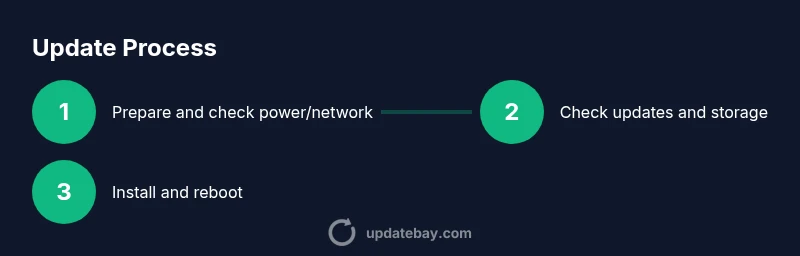
Prepare your PS5 and network
Plug the PS5 into a reliable power source and connect to a stable network, preferably via Ethernet for large updates. Ensure the room is ventilated to prevent overheating during long install times. This step reduces the chance of power loss interrupting the update.
Tip: Verify the console is not in Rest Mode if you’re performing a critical update; switch to full power to avoid mid-download sleep states. - 2
Check for system and game updates
Open Settings > System > System Software Update and Settings to see if a new system update is available. Then go to Library > Games to check for pending patches on installed titles. If updates exist, prepare to install.
Tip: If you see a large patch, consider starting the update in a quiet window to avoid bandwidth contention. - 3
Choose auto-update vs manual
Decide whether to enable automatic updates for system software and games or to manage updates yourself. Auto-update saves time but requires trust in background processes. Manual updates give you control over timing and data usage.
Tip: If you share a household, auto-update reduces run-time interruptions for others. - 4
Install updates and reboot
Proceed with the installation prompts and allow the PS5 to reboot as needed. Do not interrupt the process once it starts. After reboot, confirm the version shows the latest build.
Tip: If the install fails, note the error code before retrying. - 5
Verify update success
Navigate to Settings > System > Console Information to confirm the firmware version. For games, re-check patch status in Library to ensure all patches installed correctly.
Tip: Document the build number for future reference. - 6
Manage storage before critical patches
Check available space in System Storage under Storage. Free up space by moving games to external storage if needed. Large patches can fail when disk space is insufficient.
Tip: Aim for at least 10–20% free space beyond the patch size. - 7
Schedule maintenance and monitor
Set a housekeeping cadence for weekly checks and monthly backups. Monitor network performance during updates to catch slowdowns early.
Tip: Use your router’s QoS to prioritize gaming traffic during updates. - 8
Troubleshoot common failures
If updates fail, perform a power cycle, re-download the patch, or try Safe Mode options like Rebuild Database. If persistent, contact Sony support with the error code.
Tip: Always back up saved data before major resets.
Frequently Asked Questions
What types of updates does the PS5 receive?
The PS5 receives system software updates, firmware updates, and game patches. System updates improve OS features and security, firmware updates optimize hardware and connectivity, and game patches fix in-game issues and add content. Keeping all three current ensures stability and compatibility.
PS5 updates include system, firmware, and game patches, all of which keep your console secure and running smoothly.
How often should I check for updates?
Ideally, check for updates weekly and enable automatic updates for both system software and games. Regular checks help you receive critical patches promptly and avoid delays that could affect compatibility or security.
Check weekly or rely on automatic updates so you don’t miss important patches.
Can I update PS5 while gaming?
Some updates can run in the background, but large patches may require a restart or user attention. When possible, schedule updates during downtime to avoid interruptions to your gaming sessions.
Sometimes updates run in the background, but you may need to restart to complete big patches.
What should I do if an update fails?
If an update fails, perform a power cycle, re-download, or use Safe Mode options like Rebuild Database. Check storage space and network stability. If the issue persists, consult Sony support with the error code.
If an update fails, reboot, retry, and check space and connection; contact support if needed.
Is there a risk to data during updates?
Updates are designed to be non-destructive, but it’s wise to back up saved data before major patches. If you use cloud saves, ensure syncing is active, and consider external backups for confidence.
Data loss is unlikely, but backups are a smart precaution before big updates.
Watch Video
What to Remember
- Enable auto-updates for convenience
- Always verify after installations
- Keep backups before major patches
- Prefer wired connections for large updates
- Plan updates during off-peak times for stability